
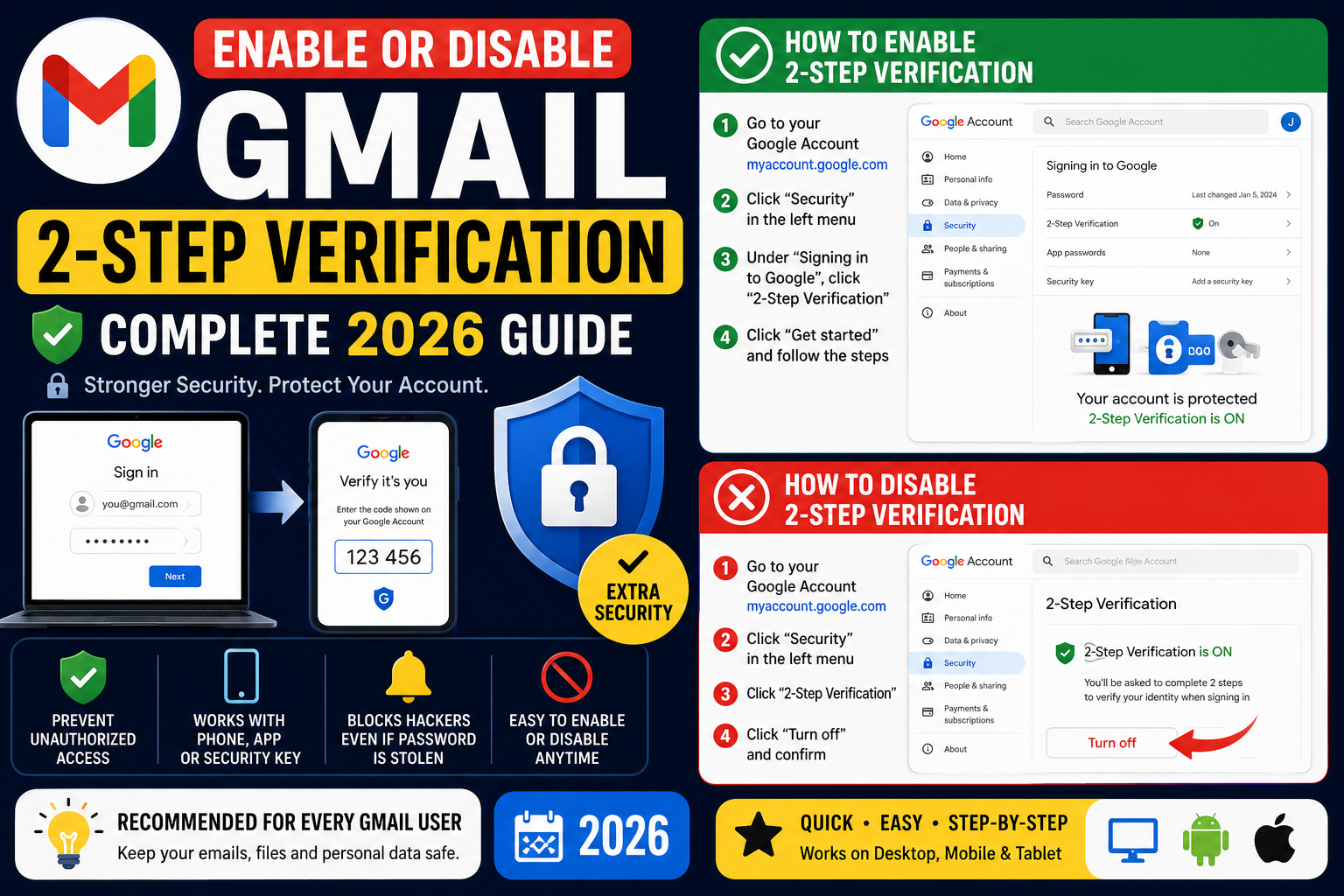
Gmail 2-Step Verification (2SV) adds a second layer of security beyond your password. Even if someone steals your password, they still cannot access your account without the second factor: an SMS code, an authenticator app, a hardware security key, or a phone prompt. This 2026 guide walks through turning 2SV on with each method, generating backup codes, and turning it off if you need to (though we strongly recommend keeping it on).
Google reports that 2SV blocks 100 percent of automated bot attacks and 96 percent of phishing attacks. It is the single biggest security upgrade you can make to your Google account.
Why 2-Step Verification matters
Passwords alone are increasingly not enough.
- Password leaks happen constantly. Data breaches at third-party sites reveal reused passwords daily.
- Phishing sites trick users into typing passwords into fake Gmail login pages.
- Keyloggers and malware capture passwords typed on infected devices.
- 2SV blocks all of these because the attacker still needs your phone or authenticator app to get in.
- Enabling 2SV takes 5 minutes and pays off forever.
Enable 2-Step Verification on your Google Account
The core setup path.
- Open
myaccount.google.com/securityin any browser. - Sign in with your Gmail account.
- Under How you sign in to Google, click 2-Step Verification.
- Click Get started.
- Google asks for your password again to confirm your identity.
- Enter your phone number and choose Text message or Phone call.
- Google sends a verification code. Enter it to prove the phone works.
- Click Turn on. 2SV is now active. Next time you sign in from a new device, Google prompts for a code.
Add a Google Authenticator app for stronger 2SV
Authenticator apps generate time-based codes offline, which is more secure than SMS.
- Download Google Authenticator from your app store (or use Authy, 1Password, or Microsoft Authenticator).
- On
myaccount.google.com/security, under 2-Step Verification, click Authenticator app. - Click Set up authenticator. Google displays a QR code.
- Open the authenticator app on your phone and tap Add account or +.
- Scan the QR code with your phone camera.
- The authenticator app generates a 6-digit code that changes every 30 seconds.
- Enter the current code in the Google Account setup to verify. Save.
Set up a hardware security key
The most secure 2SV method. Uses a physical USB or NFC key like YubiKey or Google Titan.
- Buy a compatible security key (YubiKey 5, Google Titan, etc.). Costs around $25-50.
- On
myaccount.google.com/security, under 2-Step Verification, click Security key. - Click Add security key.
- Insert or tap the key to your device when prompted.
- Give the key a name (e.g., “Home Yubikey”).
- Save. From now on, signing in from a new device requires tapping the physical key.
Generate and store backup codes
Backup codes let you sign in when you lose access to your phone or authenticator app. Print them and store securely.
- On
myaccount.google.com/security, under 2-Step Verification, click Backup codes. - Click Get backup codes. Google generates 10 one-time codes.
- Print the codes or save them to a password manager (do not save them in plain text on your phone).
- Store the printed copy in a safe or lock box. These are your last-resort access if you lose everything else.
- Each code works only once. Cross off each as you use it.
- Regenerate a new set anytime the current set is running low.
Turn off 2-Step Verification (only if you must)
Not recommended, but if you absolutely need to turn it off:
- Open
myaccount.google.com/security. - Under 2-Step Verification, click Turn off.
- Enter your password to confirm.
- Google warns you about the security risk. Click Turn off anyway if you understand the risk.
- Your account is now protected by password only. Consider re-enabling 2SV as soon as possible.
Common 2-Step Verification mistakes
- Only using SMS. SMS is the weakest 2SV method. SIM swap attacks can intercept SMS codes. Use an authenticator app or hardware key for stronger protection.
- Not saving backup codes. If you lose your phone AND lack backup codes, recovery becomes hard and slow. Print backup codes at setup time.
- Turning off 2SV to make signup easier. A temporary convenience creates permanent risk. Almost every serious data breach in the last decade could have been prevented with 2SV.
- Setting up 2SV on shared accounts. If your family shares a Gmail, 2SV forces them to share the phone too. Use separate accounts instead of shared logins.
- Ignoring the backup phone slot. Add a second phone number as backup. If your primary phone is lost, the backup receives codes.
When each 2SV method is right for you
SMS 2SV is fine for personal accounts with low security requirements. It is better than no 2SV, but SIM swap attacks are a real risk for high-value targets.
Authenticator apps (Google Authenticator, Authy) are the sweet spot for most users. Free, no SIM swap risk, works offline, and takes about 30 seconds to set up on your phone.
Hardware security keys (YubiKey, Titan) are the gold standard for high-security use cases: financial accounts, business admin accounts, cryptocurrency wallets. Costs $25-50 but eliminates phishing and SIM swap attacks entirely.
Google Prompts (a pop-up on your Android phone asking “Yes, that’s me”) are convenient for daily use once set up. Combine with backup codes for a resilient system.
Power-user tips for account security
- Use multiple 2SV methods. Set up authenticator app AND backup codes AND a phone. If one fails, the others still work.
- Enable Advanced Protection Program. For journalists, activists, or high-profile targets, Google’s Advanced Protection requires hardware security keys and blocks certain risky account changes.
- Review sign-in activity monthly. myaccount.google.com/security > Recent activity shows every device that logged in. Revoke any you do not recognize.
- Set up account recovery contacts. Add a recovery phone AND recovery email so lockouts are recoverable through multiple paths.
- Use a password manager. Strong unique passwords per site prevent one leak from cascading. 1Password, Bitwarden, or Google Password Manager all work.
Official documentation
Recommended email productivity resources
The links below are affiliate links. We may earn a commission at no extra cost to you when you buy or sign up. See our affiliate disclosure.
Quick step-by-step summary (click to expand)
- Open Google Account security. Go to myaccount.google.com then Security in the left menu.
- Click 2-Step Verification. Under How you sign in to Google, click 2-Step Verification. Sign in again if prompted.
- To enable: click Get started. Follow prompts to add your phone number, verify code, and confirm.
- To disable: click Turn Off. Click Turn Off under the 2-Step Verification section. Confirm the choice.
- Set backup codes. If enabling, generate and save backup codes in case you lose access to your phone.
Frequently Asked Questions
Is 2-Step Verification required for Gmail?
Not for personal accounts, but strongly recommended. Google Workspace admins can require it for all users in their organization.
Can I turn off 2SV if I lose my second factor?
Yes, but only after successfully going through account recovery. Backup codes make this easier. Without any second factor or backup codes, recovery takes days.
What are backup codes for Gmail 2SV?
10 one-time codes you generate at setup. Print and store securely. Use them if your primary 2SV method (phone, authenticator) is unavailable.
Does Google Authenticator work for Gmail?
Yes. Google Authenticator, Authy, 1Password, and Microsoft Authenticator all work as 2SV apps for Gmail. Any TOTP-compliant authenticator app works.
Will disabling 2SV affect all my Google services?
Yes. 2-Step Verification applies to your entire Google Account, so turning it off affects Gmail, Drive, YouTube, Google Play, and every other Google service.
Which 2SV method is safest?
Hardware security keys (YubiKey, Titan) are the most phishing-resistant. Authenticator apps are next. SMS is the weakest but still much better than no 2SV. Use hardware keys for high-value accounts.

Caren Bautista
Technical Writer at PIES IT Solution
Responsible for crafting clear, well-structured, and beginner-friendly content across the platform. Handles the writing, proofreading, and editorial review of tutorials, guides, and documentation to ensure every article is accurate, readable, and easy to follow.
Expertise: Technical Writing · Content Creation · Documentation · Editorial Writing · JavaScript · TypeScript · View all posts by Caren Bautista →
Gmail 2 step verification in 2026: what to know before you change it
Google made 2 step verification mandatory for all personal Gmail accounts in January 2026. You cannot turn it OFF anymore for personal accounts. What you CAN change is the method: SMS text codes, Google prompts on your phone, authenticator apps, or physical security keys. If a guide tells you how to “disable 2FA” on personal Gmail in 2026, that guide is out of date.
For Google Workspace accounts (work or school Gmail), your organization admin controls whether 2 step verification is required. Some organizations enforce it, some do not. If you cannot find the 2 step verification setting in your account, ask your admin whether it is enforced org wide.
The most reliable 2 step method in 2026 is a physical security key (YubiKey 5, Google Titan Key). SMS is still supported but has known security vulnerabilities (SIM swapping attacks can bypass SMS 2FA). Google itself recommends physical keys for high value accounts. A YubiKey costs about 45 USD and lasts 5 to 10 years.
If you are traveling internationally and worried about losing access to your 2 step method, print your backup codes BEFORE you leave home. Go to myaccount.google.com > Security > 2 Step Verification > Backup codes, download or print 10 one time codes, and keep them somewhere safe in your bag. Each code works exactly once. This is the ultimate fallback if your phone breaks, gets lost, or has no signal.
A common 2026 pain point: when you get a new phone, your Google Authenticator codes do NOT automatically transfer. You must manually export from the old phone using the “Transfer accounts” option in the Authenticator app, or use Google prompts instead, which follow your Google account rather than the specific phone. If you already lost the old phone without exporting, you will need to use backup codes or contact Google support for account recovery.