
Docker is the containerization tool that changed how developers ship software. Instead of “it works on my machine” arguments, you package your application + its dependencies + its runtime into a single portable container that runs identically everywhere. This 2026 beginner guide walks you through installing Docker, running your first container, understanding the difference between images and containers, and avoiding the pitfalls that trip up new users.
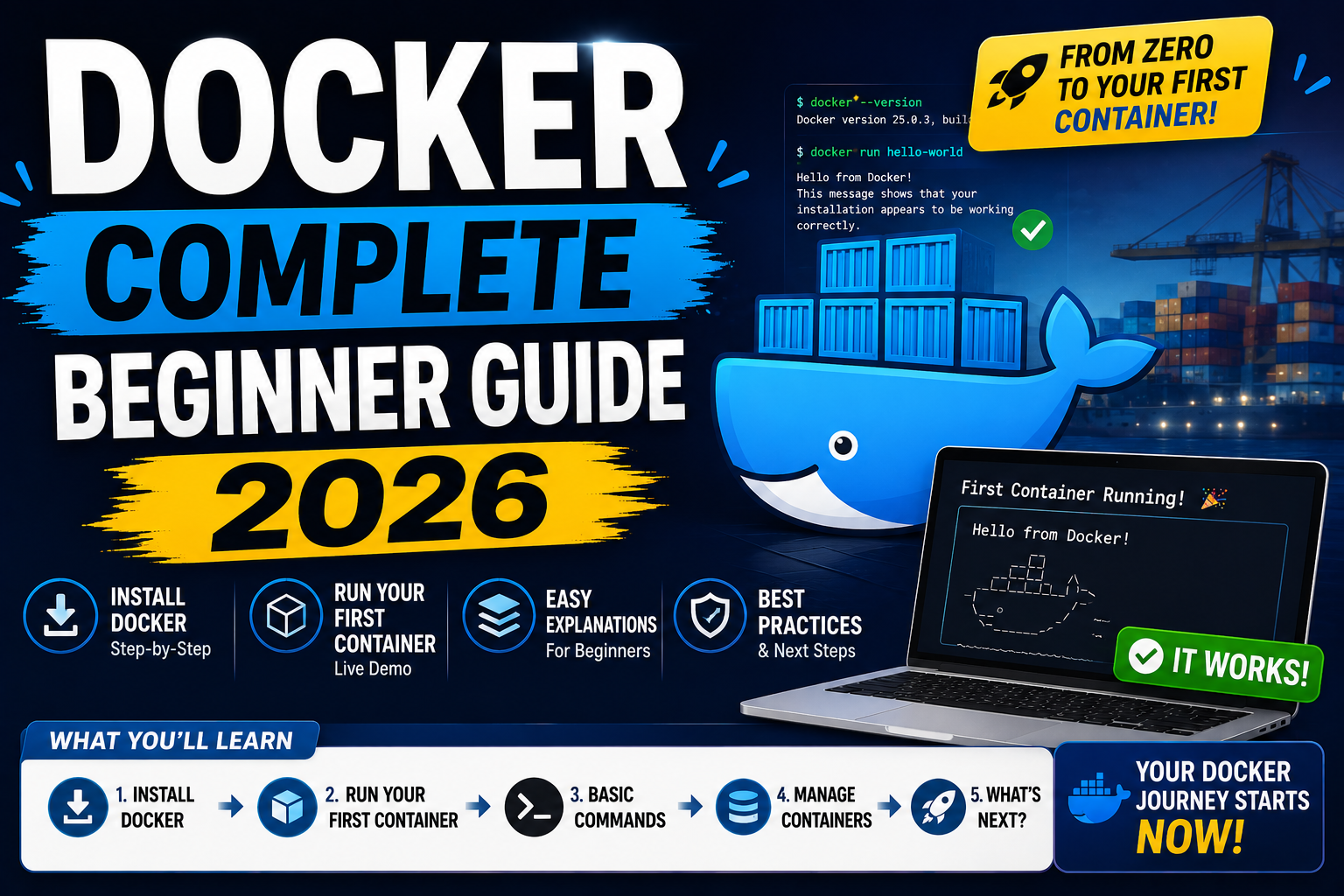
Quick 2026 verdict for beginners
Install Docker Desktop on Windows or Mac (free for personal use + small business). On Linux, install Docker Engine via your package manager. Learn 5 commands (docker run, docker ps, docker images, docker stop, docker build) and you can run 90 percent of real-world containers. Everything else builds on those.
What is Docker (and why every developer uses it in 2026)
Docker packages your application + all its dependencies (Python version, Node modules, system libraries, configuration files) into a self-contained unit called a container. That container runs identically on your Mac laptop, your Ubuntu server, a Windows CI runner, and a cloud production environment. No more environment drift. No more “install these 47 packages first” READMEs.
The 2026 developer stack essentially assumes Docker fluency. Job listings for backend, DevOps, and full-stack roles list Docker as required, not preferred. Startups ship in containers. Enterprise apps run in containers on Kubernetes. Even Python and Node projects use Docker for consistent local development.
Install Docker in 2026 (Windows, Mac, Linux)
Windows 10/11 or Mac (Intel or Apple Silicon): Download Docker Desktop from docker.com/products/docker-desktop. Run the installer. On Windows, the installer will prompt to enable WSL 2 backend (accept, it is much faster than the legacy Hyper-V backend). On Mac, drag the app to Applications and launch.
Linux (Ubuntu / Debian): Use the official convenience script:
curl -fsSL https://get.docker.com -o get-docker.sh
sudo sh get-docker.sh
sudo usermod -aG docker $USER
newgrp docker
docker --version
The last line should print something like Docker version 27.3.1, build .... If you see that, Docker Engine is installed and running.
Run your first container (hello-world)
Open a terminal and run:
docker run hello-world
What just happened: Docker checked if the hello-world image was on your machine (no), downloaded it from Docker Hub (a public registry of pre-built images), created a container from that image, and ran it. The container printed a welcome message and exited. This entire flow, pull image, create container, run, exit, is the fundamental Docker workflow.
Images vs containers (the concept most beginners miss)
An image is a template. A container is a running instance of that template. Think of an image like a class definition and a container like an object instance. You can create many containers from one image.
Example: pull the nginx web server image, then run three separate containers from it, each listening on a different port:
docker pull nginx
docker run -d -p 8080:80 --name web1 nginx
docker run -d -p 8081:80 --name web2 nginx
docker run -d -p 8082:80 --name web3 nginx
One image, three isolated containers. Visit http://localhost:8080, :8081, and :8082 in your browser, all serve the default nginx welcome page from separate containers.
The 5 commands you actually use daily
Every Docker user relies on this handful of commands. Memorize these and you handle 90 percent of real-world Docker work:
docker run [options] IMAGE, create and start a new container from an imagedocker ps, list currently running containers (add-afor all containers including stopped)docker images, list all images on your machinedocker stop CONTAINER, gracefully stop a running container (use container name or ID fromdocker ps)docker build -t IMAGENAME ., build a new image from a Dockerfile in the current directory
Common docker run options you’ll use constantly: -d (detached, run in background), -p HOST:CONTAINER (port mapping), --name NAME (give container a memorable name), -v HOST:CONTAINER (mount a volume for persistent data), --rm (auto-delete container when it exits, keeps your machine clean).
Building your own image with a Dockerfile
Most real projects need a custom image. Create a file named Dockerfile in your project directory:
FROM python:3.12-slim
WORKDIR /app
COPY requirements.txt .
RUN pip install --no-cache-dir -r requirements.txt
COPY . .
CMD ["python", "app.py"]
This Dockerfile: starts from the official Python 3.12 slim image, sets the working directory, copies + installs dependencies, copies your app code, and runs it. Build the image:
docker build -t my-python-app .
docker run -d -p 5000:5000 --name myapp my-python-app
Congratulations, your Python app now runs in an isolated container that any teammate can spin up with 2 commands on any OS.
Common Docker pitfalls in 2026
- Permission denied on Linux. After install you need to add your user to the docker group and re-login:
sudo usermod -aG docker $USER; newgrp docker. Otherwise every command needssudo. - Container immediately exits. Containers stop when their main process exits. If your container has no long-running process (like a web server), it stops instantly. Use
docker logs CONTAINERto see why. - Port already in use. Symptom:
bind: address already in use. Another container or process holds that port. Change the host port (left side of-p HOST:CONTAINER) or stop the conflicting service. - Disk space bloat. Docker accumulates stopped containers, unused images, and orphaned volumes. Clean up quarterly with
docker system prune -a(removes ALL unused resources, read the confirmation carefully). - Docker Desktop consumes too much RAM on Mac. Default 8GB is aggressive. Reduce in Docker Desktop → Settings → Resources → Memory to 4GB if you don’t run heavy multi-container stacks.
Where Docker fits in the 2026 stack
Docker handles single-machine container runtime. For multi-container apps you graduate to Docker Compose (YAML file defining several containers that work together, perfect for a web app + database + cache). For production orchestration across many machines you graduate to Kubernetes (industry standard for scaling containers across a cluster of servers).
Learning path: master Docker → learn Docker Compose (1 week) → learn Kubernetes basics (2-4 weeks) → cloud-managed Kubernetes like AWS EKS, GCP GKE, or DigitalOcean Kubernetes. Each layer builds on the previous. Do not skip Docker to jump straight to Kubernetes, it will not stick.
Try these hosting + tool partners for your Docker projects
The links below are affiliate links. We may earn a commission at no extra cost to you when you sign up through them. See our affiliate disclosure for details.
- Cloudways, managed cloud hosting with 1-click Docker deployment. Great for running your Docker container in production without touching server admin.
- Kamatera, bare-metal cloud with per-hour billing. Ideal for spinning up a Docker host to test workloads before committing to a monthly plan.
- Network Solutions, domain + hosting combo for Docker-hosted personal projects.
Quick step-by-step summary (click to expand)
- Install Docker Desktop or Docker Engine. Download Docker Desktop for Windows or Mac from docker.com. On Linux, use the official convenience script: curl -fsSL https://get.docker.com -o get-docker.sh && sudo sh get-docker.sh.
- Verify the install works. Run docker –version in your terminal. You should see Docker version 27.3.1 or similar.
- Run your first container. Execute docker run hello-world. Docker will pull the image, create a container from it, and print a welcome message.
- Learn the 5 daily commands. Memorize docker run, docker ps, docker images, docker stop, and docker build. These handle 90 percent of real-world Docker work.
- Build a custom image with a Dockerfile. Create a file named Dockerfile that starts FROM python:3.12-slim, runs pip install, and executes CMD [“python”,”app.py”]. Then run docker build -t my-app .
Frequently Asked Questions
Is Docker free to use in 2026?
Docker Engine (Linux) is free forever, open-source. Docker Desktop (Windows and Mac) is free for personal use, education, non-commercial open-source projects, and small businesses under 250 employees + under 10 million USD annual revenue. Larger companies need a paid Docker Business subscription (starting around 21 USD per user per month).
Do I need to learn Linux before Docker?
Basic Linux command-line knowledge helps (cd, ls, cat, chmod). You do not need to be a Linux expert. Docker Desktop on Windows and Mac gives you a Linux-based container runtime without needing to run Linux as your main OS.
Docker vs virtual machines: what is the difference?
VMs virtualize an entire operating system (kernel + userland) per instance, costing 1-2 GB of RAM and 10+ GB of disk per VM. Containers share the host kernel and only isolate the userland, costing 20-100 MB of RAM and a few MB of disk each. Containers start in seconds; VMs take minutes. For most modern app deployment, containers are the right choice.
Where do Docker images come from?
Public images come from Docker Hub (hub.docker.com), the default registry. Official images are maintained by Docker or the project maintainers themselves (like nginx, postgres, python). You can also push private images to Docker Hub, AWS ECR, Google Artifact Registry, GitHub Container Registry, or self-host with Harbor.
How do I persist data if my container is deleted?
Use volumes: docker run -v /host/path:/container/path IMAGE. Data written to the container path is stored on your host machine. Container can be deleted and recreated without losing data. For databases, always use volumes.
What is Docker Compose and when do I need it?
Docker Compose lets you define a multi-container app in one YAML file (docker-compose.yml). Start everything with docker compose up. Use it as soon as your app needs a database, cache, or any second container. Comes bundled with Docker Desktop; on Linux install the compose plugin.
Related Docker + DevOps tutorials
- Kubernetes for Beginners 2026 (coming this week)
- Terraform vs Pulumi 2026 IaC comparison (coming this week)
- GitHub Actions Complete CI/CD Guide 2026 (coming this week)
Official documentation
- Docker: official documentation
- Docker Hub: public image registry
- Docker Engine: install guide (all platforms)

Adones Evangelista
Programmer & Technical Writer at PIES IT Solution
Adones Evangelista is a programmer and writer at PIES IT Solution, author of over 900 tutorials and error-fix guides at itsourcecode.com. Specializes in JavaScript, Django, Laravel, and Python error debugging covering ValueError, TypeError, AttributeError, ModuleNotFoundError, and RuntimeError, plus C/C++ and PHP capstone projects for BSIT students.
Expertise: JavaScript · Python · Django · Laravel · Error Debugging · C/C++ · View all posts by Adones Evangelista →