
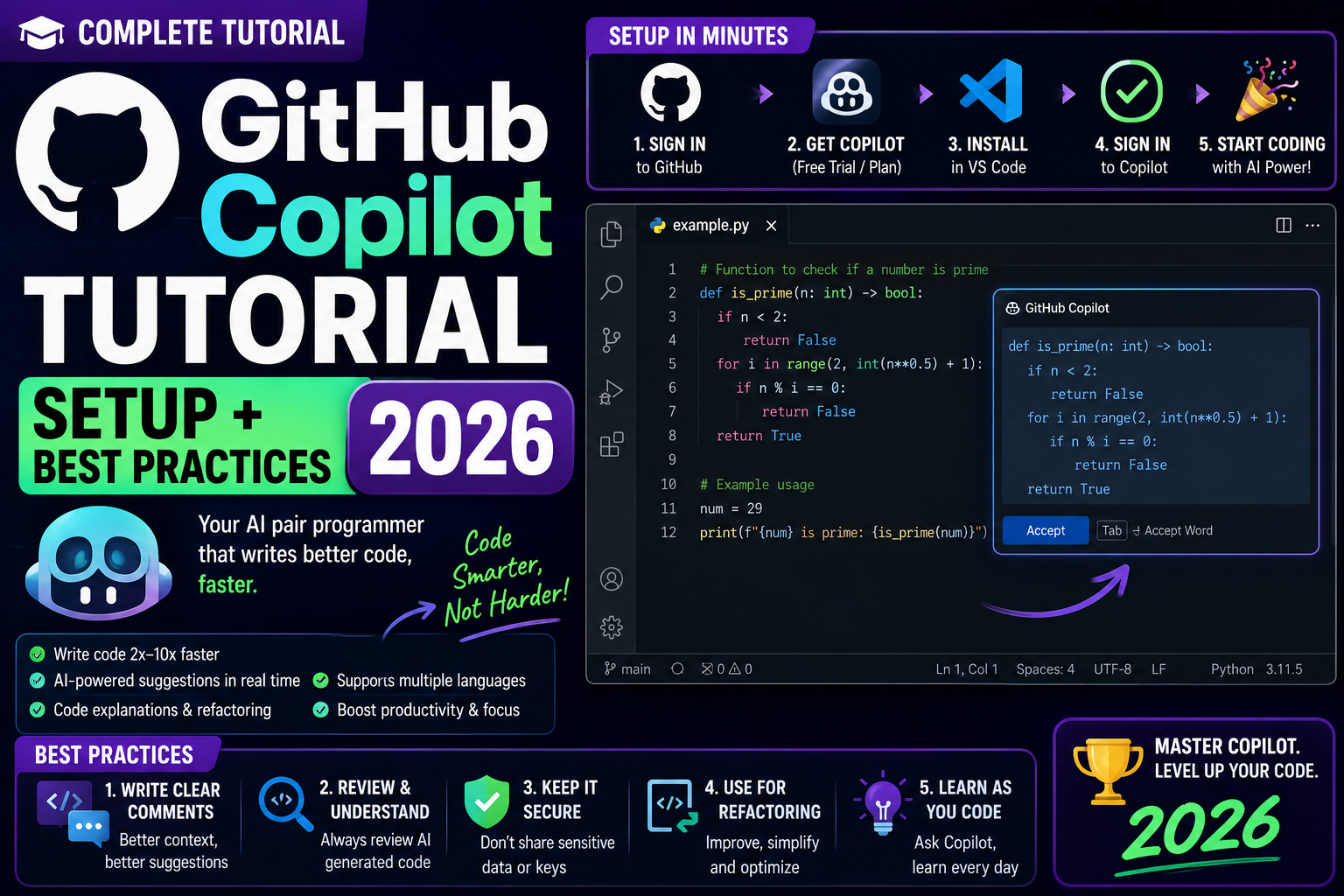
GitHub Copilot is the most popular AI coding assistant, used by 40+ million developers. It suggests code as you type, answers questions inline, and can generate entire functions from comments. This 2026 tutorial covers setup in VS Code, best practices, and how BSIT students can get it FREE via GitHub Student Pack.
Copilot pricing 2026
| Plan | Cost | For |
|---|---|---|
| Free (limited) | $0 | 2,000 completions/mo + 50 chat messages/mo |
| Individual (Pro) | $10/mo | Solo developers |
| Business | $19/user/mo | Teams + admin controls |
| Enterprise | $39/user/mo | Fine-tuning + IP indemnity |
| Student | FREE | Verified students via GitHub Student Pack |
Get GitHub Copilot FREE (Student Pack)
- Go to education.github.com/pack.
- Click Sign up for Student Developer Pack.
- Verify with your student email (.edu, or use school ID + upload).
- Approval takes 1-7 days.
- Once verified: Copilot Individual becomes free (as long as you’re a student).
- Also unlocks: free Notion, JetBrains IDEs, Namecheap domain, and more.
Install Copilot in VS Code
- Open VS Code.
- Extensions sidebar (Ctrl+Shift+X).
- Search “GitHub Copilot”.
- Install both:
- GitHub Copilot: code completion.
- GitHub Copilot Chat: inline chat.
- Sign in with GitHub account when prompted.
- Grant Copilot subscription access.
Use Copilot code completion
- Start typing code as normal.
- Copilot suggests completion in gray text.
- Press Tab to accept.
- Press Esc to reject.
- Press Alt+] for next suggestion.
- Press Ctrl+Enter to see multiple suggestions.
Generate code from comments
Type a comment describing what you want:

# Function that validates email addresses
# using RFC 5322 regex

def [Copilot suggests function here]
Copilot writes the function based on the comment. Refine your comment to refine the code.
Copilot Chat inline
- Highlight code.
- Right-click > Copilot > Ask Copilot.
- Or press Ctrl+I (Windows) / Cmd+I (Mac).
- Ask questions or request changes.
- Copilot rewrites or explains.
Common Copilot Chat commands
/explain, explain highlighted code
/fix, fix errors in highlighted code
/tests, write tests for highlighted code
/doc, add documentation
/optimize, suggest performance improvements
/refactor, refactor for readability

# In chat prompt:
@workspace, chat is aware of entire codebase
@terminal, chat is aware of terminal output
#file:filename, reference specific file
Best practices for using Copilot
- Write descriptive comments: Copilot uses them as intent.
- Name variables clearly: better names = better suggestions.
- Review every suggestion: Copilot hallucinates library APIs and outdated patterns.
- Delete bad suggestions: don’t leave “close enough” code, it accumulates tech debt.
- Use Chat for context: inline suggestions are for typing flow; Chat is for questions.
- Keep sensitive info out: don’t include API keys, credentials, or client secrets in your codebase.
Common Copilot mistakes to avoid
- Accepting all suggestions blindly, they contain bugs.
- Relying on Copilot for security-critical code (authentication, crypto).
- Skipping code reviews because “Copilot wrote it”.
- Ignoring outdated library patterns (Copilot’s training data has old code).
- Publishing Copilot-only code without understanding, you can’t defend it in code review.
Copilot vs ChatGPT for coding
| Task | Copilot | ChatGPT / Claude |
|---|---|---|
| Inline suggestions | Best | Not applicable |
| Architectural questions | OK | Better |
| Long refactors | Limited | Better |
| Speed of typing | 2-3x | 1x |
Use both: Copilot for inline flow, ChatGPT/Claude for questions.
Copilot for other IDEs
- JetBrains (IntelliJ, PyCharm, WebStorm), plugin available.
- Visual Studio, plugin available.
- Neovim, plugin available.
- Vim, plugin available.
- Xcode, plugin coming.
Common Copilot issues
- Suggestions not appearing: check subscription active, restart VS Code, sign out/in.
- Chat won’t load: reinstall extension.
- Suggestions in wrong language: Copilot detects file extension. Ensure your file has correct extension.
- Very slow: check internet, Copilot needs cloud connection.
- License denied: subscription lapsed. Renew.
Comparison at a glance
- General-purpose chat: ChatGPT Plus ($20/mo), Claude Pro ($20/mo), Gemini Advanced ($20/mo). All similar quality; personality differs.
- Coding assistance: GitHub Copilot ($10/mo), Cursor ($20/mo), Codeium (free tier). Copilot integrates deepest with VS Code.
- Search + citation: Perplexity ($20/mo Pro) is search-first with source citations.
- Free tiers: All major tools have free tiers good enough for casual use. Start free, upgrade when limits become blockers.
Common mistakes when adopting AI tools
- Trusting first-draft output blindly. Every AI hallucinates. Verify facts, test code, check dates. Treat AI output as strong first draft.
- Paying for multiple overlapping tools. Do not subscribe to ChatGPT Team, Claude Pro, and Gemini Advanced simultaneously. Pick one primary, use free tiers for others.
- Ignoring privacy. Free tier prompts may be used for training. Use paid tiers with data-usage guarantees for sensitive work.
- Overusing AI for simple tasks. Sometimes Google Search or docs are faster than prompt engineering.
- Not learning prompt engineering. The gap between beginner and expert AI users is prompt quality.
Practical adoption path
Week 1: Pick one general-purpose chat tool. Use free tier for 5-10 real tasks. Track which tasks it accelerates vs slows down.
Week 2: Add a coding tool if you code. Evaluate the same way.
Week 3: Decide. If a tool saves 30+ minutes daily, subscribe. If it only helps occasionally, stay on free tier.
Ongoing: Reassess quarterly. AI moves fast. What was best in Q1 may be surpassed by Q3.
Best practices for AI-assisted work
- Verify before shipping. Test code, fact-check claims, review generated content.
- Version your prompts. Keep a library of prompts that work. Reuse and iterate.
- Combine tools. Different tools have different strengths. Use each where it excels.
- Learn continuously. Follow one credible newsletter (Ben’s Bites, TLDR AI, The Batch) to stay current.
- Set boundaries. AI is a tool, not a replacement for thinking. Some tasks deserve human focus.
Building AI tools into your daily workflow
Beyond one-off uses, integrating AI into your daily workflow multiplies productivity gains. Common integration patterns:
- Morning briefing. Ask your AI to summarize overnight news, emails, or Slack messages while you have coffee.
- Meeting prep. Feed context documents to AI 5 minutes before meetings for a quick brief on what to discuss.
- Draft-and-refine writing. AI generates the first draft; you edit for accuracy, voice, and specificity.
- Code review companion. Ask AI to spot bugs, suggest improvements, or explain unfamiliar code before your human reviewer sees it.
- Learning accelerator. AI explains concepts, generates practice problems, and grades your work. Great for self-directed learning.
Prompt engineering fundamentals
The gap between beginner and expert AI users is prompt quality. Master these fundamentals:
- Provide context. “I am a junior developer working on…” is far better than just “write code”.
- Specify format. “Return the output as a JSON object with keys X, Y, Z” produces cleaner output.
- Give examples. Show the AI what good output looks like. It matches your examples.
- Break complex tasks into steps. Chain of thought prompting improves accuracy on hard problems.
- Iterate. First response is rarely perfect. Refine your prompt based on what came back.
Ethical considerations for AI tools
AI tools raise real ethical questions worth thinking through. Some guidelines:
- Attribution and transparency. If you use AI to write content, disclose when appropriate. Academic and journalistic contexts often require it.
- Privacy of prompts. Do not paste sensitive company data, personal identification, or confidential client information into public AI tools.
- Bias awareness. AI reflects the biases of its training data. Review outputs for gender, race, cultural, or political biases before publishing.
- Copyright and originality. AI-generated content sits in legal gray areas. Consult with your organization’s legal or compliance team for commercial use.
- Skill atrophy. Over-relying on AI can dull your own skills. Balance AI usage with human practice on core competencies.
Official documentation
Recommended developer resources
The links below are affiliate links. We may earn a commission at no extra cost to you when you buy or sign up. See our affiliate disclosure.
Frequently Asked Questions
Is Copilot free for students?
Yes. Verified students get Copilot Individual FREE via GitHub Student Developer Pack. Verify with student email or ID at education.github.com/pack.
Does Copilot work offline?
No. Needs internet to send code to GitHub’s servers for AI processing. Slower connections mean slower suggestions.
Is Copilot code copyrighted?
Ambiguous. Individual/Business plans: you own the code. Enterprise offers indemnity. Some code Copilot suggests could match training data patterns. Review before using in commercial products.
Should I use Copilot for interviews / coding tests?
No. Interviews test YOUR skills. Copilot use disqualifies you at many companies. Use it for learning/production, not screenings.
Does Copilot make me a worse programmer?
Depends on how you use it. If you accept suggestions blindly, yes. If you use it to move fast AND understand what it produces, no. Treat as a smart pair programmer whose work you review.

Angel Jude Suarez
Full-Stack Developer at PIES IT Solution
Focuses on Python development, machine learning, and AI integration. Has built production AI systems including OpenAI Whisper integration for medical transcription and GPT-4o-powered diagnosis assistance. Strong background in pandas, scikit-learn, and TensorFlow.
Expertise: Python · PHP · Java · VB.NET · ASP.NET · Machine Learning · View all posts by Angel Jude Suarez →