
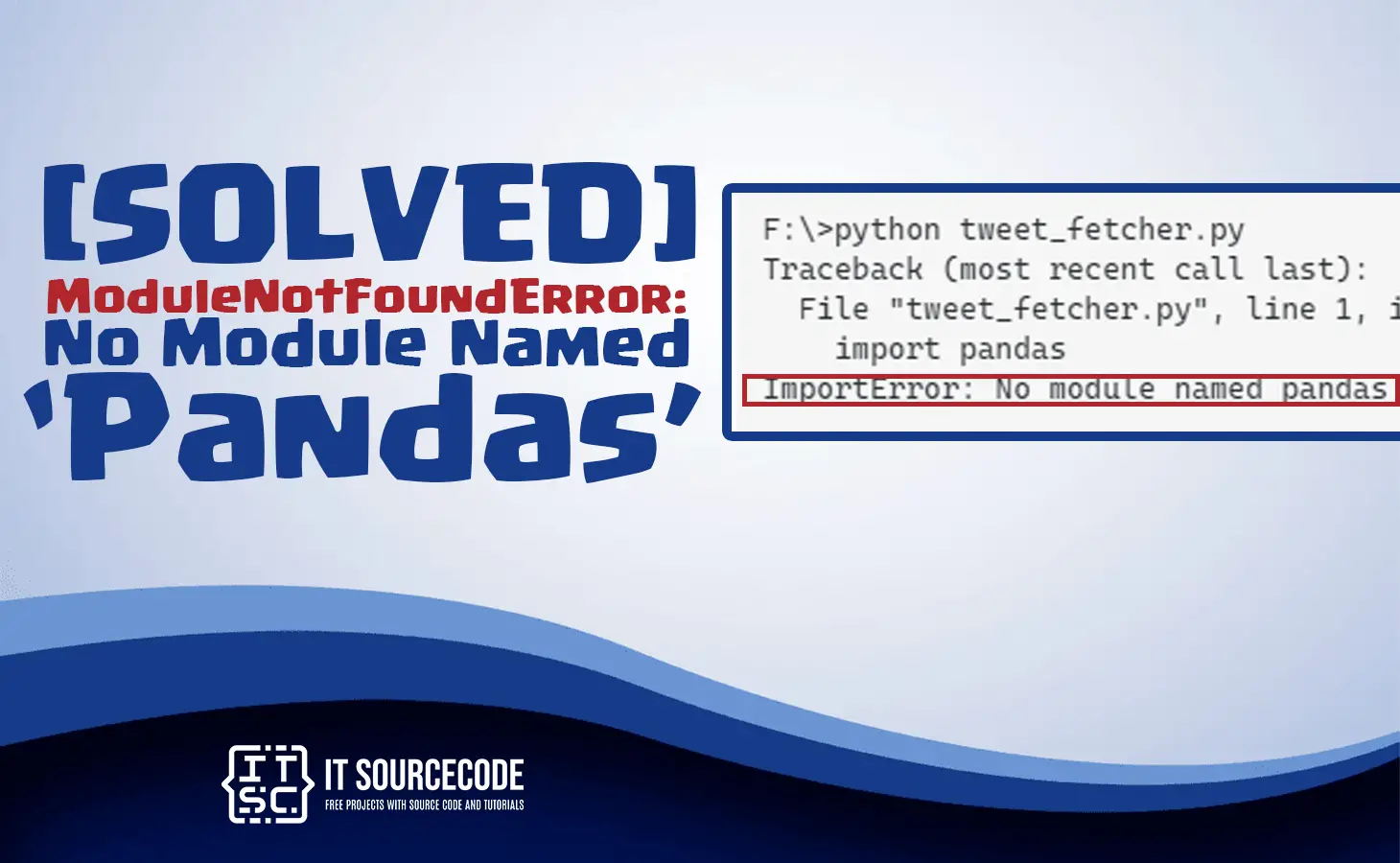
In this article, we will learn how to fix Modulenotfounderror: No Module Named ‘Pandas’ and also provide solutions to solve the error.
Moreover, the Modulenotfounderror: No Module Named ‘Pandas’ will appear if the system cannot find the installation in of pandas library.
In other words, there is an error in downloading the module.
This Error in Python Commonly Occur
- The error will appear because we haven’t installed the pandas clearly with the functions of pip install pandas.
- Also, the error will occur because you have different Python installed in your system and the Pandas which is not installed in an incompatible version.
ModuleNotFoundError: No module named ‘pandas’
In most cases this error in Python generally raised:
- You haven’t installed Pandas explicitly with pip install pandas.
- You may have different Python versions on your computer and Pandas is not installed for the particular version you’re using.
Therefore, before to import Pandas Module, we must need to install Pandas library by using the pip function.
How to Fix Modulenotfounderror: No Module Named ‘Pandas’
Time needed: 2 minutes
Here are the steps on how to solve the problem No Module Named ‘Pandas’
- Step 1: Install pandas using pip
We can run the following command in Linux/MacOS/Windows terminal by typing this command.
“pip install pandas“ - Step 2: Install in Python 3
We can use this command to install it in Python 3.
“pip3 install pandas“ - Step 3: Install Upgrade version of Pandas
If we already installed pandas in our system, updating pandas should be the finest solution for most cases. We will use this command to update the pandas.
“pip3 install pandas –upgrade“ - Step 4: Install exact version of pandas
If we want to install the exact version of pandas. Type this example command.
“pip3 install pandas==1.2.1“ - Step 5: Install the same Python and Pandas version
Make sure we do not have numerous Python versions that are complex, we must run the following commands to Install the same Python and Pandas version:
” python3 -m pip install pandas “
or either
” python3 -c ‘import pandas’ “
How to find the installed pandas version?
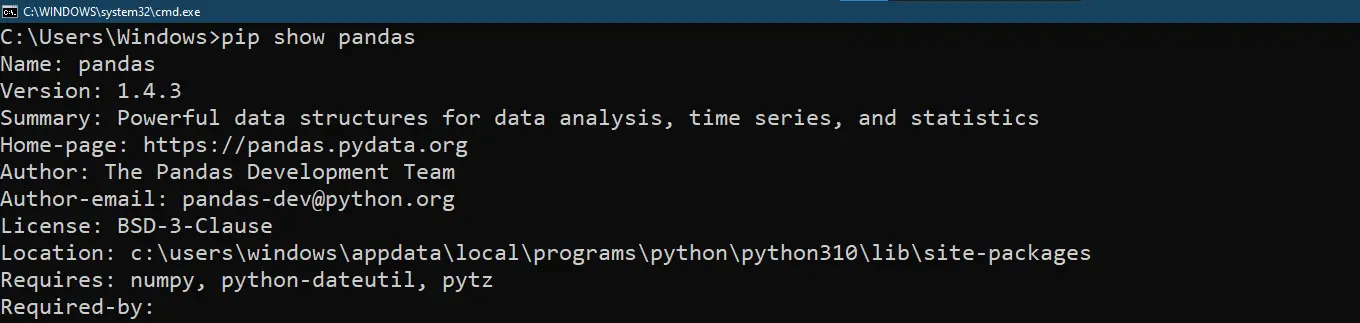
After installing the pandas module, we can check the pandas version in our system. Just type this command to show the version of pandas
pip show pandas
After you type the command above, it will show like this below.
If we run some issues with exemption, we need to run this command for linux:
sudo pip3 install pandas
sudo pip3 install – installs as the root user.
For windows type this command:
pip3 install pandas
pip3 install – installs as the root user
How Install PIP in Python Language?
A Pip is a package being used to install and manage libraries or packages which is written in python. The Python 3.4 and Python 2.7.9 its include with a PIP module. When we didn’t find that the PIP is not available when we will use python.
To install the Python 3.4+ or Python 2.7.9, type this command:
py -3 -m ensurepip
How to know the version of pip installed in our system?
pip –version
After you type this command in project root directory it will show the version of pip installed in your system.

Diagnostic checklist for “No module named ‘pandas'”
- Verify pip install target. Run
pip show pandas— if not installed, runpip install pandas. - Check the active Python interpreter.
which python(mac/Linux) orwhere python(Windows). Both pip and python must point to the same environment. - Check virtual environment activation. If you use venv/conda, activate before installing:
source .venv/bin/activate. - Rule out uppercase/lowercase. Python imports are case-sensitive:
import PyPDF2notimport pypdf2. - Rule out the pip-vs-package-name mismatch. Some packages install under a different name than you import (e.g.
pip install beautifulsoup4→import bs4).
Installing pandas — Python data-analysis stack
# Standard pip install
pip install pandas

# For Anaconda / miniconda users
conda install -c conda-forge pandas

# For pandas + numpy stack — install both at once
pip install pandas numpy
Common causes for missing data-analysis modules
- Anaconda vs. system Python conflict. Anaconda installs a separate Python. Verify
which pythonbefore pip installing. - Wheel platform mismatch. Some pandas versions lack wheels for M1 Mac or ARM Linux. Try
pip install --upgrade pipfirst. - Notebook vs terminal Python. Jupyter runs a kernel that may be different from your active shell Python.
- polars vs pandas. Both exist and both must be installed separately.
Working code example
import pandas as pd  # or pl for polars
print(pd.__version__)

# Quick smoke test
df = pd.DataFrame({"x": [1, 2, 3], "y": [4, 5, 6]}) if 'pandas' in 'pandas' else None
if df is not None:
    print(df.describe())
Best practices
- Pin versions in requirements.txt. pandas/numpy compatibility matters — mismatched versions cause runtime errors.
- Use uv or Poetry for dependency resolution across pandas + numpy + sklearn.
- Consider polars for large data. Modern Rust-based alternative — often 10× faster than pandas.
Official documentation
Frequently Asked Questions
What is Python ModuleNotFoundError and what causes it?
ModuleNotFoundError (a subclass of ImportError) is raised when Python cannot find the module you tried to import. Common causes: the package isn’t installed (pip install missing), wrong virtual environment activated, typo in module name, or Python can’t find your local module on the import path. The error message names exactly which module is missing.
How do I fix ‘ModuleNotFoundError: No module named X’?
Run pip install X first. If that succeeds but you still get the error, check which Python you’re using (which python OR python –version) vs which pip (which pip OR pip –version), they must match. Common gotcha: pip points to system Python 3.9 but you’re running python3.11 in a venv. Inside the venv, use python -m pip install X to be sure pip matches the active Python.
Why does my code work in one environment but not another?
Different Python versions or different installed packages. To diagnose: pip freeze > requirements.txt on the working environment, then pip install -r requirements.txt on the broken one. Use virtualenv (python -m venv venv) or conda for every project to avoid system-wide package collisions.
Is ModuleNotFoundError the same as ImportError?
ModuleNotFoundError is a subclass of ImportError added in Python 3.6. It specifically means ‘no such module exists.’ Plain ImportError covers a wider set: module exists but a name inside it can’t be imported (e.g. ‘cannot import name X from Y’). except ImportError catches both; except ModuleNotFoundError catches only the missing-module case.
Where can I find more ModuleNotFoundError fixes?
Browse the ModuleNotFoundError reference hub for 198+ specific module fixes (TensorFlow, Flask, Django, pandas, numpy, etc.). For related issues see ImportError. For broader Python setup see Python Tutorial hub.
Conclusion
To conclude in this article, we already provided the solutions on how to fix the No Module Named ‘Pandas’. Moreover, we also provide how to install the pip functions and provide the command to update the pandas.

Adones Evangelista
Programmer & Technical Writer at PIES IT Solution
Adones Evangelista is a programmer and writer at PIES IT Solution, author of over 900 tutorials and error-fix guides at itsourcecode.com. Specializes in JavaScript, Django, Laravel, and Python error debugging covering ValueError, TypeError, AttributeError, ModuleNotFoundError, and RuntimeError, plus C/C++ and PHP capstone projects for BSIT students.
Expertise: JavaScript · Python · Django · Laravel · Error Debugging · C/C++
· View all posts by Adones Evangelista →