
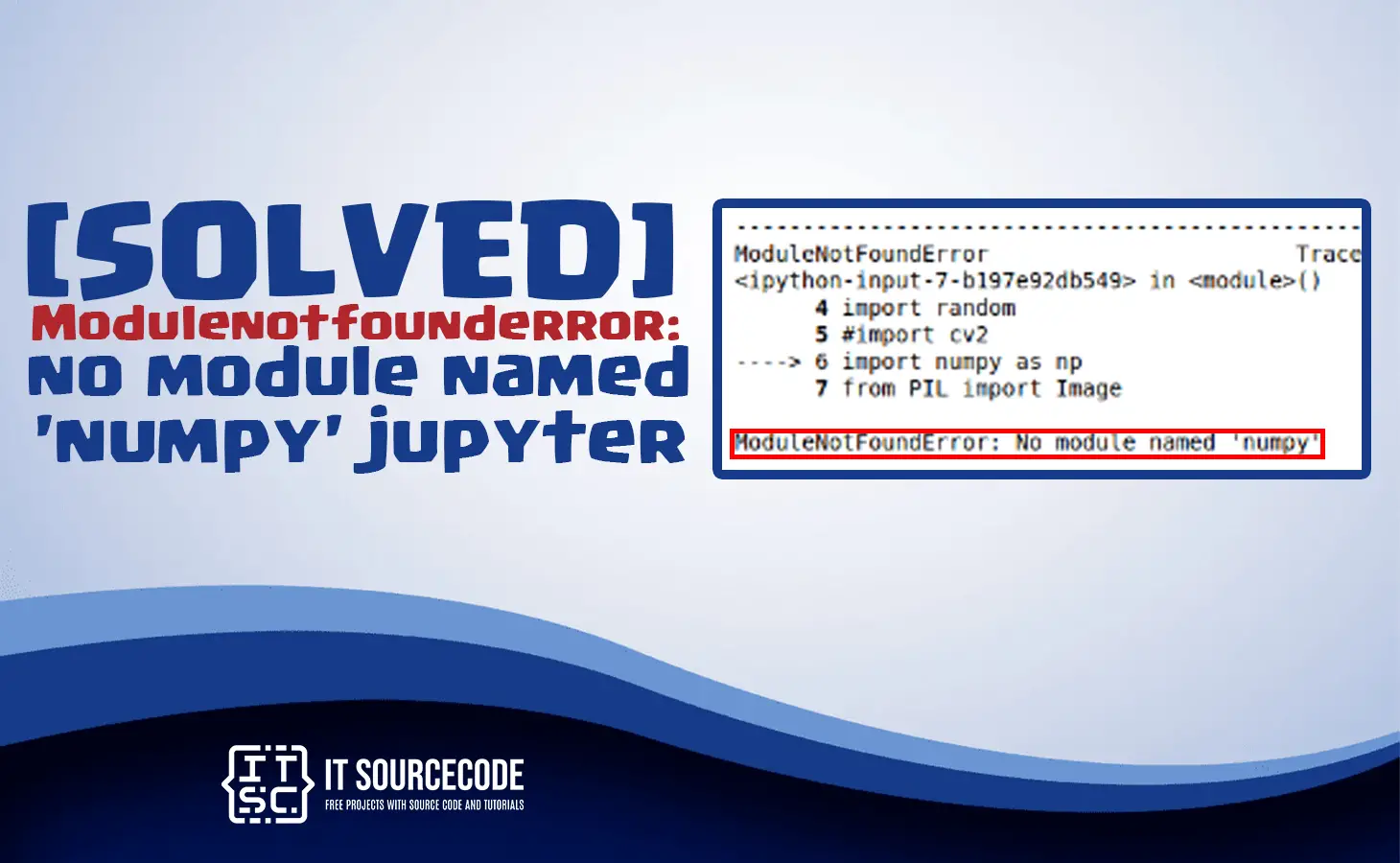
The modulenotfounderror no module named ‘numpy’ jupyter is an error message if you are using Jupyter notebook.
In this article, we will showcase the solution for modulenotfounderror: no module named numpy on various platforms.
Stick to this article until the end of the discussion because we will explain everything that you need to know.
At the end of this discussion, you’ll know what are the various reason why does this error occur.
And how you are going to troubleshoot this error modulenotfounderror no module named numpy.
What is modulenotfounderror: no module named ‘numpy’ jupyter?
ModuleNotFoundError: No module named 'numpy'The error message modulenotfounderror: no module named ‘numpy,’ that occurs in Jupyter Notebook when you are trying to import the numpy module.
It indicates that the “numpy” module was unable to be found by the Jupyter that is required to run the program.
In order to solve this error, you have to install the “numpy” module.
The “numpy” module is one of the popular libraries in Python that is used for scientific computations, and you have to install it on your computer to run your Python programs.
What are the reasons for modulenotfounderror: no module named ‘numpy’ jupyter?
These are the possible reasons why you are facing an error right now that should be fixed immediately if you want to run your program:
1. Numpy module is not installed
It is the common reason why the error modulenotfounderror: no module named numpy occurs.
When you did not install numpy, certainly Jupyter will not find it when you are running your notebook.
2. Incorrect environment
The error happens when you are using your Jupyter notebook in an incorrect environment.
3. Path issues
When the module path is not set up correctly, Jupyter cannot find the NumPy module.
This usually happens when you install the module in a non-standard location.
As a result, an error occurs because Jupyter relies on the Python path in order to locate the module numpy.
How to fix the error modulenotfounderror: no module named ‘numpy’ jupyter
Time needed: 2 minutes
Here are the effective solutions for this error modulenotfounderror no module named ‘numpy’ jupyter.
Open your command prompt (Windows) or terminal (MacOS or Linux).
Then, execute the following command:
- Install numpy module
Installing the module in your system is the first step to fixing the error.
You just have to select the appropriate command for the platform you are using, okay
This command is for Jupyter Notebook:

If you are using Python 2 or in a virtual environment, the following command is perfect for you:

If you are using Python 3:

If you are using Anaconda:

If you are using py alias (Windows):

When you get permissions error:
→ sudo pip3 install numpy
→ pip install numpy –userWhen you don’t have pip in your PATH environment variable, use this command:
→python -m pip install numpy - Check the module if it is installed
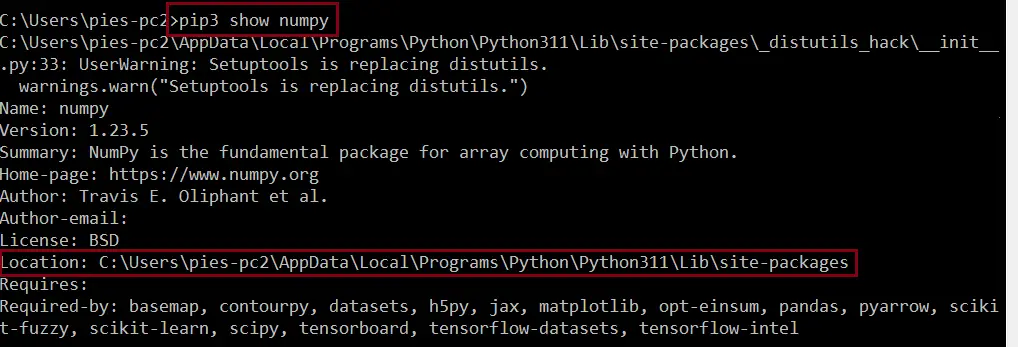
Simply check if you have the numpy module installed using the following command:

- Install the module in a Virtual Environment
When you are using a virtual environment ensure that you install the numpy in your virtual environment.
To activate on Unix or MacOS
→ source venv/bin/activate
To activate on Windows (cmd.exe)
→ venv\Scripts\activate.bat
To activate on Windows (PowerShell)
→ venv\Scripts\Activate.ps1If you are done activating the virtual environment, you can install the module using the command below:
To install numpy in virtual environment:
→pip install numpy - Upgrade Python version
If you are using an older version of python then you should upgrade it by using the command below:
→ pip install –upgrade pip
- Upgrade Jupyter Notebook module
Sometimes the error cannot be resolved because the module is needed for an upgrade.
For pip:
→ pip install -U jupyterFor conda:
→ conda update jupyter - Reinstalling the module
When the solutions above do not resolve the issue, you must try to reinstall the module.
To uninstall:
→ pip3 uninstall numpy
To install:
→ pip3 install numpy





Diagnostic checklist for “No module named ‘numpy'”
- Verify pip install target. Run
pip show numpy— if not installed, runpip install numpy. - Check the active Python interpreter.
which python(mac/Linux) orwhere python(Windows). Both pip and python must point to the same environment. - Check virtual environment activation. If you use venv/conda, activate before installing:
source .venv/bin/activate. - Rule out uppercase/lowercase. Python imports are case-sensitive:
import PyPDF2notimport pypdf2. - Rule out the pip-vs-package-name mismatch. Some packages install under a different name than you import (e.g.
pip install beautifulsoup4→import bs4).
Installing numpy — Python data-analysis stack
# Standard pip install
pip install numpy

# For Anaconda / miniconda users
conda install -c conda-forge numpy

# For pandas + numpy stack — install both at once
pip install pandas numpy
Common causes for missing data-analysis modules
- Anaconda vs. system Python conflict. Anaconda installs a separate Python. Verify
which pythonbefore pip installing. - Wheel platform mismatch. Some pandas versions lack wheels for M1 Mac or ARM Linux. Try
pip install --upgrade pipfirst. - Notebook vs terminal Python. Jupyter runs a kernel that may be different from your active shell Python.
- polars vs pandas. Both exist and both must be installed separately.
Working code example
import numpy as pd  # or pl for polars
print(pd.__version__)

# Quick smoke test
df = pd.DataFrame({"x": [1, 2, 3], "y": [4, 5, 6]}) if 'pandas' in 'numpy' else None
if df is not None:
    print(df.describe())
Best practices
- Pin versions in requirements.txt. pandas/numpy compatibility matters — mismatched versions cause runtime errors.
- Use uv or Poetry for dependency resolution across pandas + numpy + sklearn.
- Consider polars for large data. Modern Rust-based alternative — often 10× faster than pandas.
Official documentation
Frequently Asked Questions
What is Python ModuleNotFoundError and what causes it?
ModuleNotFoundError (a subclass of ImportError) is raised when Python cannot find the module you tried to import. Common causes: the package isn’t installed (pip install missing), wrong virtual environment activated, typo in module name, or Python can’t find your local module on the import path. The error message names exactly which module is missing.
How do I fix ‘ModuleNotFoundError: No module named X’?
Run pip install X first. If that succeeds but you still get the error, check which Python you’re using (which python OR python –version) vs which pip (which pip OR pip –version), they must match. Common gotcha: pip points to system Python 3.9 but you’re running python3.11 in a venv. Inside the venv, use python -m pip install X to be sure pip matches the active Python.
Why does my code work in one environment but not another?
Different Python versions or different installed packages. To diagnose: pip freeze > requirements.txt on the working environment, then pip install -r requirements.txt on the broken one. Use virtualenv (python -m venv venv) or conda for every project to avoid system-wide package collisions.
Is ModuleNotFoundError the same as ImportError?
ModuleNotFoundError is a subclass of ImportError added in Python 3.6. It specifically means ‘no such module exists.’ Plain ImportError covers a wider set: module exists but a name inside it can’t be imported (e.g. ‘cannot import name X from Y’). except ImportError catches both; except ModuleNotFoundError catches only the missing-module case.
Where can I find more ModuleNotFoundError fixes?
Browse the ModuleNotFoundError reference hub for 198+ specific module fixes (TensorFlow, Flask, Django, pandas, numpy, etc.). For related issues see ImportError. For broader Python setup see Python Tutorial hub.
Conclusion
The module not found error: modulenotfounderror no module named ‘numpy‘ is an error in Jupyter Notebook.
Luckily, with the step-by-step solutions in this article, you can easily resolve this error and be able to run your program smoothly.
We also have solutions if you encounter an error like “modulenotfounderror no module named ‘sklearn’ spyder.”
Thank you very much for reading until the end of this article.

Caren Bautista
Technical Writer at PIES IT Solution
Responsible for crafting clear, well-structured, and beginner-friendly content across the platform. Handles the writing, proofreading, and editorial review of tutorials, guides, and documentation to ensure every article is accurate, readable, and easy to follow.
Expertise: Technical Writing · Content Creation · Documentation · Editorial Writing · JavaScript · TypeScript · Python · Python Errors · HTTP Errors · MS Excel
· View all posts by Caren Bautista →