
Canva’s Background Remover tool is officially a Pro-only feature, but there are three legitimate ways to remove backgrounds while staying on the Free plan in 2026. This guide covers the built-in workarounds, the AI-assisted Magic Eraser trick, and the manual approach that works for any image. You do not need a Pro subscription unless you want unlimited one-click removal.
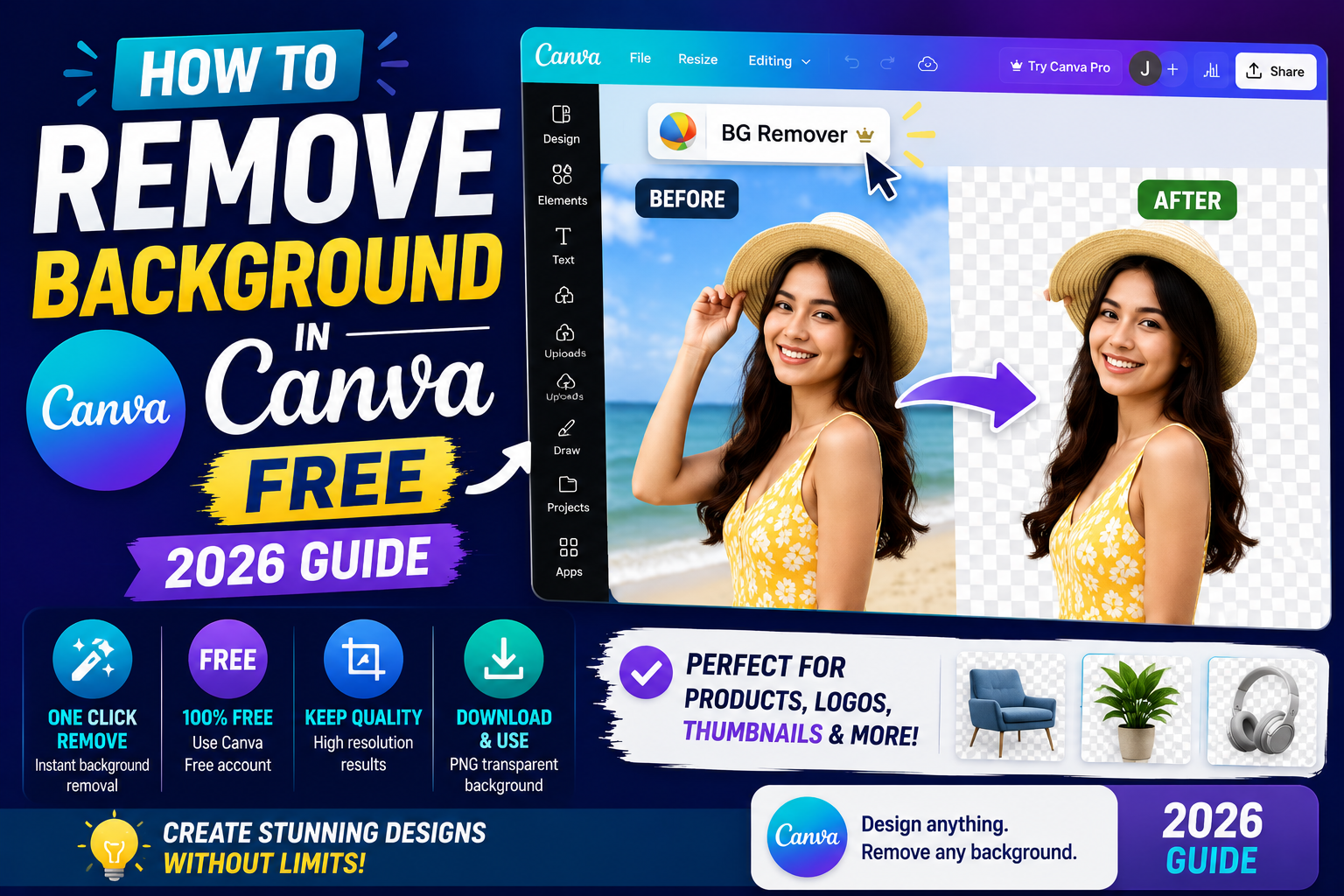
Free users get roughly 5 background removes per lifetime through the Magic Studio credits allocation. After that, use the manual methods below or upgrade if you use the feature daily. This guide starts with the fastest option and works down to the most flexible.
Quick step-by-step summary (click to expand)
- Use free Magic Studio credits. Upload your image, select it, click Edit Photo, then BG Remover. Works ~5 times on Free plan.
- Try Magic Eraser for spot removal. Paint over specific unwanted areas instead of the full background.
- Upload pre-transparent PNGs. Use free web tools like remove.bg (2 free per month) before importing to Canva.
- Search Canva’s built-in transparent library. Filter Elements by “PNG” or “sticker” to find already-cutout images you can use directly.
- Try the free Canva Pro trial. 30 days full access, unlimited background removes. Cancel before day 30 to stay free.
Method 1: Use your free Magic Studio credits
Canva Free includes a small lifetime allocation of Magic Studio credits, and Background Remover is one of the tools those credits unlock. As of 2026, Free users get approximately 5-10 uses before the tool locks and asks you to upgrade.
Steps:
- Open Canva and start a new design (any size).
- Upload your image by dragging it into the workspace or clicking Uploads in the left sidebar.
- Click your uploaded image to select it. A toolbar appears at the top.
- Click Edit Photo (Windows) or the effects icon (mobile).
- In the left panel, scroll to find BG Remover. Click it.
- Wait 3-5 seconds. The background is removed and your image is now transparent (checkerboard pattern shows through).
- Click Apply to keep the change.
Save the result: right-click the image, choose Save as PNG. That gives you a transparent PNG you can reuse across other Canva designs without spending another credit.
Once your Magic Studio credits run out, the BG Remover button shows a Pro badge and clicking it opens the upgrade prompt. Move to Method 2 or 3.
Method 2: Magic Eraser for spot removal
Magic Eraser is a separate tool from Background Remover, and it works differently in the Free plan. Instead of removing the whole background, you paint over specific parts you want removed. Free users get more Magic Eraser uses than BG Remover uses because it counts against a different credit pool.
Use Magic Eraser when:
- You want to remove one distracting object (a person walking past, a logo, a sign) without erasing the whole background
- You need to clean up small unwanted elements in a mostly-good photo
- You have already used your BG Remover credits
Steps:
- Upload your image and click to select it.
- Click Edit Photo.
- In the left panel, scroll down to Magic Eraser.
- Adjust the brush size using the slider at the top.
- Paint over the parts you want to remove. Canva’s AI fills in what should be behind the erased area.
- Click Apply.
Result: those specific areas are gone, but the rest of the image (including background) stays intact. Good for isolating a subject without a full cutout.
Method 3: Pre-process with free web tools
If Canva’s free credits are exhausted, remove the background OUTSIDE Canva first, then import the finished transparent PNG. Three free tools that produce Canva-quality results:
- remove.bg: 2 free high-resolution removes per month, no signup required for basic use. Best quality for photos with clear subjects.
- Photoscissors: free web tool with unlimited use but a small watermark on the result. Fine for images where the watermark falls in a non-visible area or you crop it out.
- Slazzer: 2 free downloads per registered account per month, similar quality to remove.bg.
Workflow:
- Upload your original photo to one of the tools above.
- Download the resulting transparent PNG.
- In Canva, click Uploads in the left sidebar and drag the transparent PNG in.
- Drag it into your design. The background is already gone.
This uses zero Canva credits and takes about the same amount of time as using Canva’s built-in tool. If you edit graphics regularly and can budget for one paid tool later, remove.bg is the industry standard and their $9/month plan gives you 50 removes.
Method 4: Use Canva’s transparent PNG library
Instead of removing the background from an original photo, use Canva’s library of already-cutout images. This is often overlooked because most tutorials assume you have a specific photo you want to use.
Steps:
- In Canva, click Elements in the left sidebar.
- Search for your topic (e.g., “coffee cup”, “smartphone”, “handshake”).
- Filter to show only images with transparent backgrounds. In the filter panel, look for Type: PNG or Sticker.
- Free-plan users see thousands of transparent options without any credit cost.
- Drag your choice into the design. Ready to use, no background to remove.
Best for: social media graphics, marketing designs, blog headers where the specific photo does not matter as long as the concept is right.
Method 5: Try Canva Pro free for 30 days
If you have a batch of images to process and want to bang them out in one sitting, the Canva Pro free trial is the pragmatic choice. 30 days, unlimited background removes, no per-image credit limits.
Setup:
- Click Try Canva Pro anywhere in the Canva interface.
- Enter a credit card (required for trial signup).
- Confirm the trial. You get instant Pro access.
- Process all your background removes in one sitting. Export as transparent PNGs so you have them forever.
- Set a calendar reminder for day 28 to cancel before the trial ends and you get charged.
Canva also runs frequent “come back to Canva Pro” promotional offers if you cancel and later reactivate. Sometimes the second trial is free too.
When each method is the right choice
- 1-5 images total: use Method 1 (Canva BG Remover), it fits within Free credits
- Fixing 1-2 unwanted details on a good photo: Method 2 (Magic Eraser)
- Ongoing weekly volume, budget-conscious: Method 3 (remove.bg free tier, 2/month) or Photoscissors unlimited
- Any social media graphic where photo is generic: Method 4 (transparent PNG library, no credits used)
- Batch of 20+ images all at once: Method 5 (Pro trial, cancel before day 30)
- Multiple large batches per month, professional use: just pay for Canva Pro ($15/month), the time saved pays for itself in 1-2 designs
Official documentation
Frequently asked questions
Is Background Remover completely free on Canva?
Partially. Canva Free includes 5-10 lifetime uses through Magic Studio credits before the tool locks. After that, you need Canva Pro (USD 15/month) OR use one of the workarounds in this guide (Magic Eraser, remove.bg, transparent PNG library, or a Pro free trial).
What is the difference between Background Remover and Magic Eraser?
Background Remover removes the entire background in one click. Magic Eraser lets you paint over specific parts to remove them individually. Use BG Remover for full cutouts, Magic Eraser for removing individual unwanted objects while keeping the rest of the image intact.
Can I use remove.bg unlimited for free?
No. remove.bg gives 2 free high-resolution downloads per month for unregistered users, or a monthly subscription starting around USD 9. Unlimited use requires a paid plan. Photoscissors is a similar free alternative with unlimited use but adds a small watermark to results.
Does the Canva Pro free trial require a credit card?
Yes. Canva requires a credit card to start any Pro trial. You are NOT charged during the 30-day trial period. If you cancel before day 30, no charge occurs. If you forget to cancel, Canva auto-charges you for the first paid month at USD 15.
Why does my background removal look jagged at the edges?
This usually happens with low-resolution source images or subjects that blend into their background (light hair on a white wall, glass objects, transparent fabric). Fixes: use a higher-resolution source image, use Magic Eraser to clean up problem edges, or try remove.bg which handles hair and transparency slightly better than Canva’s tool.
Can I remove the background from a video in Canva Free?
No. Video background removal is a Pro-only feature with no Free tier credits. If you need to remove a video background, either upgrade to Canva Pro OR use a dedicated free video tool like Unscreen (unlimited free with 5-second clips, paid for longer). Then import the transparent video into Canva.
Canva Free is more capable than it advertises when you know the workarounds. Between the 5-10 lifetime Magic Studio credits, Magic Eraser for spot removal, free web tools like remove.bg, and Canva’s own transparent PNG library, you rarely need to actually pay for the Pro tier unless you do this daily.

Glay Eliver
Programmer & Technical Writer at PIES IT Solution
Glay Eliver is a programmer and writer at PIES IT Solution, author of over 600 tutorials at itsourcecode.com.
Expertise: JavaScript · MS Excel · MS Word · MS PowerPoint · Python · ImportError · TypeError · AttributeError · ModuleNotFoundError · JavaScript ReferenceError · Pygame · View all posts by Glay Eliver →