
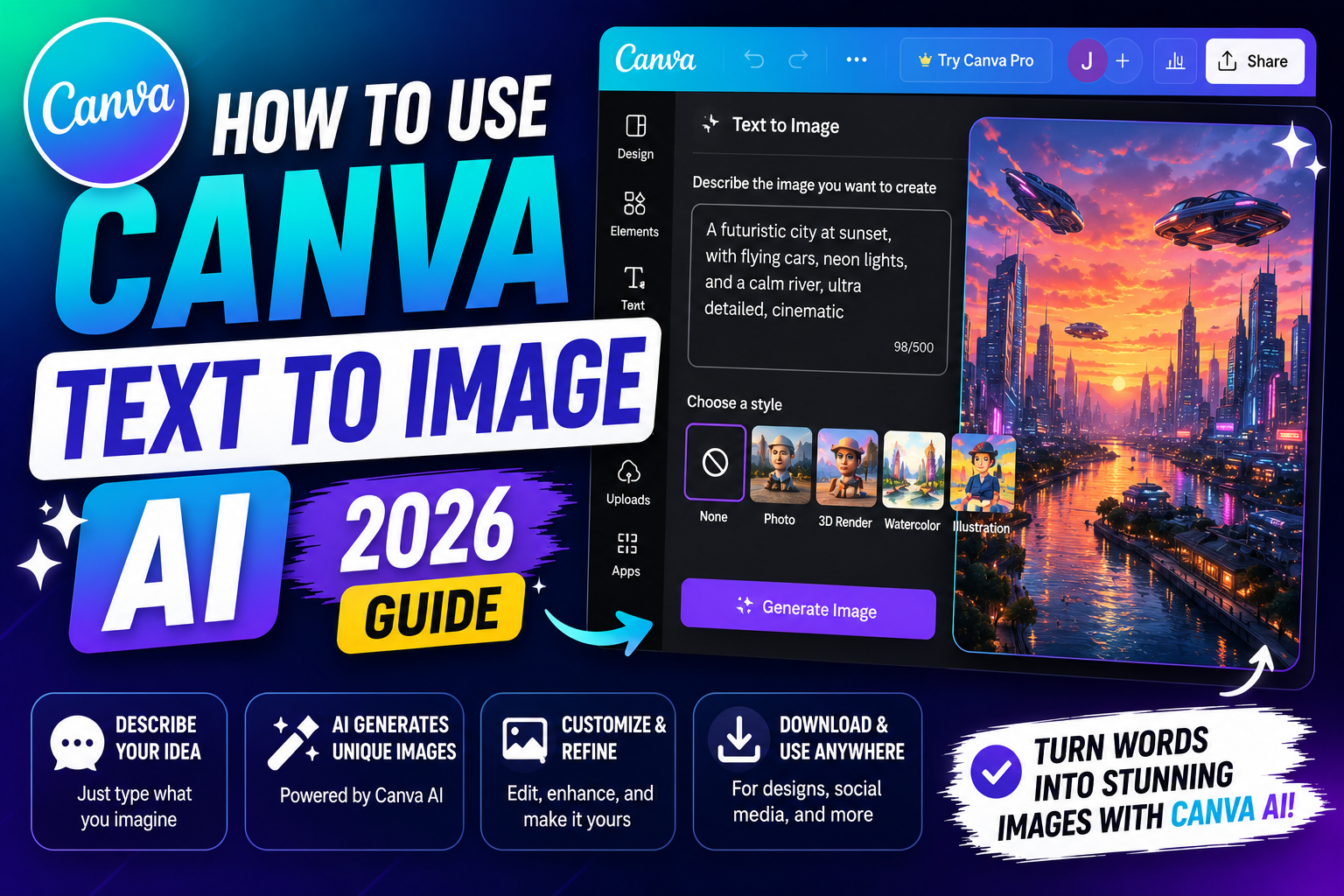
Canva Text to Image AI is one of the tools inside Canva Magic Studio that turns a written prompt into an image you can drop straight into any design. Instead of hunting through stock photos or paying an illustrator, you type what you need and Canva generates it. This guide shows you where to find the tool, how to write prompts that give better results, and how to stay inside the free monthly quota so you do not burn through credits.
Quick step-by-step summary (click to expand)
- Open any Canva design or start a new one from canva.com.
- Click Apps in the left sidebar, then choose Text to Image.
- Type your prompt. Describe the subject, style, mood, and background separately for cleaner results.
- Pick a style and aspect ratio, then click Generate. Canva returns four options.
- Click the image you want to drop it into your design, or click Regenerate to try again.
What Canva Text to Image AI actually generates
Text to Image sits inside Canva Magic Studio and uses AI models trained to produce design-ready images. Unlike raw generative AI tools that output loose art, Canva’s version is tuned for the use cases designers actually need:
- Blog post headers and cover images
- Social media graphics for Instagram, LinkedIn, and Facebook
- Product mockups and lifestyle photography
- Illustration for slides, ebooks, and newsletters
- Backgrounds for text overlays and thumbnails
Every generated image is royalty-free for personal and most commercial use inside Canva. You cannot resell the raw generated image as stock, but you can use it in your own designs, client work, and marketing without paying extra.
Where to find Text to Image in the Canva editor
- Open any Canva design or start a new one from your Canva homepage.
- In the left sidebar, click Apps (icon looks like four squares).
- Scroll to the AI section, or search “text to image” in the app search.
- Click the Text to Image app. A prompt panel opens on the left.
If you do not see the Apps icon in the sidebar, your Canva account may be using an older editor version. Refresh the page, or open a brand-new design to trigger the current layout.
Write a prompt that gives you the image you actually want
A vague prompt like “office scene” gives you 4 generic images that could have come from any stock library. A structured prompt gives you something specific and usable. The pattern that works:
Subject + Setting + Style + Lighting + Camera angle
Example prompts that produce clean results:
- “A young Filipina web developer working on a laptop in a bright home office, minimalist Scandinavian style, soft morning light through a window, shot from over her shoulder”
- “A stack of used programming textbooks on a wooden desk with a black coffee cup, warm evening light, top-down view, photorealistic”
- “An abstract geometric background for a slide deck, deep blue and gold color palette, thin gradient lines, minimalist”
Notice each prompt is specific about the subject, the environment, the visual style, the lighting, and the framing. That is what pulls the AI toward a usable output instead of a bland one.
Pick the right style preset for your use case
Canva offers style presets below the prompt box: Photo, Watercolor, Filmic, Digital art, and 3D. Match the preset to the use case:
- Blog headers and product mockups: Photo
- Illustrations for slides and ebooks: Watercolor or Digital art
- Social media graphics with a modern feel: 3D or Digital art
- Editorial or magazine mood: Filmic
- Abstract backgrounds: any preset, low subject detail
You can also skip presets and stay on Auto, which lets the AI infer style from your prompt words. If you write “cinematic” or “hand-drawn” in the prompt itself, Auto usually respects that.
How many generations you get on the free plan
Canva Free users get a limited monthly quota of Magic Studio credits, shared across Text to Image, Magic Design, Magic Write, and other AI tools. As of 2026, Free plan users get roughly 50 lifetime uses (Canva calls them “uses”) to try Magic Studio, then the tools stop working until you upgrade.
Canva Pro users get 500 uses per user per month, which resets on the first day of each billing cycle. Teams get pooled quotas that scale with seats.
To check your remaining quota, click the Magic Studio icon in the sidebar and look for the usage counter at the top of the panel.
Common problems and fixes
The generated image ignores my main subject: put the subject at the very beginning of the prompt and use specific nouns. “A red-and-gold macaron on a white marble table” is stronger than “some dessert on a table.”
Faces look wrong or twisted: generative AI still struggles with faces. Either crop the image so the face is not the focus, or add “portrait photography, natural expression” to the prompt. Even then, expect to regenerate 2 or 3 times.
Text in the image is gibberish: AI cannot reliably render readable words inside images. Do not prompt for signs, labels, or written words. Instead, generate the image without text and add clean text on top using Canva’s normal text tools.
Prompt blocked by content filters: Canva blocks prompts for violence, adult content, real named public figures, and some brand names. Rephrase using descriptive language instead of proper nouns.
Ran out of Magic Studio uses: upgrade to Canva Pro for 500 monthly uses, or wait for the next billing cycle if you already have Pro.
Faster workflow tricks
- Save prompt formulas: keep a text file with 3 to 5 prompt patterns that worked, so you can reuse the structure and just swap the subject.
- Generate in landscape first: if you need multiple aspect ratios, generate the landscape version, then use Canva’s Magic Expand or crop tools to derive portrait and square variants without spending another use.
- Use Magic Edit for tweaks: if 3 out of 4 elements of a generated image are perfect but one thing is off, use Magic Edit to change just that part instead of regenerating the whole image.
- Batch generate for a whole project: think through every image you need (blog header, social share, thumbnail, email banner) and generate them in one sitting to keep the aesthetic consistent.
Official documentation
Frequently asked questions
Is Canva Text to Image free?
Canva Free includes a limited lifetime quota of Magic Studio uses (roughly 50 in 2026) shared across all AI tools. After that, you need Canva Pro to keep using Text to Image. Pro includes 500 uses per user per month, which resets each billing cycle.
Can I use Canva AI-generated images commercially?
Yes, for use inside your own designs, client work, and marketing. You cannot resell the raw AI-generated image as stock art or as a standalone asset. Read the Canva AI product terms for the full commercial use rules.
Why does the AI mess up faces?
All generative AI models still struggle with faces at scale. Details like eyes, teeth, and hands often come out warped. Either crop the image so the face is not the focus, add “portrait photography, natural expression” to the prompt, or plan to regenerate 2 or 3 times until you get a clean result.
Can I put readable text inside the generated image?
No. AI still cannot render reliable text inside images. Any text the AI generates comes out as gibberish letters. Generate the image without text, then add clean text on top using Canva’s normal text tools inside the design.
Which style preset works best for blog headers?
Photo is the safe default for blog headers because it produces realistic imagery that fits most content. For illustrated or brand-focused blogs, try Digital art or Watercolor. Test 2 or 3 styles on the same prompt to see which fits your visual identity.
Does Canva store my prompts?
Canva stores your prompts to improve the service and to let you regenerate variations. You can view and delete your prompt history from your Canva account settings under Privacy and data. Generated images stay in your designs until you delete them yourself.
Text to Image works best when you treat it like a briefing to a designer, not a magic wand. The more specific you are about subject, setting, and style, the closer the first draft is to what you had in mind. Save the good prompts and reuse the structure across your project.

Glay Eliver
Programmer & Technical Writer at PIES IT Solution
Glay Eliver is a programmer and writer at PIES IT Solution, author of over 600 tutorials at itsourcecode.com. Specializes in JavaScript tutorials, Microsoft Office how-tos (Excel, Word, PowerPoint), and Python error debugging.
Expertise: JavaScript · MS Excel · MS Word · MS PowerPoint · Python · Python ImportError · Python TypeError · Python AttributeError · ModuleNotFoundError · JavaScript ReferenceError · Pygame · View all posts by Glay Eliver →