
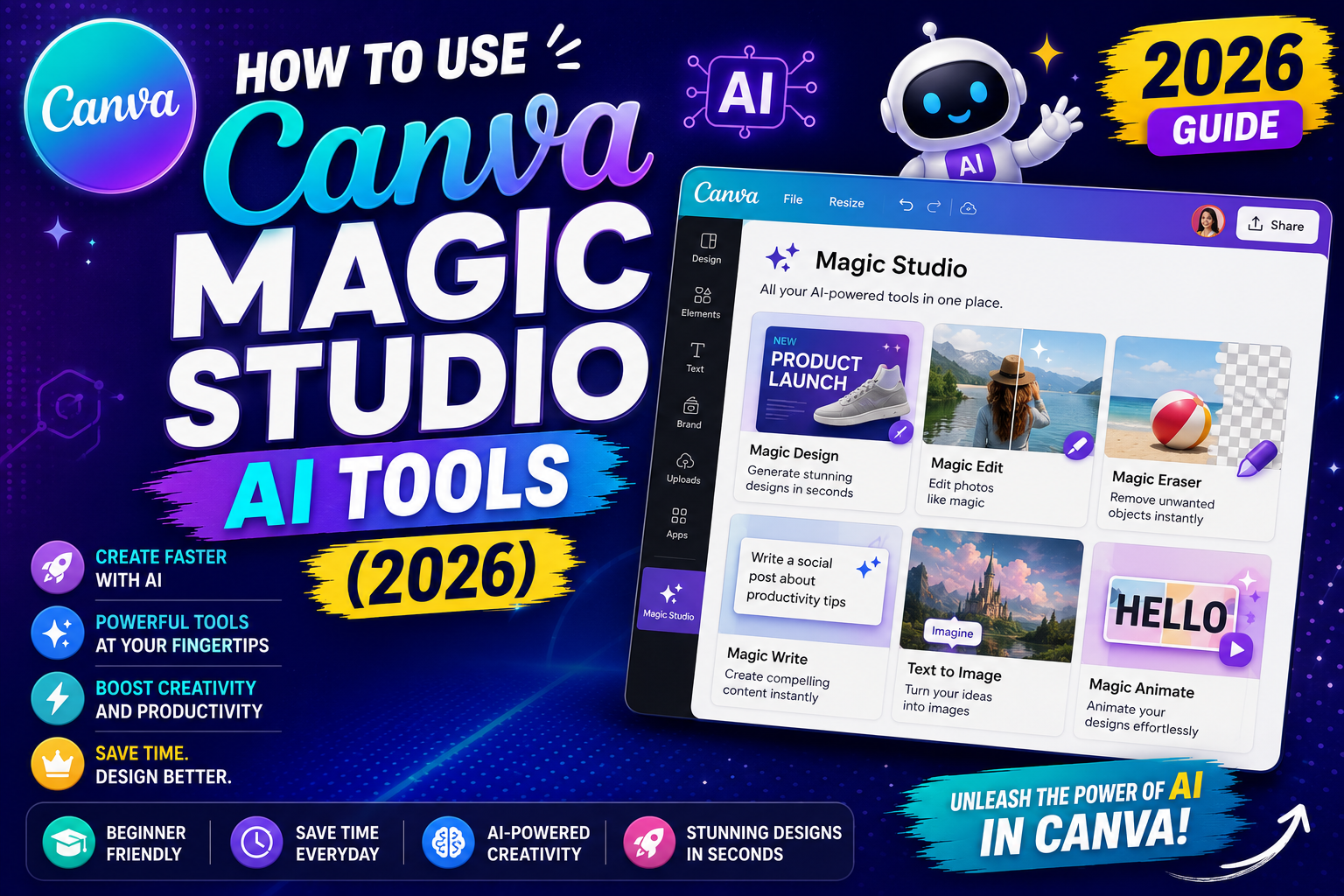
Canva Magic Studio is Canva’s AI toolkit rebuilt around a single console in the April 2026 update (Canva AI 2.0). It bundles Magic Write, Magic Design, Text to Image, Magic Layers, and Magic Charts into one workflow. If you last used Canva’s AI features in 2024, this is a big upgrade worth relearning. This 2026 guide walks you through each tool and how to combine them for real design work.
Quick step-by-step summary (click to expand)
- Open a new design. Sign in to canva.com and start any new design.
- Click Magic Studio. Purple sparkle icon in the left sidebar (formerly separate tools, now one panel).
- Try Magic Design. Describe what you want in one sentence; Canva generates 4-8 template options.
- Use Text to Image. Describe an image; the new gpt-image-2 model renders it (much better text handling than before).
- Add Magic Write copy. Highlight a text block; ask AI to rewrite, expand, or shorten.
- Refine with Magic Layers. AI separates a flat image into editable layers so you can move each element.
- Export and iterate. Download or share; use Magic Resize to spin variants for other platforms.
What’s inside Magic Studio (2026 lineup)
Magic Studio consolidates these tools under one panel:
- Magic Design, generate full designs from a text description or an uploaded image
- Magic Write, AI copywriter for headlines, body, captions, and translations
- Text to Image, generate images from descriptions using gpt-image-2 (major 2026 upgrade)
- Magic Layers, AI separates flat images into editable object layers
- Magic Eraser, remove unwanted objects from photos in one click
- Background Remover, one-click background removal (Pro only)
- Magic Expand, extend a photo’s canvas with AI-generated content
- Magic Resize, auto-resize designs to other formats (Pro only)
- Magic Grab, detect and reposition objects within a photo
- Magic Charts, turn data into designed charts (Pro)
Not all tools appear on every design type. For example, Magic Charts only shows when you have a data-ready canvas. The tools you see adapt to what you’re working on.
Get started: open Magic Studio
- Open Canva at canva.com or the desktop app.
- Start a new design (any format).
- Look at the left sidebar. The Magic Studio icon is a purple sparkle. Click it.
- The Magic Studio panel opens showing all available tools for your current design type.
Magic Design (start a design from scratch)
Magic Design generates full design templates from a one-sentence prompt:
- Click Magic Design in the Magic Studio panel.
- Choose the design type (Instagram post, presentation, business card, etc.).
- Type your prompt: “Instagram post for a Filipino cafe launching a new matcha drink, using calm green colors, minimal text.”
- Canva generates 4-8 template options.
- Click any option to open and customize it.
Tips for better output:
- Be specific about what to show and NOT show (“no stock photos of people”, “no gradients”).
- Include a mood or style (“minimal”, “playful”, “corporate”, “handmade”).
- Mention colors (“earthy tones” or specific HEX codes like “#2D6A4F green”).
- Include your target platform (“Instagram square”, “YouTube thumbnail 16:9”).
Text to Image (create custom images)
Text to Image was rebuilt in Apr 2026 with gpt-image-2. The 2026 version handles text inside images (like signs, labels) much better than earlier versions:
- In Magic Studio, click Text to Image.
- Type your prompt: “A wooden sign that says WELCOME hanging in a coffee shop entrance, warm morning light.”
- Choose style (photo, illustration, 3D, painting, etc.).
- Choose aspect ratio (square, landscape, portrait).
- Click Generate. Canva returns 4 variations.
- Click a variation to insert into your design, or click Refine to modify.
Prompt tips:
- Describe the subject, then the setting, then the style: “A young Filipino graphic designer at a laptop, coffee shop in Makati, watercolor illustration”.
- Add lighting: “golden hour”, “flat studio lighting”, “candlelight”.
- Include text in the image with quotes: ‘A poster with the text “COMING SOON” in bold serif font.’
- Avoid extremely specific brand references (copyrighted logos, celebrity faces), Canva blocks these.
Magic Write (AI copywriter)
Magic Write generates and edits text inside your design:
- Add or highlight a text element in your design.
- Click the Magic Write icon (star icon on the text toolbar).
- Choose an action: Continue writing, Rewrite, Fix grammar, Summarize, Change tone, Translate.
- Or type a custom instruction: “Write a 15-word Instagram caption for this design.”
- Canva returns 2-3 versions. Click Insert to use one, or Regenerate for more options.
Use Magic Write for:
- Social media captions (much faster than writing from scratch)
- Product descriptions
- Blog post headlines
- Email subject lines
- Translations (paste English, ask for Filipino or Tagalog)
- Tone shifts (“make this more professional” or “make this more playful”)
Magic Layers (edit flat images)
Magic Layers is one of the most useful 2026 additions. Take a flat photo or image and let AI separate it into editable object layers:
- Click the image in your design.
- Click Magic Layers from the Magic Studio panel.
- Canva detects objects (person, background, table, coffee cup, etc.).
- Each object becomes an editable layer you can move, delete, resize, or replace.
Example: you have a product photo with a distracting background. Magic Layers separates the product from the background. Delete the background, add your brand color instead. What used to take 20 minutes in Photoshop takes 30 seconds.
Magic Eraser (remove unwanted objects)
- Click the image.
- Click Magic Eraser from Magic Studio.
- Paint over the object you want to remove (a person walking through, a distracting sign, a photobomb).
- Canva fills the erased area with plausible background content.
Works best on simple backgrounds. Complex textures may leave visible artifacts requiring manual touch-up.
Magic Expand (extend a photo)
- Click a photo.
- Click Magic Expand.
- Drag the canvas edges to expand.
- Canva fills the new area with AI-generated content that matches the original.
Useful for repurposing a portrait photo into a landscape banner, or extending an image to fit a specific aspect ratio without cropping.
Magic Grab (move objects around)
Magic Grab detects distinct objects in a photo and lets you drag each one independently:
- Click a photo.
- Click Magic Grab from Magic Studio.
- Canva highlights detected objects.
- Click an object to select it, then drag to reposition, resize, or delete.
- The original background auto-fills the space the object left behind.
A real workflow: create an Instagram post in 5 minutes
- Start a new Instagram post design.
- Magic Design > “Instagram post announcing a new coffee flavor at a Filipino cafe, warm earthy tones”.
- Pick the best of the 4-8 template options.
- Replace the placeholder photo: click it > Magic Layers > delete the background > add a solid brand color.
- Highlight the placeholder headline > Magic Write > “Rewrite in a warmer, more inviting tone”.
- Add a Text to Image element: “steaming latte with cinnamon on top, ceramic mug, wooden table, morning light”, insert into design.
- Highlight the CTA text > Magic Write > “Make this a stronger call to action, keep under 6 words”.
- Export as PNG. Done.
5 minutes vs 20-30 minutes with traditional Canva alone. That is the value of Magic Studio when the tools chain together.
Magic Studio credits: free vs Pro limits
- Free tier: Limited monthly credits across all Magic tools combined. Typically enough for 20-50 uses per month.
- Pro tier: Much higher limits, enough for daily use of all tools. Not unlimited but rarely hit unless you use it dozens of times per day.
- Teams and Enterprise: Higher pooled credits + priority processing.
If you hit Free tier limits and use Magic Studio daily, Pro pays for itself in a week.
Official documentation
Frequently asked questions
Is Canva Magic Studio free?
Free with limited monthly credits. Free users typically get 20-50 uses per month across all Magic tools combined. Pro users get much higher limits (essentially daily-use levels). If you hit the free cap regularly, upgrading to Pro at USD 14.99/month usually pays for itself in time saved.
Is Canva Magic Studio better than Midjourney?
Different tools. Midjourney creates the most artistic AI images but requires Discord and prompt-crafting skill. Canva Magic Studio is integrated into a design workflow with simpler prompts and other tools alongside. Use Midjourney for standalone art; Canva for design-in-context.
Can I use Magic Studio images commercially?
Yes for Canva Pro and above. Canva’s terms grant commercial usage rights for AI-generated content on paid plans. Free plan usage is for personal/non-commercial only. Always check the specific terms at canva.com/policies for the latest rules.
Does Magic Studio work on mobile?
Yes on iOS and Android apps. All major Magic Studio tools work on mobile: Magic Design, Magic Write, Text to Image, Background Remover. Some advanced tools (Magic Layers, Magic Grab) have fewer options on mobile than on desktop.
What is gpt-image-2 and why does it matter?
gpt-image-2 is OpenAI’s newer image generation model that Canva integrated in April 2026. Compared to the previous version, it handles text inside images (signs, labels, quotes) much better and generates more accurate multi-object scenes. If your prompt includes any text or complex composition, gpt-image-2 gives dramatically better results.
Can Magic Studio generate images of specific people?
No. Canva blocks generation of specific real people (celebrities, politicians, private individuals). It generates fictional/generic people well. If you need to design around a specific person’s photo, upload their photo separately and use Magic Layers to work with it.

Caren Bautista
Technical Writer at PIES IT Solution
Responsible for crafting clear, well-structured, and beginner-friendly content across the platform. Handles the writing, proofreading, and editorial review of tutorials, guides, and documentation to ensure every article is accurate, readable, and easy to follow.
Expertise: Technical Writing · Content Creation · Documentation · Editorial Writing · JavaScript · TypeScript · Python · Python Errors · HTTP Errors · MS Excel · View all posts by Caren Bautista →