
Canva is the fastest way to make a good-looking presentation in 2026, especially if you do not have Adobe skills or the patience to fight with PowerPoint templates. In the last year Canva added AI-generated slide decks, presenter tools, and interactive polls, so the free version is more powerful than most PowerPoint installs.
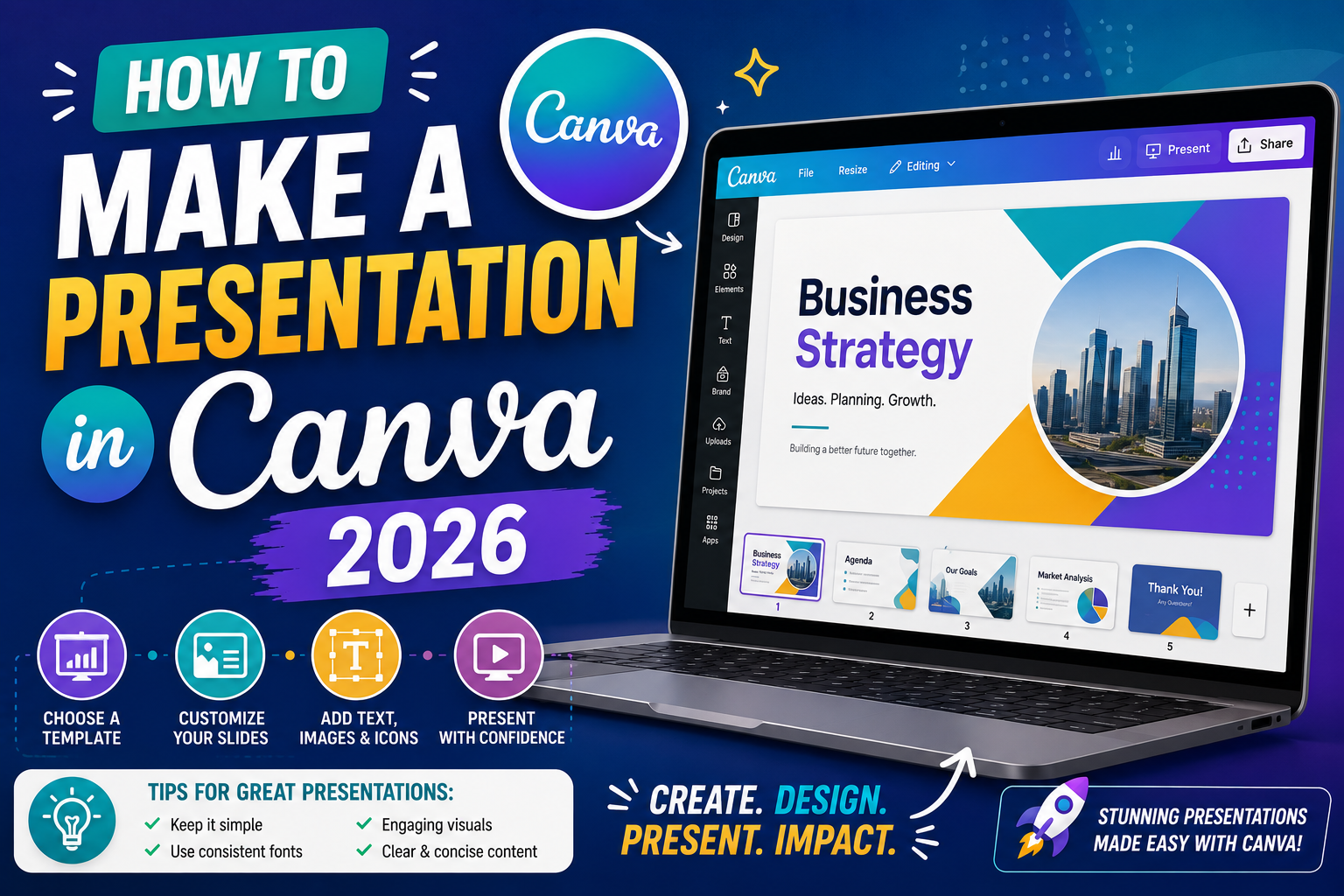
This guide walks through building a presentation from scratch, using templates smartly, and the newer features (AI decks, presenter tools, exports) that Canva shipped in 2025 and 2026.
Before you start: which Canva version do you need?
You do not need Canva Pro for a solid presentation. Canva Free covers:
- Access to most templates (about 60 percent of the full library)
- All fonts and basic effects
- Direct download as PPTX, PDF, MP4, or GIF
- Presenter view and live sharing
- 3 AI-generated presentations per month via Magic Design
Canva Pro (USD 15/month) adds premium templates, Brand Kit, unlimited AI, background remover, and 1TB of storage. Only worth it if you make presentations weekly or run a small business with a brand palette to maintain.
Step 1: Create a new presentation
- Log in at canva.com or open the mobile app
- On the homepage, type “presentation” in the search bar
- You will see three options: Create a blank Presentation, Presentation (16:9), or Magic Design
- For a normal deck, click Presentation (16:9). This is the standard wide format that fits every projector and screen.
If you already have topic ideas and want AI to generate the initial deck, use Magic Design instead (covered in Step 5).
Step 2: Pick a template that matches your topic
The template picker on the left panel has thousands of options. To narrow down:
- Type your topic (“business pitch”, “class report”, “wedding proposal”) to filter
- Filter by style (Modern, Minimalist, Corporate, Fun) using the tags at the top
- Preview any template by clicking it once (do not double-click, which applies it immediately)
- When you find one you like, click Apply to all pages to lock in the style
Rule of thumb: pick a template with fewer than 3 accent colors. Templates with 5+ colors look cluttered on a projector and are harder to customize.
Step 3: Add and rearrange slides
Every good presentation follows a rhythm:
- Title slide: Topic + your name + date
- Agenda slide: 3 to 5 bullet points of what you will cover
- Content slides: One idea per slide, 6 lines of text maximum
- Visual break slides: Full-image slides every 3 to 4 content slides to reset attention
- Summary slide: Recap the top 3 takeaways
- Thank you slide: Your contact info or Q&A prompt
To add a slide, click the plus icon at the bottom of the current slide or right-click a slide thumbnail on the left and select Duplicate page or Add page.
To rearrange, drag slide thumbnails up and down in the left panel. Canva also has a Grid View button (top right) that shows all slides at once, which is easier for reordering large decks.
Step 4: Customize colors, fonts, and images
Colors: Click any element, then click the color box in the top toolbar. To match your brand, enter a hex code (like 1F3A5F) directly. Save colors to the palette for quick reuse.
Fonts: Click any text box, then use the font dropdown. Canva has 3,000+ fonts. For readability on a projector, stick to 2 fonts maximum per deck (one for headings, one for body).
Images: Use the Photos or Elements tab on the left. Canva has 1M+ free stock photos. For your own photos, click Uploads and drag files in. To replace an image in a template, drag the new image over the old one and drop.
Icons: Under Elements, search for icons that match your topic. Add them to bullet points to break up walls of text.
Step 5: Use Magic Design AI to generate a starter deck
Canva’s Magic Design (built on their AI stack) can generate a full 10-slide deck from a text prompt in about 30 seconds.
- On the homepage, click Magic Design
- Choose Presentation
- Type your topic in detail (bad: “marketing plan”. Good: “Q4 marketing plan for a Filipino coffee shop targeting Gen Z on TikTok”)
- Choose a style (Corporate, Playful, Minimal)
- Click Generate
You get 4 variations. Pick one, then customize normally. Magic Design is best as a starting point, not a final product. Every deck still needs your voice added.
Step 6: Add animations and transitions (sparingly)
Click any element and select Animate in the top toolbar. Canva offers:
- Fade in, Rise, Pan, Baseline: Subtle, professional (use these)
- Tumble, Wipe, Neon: Playful but distracting (use only for creative decks)
For transitions between slides, click the small icon between slides in the timeline at the bottom. Dissolve and Slide are the safest choices for business decks.
Rule: if in doubt, no animation. A clean deck with no animations always beats an overanimated one.
Step 7: Present or export your deck
When you are ready to present:
- Present live from Canva: Click Present (top right). You get fullscreen mode with speaker notes, timer, and audience polls (Canva Pro only).
- Presenter view with notes: Choose Presenter view to see your notes on your laptop while the audience sees clean slides.
- Download as PPTX: Click Share, then Download, choose PowerPoint (PPTX). Preserves fonts and layouts for offline presenting.
- Download as PDF: Choose PDF Standard for a lightweight sharable file, or PDF Print for high-resolution handouts.
- Download as video (MP4): Choose MP4 Video to export animations. Good for social media or async sharing.
Common problems and fixes
- Fonts change when exporting to PPTX: Some Canva-only fonts do not exist in PowerPoint. Choose “safe” fonts (Arial, Calibri, Helvetica) if PPTX compatibility matters.
- Video export is huge: MP4 exports can hit 100+ MB. Compress with an online tool like Handbrake before sharing on WhatsApp.
- Slides look different on the projector than on your laptop: Set your projector to 16:9 aspect ratio in the projector settings, not just Canva.
- Cannot download because “premium element” warning: One image or font in your deck is Pro-only. Look for the crown icon on your elements and swap them for free versions.
- Deck loads slowly during presentation: Download as PDF or PPTX and present offline. Canva Live requires stable internet.
Quick step-by-step summary (click to expand)
- Create a new Presentation (16:9). Search “presentation” on Canva homepage, pick the standard 16:9 format.
- Pick a template. Filter by topic and style. Stick to templates with fewer than 3 accent colors for a cleaner look.
- Structure your slides. Title, agenda, content (one idea per slide), visual breaks, summary, thank you.
- Customize colors, fonts, images. Use hex codes for brand match, 2 fonts max, replace stock images by drag-and-drop.
- Try Magic Design for AI drafts. Text prompt generates a 10-slide starter deck in 30 seconds.
- Add subtle animations only. Fade in, Rise, Pan. Avoid Tumble and Neon for professional decks.
- Present or export. Present live with speaker notes, or download as PPTX, PDF, or MP4 depending on use case.
Official Canva documentation
Frequently asked questions
Can I make a presentation in Canva for free?
Yes. Canva Free includes access to about 60 percent of the presentation templates, all fonts, all basic effects, and unlimited exports to PPTX, PDF, and MP4. You only need Canva Pro if you want premium templates, unlimited AI generation, or the Brand Kit feature.
How do I convert my Canva presentation to PowerPoint (PPTX)?
Click the Share button (top right), then Download, then choose PowerPoint (PPTX) as the file type. Canva preserves your layouts, text positions, and most fonts. Some Canva-exclusive fonts will substitute in PowerPoint, so use standard fonts (Arial, Calibri) if PPTX compatibility matters.
Does Canva have an AI to generate presentations automatically?
Yes, it is called Magic Design. Type a detailed topic prompt (about 20 to 40 words works best), choose a style, and Canva generates a 10-slide starter deck in about 30 seconds. You get 3 free generations per month on the free plan, unlimited on Pro. Treat AI decks as starting points that need your voice added.
How do I share a Canva presentation with someone who does not have Canva?
Two options. First, download as PDF or PPTX and email or WhatsApp the file. Second, click Share, then click Get link, choose “Anyone with the link can view”, and send the link. The recipient can view your presentation in their browser without a Canva account.
Can I add my company logo to every slide automatically?
On Canva Pro, yes via Brand Kit. On Canva Free, you need to add the logo manually to one slide, then copy it and paste to each subsequent slide. Or set it up in a master template first and duplicate the template. Pro is worth the USD 15/month if you make branded presentations weekly.
Does Canva work offline for presentations?
Canva is primarily a web tool and needs internet to edit. However, once you download your deck as PDF, PPTX, or MP4, the file works offline. For presentations in venues with unreliable internet, always download a PPTX or PDF as backup even if you plan to present live from Canva.

Caren Bautista
Technical Writer at PIES IT Solution
Responsible for crafting clear, well-structured, and beginner-friendly content across the platform.
Expertise: Technical Writing · Content Creation · Documentation · Editorial Writing · JavaScript · TypeScript · Python · Python Errors · HTTP Errors · MS Excel · View all posts by Caren Bautista →