
WhatsApp Channels are a one-way broadcast tool inside WhatsApp. You create a channel, followers subscribe, and every update you post lands in their WhatsApp Updates tab. There is no group chat noise, no reply thread to moderate, and no follower cap. If you run a business, a fan page, a class, or a community, channels give you a direct line to your audience inside an app they already open every day.
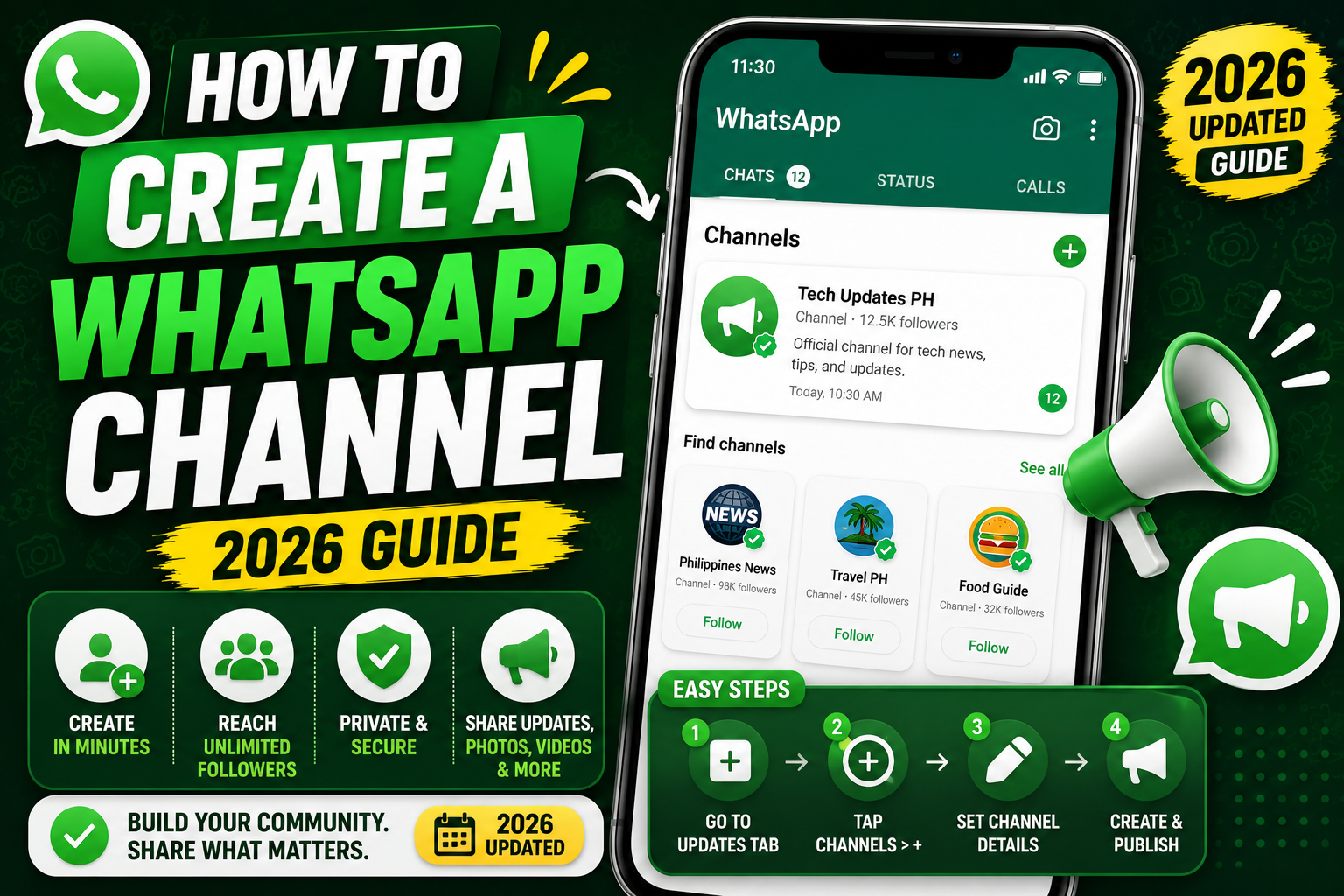
This guide covers the full setup on iPhone and Android in 2026: creating the channel, adding a name and icon, choosing what kind of content works best, growing your first 100 followers, and reading the built-in analytics. Channels are free to create and free to run.
Quick step-by-step summary (click to expand)
- Open the Updates tab. Tap the second icon in the WhatsApp bottom navigation, next to Chats.
- Tap Create Channel. Tap the plus icon next to Channels, then choose Create Channel.
- Add a name and description. The channel name is public and cannot be changed for the first 24 hours after creation.
- Upload an icon. Use a clear square image (600×600 pixels or larger) that represents your brand or topic.
- Post your first update. Text, photos, videos, links, or polls. Every post goes to every follower’s Updates tab immediately.
- Share your channel link. Grab the invite link from channel info and share it across your other platforms to grow followers.
What a WhatsApp Channel actually is
A WhatsApp Channel is a broadcast list you own. Only you can post. Followers can react with emojis but they cannot reply. That is the key difference from a group chat. There is no back-and-forth, so channels stay clean and never turn into a notification storm.
Common uses that work well:
- Small business updates and product launches
- Class or course announcements from teachers to students
- Community organization news and event reminders
- Sports team updates, scores, schedules
- Creator or influencer updates for a superfan tier
- Personal projects (blog updates, podcast releases, portfolio launches)
Every WhatsApp user can create a channel, whether you use the regular WhatsApp app or WhatsApp Business. You do not need a paid account, verified badge, or minimum follower count to start.
Create your channel on iPhone
- Open WhatsApp and tap the Updates tab at the bottom (second icon from the left).
- Scroll down to the Channels section. Tap the plus icon on the right side.
- Tap Create Channel and read the intro screens. Tap Continue.
- Enter your channel name. Choose carefully. WhatsApp locks the name for 24 hours after creation.
- Add a short description (optional but recommended, up to 500 characters).
- Tap the camera icon to upload a channel icon. Square images work best.
- Tap Create Channel to finish.
Your channel is live immediately. You can start posting right away, but you have no followers yet. Sharing the invite link is how you grow (covered further down).
Create your channel on Android
The Android flow is nearly identical:
- Open WhatsApp. Tap Updates at the bottom.
- Tap the plus icon in the Channels section header.
- Tap Create Channel.
- Enter the name, description, and icon on the setup screen.
- Tap Create Channel to finish.
If you do not see the Channels section, update your WhatsApp app from Google Play. Channels rolled out in stages across regions and some older WhatsApp installs need a manual update.
Pick a strong channel name and icon
Because you cannot change the name for 24 hours, get it right the first time. Guidelines that work:
- Keep it short. 3-4 words maximum. Long names get cut off in the follower’s channel list.
- Match your brand elsewhere. If your business is called Sari-Sari Central on Instagram, use the same name here.
- Include a topic hint if the brand is generic. “Maria’s Kitchen” is fine; “Maria’s Kitchen: Filipino Recipes” is better for discovery.
- Avoid emoji in the name field. Emojis often break search indexing. Save them for the description.
For the icon, use a 600×600 pixel square minimum. Bright, high-contrast, recognizable at thumbnail size. If your logo has text, make sure it still reads at 40×40 pixels (the size shown next to your posts).
What kind of posts perform best
WhatsApp Channels support text, photos, videos, links, and polls. Not every format performs equally.
- Short text posts (under 200 characters): highest read rate. Followers glance at their Updates tab and process short text in one second.
- Photos with a one-line caption: second-highest engagement. Great for products, event photos, before-and-after shots.
- Polls: highest reaction rate. Followers love voting because it takes one tap and lets them feel involved without typing.
- Videos under 60 seconds: solid performers. Autoplay makes them hard to ignore in the feed.
- Long text posts (over 500 characters): lowest read rate. Break these into a series of short posts instead.
- External links: good for driving traffic to your site, but expect a 5-15 percent click-through rate.
Post frequency matters too. Once a day is a healthy cadence. More than three posts in one day pushes followers to mute the channel or leave.
Grow your first 100 followers
A new channel starts at zero followers. WhatsApp does not auto-suggest your channel to strangers until you have some traction. The first 100 is entirely on you.
Fastest growth methods:
- Share the invite link on your other platforms. Get the link from channel info, tap the copy icon, and paste it into your Instagram bio, Facebook page, TikTok bio, email signature, and business cards.
- Message your existing contacts one time. Send a short message: “Hi, I just launched my WhatsApp channel where I share [topic]. Join here: [link]. Feel free to ignore if not interested.” Only do this once, never repeat.
- Add the channel link to any physical touchpoint. QR code on flyers, receipts, product packaging, storefront window.
- Cross-promote with peers. If a friend runs a related channel, agree to share each other’s invite links.
- Post consistently for 2-3 weeks. WhatsApp’s Channel Directory algorithm favors channels with recent, regular activity when suggesting to new users.
Once you cross 100 followers, WhatsApp starts including your channel in Directory search results and related-channel suggestions. From there growth becomes semi-automatic.
Read the built-in channel analytics
Every WhatsApp Channel comes with a small analytics dashboard. To open it, tap your channel name at the top, then scroll to the Insights or Analytics section (name varies by app version).
Metrics you get:
- Followers: total count plus net gain in the last 30 days
- Views per post: shows how many followers actually saw each post
- Reactions per post: follower engagement signal
- Link clicks: only shown on posts that include a link
Focus on views per post as your primary quality metric. If it drops below 40 percent of your follower count, either your post cadence is too high (followers mute), your posting time is off (audience asleep), or your recent content did not resonate. Adjust one variable at a time to see what changes the ratio.
Channel privacy and follower list settings
By default, your channel is discoverable in the Channel Directory. If you want a private channel that only invited followers can join, open channel info, tap Manage, and toggle Discoverability off. Only your invite link will let people join.
Follower privacy: individual followers stay anonymous to you. You cannot see who follows the channel, message them individually, or export the follower list. That is a WhatsApp design choice for privacy. If you want direct one-on-one contact with your audience, use WhatsApp Business Catalog and group chats instead.
Official documentation
Frequently asked questions
Do I need WhatsApp Business to create a channel?
No. Any WhatsApp user, whether on the regular app or WhatsApp Business, can create a channel. There is no upgrade or paid account required. The Channels feature is identical in both apps.
Can followers see my phone number?
No. Your phone number is hidden from followers, and follower phone numbers are hidden from you. Channels are designed for anonymous one-way broadcast, so neither side sees personal contact details unless you both agree to move the conversation to a regular chat.
Can I change my channel name after creating it?
Not for the first 24 hours. After that, you can edit the name from channel info. Descriptions and icons can be changed at any time from the same screen. Pick your first name carefully to avoid the wait.
How many followers can a WhatsApp Channel have?
There is no follower cap. WhatsApp Channels are designed to scale from zero to millions on the same infrastructure. Some official brand channels (BBC, ManCity, Cristiano Ronaldo) have over 100 million followers each. Your growth is limited only by discovery and content quality, not by the platform.
Can I schedule posts on a WhatsApp Channel?
Not from inside WhatsApp itself as of mid 2026. Meta has said scheduling is on the roadmap but no confirmed release date. If you need scheduling now, use the official WhatsApp Business API through providers like Twilio or Meta Business Suite, though setup is heavier and geared toward enterprise use.
Can I monetize my WhatsApp Channel?
WhatsApp does not have built-in monetization (no ads, no subscriptions, no tips as of 2026). You can monetize indirectly: promote paid products or services, link out to a shop, drive traffic to a monetized website or Patreon, or use the channel as a customer service touchpoint for a paid business.
WhatsApp Channels are a slow-burn tool. The first month feels quiet, but consistent posting compounds into a loyal follower base that is more responsive than any other platform. Set a realistic cadence, share your invite link across your other channels, and check your analytics weekly to see what content lands.

Glay Eliver
Programmer & Technical Writer at PIES IT Solution
Glay Eliver is a programmer and writer at PIES IT Solution, author of over 600 tutorials at itsourcecode.com.
Expertise: JavaScript · MS Excel · MS Word · MS PowerPoint · Python · ImportError · TypeError · AttributeError · ModuleNotFoundError · JavaScript ReferenceError · Pygame · View all posts by Glay Eliver →