
InMail is the LinkedIn feature that lets you message a person you are not connected with, without waiting for a connection request to be accepted. It is the single most-used reason people pay for LinkedIn Premium. If you are trying to reach a recruiter, a hiring manager, or a decision maker at a company, InMail bypasses the usual friction.
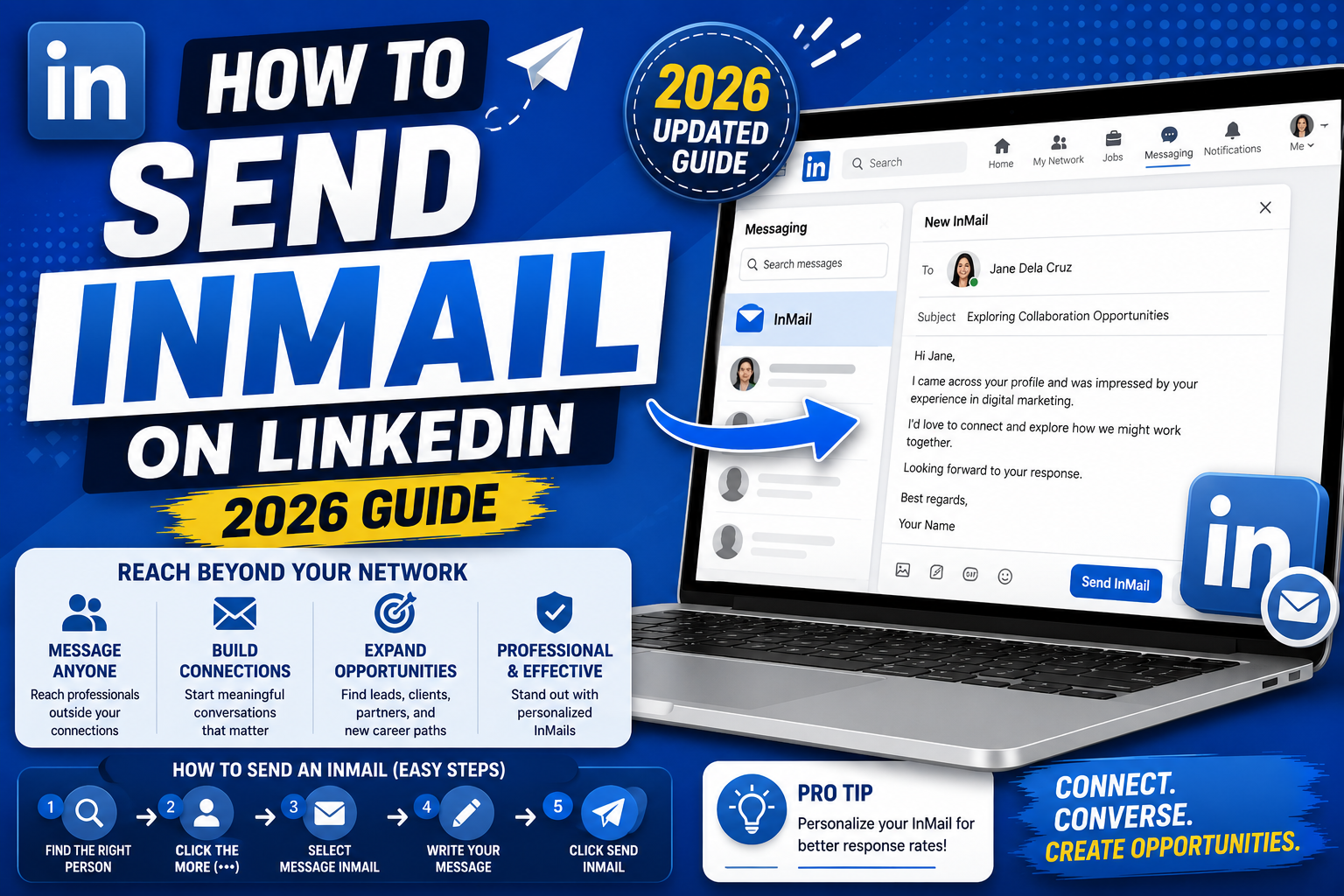
This guide walks through how to send an InMail in 2026 on desktop and mobile, which LinkedIn plans include InMail credits, how many credits you actually get per month, and the specific writing patterns that lift reply rates above the industry average of 10 to 25 percent.
Quick step-by-step summary (click to expand)
- Confirm you have InMail credits. Only LinkedIn Premium, Sales Navigator, and Recruiter accounts get InMail credits. Free accounts cannot send InMail.
- Find the recipient’s profile. Search their name or company, and open their profile.
- Click the Message button. If they are not a connection, the button opens an InMail composer instead of a regular message.
- Write a subject line and message. Keep the subject under 60 characters and the message under 400 characters for best reply rates.
- Send and track. Sent InMails appear in your Messaging inbox. Successful replies within 90 days return the credit to your balance.
What InMail is and why it exists
Regular LinkedIn messaging only works between people who are already connected. If you want to reach someone new, you send a connection request first, and they choose whether to accept. That is fine for peer networking, but it does not work for time-sensitive outreach like job applications, sales prospecting, or press pitches.
InMail solves this by giving paid LinkedIn users a limited number of credits that let you skip the connection request. The recipient gets your InMail in their normal inbox, marked with a small InMail label. They can reply, ignore, or report it. LinkedIn tracks reply rates and warns you if yours drops below a healthy baseline.
Which LinkedIn plans include InMail credits
InMail credits are bundled into paid LinkedIn plans. The number of monthly credits varies by tier:
- LinkedIn Premium Career: 5 InMail credits per month
- LinkedIn Premium Business: 15 credits per month
- Sales Navigator Core: 50 credits per month
- Sales Navigator Advanced: 50 credits per month
- Recruiter Lite: 30 credits per month
- Recruiter (full): 150 credits per month
Unused credits roll over for up to 90 days, so you can save them for high-priority outreach. LinkedIn also returns credits when your InMail gets a reply within 90 days, meaning good targeting effectively refunds itself.
Free LinkedIn accounts do not have InMail credits, and you cannot buy credits separately without upgrading a plan.
Send an InMail on desktop
- Log into LinkedIn on desktop.
- Use the search bar at the top to find the person by name or by their company plus job title.
- Click their name in the search results to open their profile.
- Click the blue Message button below their profile photo. Because you are not connected, this opens the InMail composer instead of a regular message window.
- Fill in the Subject field (visible in the recipient’s inbox, so make it specific).
- Write your message in the body. Keep it under 400 characters.
- Click Send. One credit is deducted from your monthly balance.
If the Message button says Connect instead of Message, that user has restricted InMails in their Privacy settings. In that case, InMail is not available and you need to send a regular connection request.
Send an InMail on mobile (iOS and Android)
The mobile flow is nearly identical to desktop:
- Open the LinkedIn app and tap the search icon at the top.
- Search for the person’s name and tap their profile.
- Tap the Message button below their profile photo. On non-connections with InMail enabled, this opens the InMail composer.
- Enter the subject line, then the message body.
- Tap Send.
The mobile keyboard makes it easy to write too fast and hit send before checking. Read your message twice before sending, because there is no unsend option after the credit is deducted.
Write an InMail that actually gets replies
LinkedIn reports that InMails between 150 and 400 characters get 22 percent higher reply rates than longer messages. Short is better. Here is a 3-part structure that works across recruiting, sales, and career outreach:
- Opener (1 line): a specific reference to something on their profile, a mutual connection, or recent company news. Not “I hope this finds you well.”
- Ask (1 line): what you want from them, stated plainly. Not vague (“would love to chat”) but concrete (“15 minutes to hear about your team’s growth plans”).
- Why it is fast for them (1 line): what you will do so they do not have to. Attach the deck, share the link, offer 3 slot options.
Subject lines that outperform generic ones: reference the recipient’s post (“Loved your take on X”), name a mutual connection (“Kai suggested I reach out”), or state the ask clearly (“15-minute chat about Data Analyst role”).
Avoid: “Quick question”, “Opportunity for you”, or anything that looks like a copy-paste template. LinkedIn users are trained to ignore these.
How the credit refund works
LinkedIn incentivizes you to write good InMails by refunding the credit when the recipient replies within 90 days. The reply can be an accept, a polite decline, or a follow-up question. As long as they respond, you get the credit back.
This changes the economics of InMail significantly. A user who consistently gets 40 percent reply rates effectively has 8 InMails per 5-credit Premium Career plan. A user who sends generic pitches and gets 5 percent replies effectively burns their credits at full price.
To check your reply rate, open LinkedIn Messaging, click the InMail folder, and look at the reply percentage LinkedIn displays. If it is under 15 percent, tighten your targeting and shorten your messages before sending more.
When InMail is the wrong tool
InMail is not always the best outreach path. Skip it and use one of these instead when the situation fits:
- Job application: apply through the job posting first. Recruiters filter by applicants, not by inbound InMail. Send InMail only if you get no response after 2 weeks.
- Introduction via mutual connection: ask the mutual connection to introduce you. Warm intros convert 5 to 10 times better than cold InMail.
- Public press pitch: use the journalist’s email, which is often in their bio or on the publication’s masthead. Email replies faster than InMail.
- Bulk outreach to peers: connection requests with a short personal note cost zero credits and get accepted at 20 to 40 percent rates.
Official documentation
Frequently asked questions
Can I send InMail on a free LinkedIn account?
No. InMail is a paid feature. Only LinkedIn Premium, Sales Navigator, and Recruiter accounts include InMail credits. Free accounts can only message existing connections or send connection requests with a note.
How many InMails do I get on Premium Career?
LinkedIn Premium Career includes 5 InMail credits per month. Unused credits roll over for up to 90 days, and any InMail that gets a reply within 90 days refunds the credit to your balance.
Can I buy extra InMail credits without upgrading?
No. LinkedIn does not sell InMail credits separately from paid plans. To get more credits, upgrade to a higher tier (Business, Sales Navigator, or Recruiter) or wait for the next monthly refresh.
What is the average InMail reply rate?
LinkedIn reports an industry average of 10 to 25 percent, depending on target and message quality. Well-targeted, personalized InMails between 150 and 400 characters consistently outperform this range. Vague or template-style messages fall to 3 to 5 percent.
Can I recall an InMail after sending?
No. Once you tap Send, the InMail is delivered to the recipient’s inbox and the credit is deducted. There is no unsend option. If you spot a typo, send a short follow-up InMail correcting it, though that costs another credit.
Why does the Message button say Connect instead?
The recipient has restricted InMails in their Privacy settings. Some users limit InMails only to their network or to people who share a group with them. In that case, InMail is not available and your only option is a connection request with a short note.
InMail rewards precision more than volume. Five well-targeted messages per month usually beat fifty template blasts, both in reply rate and in what the recipient thinks of you afterward. Save your credits for the people who genuinely fit what you are working on.

Leah Whynett Dela Pena
Technology Writer at PIES IT Solution
Leah Whynett Dela Pena is a technology writer at PIES IT Solution, author of 93 career and IT education guides at itsourcecode.com. Specializes in tech career paths (software engineering, web development, cybersecurity, IT analyst roles), degree and certification guidance, and IT industry how-to content for students and career changers.
Expertise: Tech Careers · IT Education · Web Development Careers · Software Engineering Careers · Cybersecurity Careers · IT Certifications · Career Guidance · View all posts by Leah Whynett Dela Pena →