
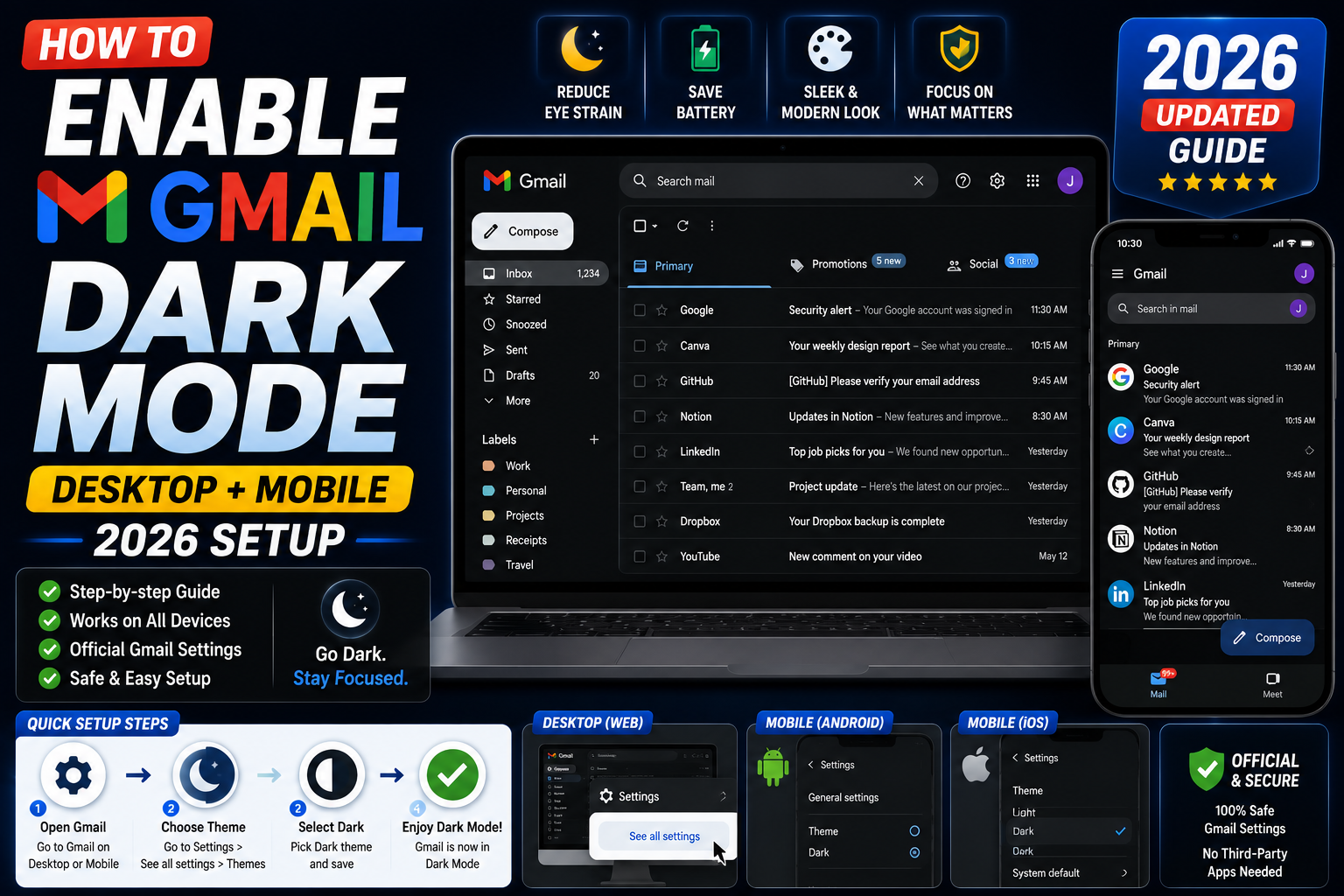
Quick step-by-step summary (click to expand)
- Open Gmail settings. Click the gear icon at the top right.
- Click “Quick settings” > Theme. Or click “See all settings” > Themes tab for more options.
- Choose Dark or Default to system. Dark forces the dark theme. Default follows your device.
- On mobile, tap the menu icon. Then Settings, then General settings, then Theme.
- Pick Dark or System default. On both Android and iPhone.
- Verify. Gmail immediately switches to dark backgrounds with light text.
- Adjust system theme schedule. Set your OS to auto-switch based on time.
Enable dark mode on Gmail Web
- Open Gmail in your browser.
- Click the gear icon at the top right.
- Under “Quick settings”, find the “Theme” section.
- Click the “Dark” thumbnail to switch immediately.
- For more theme options, click “See all settings” instead, then click the “Themes” tab at the top.
The interface switches instantly. Your inbox background becomes dark gray, and text switches to white/light gray. Sidebar and toolbar all match.
Match your system theme automatically
Instead of picking Light or Dark manually, tell Gmail to follow whatever theme your operating system is using:
- Open Gmail settings (gear icon).
- Under Theme, click “Default to system”.
Now Gmail is Light when your OS is in light mode and Dark when your OS is in dark mode. Combine this with your OS’s automatic theme scheduling for a “Dark from 8 PM to 7 AM” workflow.
To set up automatic theme scheduling on your OS:
- Windows 11: Settings > Personalization > Colors. Windows does not have native scheduling, so use the free AutoDarkMode app for time-based switching.
- macOS: System Settings > Appearance > Auto (follows sunrise/sunset).
- Chrome OS: Settings > Personalization > Set Wallpaper & Style > Time of day.
Enable dark mode on Gmail Android
- Open the Gmail app on Android.
- Tap the menu icon (three horizontal lines) at the top left.
- Scroll to the bottom and tap “Settings”.
- Tap “General settings”.
- Tap “Theme”.
- Choose Light, Dark, or “System default”.
Dark mode applies instantly. “System default” follows your Android system-wide dark mode setting (Settings > Display > Dark theme). Combine with Android’s dark theme schedule for automatic day/night switching.
Enable dark mode on Gmail iPhone
- Open the Gmail app on iPhone.
- Tap the menu icon at the top left.
- Scroll to the bottom and tap “Settings”.
- Tap the gear icon at the top of settings (or “General settings”).
- Tap “Theme”.
- Choose Light, Dark, or “System default”.
For system-default to work, you also need iOS in dark mode: iPhone Settings > Display & Brightness > Dark. iOS supports automatic dark-mode scheduling (Sunset to Sunrise, or custom hours).
Read individual emails in the opposite theme
Sometimes an email is designed for light backgrounds and looks broken in dark mode (dark text on dark background). Gmail lets you view a single email in the opposite theme:
- Open the email.
- Look at the top-right corner of the email.
- Click the three-dot menu.
- Click “View in light theme” (or “View in dark theme” if you are in light mode).
The email displays with the opposite background while the rest of Gmail stays in your chosen theme. This is useful for newsletters or marketing emails that were designed for light-only viewing.
Enable dark mode on Gmail for Google Workspace accounts
If your Gmail is part of a Google Workspace (business or school) account, the process is identical to personal Gmail. Some organizations restrict theme changes via admin settings, but this is rare. If the Theme option is grayed out or missing, ask your Workspace admin to enable it.
Dark mode does not apply to inbox previews
Note: some third-party Gmail-integrated apps (browser extensions, Chrome-based clients) do not respect Gmail’s dark mode setting because they inject their own UI. If a specific extension still looks light while Gmail is dark, check the extension’s own settings for a dark mode option.
Full themes vs dark mode (the difference)
Gmail has TWO theme systems:
- Theme (Light / Dark / System default): Simple two-color scheme change. This is what most people want.
- Themes tab (full backgrounds): Photos and colored backgrounds behind Gmail. Available under Settings > See all settings > Themes tab.
If you have picked a photo background from the Themes tab, that overrides the dark mode setting. To use dark mode, first click “None” or “Default” in the Themes tab, then set dark under Quick settings.
Troubleshooting
- Dark mode option is missing. Update the Gmail app to the latest version. On desktop, refresh Gmail (Ctrl+F5). Old versions of Gmail may lack the dark theme.
- Dark mode is grayed out. Your Google Workspace admin has restricted theme changes. Ask them to enable it.
- Dark mode works in Gmail but not in the inbox list. A Chrome extension is overriding the theme. Disable extensions one at a time to find the culprit.
- Some emails still show light backgrounds in dark mode. Emails with fixed-background HTML render as designed. Gmail cannot force them to dark. Use “View in light theme” per email if needed.
- Theme resets after clearing browser cache. Log back in to Gmail after clearing cache and set the theme again. Cookie-based theme preference is stored per browser.
- Mobile app theme changes but not the notification badge. Restart the app. Notification appearance follows the OS theme, not the app theme.
Official documentation
Frequently asked questions
Does Gmail dark mode save battery?
Yes, on OLED and AMOLED phone screens. Dark pixels use less power because those screens turn off pixels for pure black. On LCD screens, there is no battery saving effect. iPhones with OLED (iPhone X and newer) and most modern Android flagships benefit.
Can I schedule Gmail dark mode by time of day?
Not directly in Gmail, but through your OS. Set Gmail to “System default” then schedule dark mode at the OS level. macOS has native sunrise/sunset scheduling. iOS has automatic dark mode. On Windows, use the free AutoDarkMode app for time-based switching.
Why is one email still showing a light background in dark mode?
Emails with fixed HTML backgrounds render as designed regardless of your Gmail theme. Newsletters and marketing emails often do this. Click the three-dot menu on the email and select “View in light theme” or accept the mismatch as an artifact of email design.
Does dark mode change how my sent emails look to recipients?
No. Your theme only affects what YOU see. Recipients see your emails in whatever theme they use. Your dark mode does not affect the styling of the emails you compose or send.
Can I use dark mode with a Gmail full-background theme?
No. Full-background themes (photos or colored gradients under Themes tab) override the simple dark/light setting. Choose one or the other. To use dark mode, first set the Themes tab to None or Default, then switch to Dark under Quick settings.
Is Gmail dark mode available on Outlook.com or Yahoo Mail?
Only in Gmail natively. If you view Gmail through Outlook Desktop, Outlook uses its own theme. To have dark mode across all your inboxes, set dark mode in each mail app separately, or use a system-wide dark theme that most apps respect.
What is new for Gmail dark mode in 2026
The Aug 2026 Gmail update added an Auto Dark Mode setting that follows your operating system throughout the day. Set your device to auto-switch (Windows Sunrise-Sunset, macOS Auto in Appearance settings, iPhone Automatic in Display), and Gmail matches it. No more manual theme toggling at dusk.
Gmail also improved email body rendering in dark mode. Previously, HTML emails with white backgrounds appeared as bright rectangles in the middle of a dark inbox. The Aug 2026 update auto-inverts white-heavy email content to reduce glare, while preserving intentional dark-styled marketing emails.
Common Gmail dark mode pitfalls
- Dark mode not saving. Cache clear or private browsing session may reset. Sign in, apply dark theme, then Save. Setting persists in your Google Account, not local browser storage.
- Email body still bright white. Marketing emails with hardcoded white backgrounds override Gmail dark mode. Turn on Auto-invert (Aug 2026 update) in Settings, General, to force dark rendering of white content.
- Mobile dark mode different from desktop. Gmail app settings are separate from web settings. Configure mobile Theme independently in Gmail iOS/Android Settings.
- Images look washed out in dark mode. Dark mode reduces image contrast in some cases. Click any image thumbnail to expand for full-quality view. Or right-click, View image, in a new tab.
Third-party dark theme extensions
For deeper dark theming beyond Gmail native (like darkening embedded images, custom accent colors), use browser extensions like Dark Reader (Chrome/Firefox/Edge). Dark Reader overrides page CSS with a truly dark theme. Enable per-site: click extension icon while on gmail.com, toggle On. Gmail respects the CSS override + shows a fully custom dark UI.
For eye strain during long email sessions, consider ALSO enabling a warm color temperature via f.lux or Windows Night Light, alongside Gmail dark mode. The combination is significantly easier on your eyes for extended reading.
Official documentation
Quick step-by-step summary (click to expand)
- Open Gmail Settings Click the gear icon in the top-right corner, then click See all settings.
- Switch to Themes tab In the Themes tab, scroll to see available themes.
- Choose Dark theme Click the Dark thumbnail (or Auto to match OS setting). Preview updates in the background immediately.
- Save the theme Click Save. Gmail applies dark mode to the interface immediately.
- Enable on mobile In Gmail iOS/Android app: Settings, Theme, Dark. Or Auto to match phone OS Dark Mode setting.
Frequently Asked Questions
How do I turn on dark mode in Gmail?
Settings gear, See all settings, Themes tab, click the Dark thumbnail or Auto (matches OS), then Save.
Does Gmail dark mode sync between desktop and mobile?
No. Desktop and mobile use separate theme settings. Configure each independently: web via Settings, mobile via Gmail app Settings, Theme.
Why do some email bodies still appear white in dark mode?
Marketing emails hardcode white backgrounds. The Aug 2026 update added auto-invert that forces dark rendering. Enable in Settings, General, Auto-invert.
Can Gmail switch dark mode automatically at sunset?
Yes as of the Aug 2026 update. Set OS to auto-dark-mode (Windows, macOS, iOS all support this). Gmail follows the OS setting throughout the day.
Does Gmail dark mode reduce battery on mobile?
Yes on OLED screens (iPhone 12+, Pixel 6+, most flagship Android since 2020). LCD screens see minimal battery savings from dark mode.
What is the best dark theme extension for Gmail?
Dark Reader (Chrome/Firefox/Edge) is the most popular. Provides deeper customization than Gmail native, including image darkening and custom accent colors.