
Meta AI is built directly into WhatsApp on iPhone, Android, WhatsApp Web, and WhatsApp Desktop. You can chat with it privately, tag it inside group chats, generate images with it, and, as of May 2026, hold Incognito Chats that Meta says are not stored or used for training. This 2026 guide walks you through everything you can do with Meta AI in WhatsApp, plus the privacy settings most people miss.
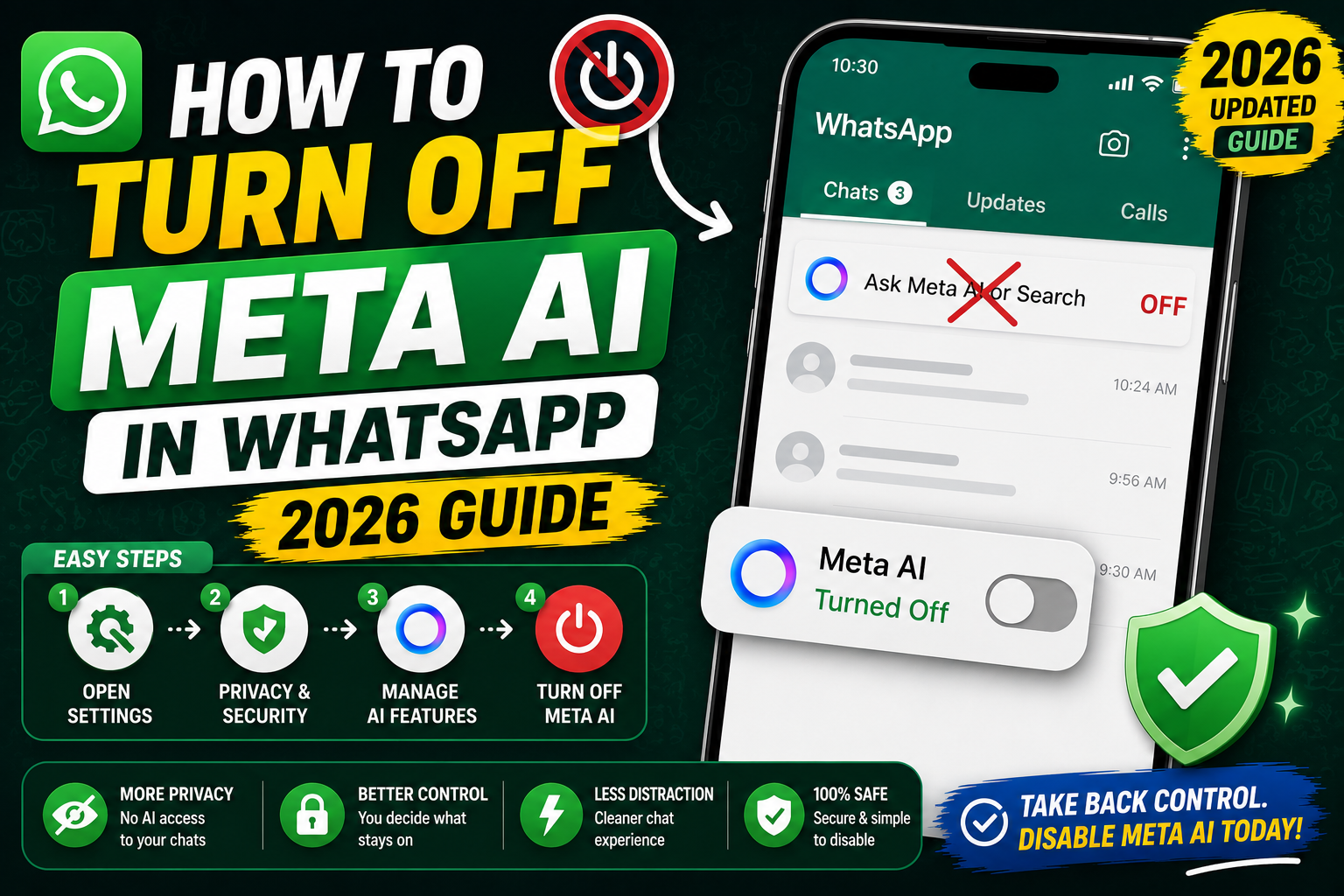
Quick step-by-step summary (click to expand)
- Open WhatsApp. Update to the latest version (Meta AI needs 2024+ builds).
- Tap the Meta AI icon. Blue-purple circle in the top corner of the Chats tab, or search “Meta AI” in the chat list.
- Start a private chat. Ask any question the way you would ChatGPT or Google.
- Use Meta AI in a group. Type @MetaAI followed by your question inside any group chat.
- Generate images. Type “imagine” plus a description to create an AI image.
- Try Incognito Chat. Long-press the Meta AI chat and select “Incognito Chat” for a session not stored by Meta.
- Adjust privacy. Settings > Privacy > Manage AI-related data to control what Meta stores.
What Meta AI actually is
Meta AI is a chatbot built on Meta’s Llama models. It lives inside WhatsApp, Instagram, Facebook Messenger, and Meta.ai on the web. Inside WhatsApp specifically, it works the same way any contact does: you send a message, it replies. But you can also invoke it inside group chats or generate images without leaving the app.
Availability: rolled out globally through 2024-2026. If you do not see the Meta AI icon in your WhatsApp, either your country has not received the feature yet or your app version is too old. Update from Google Play or App Store first.
Start a private chat with Meta AI
- Open WhatsApp.
- Look for a blue-and-purple circle icon in the top-right corner of the Chats tab. If you do not see it, tap the search bar and type “Meta AI”.
- Tap the icon to open a new chat with Meta AI.
- Type any message and send.
The chat looks and feels like any WhatsApp conversation. Type “What is the weather like in Manila today?” or “Help me plan a 3-day trip to Cebu” or “Explain how RAG works in 3 sentences.” Meta AI replies in seconds.
Use Meta AI inside a group chat
The powerful trick most people miss: you can tag Meta AI in any group chat without adding it as a member.
- Open a group chat.
- Start typing @MetaAI (like tagging a person). A suggestion for Meta AI appears above the keyboard.
- Tap the suggestion, then type your question after it.
- Send. Meta AI replies in the group where everyone can see the answer.
Useful for group decisions: settle “which restaurant delivers to Ortigas after 10 PM?” or “which flight route is cheapest right now?” without anyone leaving the chat to google.
Generate images with Meta AI
Meta AI can create images from text descriptions:
- In a private Meta AI chat, type “imagine” followed by what you want.
- Example: “imagine a Filipino carinderia in Binondo at sunset, watercolor style”.
- Meta AI generates an image within 10-20 seconds.
- Long-press the image to save, forward, or share.
Meta AI’s image generator is free and unlimited (as of 2026). Quality is comparable to mid-tier alternatives like DALL-E 3. Great for social posts, message stickers, or brainstorming visual ideas.
Try Incognito Chat (May 2026 feature)
Meta launched Incognito Chat in May 2026 in response to privacy criticism. Incognito Chats are not saved to your Meta AI history and are not used to train future models.
- Open Meta AI chat in WhatsApp.
- Long-press on the chat header at the top.
- Select “Incognito Chat” from the menu.
- A new session opens with a discreet indicator showing it is incognito.
- Everything you send in this session is discarded when you close the chat.
Use for: personal medical questions, sensitive financial questions, or anything you would not want tied to your Meta account long-term.
Ask Meta AI about photos and files
You can send Meta AI photos to analyze:
- In a Meta AI chat, tap the attach icon (paperclip or plus).
- Attach a photo from your gallery or take one with the camera.
- Type a question about the photo. Example: “What plant is this?” or “Read the text in this photo aloud in English.”
- Send. Meta AI analyzes the image and replies with details.
This works for identifying objects, translating signs, reading handwritten notes, or extracting text from screenshots. It does not work reliably for medical scans, legal documents, or highly technical diagrams.
Voice-chat with Meta AI
- Open a Meta AI chat.
- Tap the microphone icon in the message input area.
- Speak your question. Meta AI transcribes as you speak and replies both in text and (optionally) voice.
- Long-press the microphone to switch to a full voice conversation mode where Meta AI reads its replies aloud in a chosen voice.
Available on iPhone, Android, and WhatsApp Web (2026 update). Handy while cooking, driving, or when typing is slow.
Meta AI privacy controls (essential to know)
By default, Meta uses your Meta AI conversations to train future models. To opt out:
- Open WhatsApp.
- Go to Settings > Privacy > “Manage AI-related data” (or “Meta AI data”).
- Toggle off “Use my messages to improve Meta AI” if available in your region.
- Optionally delete your Meta AI chat history from the same panel.
What Meta AI still sees regardless:
- Every message you send TO Meta AI (private or via @MetaAI in groups)
- Files and photos you attach
- Your location if you ask location-based questions
What Meta AI does NOT see:
- Your regular one-on-one chats with contacts (end-to-end encrypted)
- Group chats where nobody tagged @MetaAI
- Voice and video calls
Common tasks Meta AI does well
- Quick fact lookups: capital cities, currency conversions, holidays, historical events.
- Translation: paste text or send a photo of foreign-language content; ask for translation.
- Summarizing: paste long text; ask “summarize this in 3 bullets.”
- Recipe help: “I have chicken, rice, calamansi, garlic, what can I cook?”
- Writing help: “Rewrite this message to sound more polite.”
- Image generation: “imagine [description]”
- Photo analysis: send photo + question
What Meta AI does NOT do well
- Fresh news: Meta AI’s knowledge has a training cutoff. Do not use for breaking news or live sports scores.
- Complex code: use Claude Code, GitHub Copilot, or Cursor for real coding work.
- Legal or medical advice: it will attempt an answer but treat as background reading, not authoritative.
- Filipino local knowledge: it knows major Manila landmarks but is thin on specific barangay-level details, small towns, or provincial businesses.
Turn off Meta AI notifications
If Meta AI shows up in your chat list and you never plan to use it, minimize its visibility:
- Long-press the Meta AI chat.
- Tap “Archive” to hide it from the main chat list.
- To hide the top-right shortcut icon: this option is not available in 2026 (Meta forces the icon). Third-party mods can hide it but violate WhatsApp’s terms of service.
Official documentation
Frequently asked questions
Is Meta AI in WhatsApp free?
Yes. Meta AI is free with no message limits, no subscription, and no ads inside the chat itself. Meta monetizes by using conversations to improve future models (unless you opt out or use Incognito Chat).
Can I use Meta AI in the Philippines?
Yes. Meta AI rolled out to the Philippines through 2024-2025 and works in Tagalog, English, and mixed Taglish. Voice mode works well for both languages. Image generation works but has fewer local cultural references than Western scenes.
Does Meta AI read my regular WhatsApp chats?
No. Your one-on-one and group chats where you have NOT tagged @MetaAI stay end-to-end encrypted. Meta only sees messages you send TO Meta AI or where you use @MetaAI. Voice and video calls are also encrypted and unseen.
What is the difference between Incognito Chat and regular Meta AI?
Regular Meta AI saves your conversation history and may use it to train future models. Incognito Chat (launched May 2026) is stateless: nothing is stored, and Meta says nothing is used for training. Use Incognito for sensitive topics.
Can I completely remove Meta AI from WhatsApp?
Not entirely. You can archive the chat and never tap the icon, but Meta does not offer a way to hide the icon or fully disable the feature in 2026. If Meta AI’s presence bothers you, alternative messaging apps like Signal or Telegram do not have integrated AI.
Does Meta AI work in WhatsApp Web and Desktop?
Yes on both. The Meta AI icon appears in the sidebar the same way as on mobile. Voice mode and image generation work in the browser and desktop app. Feature parity is complete as of 2026.

Caren Bautista
Technical Writer at PIES IT Solution
Responsible for crafting clear, well-structured, and beginner-friendly content across the platform. Handles the writing, proofreading, and editorial review of tutorials, guides, and documentation to ensure every article is accurate, readable, and easy to follow.
Expertise: Technical Writing · Content Creation · Documentation · Editorial Writing · JavaScript · TypeScript · Python · Python Errors · HTTP Errors · MS Excel · View all posts by Caren Bautista →