
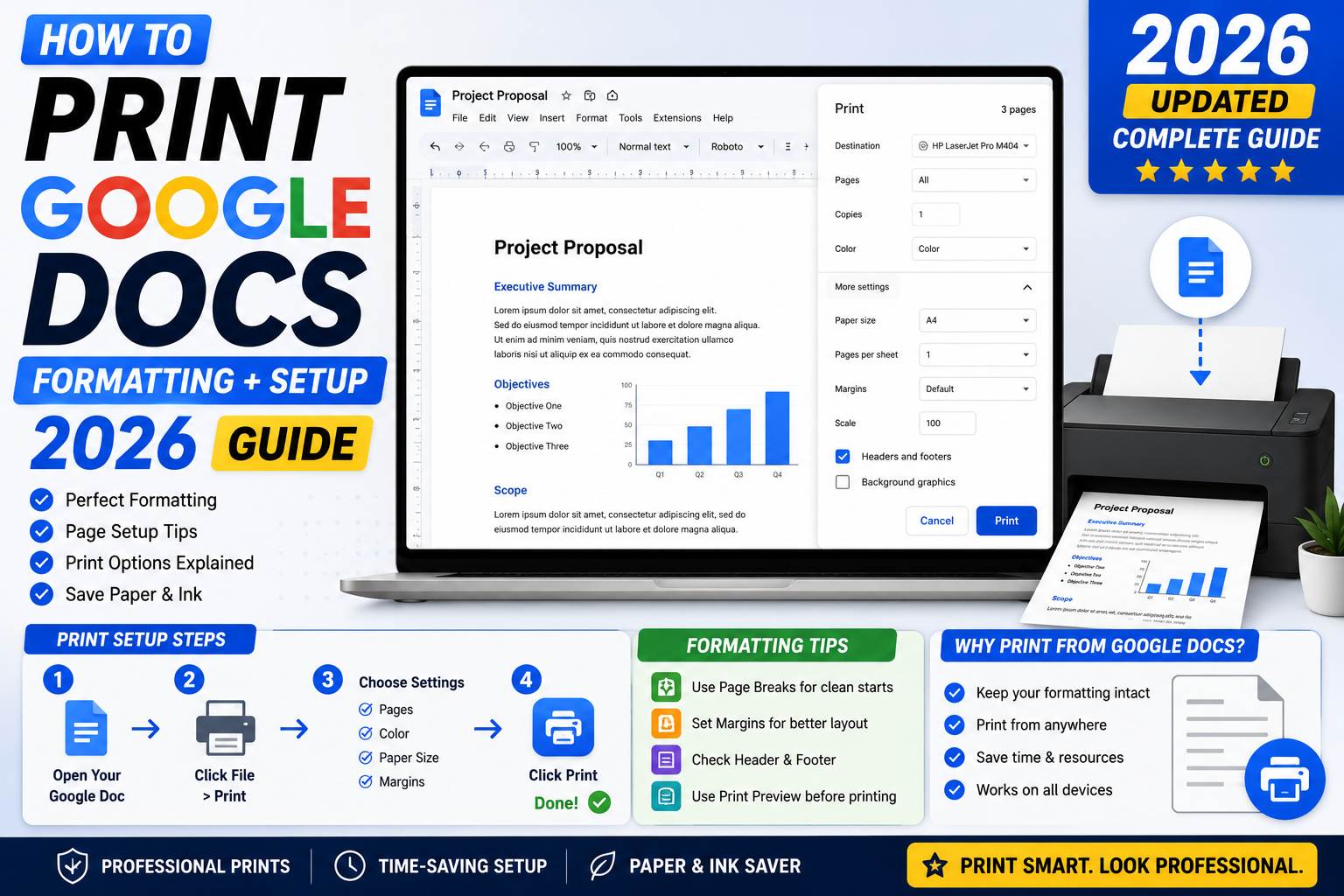
Quick step-by-step summary (click to expand)
- Open your Google Doc. Go to docs.google.com and open the file.
- Set page setup. File > Page setup. Adjust orientation, size, margins, and background color.
- Click File > Print. Or press Ctrl+P (Windows) / Cmd+P (Mac).
- The print dialog opens. Your browser or system print dialog appears.
- Pick your printer. Or choose Save as PDF as the destination.
- Adjust page range and copies. Optional. Default is All pages, 1 copy.
- Click Print. The doc prints or saves.
Adjust page setup before printing
Bad prints usually come from bad page setup. Always check File > Page setup before printing important documents.
- Open your Google Doc.
- Click “File” > “Page setup”.
- Adjust:
- Orientation: Portrait (tall) or Landscape (wide). Use Landscape for wide tables and charts.
- Paper size: Letter (8.5x11in, US default), A4 (European), Legal, Tabloid, or custom.
- Page color: Usually white. Change if you want a colored background (uses more ink when printed).
- Margins: Default is 1 inch on all sides. Reduce for more content per page. Increase for legal briefs that need wide margins for annotation.
- Optionally check “Set as default” to apply the same settings to new documents.
- Click OK.
Print a Google Doc on desktop
- Open your Google Doc.
- Press Ctrl+P (Windows/Linux) or Cmd+P (Mac). Or click File > Print.
- Google Docs opens a print preview in a new tab and launches your system’s print dialog.
- In the print dialog:
- Pick a destination (physical printer or “Save as PDF”).
- Choose page range (All, or a specific range like 1-5, 8, 10).
- Set the number of copies.
- Optionally click “More settings” for options like layout (1 sheet per page or multiple), color/black-and-white, paper size, margins, and headers/footers.
- Click “Print” or “Save”.
Print specific pages only
When you don’t need the whole document, specify page ranges in the print dialog:
- Single page: 5
- Range: 1-10
- Multiple ranges: 1-5, 8, 12-15
- Odd pages only: (checkbox in the print dialog, if available)
- Even pages only: (checkbox)
Google Docs relies on the browser’s print dialog for page range selection. Chrome, Edge, and Firefox all support the same syntax.
Save Google Doc as PDF instead of printing
- Open the doc.
- Method A: File > Download > PDF Document. Immediate download to your computer.
- Method B: File > Print > Change destination to “Save as PDF” > Save.
Method A is faster for simple export. Method B lets you adjust page range, layout, and margins in the print dialog before saving. Use Method B if you need a custom PDF (specific pages, different margins).
Print Google Doc on Android
- Open the Google Docs app.
- Open your document.
- Tap the three-dot menu at the top right.
- Tap “Share & export” > “Print”.
- Android’s system print dialog appears. Choose your printer or Save as PDF.
- Tap the print icon.
Requires an AirPrint or Google Cloud Print-compatible printer on the same network, or use Save as PDF and email the PDF to whoever needs it.
Print Google Doc on iPhone
- Open the Google Docs app on iPhone.
- Open your document.
- Tap the three-dot menu at the top right.
- Tap “Share & export” > “Print”.
- The AirPrint dialog appears. Tap “Select Printer” and pick your printer.
- Adjust copies and page range if needed.
- Tap “Print”.
If AirPrint has no printers available, either your printer does not support AirPrint or it is on a different Wi-Fi network. Check both.
Print multiple docs at once
Google Docs does not have batch print. Options:
- Download as PDF and combine: Download each doc as PDF (File > Download > PDF), then combine PDFs with a tool like Adobe Acrobat, PDF24 (free), or the built-in Preview app on Mac.
- Merge into one Google Doc first: Copy content from each doc into a single doc, then print once. Works well if the docs are structurally similar.
- Use a Chrome extension: Extensions like “Print all Google Docs” iterate through selected files and print each.
Fix common print issues
- Text cut off at the edge. Margins are too small or content extends past them. Increase margins in Page setup, or shrink your zoom to 90% in the print dialog.
- Blank pages at the end. Trailing empty paragraphs or a page break at the very end. Scroll to the end of your doc and delete extra returns.
- Images missing in print. Enable “Background graphics” in the print dialog options. Some browsers strip images by default to save ink.
- Wrong page orientation. Change in File > Page setup, not the print dialog. The doc’s setting takes priority over print dialog defaults.
- Colors printed as gray. Uncheck “Print in grayscale” in the print dialog. Or your printer is set to grayscale mode; check its settings panel.
- Font substitution. If your custom fonts do not render on the printer, install matching fonts on the print server or replace with a standard font (Arial, Times New Roman) before printing.
- Tables split across pages. Right-click the table > Table properties > check “Prevent row overflow across pages”. Rows stay together on the same page.
Best practices for printable Google Docs
- Preview before printing. Use File > Print > preview to see what will actually come out. Cheaper than wasting paper.
- Use “Print in booklet” for handouts. Some printers support duplex booklet printing. Ideal for meeting handouts.
- Standardize page setup for repeat documents. Set page setup for the doc you’ll print monthly (like a report template), then apply “Set as default” in Page setup to save the settings.
- Save as PDF first, print from PDF viewer. Gives more control over layout and page selection than printing directly from Docs.
- Use draft mode for internal prints. Some printers have a “Fast/Draft” mode that uses less ink. Save it for internal docs.
Official documentation
Frequently asked questions
Why does Google Docs open a new tab when I print?
Google Docs opens a print-friendly version of the document in a new tab, then triggers the browser’s print dialog. This is intentional so you can preview the formatting before printing. Close the tab after printing if it does not close automatically.
Can I print without opening the document?
Not from Google Drive directly. Right-click a doc in Drive shows Download or Preview options, not Print. Open the doc first, then use File > Print or Ctrl+P. For batch printing, download multiple docs as PDF and use a print utility.
How do I remove the URL and date from the print footer?
In the browser’s print dialog, uncheck “Headers and footers” (Chrome) or the equivalent option in other browsers. This removes the auto-generated URL, page number, and timestamp that browsers add by default.
Can I print Google Docs comments?
By default, no. Comments do not print. To include them, use File > Print > “Include comments” option (available in some browsers), or download the doc with comments visible as PDF using File > Download > PDF > check “Include comments” in the export dialog.
Why do my colors print as gray?
Two possible causes: (1) “Print in grayscale” is checked in the print dialog, uncheck it; (2) your printer settings default to grayscale, check the printer’s own settings panel. Also, most printers use the “color” cartridge to blend text darker, so ensure it has ink.
Does Google Docs support duplex (double-sided) printing?
Yes if your printer supports it. In the print dialog, look for “Two-sided” or “Print on both sides” option. Choose Long-edge for portrait, Short-edge for landscape. Google Docs sends the doc; the printer handles the duplexing.