
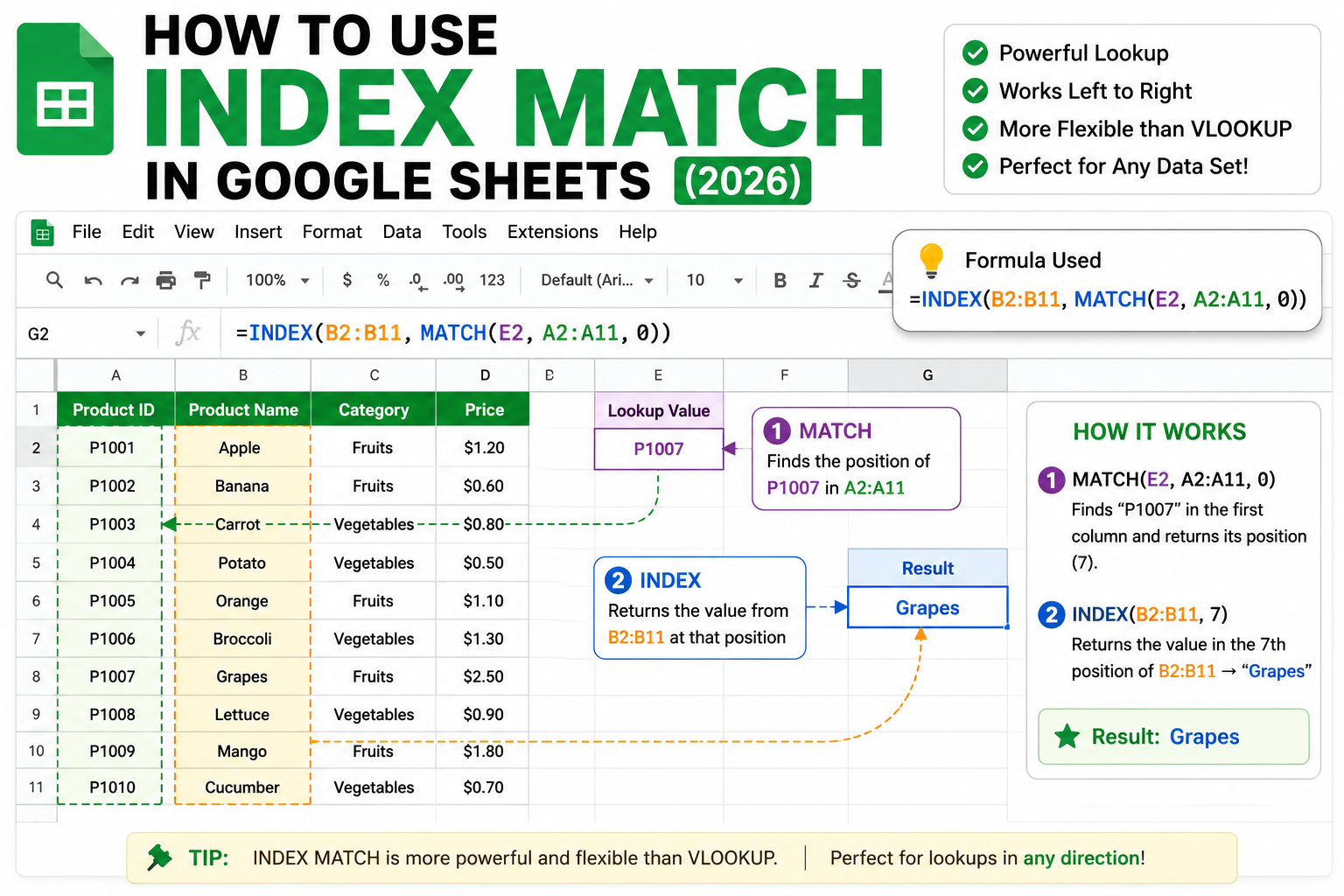
INDEX MATCH is the flexible alternative to VLOOKUP in Google Sheets. Unlike VLOOKUP, which only searches left-to-right, INDEX MATCH looks up values in any direction, handles column insertions gracefully, and processes faster on large datasets. This 2026 tutorial shows how to combine INDEX and MATCH for lookups that VLOOKUP simply cannot do.
Why INDEX MATCH beats VLOOKUP
- Left lookups: Look up a value to the LEFT of the search column (VLOOKUP cannot).
- Column insertion safe: If someone adds a column between search and return, VLOOKUP breaks. INDEX MATCH does not.
- Faster on large data: MATCH only scans one column; VLOOKUP scans the entire table.
- Two-way lookups: Find a value at the intersection of a row and column.
- Approximate + exact match: More flexibility in matching modes.
INDEX and MATCH syntax
INDEX syntax:
=INDEX(reference, row, [column])

MATCH syntax:
=MATCH(search_key, range, [search_type])

Combined:
=INDEX(return_column, MATCH(search_key, search_column, 0))
- MATCH finds the ROW POSITION of a value in a column.
- INDEX returns the value at that row position from another column.
- search_type 0 = exact match, 1 = approximate ascending, -1 = approximate descending.
Basic INDEX MATCH example
Table: A=Product Code, B=Product Name, C=Price

Find the Product Name for code "P123":
=INDEX(B2:B100, MATCH("P123", A2:A100, 0))

Find the Price for code "P123":
=INDEX(C2:C100, MATCH("P123", A2:A100, 0))

Using cell reference F1 as search key:
=INDEX(B2:B100, MATCH(F1, A2:A100, 0))
Left lookup (VLOOKUP cannot do this)
Table: A=Employee Name, B=Employee ID

Find the Employee Name where ID is E456:
=INDEX(A2:A100, MATCH("E456", B2:B100, 0))

VLOOKUP would fail because the return column (A) is LEFT of the search column (B).
Two-way lookup (row AND column)
Find a value at the intersection of a row and column, like a school grade at “Ana” (row) and “Math” (column):
Table: rows are student names (A2:A20), columns are subjects (B1:F1)

Find Ana's Math grade:
=INDEX(B2:F20, MATCH("Ana", A2:A20, 0), MATCH("Math", B1:F1, 0))

- Outer MATCH finds Ana's row position.
- Inner MATCH finds Math's column position.
- INDEX returns the intersection.
Multi-criteria lookup (INDEX MATCH with multiple conditions)
Find price where Product = "Widget" AND Size = "Large":

Method 1: Boolean multiplication
=INDEX(D2:D100, MATCH(1, (A2:A100="Widget")*(B2:B100="Large"), 0))
(Press Ctrl+Shift+Enter or wrap in ARRAYFORMULA)

Method 2: Concatenation approach
=INDEX(D2:D100, MATCH("Widget"&"Large", A2:A100&B2:B100, 0))
Handling errors with IFERROR
Return "Not Found" if code doesn't exist:
=IFERROR(INDEX(B2:B100, MATCH(F1, A2:A100, 0)), "Not Found")

Return blank instead of #N/A:
=IFERROR(INDEX(B2:B100, MATCH(F1, A2:A100, 0)), "")
INDEX MATCH vs VLOOKUP comparison
| Feature | VLOOKUP | INDEX MATCH |
|---|---|---|
| Left lookup | No | Yes |
| Column insertion safe | No | Yes |
| Speed (large data) | Slower | Faster |
| Two-way lookup | No | Yes |
| Learning curve | Easier | Slightly harder |
Common INDEX MATCH mistakes
- Forgetting the 0 in MATCH: without exact-match (0), MATCH may return wrong results on unsorted data.
- Different-sized ranges: MATCH range and INDEX range should have same number of rows.
- Absolute vs relative references: use $ signs when copying formula to other cells to lock ranges.
- #N/A errors: value not found or type mismatch. Wrap in IFERROR.
- Extra spaces or invisible characters: MATCH is strict. Use TRIM to clean data first.
Common Google Sheets mistakes to avoid
Even experienced users hit the same pitfalls with Sheets formulas and shared spreadsheets. Being aware of these traps saves hours of debugging and rework.
- Not checking sharing permissions before sending. A file shared with “Anyone with the link” behaves differently from “Restricted.” Always verify who can access before you share externally.
- Working on a shared file without version history awareness. Google Workspace keeps version history, but collaborators can overwrite your work. Use File > Version history > See version history to review changes.
- Ignoring the auto-save indicator. The “All changes saved in Drive” indicator confirms your work is persisted. If it says “Saving…” for too long, your connection may be unstable.
- Forgetting to check on mobile. Some formatting and features render differently on the Google Workspace mobile apps. Test on your phone before sending important content.
- Not using keyboard shortcuts. Google Workspace has extensive shortcuts (press Ctrl+/ or Cmd+/ to see them all). Learning the top 5-10 shortcuts saves significant time.
Power-user tips for Google Sheets
Once the basics are solid, these techniques let you work faster and with more control.
- Use templates as starting points. Google Workspace includes free templates for common documents. Access via File > New > From template gallery. Customize once, reuse forever.
- Master search operators inside Drive. Search operators like
type:document,owner:me, andbefore:2025-01-01narrow results dramatically. Combine multiple operators for precise filters. - Use offline mode when your connection is unreliable. Enable offline access in Drive settings so you can keep working during network outages. Changes sync automatically when you reconnect.
- Set up Google Workspace apps on desktop. Drive for Desktop syncs files to your local machine and integrates with File Explorer or Finder. Works better than the web interface for large files.
- Bookmark important documents. Star files in Drive to see them at the top of your Home view. Great for daily reference documents.
Real-world workflow examples
Concrete scenarios where these features solve everyday problems:
For students and BSIT capstone teams: Use shared Google Docs for capstone documentation, with real-time collaboration replacing back-and-forth email attachments. Version history preserves an audit trail of who wrote what.
For freelancers and consultants: Combine Google Drive folders (per client) with shared permissions for smooth handoffs. Clients can view or comment without needing separate accounts.
For small teams: A shared Drive folder plus a linked Google Sheet as project tracker gives structured collaboration without paying for enterprise tools.
Best practices summary
The pattern that works across nearly every Google Workspace use case:
- Start simple, add complexity when needed. A basic Doc or Sheet solves 90 percent of cases. Only add scripts, add-ons, or complex formulas when the simple version breaks.
- Version history is your safety net. Every serious edit should be reversible via File > Version history.
- Share thoughtfully. Restricted sharing beats Anyone-with-link for anything sensitive. Add specific emails for tighter control.
- Mobile-check before sending. A quick preview on your phone catches layout issues that never show up on desktop.
- Learn keyboard shortcuts. The top 10 shortcuts save 30 minutes a week if you use Workspace daily.
Official documentation
Recommended Google Sheets resources
The links below are affiliate links. We may earn a commission at no extra cost to you when you buy or sign up. See our affiliate disclosure.
Frequently Asked Questions
Should I always use INDEX MATCH instead of VLOOKUP?
For robustness, yes. INDEX MATCH survives column insertions and handles left lookups. For quick one-off formulas where the table structure is stable, VLOOKUP is simpler. Modern XLOOKUP also solves these issues.
Does INDEX MATCH work with XLOOKUP?
Both solve the same problems. XLOOKUP is simpler syntax and Google added it to Sheets in 2022. If you can use XLOOKUP, do. INDEX MATCH remains useful for complex multi-criteria lookups and older spreadsheets.
Why does MATCH return the wrong position?
Almost always the search_type argument. Use 0 for exact match. Without it, MATCH assumes sorted data and may return the position of the last value less than search_key.
Can INDEX MATCH return multiple values?
Standard INDEX MATCH returns one value. For multiple matches, wrap in ARRAYFORMULA or use FILTER, which returns all matching rows.
Is INDEX MATCH really faster than VLOOKUP?
On tables with many columns, yes. VLOOKUP scans the entire table width; MATCH only scans one column. On 10,000+ rows with 20+ columns, the difference is noticeable.