
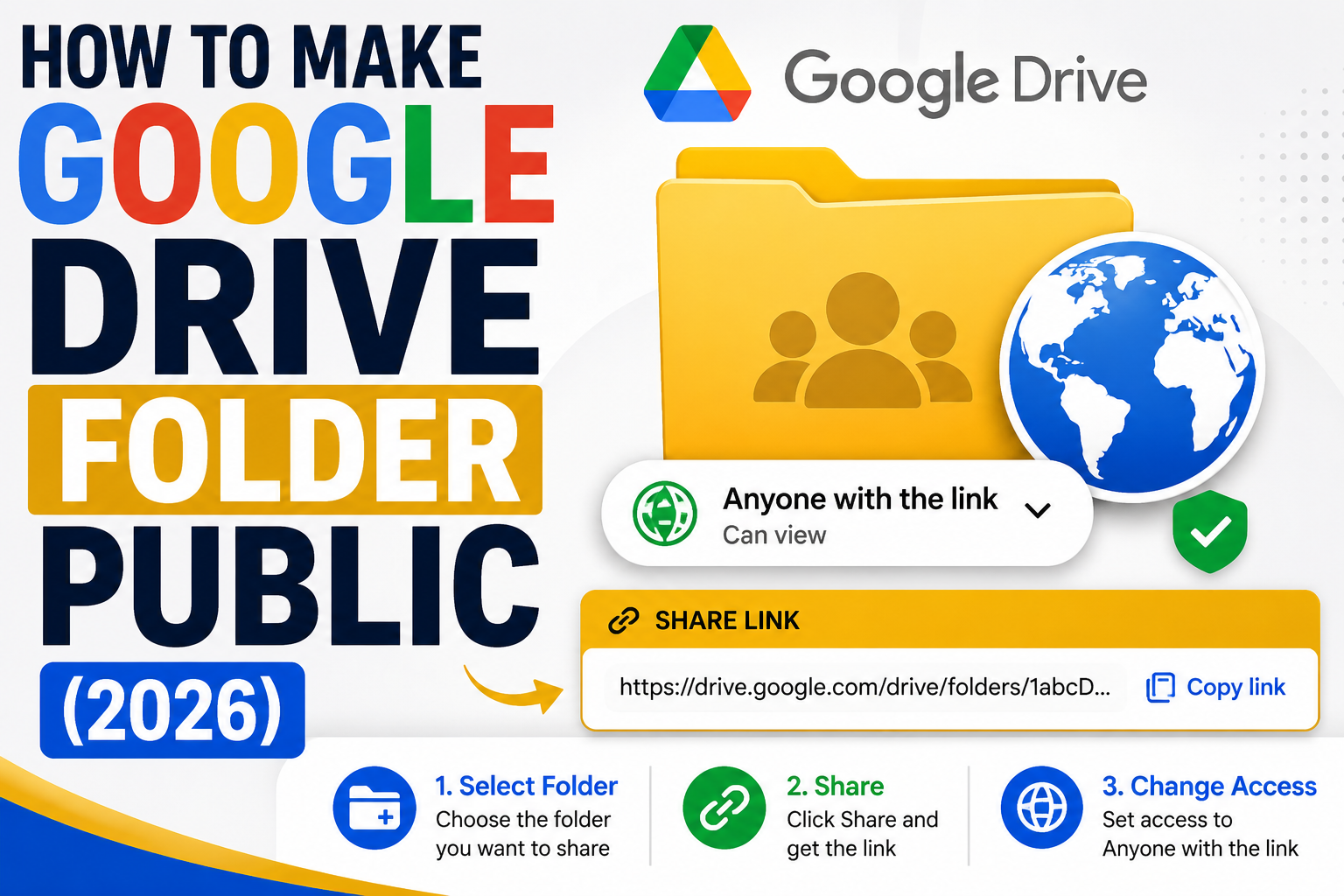
Making a Google Drive folder public lets anyone with the link view or download files without needing a Google account. Useful for portfolios, downloadable resources, event photos, and public documentation. This 2026 tutorial covers making a folder public, tightening or loosening permissions, and security warnings.
Understand what “public” means in Drive
- Restricted: only invited emails can access.
- Anyone with the link: unlisted, accessible if you have the link but not searchable.
- Public on the web (legacy): searchable by Google Search, anyone can find it via Google.
Most people mean “Anyone with the link” when they say “public”, it’s shareable but not indexed by search engines.
Step 1: Make a folder public (Anyone with the link)
- Open Google Drive.
- Right-click the folder.
- Click Share.
- Under “General access”, click the dropdown showing “Restricted”.
- Pick Anyone with the link.
- Set permission level (Viewer, Commenter, or Editor).
- Click Copy link.
- Paste the link in email, chat, or your website.
Step 2: Decide permission level
- Viewer: anyone with link can VIEW. Cannot edit or comment. Can download if that’s enabled.
- Commenter: view + leave comments (rarely useful for shared folders).
- Editor: anyone with link can EDIT, upload, delete. Dangerous for public sharing.
Recommendation: use Viewer for most public folders. Only use Editor when specific collaborators need to add files.
Step 3: Prevent downloads (view only)
- Right-click folder > Share.
- Click the gear icon (top-right of Share dialog).
- Uncheck Viewers and commenters can see the option to download, print, and copy.
- Save.
Users can now only view files inline (no download button). Not foolproof (screenshots possible) but deters casual copying.
Embed a Google Drive folder on your website
Drive does not offer official folder embeds (unlike single files). Workarounds:
- Share the folder as “Anyone with link”.
- On your website, add a button or link: “Access Files“.
- For single-file embeds: open a specific file > File > Share > Embed item > copy iframe code.
Make a folder public in a Google Workspace domain
Workspace admins have stricter defaults, external sharing may be blocked:
- Try the standard steps. If “Anyone with link” is not available, admin has blocked external sharing.
- Contact your Workspace admin to allow external sharing for your account.
- Or use a personal @gmail.com account to share (not tied to work restrictions).
Make it truly public (searchable via Google)
The legacy “Public on the web” option is largely deprecated in modern Drive. Current workarounds:
- Enable “Anyone with the link” sharing.
- Post the link on a searchable website (blog, forum) so Google Search can find it.
- For a single file to be discoverable, ensure it has meaningful filename and metadata.
Undo public sharing
- Right-click folder > Share.
- Change “Anyone with the link” back to Restricted.
- Old links immediately stop working.
- Users still viewing when you make the change lose access on next refresh.
Security warnings
- Public link = public forever until you revoke: anyone who has ever had the link can access.
- Search engines may index the link: if posted on a blog, forum, or social media.
- Cannot audit who viewed what: with “Anyone with link”, you don’t know who accessed. For audit trail, share to specific emails instead.
- Editor access is dangerous: anyone with link can delete files. Never use Editor for public shares.
- Sensitive info: don’t put credit cards, SSN, passwords in publicly-shared folders even accidentally.
Common public sharing issues
- “Anyone with the link” option missing: Workspace admin blocked it.
- Recipient still needs to sign in: they may be signed into a Google account that lacks access. Have them try incognito, or explicitly sign out.
- Public link stopped working: someone (owner or admin) reverted to Restricted, or file/folder was deleted.
- Files inside folder not accessible: original files may have stricter individual permissions overriding folder permissions.
- Folder shared but subfolders not: subfolders inherit parent permissions by default. If not, check the specific subfolder’s sharing settings.
Common Google Drive mistakes to avoid
Even experienced users hit the same pitfalls with file storage, sharing, and collaboration. Being aware of these traps saves hours of debugging and rework.
- Not checking sharing permissions before sending. A file shared with “Anyone with the link” behaves differently from “Restricted.” Always verify who can access before you share externally.
- Working on a shared file without version history awareness. Google Workspace keeps version history, but collaborators can overwrite your work. Use File > Version history > See version history to review changes.
- Ignoring the auto-save indicator. The “All changes saved in Drive” indicator confirms your work is persisted. If it says “Saving…” for too long, your connection may be unstable.
- Forgetting to check on mobile. Some formatting and features render differently on the Google Workspace mobile apps. Test on your phone before sending important content.
- Not using keyboard shortcuts. Google Workspace has extensive shortcuts (press Ctrl+/ or Cmd+/ to see them all). Learning the top 5-10 shortcuts saves significant time.
Power-user tips for Google Drive
Once the basics are solid, these techniques let you work faster and with more control.
- Use templates as starting points. Google Workspace includes free templates for common documents. Access via File > New > From template gallery. Customize once, reuse forever.
- Master search operators inside Drive. Search operators like
type:document,owner:me, andbefore:2025-01-01narrow results dramatically. Combine multiple operators for precise filters. - Use offline mode when your connection is unreliable. Enable offline access in Drive settings so you can keep working during network outages. Changes sync automatically when you reconnect.
- Set up Google Workspace apps on desktop. Drive for Desktop syncs files to your local machine and integrates with File Explorer or Finder. Works better than the web interface for large files.
- Bookmark important documents. Star files in Drive to see them at the top of your Home view. Great for daily reference documents.
Real-world workflow examples
Concrete scenarios where these features solve everyday problems:
For students and BSIT capstone teams: Use shared Google Docs for capstone documentation, with real-time collaboration replacing back-and-forth email attachments. Version history preserves an audit trail of who wrote what.
For freelancers and consultants: Combine Google Drive folders (per client) with shared permissions for smooth handoffs. Clients can view or comment without needing separate accounts.
For small teams: A shared Drive folder plus a linked Google Sheet as project tracker gives structured collaboration without paying for enterprise tools.
Best practices summary
The pattern that works across nearly every Google Workspace use case:
- Start simple, add complexity when needed. A basic Doc or Sheet solves 90 percent of cases. Only add scripts, add-ons, or complex formulas when the simple version breaks.
- Version history is your safety net. Every serious edit should be reversible via File > Version history.
- Share thoughtfully. Restricted sharing beats Anyone-with-link for anything sensitive. Add specific emails for tighter control.
- Mobile-check before sending. A quick preview on your phone catches layout issues that never show up on desktop.
- Learn keyboard shortcuts. The top 10 shortcuts save 30 minutes a week if you use Workspace daily.
Official documentation
Recommended file sharing and cloud resources
The links below are affiliate links. We may earn a commission at no extra cost to you when you buy or sign up. See our affiliate disclosure.
Frequently Asked Questions
Is a public Google Drive folder searchable by Google?
Not by default. “Anyone with the link” is unlisted, Google Search won’t index unless you post the link on a public website. To be findable, the link needs to appear on an indexable page.
Can I limit how many people access?
No hard limit. But Drive throttles heavy public downloads to prevent abuse (roughly caps at ~50-100 downloads per day for a single file on a free account).
Does Google alert me when someone opens the folder?
No. Public sharing has no view notifications. For audit trail, share to specific emails and use Workspace’s activity dashboard.
Can I un-share retroactively?
Yes. Change sharing back to Restricted. All existing links become invalid immediately. Anyone with the folder currently open loses access on next refresh.
What if I use Editor access instead of Viewer for public folder?
DANGEROUS. Anyone with the link can add, edit, or DELETE your files. Never use Editor for public sharing unless you fully trust who has the link.