
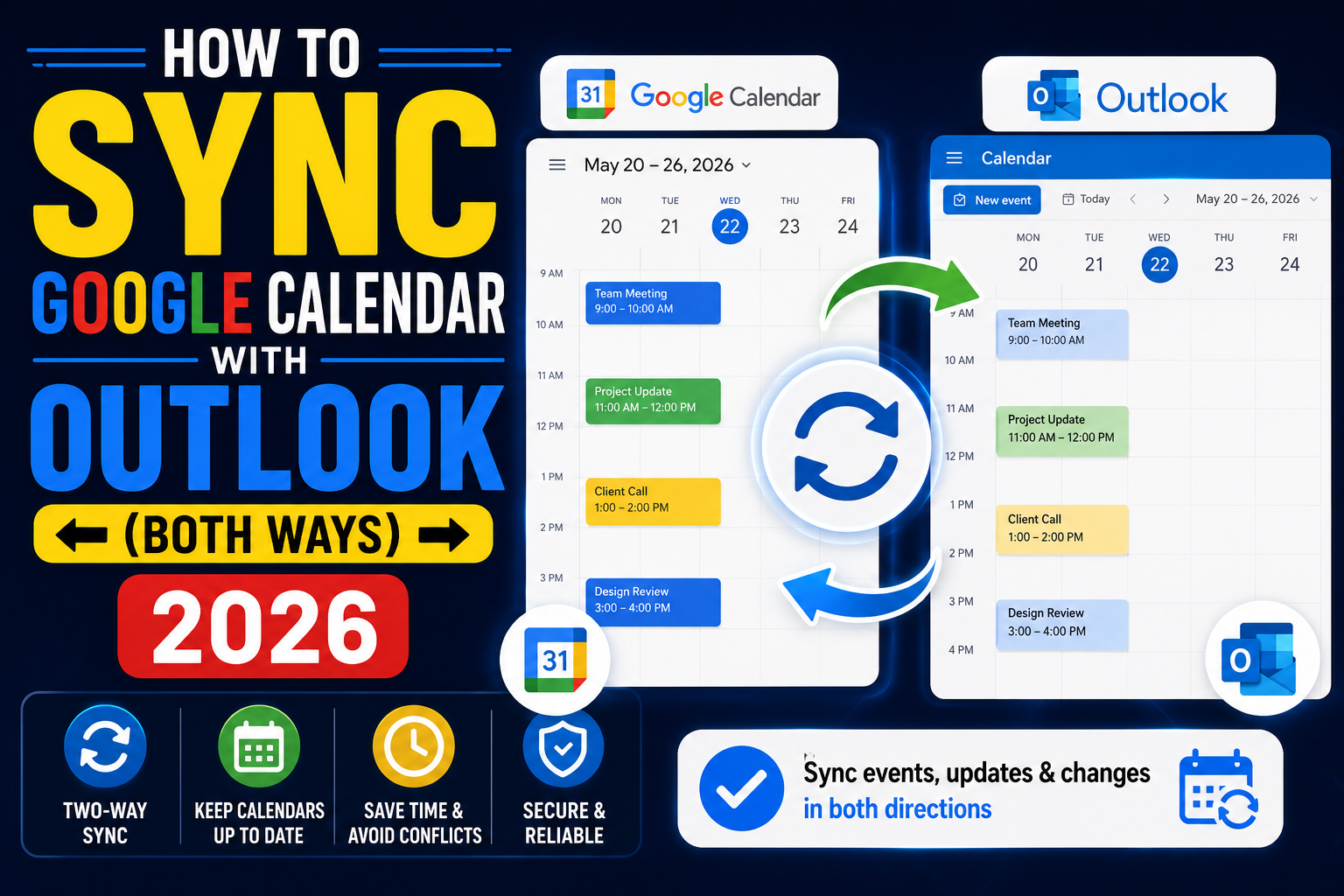
Syncing Google Calendar with Outlook keeps both apps in sync so you don’t miss meetings whichever app you check. Outlook 365 supports full two-way sync via Google Account integration; older Outlook versions use CalDAV or subscribe-URL methods. This 2026 tutorial covers every setup method for Windows, Mac, and mobile.
Method 1: Add Google Account to Outlook (best method)
Available in Outlook for Microsoft 365, Outlook 2019+, and new Outlook for Windows:
- Open Outlook.
- Go to File > Add Account (or Outlook menu > Add Account on Mac).
- Enter your Gmail email address.
- Follow prompts to sign in with your Google account (2FA if enabled).
- Approve Outlook to access your Google Calendar.
- Google Calendar events now appear in Outlook Calendar as a separate calendar group.
Two-way sync: events created in Outlook sync back to Google Calendar and vice versa.
Method 2: Subscribe to Google Calendar in Outlook (read-only)
Simpler but one-way (Outlook can only view, not edit):
- Open Google Calendar in browser.
- Hover over the calendar you want to sync in sidebar.
- Click three-dot menu > Settings and sharing.
- Scroll to Integrate calendar.
- Copy the Secret address in iCal format (starts with https://calendar.google.com/calendar/ical/…).
- Open Outlook > Calendar view > Add calendar > From Internet.
- Paste the iCal URL.
- Click OK.
Google Calendar shows as a read-only calendar in Outlook. Refreshes automatically.
Method 3: Export/import (one-time)
For a snapshot copy (no ongoing sync):
- In Google Calendar: Settings (gear icon) > Import & export > Export.
- Download the .ics ZIP file.
- Unzip.
- In Outlook: File > Open & Export > Import/Export > Import iCalendar file.
- Pick the .ics file.
- Events import as static entries. Future changes in Google don’t reflect.
Sync Outlook events TO Google Calendar
The reverse, see Outlook events on Google Calendar:
- In Outlook > Calendar view > right-click your calendar > Share > Publish Online.
- Set access level to “Full details” (or “Limited details” for privacy).
- Copy the iCal URL that Outlook generates.
- In Google Calendar > + next to “Other calendars” > From URL.
- Paste the iCal URL. Click Add calendar.
Sync Google Calendar with Outlook on iPhone
- Open Outlook app on iPhone.
- Tap the account icon (top-left) > Add Account.
- Sign in with Gmail account.
- Google Calendar syncs to Outlook mobile.
Third-party sync tools (advanced)
For heavy users needing more control:
- Google Calendar Sync (deprecated but still works for some users).
- GO Contact Sync Mod (open source, supports contacts + calendar).
- OggSync (paid, 2-way sync with more granular controls).
- Zapier / Make: create custom triggers between the two calendars.
Sync frequency
- Google Account method (Outlook 365): near real-time (a few minutes).
- Subscribe URL: Outlook refreshes every 3-24 hours depending on settings.
- Third-party tools: usually every 15 minutes to hourly.
Best practices
- Use Google Account method (Method 1) for two-way sync, most reliable.
- Use one calendar as the source of truth and the other as a read-only mirror to avoid conflicts.
- For scheduling: create events in Google Calendar; view/RSVP in Outlook.
- Warning: don’t set up multiple sync methods for the same calendar, creates duplicates.
Common sync issues
- Google Account option missing in Outlook: older Outlook version. Update to Microsoft 365 or use Method 2.
- Events duplicated in Outlook: multiple sync methods active. Remove one.
- Old events missing after sync: subscribe URL only syncs future events by default. Check advanced settings.
- Outlook events not appearing in Google: only one-way if using subscribe method. Publish Outlook calendar via iCal URL.
- Sync stopped after password change: re-authenticate Google account in Outlook.
- Meet link missing from Outlook view: Meet link is Google-specific; may not render as clickable link in Outlook. Copy manually from event body.
Common Google Calendar mistakes to avoid
Even long-time Calendar users hit the same traps. Being aware of these saves time and prevents scheduling errors.
- Forgetting time zones when scheduling with international teams. Calendar defaults to your primary time zone. Set the event time zone explicitly when scheduling with people in different regions.
- Not checking guest RSVPs. Guests can accept, decline, or mark tentative. Check responses before assuming everyone will attend.
- Overusing “all-day” for actual scheduled events. All-day events do not block your working hours. Use specific time-slot events for anything requiring your attention.
- Ignoring calendar sharing permissions. Public calendars can be indexed by search engines. Restrict sharing to specific emails or your organization for anything containing personal or business schedules.
- Missing the automatic Google Meet link. Calendar adds a Meet link automatically when you invite others. Delete it manually if you plan to use a different video platform.
Power-user tips for Google Calendar
- Use keyboard shortcuts. Press
/to jump to search,cto create an event,dfor day view,wfor week. Full list atcalendar.google.com/calendar/keyboardshortcuts. - Set default event duration. Settings > Event settings > Default duration. Changing from 60 to 30 minutes gently pressures shorter meetings.
- Add “speedy meetings”. Settings > End 30-minute meetings 5 minutes early. Gives everyone breathing room between back-to-back calls.
- Book focus time with Focus Time events. Prevents automatic Meet links and blocks your calendar visibly.
- Use appointment slots for external bookings. Create a bookable page anyone can use to grab time on your calendar without back-and-forth email.
Real-world scenarios
For BSIT students: use Google Calendar to schedule capstone advisor consultations. Share the calendar with your team so everyone sees deadlines and defense dates.
For freelancers: block “client focus” hours and “admin” hours on your calendar. Colored labels make it easy to see time allocation at a glance.
For small teams: create a shared team calendar for meetings, deadlines, and out-of-office. Everyone subscribes; nobody has to individually track.
For remote workers across time zones: enable secondary time zone display so you always see your teammate’s local time next to yours.
Best practices summary
- Default to 30-minute meetings. Most conversations do not need a full hour.
- Include clear titles. “Q3 planning” beats “Meeting”. Titles show up in preview panels everywhere.
- Add descriptions with agenda items. Recipients arrive prepared. Meeting quality improves.
- Set reminders 10 minutes and 24 hours before important events. Prevents missed meetings.
- Archive old calendars. Old project calendars clutter your view. Hide them from sidebar when the project ends.
Official documentation
Recommended calendar and productivity resources
The links below are affiliate links. We may earn a commission at no extra cost to you when you buy or sign up. See our affiliate disclosure.
Quick step-by-step summary (click to expand)
- Get your Google Calendar ICS URL. In Google Calendar settings, click your calendar name, scroll to Integrate calendar, and copy the Secret address in iCal format.
- Open Outlook and add calendar from Internet. In Outlook, go to Calendar view, click Add Calendar, then From Internet, and paste the ICS URL.
- Set refresh interval. Outlook checks the ICS feed every few hours by default. Change this in Send/Receive Groups settings for faster sync.
- For two-way sync, install Google Workspace Sync. For real-time bidirectional sync, install GWSMO (Google Workspace Sync for Microsoft Outlook) and sign in with your Google account.
- Verify the sync works. Create a test event on one side and refresh the other to confirm it appears.
2026 Q4 update: native sync replaces the old ICS workflow
Google and Microsoft shipped a mutual native-sync capability in September 2026 that removes most of the manual ICS-feed work the older approach required. If you set up Google Calendar in Outlook before July 2026, upgrade to the new flow. It is bidirectional, pushes updates within 60 seconds, and does not drop recurring events the way the ICS subscription did.
New Outlook (Windows 11 and macOS). Open New Outlook, click Add Account under the Calendar hamburger menu, choose Google, and sign in. The 2026 release treats Google Calendar as a first-class account the same way it does Exchange or iCloud. Edits made in either app sync both ways within a minute. The old “Outlook Add Calendar from Internet” ICS method still works but is read-only and lags up to 24 hours.
Outlook mobile iOS 19 and Android 16. Add Account picks up a Google Calendar option directly now. No workarounds needed. Multi-account users can switch between work Microsoft 365 and personal Google Calendar from the same mobile Outlook app without re-authenticating.
Google Workspace plus Microsoft 365 enterprise. Admins can enable or restrict the sync at the tenant level in the Microsoft 365 admin center under Settings to Org settings to Google Calendar integration. By default the integration is on for personal Google accounts and off for Google Workspace accounts, so IT needs to flip the toggle before Workspace users can sync their calendars to Outlook.
Third-party tools are now unnecessary. Zapier, Make, and SyncGene integrations that were the standard pre-2026 workaround can be removed. The native sync is more reliable, pushes faster, and does not count against your Zapier task quota. If you kept one of those tools running as a fallback, disable it to avoid duplicate events.
Frequently Asked Questions
Is Outlook 365 required for two-way sync?
Not required but easiest. Outlook 365 has native Google Account support. Older Outlook needs subscribe URL (one-way) or third-party tools for two-way sync.
How often does the sync happen?
Google Account method: near real-time. Subscribe URL: every 3-24 hours (Outlook decides). Third-party tools: usually 15 min to hourly.
Can I sync only certain calendars?
Yes. When using Google Account method in Outlook, you can toggle which calendars sync via Calendar settings. Subscribe URL method syncs one calendar at a time.
Are Meet links preserved when synced to Outlook?
Yes, as text in the event description. Outlook doesn’t render Meet as native video conferencing (that’s for Teams), but the link is clickable.
How do I remove the sync?
Outlook: File > Account Settings > remove Google account. Or delete the subscribed calendar. Google side: no action needed (Outlook side controls sync).

Caren Bautista
Technical Writer at PIES IT Solution
Responsible for crafting clear, well-structured, and beginner-friendly content across the platform. Handles the writing, proofreading, and editorial review of tutorials, guides, and documentation to ensure every article is accurate, readable, and easy to follow.
Expertise: Technical Writing · Content Creation · Documentation · Editorial Writing · JavaScript · TypeScript · View all posts by Caren Bautista →