
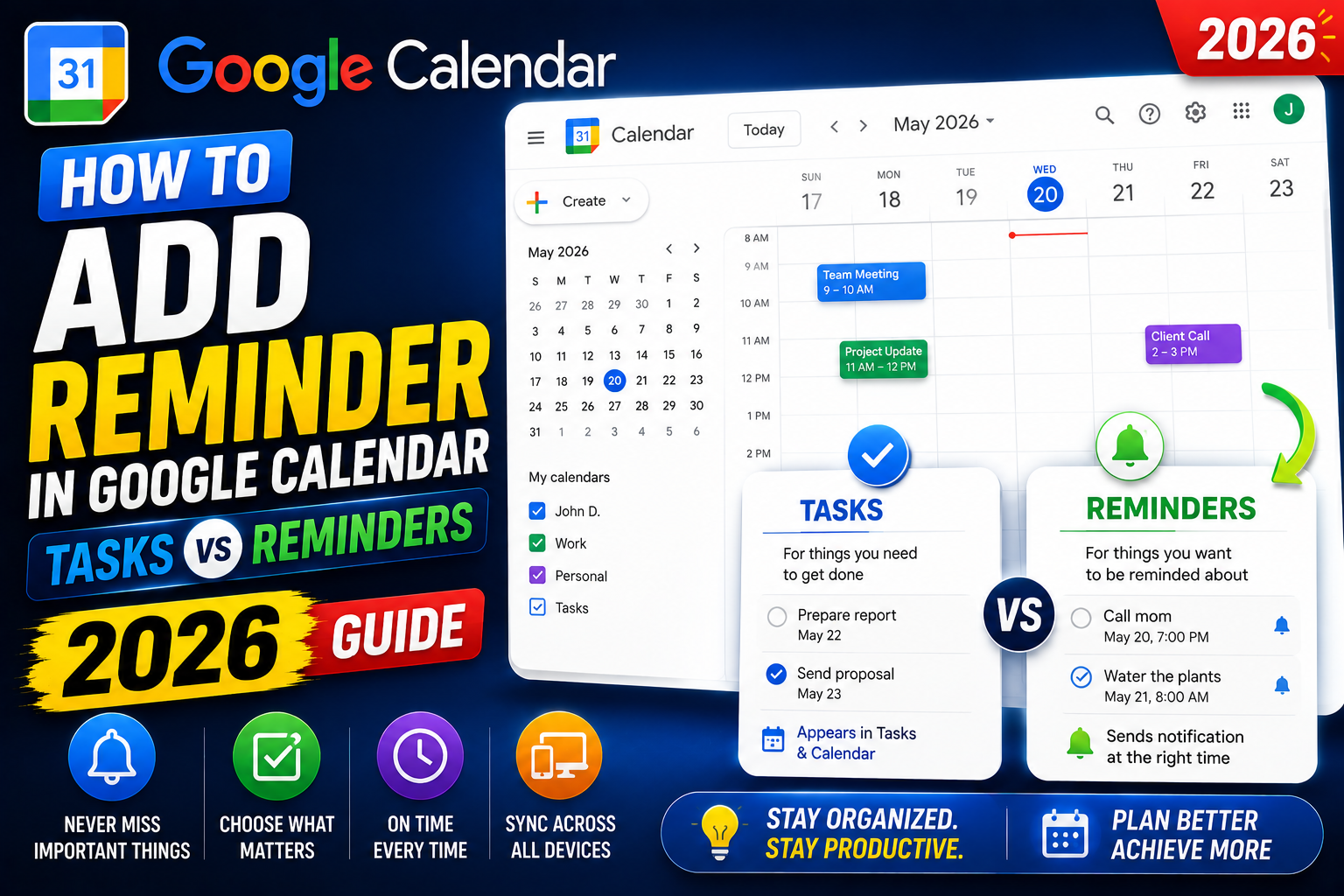
Reminders in Google Calendar help you remember tasks, deadlines, and important dates without needing a full event. Google Calendar has three notification types: event reminders (attached to events), standalone reminders (deprecated but still shown), and Google Tasks (the modern replacement). This 2026 tutorial covers all three.
Understanding: Tasks vs Reminders vs Notifications
| Type | Purpose | Status |
|---|---|---|
| Tasks | To-dos with due dates | Current (modern) |
| Reminders | Standalone reminders | Being migrated to Tasks |
| Event notifications | Alerts before events | Current |
Google is migrating reminders into Tasks. For new items, use Tasks. Existing reminders still work.
Method 1: Add a Task with due date
- Open Google Calendar.
- Click + Create > Task.
- Enter task title.
- Set date and time (or all day).
- Optionally add details, list assignment, priority.
- Click Save.
Tasks appear on the calendar at their due date/time.
Method 2: Add a Reminder (legacy, may auto-convert to Task)
- Click + Create > Reminder.
- Enter title.
- Set date and time.
- Save.
Google is deprecating standalone Reminders. New Reminders may auto-convert to Tasks. Existing Reminders still work.
Method 3: Add notifications to an event
- Open an existing event or create a new one.
- Scroll to Notifications.
- Click Add notification.
- Set:
- How far in advance (minutes, hours, days, weeks).
- Type: pop-up (browser or mobile) or email.
- Add multiple notifications for critical events (1 day, 1 hour, 10 min before).
Set default notification for all new events
- Calendar > Settings (gear icon) > Settings.
- Scroll to Settings for my calendars > pick your calendar.
- Under Event notifications, set default reminders (e.g., 10 min before, 1 day before).
- Applies to every new event on this calendar.
All-day event notification default
- Same settings page > All-day event notifications.
- Set when to remind (e.g., 1 day before at 9 AM).
- Useful for birthdays, anniversaries, day-long events.
Recurring reminder
For daily/weekly/monthly recurring tasks:
- Create a Task or Event.
- Set date and time.
- Click the Does not repeat dropdown.
- Pick Daily / Weekly / Monthly / Custom.
- Set end date if applicable.
Common uses: “Take medication daily”, “Weekly report every Friday 5 PM”, “Monthly rent reminder”.
Notifications on mobile
- Open Google Calendar app.
- Tap event > Edit > Notifications.
- Add or edit notification times.
- Save.
Also: check phone notifications: Settings > Apps > Google Calendar > Notifications enabled.
Complete a Task (mark done)
- Click the task on the calendar.
- Click the checkbox to mark complete.
- Or open Google Tasks (sidebar in Calendar) and check off from the list.
Snooze a notification
- When a notification pops up.
- Click Snooze button (if browser supports it).
- Pick a snooze duration.
- Notification re-appears at chosen time.
Availability of Snooze varies by browser and OS.
Best practices for reminders
- Set default event notifications (10 min before) so you don’t forget.
- Use email notifications for critical items (24 hours before).
- Use pop-ups for shorter reminders (10-15 min before).
- For deep-work blocks, add 5-minute pre-notice (“prepare to switch to deep work”).
- Use recurring tasks for habits (daily meditation, weekly review).
- Move standalone reminders to Tasks; they show up in Google Tasks app + Gmail.
Common reminder issues
- Notification didn’t pop up: check browser notifications permission (Calendar site allowed to show notifications).
- Mobile notifications not showing: Settings > Notifications > Calendar > Allow. Also disable Focus/DND if on.
- Task doesn’t appear on calendar: check “Tasks” is visible in Calendar sidebar under My calendars.
- Reminders converted to Tasks unexpectedly: Google migration in progress. Not a bug, Tasks is the modern replacement.
- Notification sound not working: check phone volume, not just app-specific volume.
Common Google Calendar mistakes to avoid
Even long-time Calendar users hit the same traps. Being aware of these saves time and prevents scheduling errors.
- Forgetting time zones when scheduling with international teams. Calendar defaults to your primary time zone. Set the event time zone explicitly when scheduling with people in different regions.
- Not checking guest RSVPs. Guests can accept, decline, or mark tentative. Check responses before assuming everyone will attend.
- Overusing “all-day” for actual scheduled events. All-day events do not block your working hours. Use specific time-slot events for anything requiring your attention.
- Ignoring calendar sharing permissions. Public calendars can be indexed by search engines. Restrict sharing to specific emails or your organization for anything containing personal or business schedules.
- Missing the automatic Google Meet link. Calendar adds a Meet link automatically when you invite others. Delete it manually if you plan to use a different video platform.
Power-user tips for Google Calendar
- Use keyboard shortcuts. Press
/to jump to search,cto create an event,dfor day view,wfor week. Full list atcalendar.google.com/calendar/keyboardshortcuts. - Set default event duration. Settings > Event settings > Default duration. Changing from 60 to 30 minutes gently pressures shorter meetings.
- Add “speedy meetings”. Settings > End 30-minute meetings 5 minutes early. Gives everyone breathing room between back-to-back calls.
- Book focus time with Focus Time events. Prevents automatic Meet links and blocks your calendar visibly.
- Use appointment slots for external bookings. Create a bookable page anyone can use to grab time on your calendar without back-and-forth email.
Real-world scenarios
For BSIT students: use Google Calendar to schedule capstone advisor consultations. Share the calendar with your team so everyone sees deadlines and defense dates.
For freelancers: block “client focus” hours and “admin” hours on your calendar. Colored labels make it easy to see time allocation at a glance.
For small teams: create a shared team calendar for meetings, deadlines, and out-of-office. Everyone subscribes; nobody has to individually track.
For remote workers across time zones: enable secondary time zone display so you always see your teammate’s local time next to yours.
Best practices summary
- Default to 30-minute meetings. Most conversations do not need a full hour.
- Include clear titles. “Q3 planning” beats “Meeting”. Titles show up in preview panels everywhere.
- Add descriptions with agenda items. Recipients arrive prepared. Meeting quality improves.
- Set reminders 10 minutes and 24 hours before important events. Prevents missed meetings.
- Archive old calendars. Old project calendars clutter your view. Hide them from sidebar when the project ends.
Official documentation
Recommended productivity and habit resources
The links below are affiliate links. We may earn a commission at no extra cost to you when you buy or sign up. See our affiliate disclosure.
Quick step-by-step summary (click to expand)
- Open Google Calendar. calendar.google.com or the app.
- Click Create then Task or Reminder. Tasks are new. Reminders are legacy but still supported.
- Choose Task for todos. Tasks show in the Tasks panel and sync across Google apps.
- Choose Reminder for time-only alerts. Reminders show as pop-ups at the set time and repeat if not done.
- Set date, time, and repeat. Add optional description. Save. Reminder or Task fires at the exact time.
Frequently Asked Questions
Are Reminders being deleted?
Existing Reminders still work but Google is migrating new Reminders to Tasks. Use Tasks for new items to future-proof.
How many notifications can one event have?
Up to 5 notifications per event. Mix of pop-up and email types. Useful for critical meetings: 1 day, 1 hour, 30 min, 10 min, 1 min before.
Can I get email reminder without pop-up?
Yes. Set notification type to Email in the event settings. Google sends email at specified time; no browser or mobile alert.
Do reminders work if my computer is off?
Pop-up notifications require an active browser/app. Email notifications work regardless. Mobile notifications work even if phone is asleep (as long as it’s on).
Do reminders sync across devices?
Yes. Tasks and Reminders created on any device sync to all devices signed into the same Google account. Complete a task on phone, it’s marked done on desktop.

Caren Bautista
Technical Writer at PIES IT Solution
Responsible for crafting clear, well-structured, and beginner-friendly content across the platform.
Expertise: Technical Writing · Content Creation · Documentation · Editorial Writing · JavaScript · TypeScript · View all posts by Caren Bautista →