
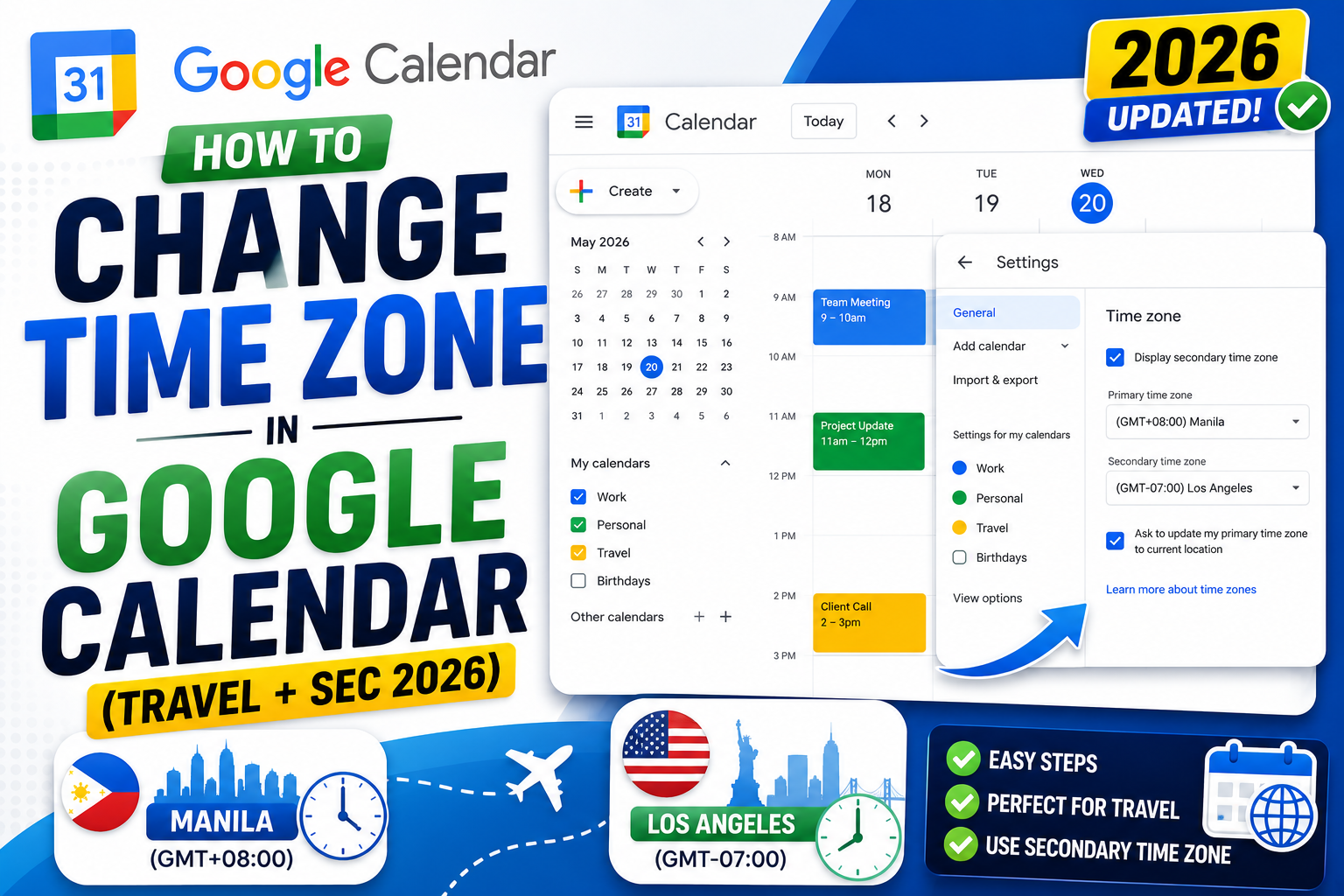
Time zones matter when scheduling with remote coworkers, traveling internationally, or working with global clients. Google Calendar lets you change your primary time zone, add a secondary zone in the day view, and set per-event time zones for meetings that span regions. This 2026 tutorial covers every scenario.
Change your primary time zone
- Open Google Calendar (calendar.google.com).
- Click the gear icon (top-right) > Settings.
- Scroll to Time zone section.
- Set Primary time zone to your desired zone.
- Optionally add a label (e.g., “Manila” or “PH time”).
- Changes save automatically.
All your events now display in the new zone. Recurring events shift with you.
Add a secondary time zone
Show two zones side-by-side in day/week view (great for global teams):
- Settings > Time zone.
- Check Display secondary time zone.
- Pick zone (e.g., Los Angeles if you’re in Manila).
- Add label (“LA time”).
Now day/week view shows two vertical time columns, very useful for planning meetings between time zones.
Add a world clock sidebar
- Settings > World clock.
- Check Show world clock.
- Click Add time zone.
- Add up to 5 different cities/zones.
Sidebar shows current time in each. Great for keeping track of team members in New York, London, Tokyo, etc.
Set time zone per event (different from your primary)
When creating an event, set its time zone independently:
- Create or edit an event.
- Click the time zone icon (globe) next to the time.
- Pick the event’s time zone.
- Optionally set separate start and end time zones (for cross-zone travel: flight departure vs arrival).
- Save.
Great for scheduling meetings that must happen at a specific time in another zone.
Travel mode (auto-adjust when abroad)
- Settings > Time zone.
- Check Ask to update primary time zone to current location.
- When you travel and your device detects a new zone, Calendar prompts to update.
- Accept: all events adjust to the new zone. Decline: keep home zone.
Handy for business travel. Meeting times stay locked to their intended zone.
Time zone with cross-zone events
Events with different start and end zones (flights, cross-region meetings):
- Create event.
- Click time zone icon.
- Check Separate start and end time zones.
- Set start zone (departure) and end zone (arrival).
Calendar automatically calculates duration accounting for zone difference.
Change time zone on Google Calendar mobile
- Open Google Calendar app.
- Tap the three-line menu > Settings.
- Tap General.
- Tap Use device time zone to toggle.
- Or tap Time zone > pick specific zone.
Turning off “Use device time zone” and manually setting is helpful when your device zone doesn’t match your desired display zone.
Time zone tips for global teams
- Always specify time zone in event description when meeting is cross-zone (“Meeting at 10 AM Manila / 7 PM PDT”).
- Use Calendar’s UTC display for team-wide reference times.
- Encourage teammates to set their working hours (see below) so scheduling respects their zones.
- Use tools like World Time Buddy or Every Time Zone alongside Calendar for planning.
Set working hours in your zone
- Settings > Working hours & location.
- Toggle Enable working hours on.
- Set days and hours (e.g., Mon-Fri, 9 AM to 6 PM Manila).
Now people trying to schedule meetings outside your hours see a warning. Great for setting boundaries.
Common time zone issues
- Event time wrong after travel: Calendar didn’t detect zone change. Manually update primary time zone in settings.
- Guest’s time shown differently: they may have manual time zone set in their Calendar. Not a problem, Calendar shows each user their local time.
- Daylight Saving Time confusion: Calendar auto-adjusts DST. Events on DST transition day may look off by 1 hour briefly.
- Cannot save event with separate start/end zones: some browsers don’t fully support this. Use Chrome for best results.
- Zone label wrong: label is display-only; time zone data is still correct. Update label in settings.
Common Google Calendar mistakes to avoid
Even long-time Calendar users hit the same traps. Being aware of these saves time and prevents scheduling errors.
- Forgetting time zones when scheduling with international teams. Calendar defaults to your primary time zone. Set the event time zone explicitly when scheduling with people in different regions.
- Not checking guest RSVPs. Guests can accept, decline, or mark tentative. Check responses before assuming everyone will attend.
- Overusing “all-day” for actual scheduled events. All-day events do not block your working hours. Use specific time-slot events for anything requiring your attention.
- Ignoring calendar sharing permissions. Public calendars can be indexed by search engines. Restrict sharing to specific emails or your organization for anything containing personal or business schedules.
- Missing the automatic Google Meet link. Calendar adds a Meet link automatically when you invite others. Delete it manually if you plan to use a different video platform.
Power-user tips for Google Calendar
- Use keyboard shortcuts. Press
/to jump to search,cto create an event,dfor day view,wfor week. Full list atcalendar.google.com/calendar/keyboardshortcuts. - Set default event duration. Settings > Event settings > Default duration. Changing from 60 to 30 minutes gently pressures shorter meetings.
- Add “speedy meetings”. Settings > End 30-minute meetings 5 minutes early. Gives everyone breathing room between back-to-back calls.
- Book focus time with Focus Time events. Prevents automatic Meet links and blocks your calendar visibly.
- Use appointment slots for external bookings. Create a bookable page anyone can use to grab time on your calendar without back-and-forth email.
Real-world scenarios
For BSIT students: use Google Calendar to schedule capstone advisor consultations. Share the calendar with your team so everyone sees deadlines and defense dates.
For freelancers: block “client focus” hours and “admin” hours on your calendar. Colored labels make it easy to see time allocation at a glance.
For small teams: create a shared team calendar for meetings, deadlines, and out-of-office. Everyone subscribes; nobody has to individually track.
For remote workers across time zones: enable secondary time zone display so you always see your teammate’s local time next to yours.
Best practices summary
- Default to 30-minute meetings. Most conversations do not need a full hour.
- Include clear titles. “Q3 planning” beats “Meeting”. Titles show up in preview panels everywhere.
- Add descriptions with agenda items. Recipients arrive prepared. Meeting quality improves.
- Set reminders 10 minutes and 24 hours before important events. Prevents missed meetings.
- Archive old calendars. Old project calendars clutter your view. Hide them from sidebar when the project ends.
Official documentation
Recommended remote work and travel resources
The links below are affiliate links. We may earn a commission at no extra cost to you when you buy or sign up. See our affiliate disclosure.
Quick step-by-step summary (click to expand)
- Open Google Calendar settings. Go to calendar.google.com, click gear icon then Settings.
- Find Time Zone. Under General then Time zone. Click the primary time zone dropdown.
- Select your new time zone. Search by city or continent. Confirm to save.
- Enable Secondary time zone (optional). Check “Display secondary time zone” and pick a second zone. Useful when scheduling with remote teams.
- For events. New events use your primary time zone. Existing events auto-adjust to show correctly in your new zone.
Frequently Asked Questions
Does changing time zone move all my events?
Events “shift” in display but not in absolute time. A meeting at 10 AM Manila becomes 7 PM PDT if you change to LA zone. The meeting still happens at the same moment globally.
Do guests see my time zone or theirs?
Each guest sees the event in THEIR local time zone. Calendar auto-converts. Your 10 AM Manila meeting shows as 7 PM PDT for a guest in LA.
Can I see time zone abbreviations (PDT, EST)?
Yes. Enable in Settings > Time zone > Show time zone label. Events display “10:00 AM PDT” style.
Does DST auto-adjust?
Yes. Calendar automatically handles Daylight Saving Time transitions for all supported zones. Meeting scheduled before DST switch stays at same local time after switch.
What if my location has DST but destination doesn’t?
Calendar handles it correctly. For example, Arizona (no DST) events stay same when you (in DST zone) travel there. Time difference changes twice a year but Calendar keeps events accurate.

Caren Bautista
Technical Writer at PIES IT Solution
Responsible for crafting clear, well-structured, and beginner-friendly content across the platform. Handles the writing, proofreading, and editorial review of tutorials, guides, and documentation.
Expertise: Technical Writing · Content Creation · Documentation · Editorial Writing · JavaScript · TypeScript · View all posts by Caren Bautista →