
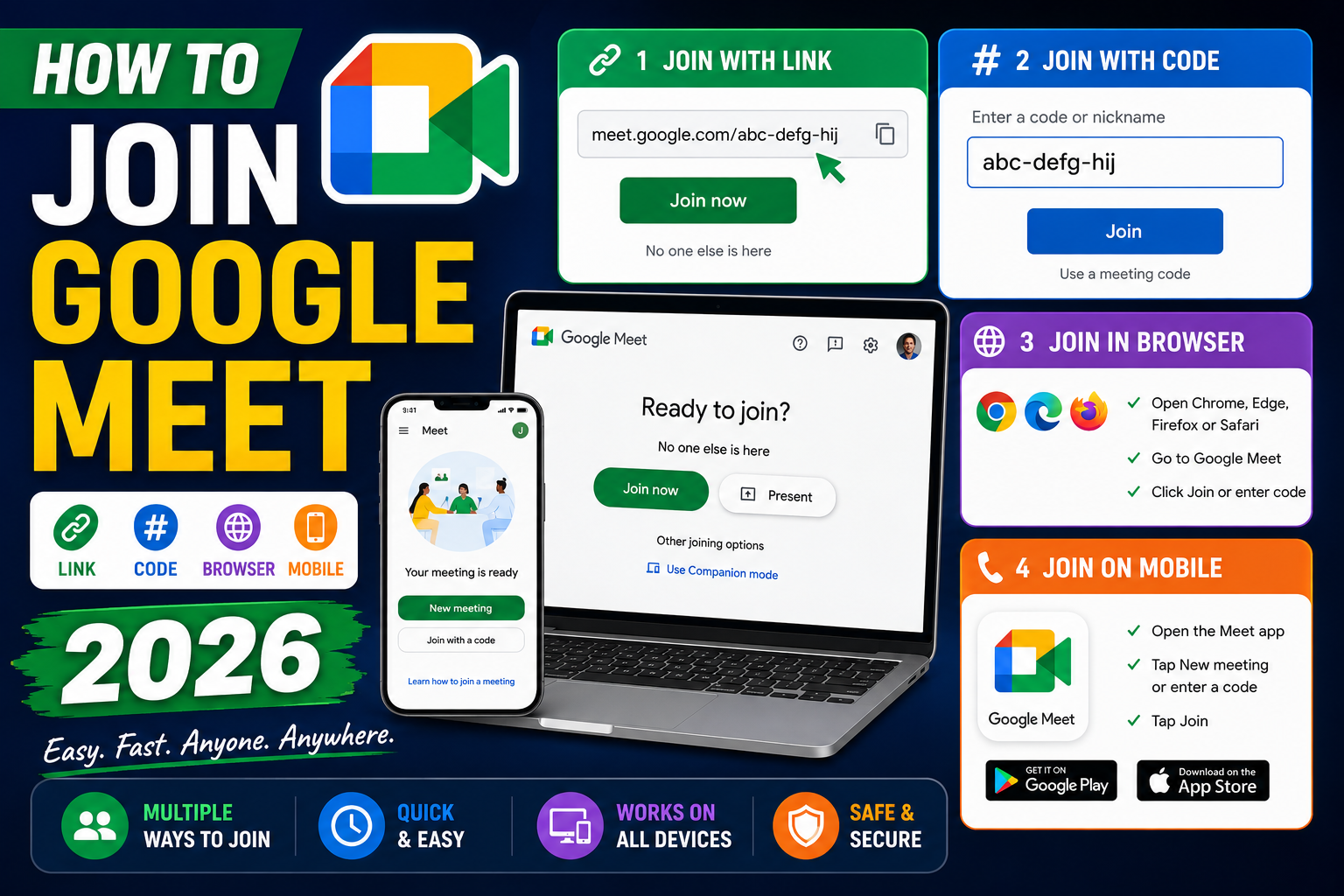
Joining a Google Meet takes seconds if you know the method that fits your device and connection. Meet supports joining via link, meeting code, Calendar event, Gmail invite, dial-in phone, or the mobile app. This 2026 tutorial covers every method plus permission issues and audio-only fallbacks.
Method 1: Join via link (fastest)
- Click the Meet link you received (from email, chat, or calendar).
- Browser opens meet.google.com/xxx-xxxx-xxx.
- Grant camera and microphone permission if prompted.
- Preview your video and mic.
- Click Join now.
You’re in. If host has “waiting room” enabled, wait for admission.
Method 2: Join via meeting code
- Open meet.google.com.
- Click Enter a code.
- Type the 10-character code (like abc-defg-hij).
- Click Join.
Codes work without needing the full URL. Great for reading codes over phone.
Method 3: Join from Google Calendar
- Open Google Calendar.
- Click the event.
- Click Join with Google Meet.
- Meet opens.
- Click Join now.
Best method for recurring meetings. Meet link is stored in the event.
Method 4: Join from Gmail
- Open Gmail.
- Find the meeting invite in Inbox.
- Click Join or the Meet link.
- Meet opens.
Or use the Meet section in Gmail sidebar > “Join a meeting” > enter code.
Method 5: Join by phone (dial-in)
- Look at the meeting invite for a dial-in phone number.
- Dial the number on your phone.
- When prompted, enter the PIN (6 digits + #).
- You’re joined as audio-only.
Great when you have no internet or video capability. Dial-in numbers available for major countries (US, UK, Canada, Australia, India, Philippines).
Method 6: Join from Google Meet mobile app
- Open the Google Meet app.
- Tap Join with a code.
- Enter code and tap Join.
- Or tap a calendar event with a Meet link.
For the best mobile experience, install Meet app rather than joining via browser.
Grant camera and microphone permissions
Meet requires your browser or app to have permission:
- When prompted “Meet wants to use your microphone/camera”, click Allow.
- If you accidentally denied: click the lock icon in the browser URL bar > enable Camera + Microphone.
- On mobile: Settings > Google Meet > Permissions > enable Camera + Microphone.
Preview your video and audio before joining
- Preview screen shows before Join.
- Adjust:
- Camera: click camera icon to toggle on/off.
- Mic: click mic icon to mute/unmute.
- Background: click the effects icon (bottom-right of preview) for blur/virtual bg.
- Audio/video device: settings gear > pick different mic/camera/speaker.
- Ready? Click Join now.
Join with waiting room
- Host sees notification “X is waiting to join”.
- Host clicks Admit.
- You enter the meeting.
- If denied: check with host that meeting code is correct.
Join a meeting without a Google account
- Click the Meet link.
- Enter your name (asked without account).
- Click Ask to join.
- Host admits you.
Works for View + Audio. Some features (recording, screen share) may be limited for non-authenticated users. Anonymous users cannot use the chat features fully.
Common join issues
- “You’ve been removed”: host kicked you or ended the meeting. Rejoin at your discretion.
- “Meeting hasn’t started”: host hasn’t joined yet, and Workspace policy requires host present. Wait or ping host.
- Camera/mic won’t turn on: check browser permissions and OS permissions.
- Poor video quality: internet bandwidth issue. Meet auto-adjusts. Try turning off video for audio-only.
- Can’t hear anyone: check output device in Meet settings > Audio. Also check system volume.
- Echo: use headphones. Speaker output feeding back into mic causes echo.
Common Google Meet mistakes to avoid
- Not testing camera and mic before the meeting. Meet has a preview page at meet.google.com/hangouts/preview where you can test devices before joining any meeting.
- Joining from mobile when you need to share screen. Screen sharing works on mobile but is limited. Use desktop when you need to share content in detail.
- Forgetting to mute when not speaking. Background noise disrupts everyone. Press Ctrl+D (Cmd+D on Mac) to toggle mute.
- Assuming recordings are automatic. Meet only records when the host clicks Record. Enable at the start; you cannot recover an unrecorded meeting.
- Ignoring the noise cancellation feature. Workspace tiers include background noise cancellation. Enable in Settings > Audio.
Power-user tips for Google Meet
- Use keyboard shortcuts. Ctrl+D to mute, Ctrl+E for camera, Ctrl+Alt+H to raise hand, Ctrl+Alt+M for the chat panel. All work on Windows and Mac (swap Ctrl for Cmd on Mac).
- Add captions. Turn on live captions at the bottom-right menu. Useful for accessibility and noisy environments.
- Enable Q&A for large meetings. Attendees can submit written questions without interrupting. Available on Workspace tiers.
- Use polls to gather feedback. Quick pulse checks during long meetings keep attention.
- Share a specific tab, not the whole desktop. Prevents accidentally sharing notifications or personal information.
When to use Meet vs alternatives
Meet works best when your organization is already on Google Workspace, calls are 3-10 participants, and simplicity matters more than advanced features. It integrates seamlessly with Calendar and Gmail, which is unbeatable for Google-first teams.
For large webinars (100+ attendees), Zoom or Webex offer better host controls. For persistent team chat with video, Slack Huddles or Microsoft Teams work better. For high-quality recorded content, tools like Riverside or Descript produce cleaner output.
For BSIT capstone defenses and student meetings, Meet is the right choice on any campus with Google Workspace for Education. Free tier supports up to 100 participants for 60 minutes.
Best practices summary
- Test devices 5 minutes before start. Camera, mic, network. Nothing worse than the “can you hear me?” opening.
- Share agenda in Calendar description. Attendees arrive knowing what to discuss.
- Assign a note-taker at start. Distributes cognitive load and produces action items.
- End on time or early. Respect people’s calendars. Reschedule if content overflows.
- Follow up with meeting notes within 24 hours. Consolidates decisions and prevents forgotten action items.
Official documentation
Recommended video call gear and setup
The links below are affiliate links. We may earn a commission at no extra cost to you when you buy or sign up. See our affiliate disclosure.
Quick step-by-step summary (click to expand)
- Click the meeting link. If you got a link like meet.google.com/abc-defg-hij, click it in your email or calendar. Meet opens in the browser or app.
- Or enter the meeting code. Go to meet.google.com and paste the meeting code (3 groups of letters like abc-defg-hij) into the Enter a code field.
- Grant camera and mic permissions. On first join, your browser will ask for camera and microphone access. Click Allow.
- Click Join now. Confirm your camera and mic preferences on the join screen, then click Join now to enter.
- On mobile. Install the Google Meet app from App Store or Play Store, then tap the meeting link. The app handles auth automatically if signed into Google.
Frequently Asked Questions
Do I need to install anything to join?
No. Google Meet works in any modern browser (Chrome, Edge, Firefox, Safari). Mobile has an app but you can also join via mobile browser.
Can I join without a Google account?
Yes. You’ll be asked for a name and to request permission from the host. Anonymous users have some feature restrictions.
What browser works best?
Chrome (Google’s own browser) has best performance and full features. Edge is second best. Safari and Firefox work but may miss some features (like noise cancellation).
Can I join two meetings at once?
Not in the same browser tab. Open a second browser (incognito or different browser) for two simultaneous meetings. Not recommended: dividing attention hurts both.
What’s the max participants in Meet?
Free personal: 100. Workspace Business Starter: 100. Standard: 150. Plus: 500. Enterprise: 1000. Live stream broadcast: 100,000 view-only participants.

Caren Bautista
Technical Writer at PIES IT Solution
Responsible for crafting clear, well-structured, and beginner-friendly content across the platform. Handles the writing, proofreading, and editorial review of tutorials, guides, and documentation to ensure every article is accurate, readable, and easy to follow.
Expertise: Technical Writing · Content Creation · Documentation · Editorial Writing · JavaScript · TypeScript · View all posts by Caren Bautista →