
Gmail keeps deleted drafts in the Trash folder for 30 days before permanent deletion. This gives you a comfortable window to recover a draft you accidentally deleted, whether from the Drafts label directly or from an open compose window. This 2026 guide walks through three recovery paths in order of speed, plus how to prevent draft loss going forward.
The right method depends on when you deleted the draft. If it just happened, Undo Send recovers instantly. If it was earlier today or this week, Trash folder restore works. If you cannot find it in Trash, the All Mail search catches it.
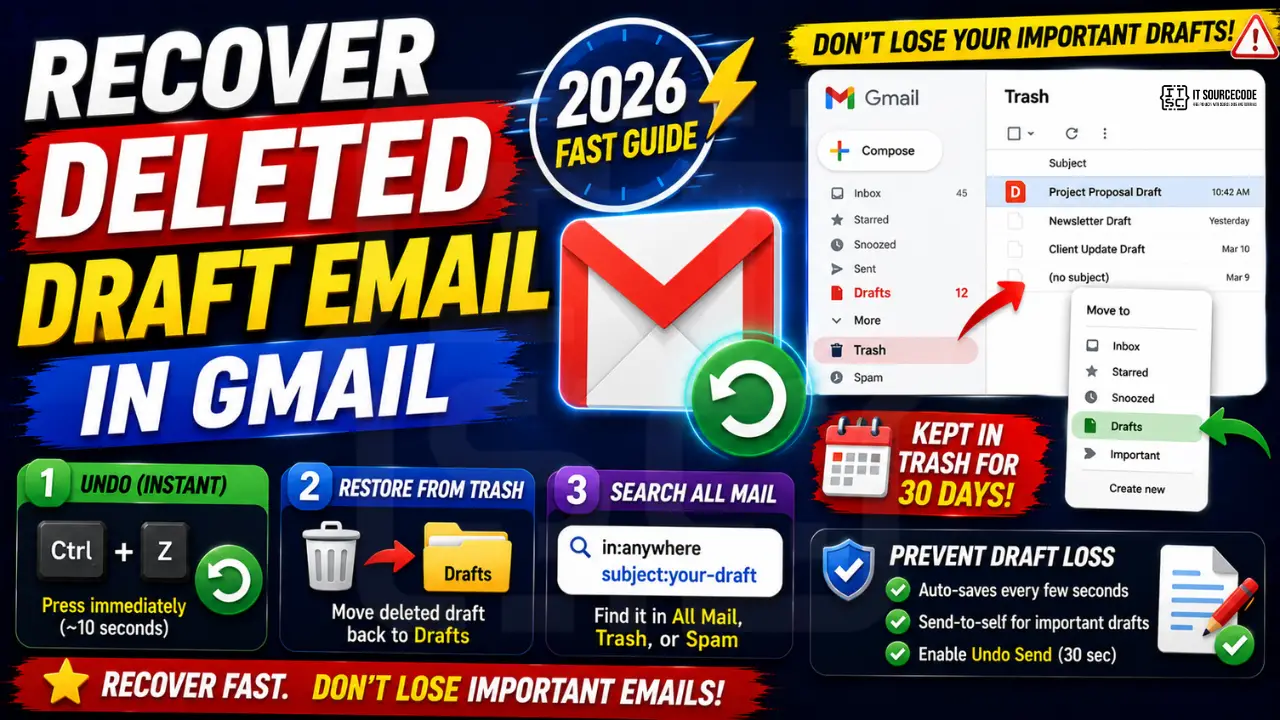
Method 1: Press Ctrl+Z immediately after deletion
The fastest path if you just deleted the draft moments ago. Gmail’s Undo is time-limited to a few seconds after most delete actions.
- Immediately after deleting the draft, press Ctrl+Z (Cmd+Z on Mac).
- Gmail restores the draft to the Drafts label.
- Undo works for approximately 10 seconds after the delete action.
- After the window closes, use the Trash folder restore method instead.
Method 2: Restore from the Trash folder
Gmail keeps deleted drafts in Trash for 30 days. The Trash folder is your primary recovery path for anything deleted today, yesterday, or this month.
- In the Gmail sidebar, click More to expand additional folders.
- Click Trash. The folder shows all deleted emails and drafts from the last 30 days.
- Search or scroll to find the deleted draft.
- Right-click the draft (or open it and use the Move to icon).
- Choose Move to, then Drafts.
- The draft reappears in your Drafts label ready to edit again.
Method 3: Search across All Mail
If you cannot find the draft in Trash (maybe it was deleted more than 30 days ago, or empty-trashed manually), search All Mail using the draft’s subject or a phrase from the body.
- In the Gmail search bar, type
in:anywhere subject:your-draft-subject. - Or search by a phrase from the body:
in:anywhere "the exact phrase". in:anywheresearches across Trash, Spam, and All Mail, catching drafts your normal search misses.- If the draft appears, follow the Trash restore steps above.
- If it does not appear anywhere, the draft is permanently deleted and cannot be recovered.
Understand the 30-day Trash retention limit
Gmail’s Trash is not permanent storage. Drafts and emails leave Trash automatically after 30 days.
- Auto-cleanup happens once per day. Drafts deleted 30+ days ago disappear from Trash automatically.
- You can manually Empty Trash at any time to purge earlier. Once emptied, drafts are gone permanently.
- Gmail Workspace admin console does not offer restore-after-empty features. Once purged, no recovery is possible.
- For important drafts, always send them to yourself (as a personal email) rather than saving as a draft. Sent emails are much easier to preserve.
Recover auto-saved drafts you did not know existed
Gmail auto-saves every compose window every few seconds. Even if you never manually saved, an auto-save version exists somewhere.
- Open the Drafts label from the Gmail sidebar.
- Look for a draft with a recent timestamp. Gmail names drafts by first-line text or “(no subject)”.
- If you had multiple compose windows open, each is a separate auto-saved draft.
- Sort by newest to find the most recent.
- If you cannot find it in Drafts, check Trash (Method 2 above) – a compose window closed via X button lands in Trash.
Common draft recovery mistakes
- Emptying Trash before checking for the draft. Once Trash is emptied, drafts are permanently deleted. Never empty Trash while looking for a specific draft.
- Missing the 10-second Undo window. If Ctrl+Z did not work, you missed the timeout. Move to Trash restore instead.
- Not using in:anywhere in searches. The default Gmail search does not look in Trash. Add in:anywhere to catch deleted drafts.
- Searching only by subject. Draft subject may be empty. Try searching by a phrase from the body instead.
- Assuming Gmail keeps drafts forever. Trash purges after 30 days. Important content should always be sent, not saved as a draft indefinitely.
How to prevent draft loss in the future
Gmail auto-saves drafts every few seconds, but human error still deletes drafts by accident. Two habits prevent most losses.
First, for any draft you plan to work on across sessions, send it to yourself as an unfinished email. Sent emails cannot be deleted with a single miss-click and are permanently stored (until you actively delete them). Move the sent email back to Drafts by replying to it later.
Second, for long-form drafts, compose in Google Docs first and paste the finished content into Gmail. Docs auto-saves and preserves version history, so you can always roll back to earlier drafts.
For power users, enable Gmail’s keyboard shortcuts (Settings > Keyboard shortcuts > On) and learn the Save shortcut (Ctrl+S in Compose). This forces a save without waiting for auto-save.
Power-user tips for draft preservation
Beyond the recovery paths, a few habits make draft loss much less likely to happen in the first place.
- Compose in Google Docs for long-form emails. Docs auto-saves every few seconds and preserves full version history. Copy the finished text into Gmail for final send.
- Send-to-self for critical drafts. Any draft you cannot afford to lose should be sent to yourself as an unfinished email. Sent items are far harder to accidentally delete than drafts.
- Use the Gmail search operator label:draft to see every draft in one view instead of scrolling through the Drafts label sidebar.
- Enable Undo Send to 30 seconds. Settings > General > Undo Send > 30 seconds. This gives you 30 seconds to catch mistakes AFTER hitting Send, plus prevents accidentally sending unfinished drafts.
- Star important drafts. Click the star icon on any open draft to mark it. Starred drafts appear in the Starred label as a separate view, making them easier to find.
For teams working on shared drafts, use Google Docs collaboration mode instead of drafting in Gmail. Multiple people can edit simultaneously, changes are auto-tracked, and there is no delete-vs-undo risk. Copy the final version into Gmail only when everyone has signed off.
Official documentation
Recommended email productivity resources
The links below are affiliate links. We may earn a commission at no extra cost to you when you buy or sign up. See our affiliate disclosure.
Quick step-by-step summary (click to expand)
- Check the Trash folder immediately. Open Gmail on desktop, click More, then Trash. Deleted drafts stay there for 30 days.
- Look for the draft by subject or recipient. Use the search bar with “in:trash” to filter. Sort by date to find the most recent.
- Click Move to and select Drafts. Right-click the message, choose Move to, then Drafts. The message returns to your Drafts folder.
- If not in Trash, check Google Vault. For Workspace accounts, admins can restore emails deleted within 25 days from the Vault search interface.
Frequently Asked Questions
How long does Gmail keep deleted drafts in Trash?
30 days by default. After that they are permanently deleted and cannot be recovered. Undo (Ctrl+Z) covers the first 10 seconds after deletion.
Can I recover a draft after 30 days in Trash?
No. Gmail permanently removes drafts after 30 days in Trash. Once purged, no recovery method exists, including through Google Workspace admin console.
Does Undo work for deleted drafts?
Yes, but only for approximately 10 seconds after the delete action. Press Ctrl+Z immediately. If the window closes, use the Trash folder restore method instead.
Are deleted drafts recoverable via Google Workspace admin?
Sometimes. Workspace admins may retrieve emails within the standard 30-day retention. Personal Gmail cannot be recovered after 30 days by anyone.
Where do auto-saved drafts go if I delete them?
The same Trash folder. Every draft, whether manually saved or auto-saved, lands in Trash when deleted. Auto-save happens every few seconds while composing.
What is the safest way to prevent draft loss?
For important drafts, send them to yourself as an unfinished email. Sent emails are much harder to accidentally delete than drafts. For long-form drafts, use Google Docs first and paste finished content into Gmail.

Caren Bautista
Technical Writer at PIES IT Solution
Responsible for crafting clear, well-structured, and beginner-friendly content across the platform. Handles the writing, proofreading, and editorial review of tutorials, guides, and documentation to ensure every article is accurate, readable, and easy to follow.
Expertise: Technical Writing · Content Creation · Documentation · Editorial Writing · JavaScript · TypeScript · View all posts by Caren Bautista →