
Uploading files to Google Drive is the first step in cloud backup, sharing, and cross-device access. Drive supports single files up to 5 TB, whole folder uploads, drag-drop from desktop, and mobile uploads from photos and camera. This 2026 tutorial covers every method and fixes common upload errors.
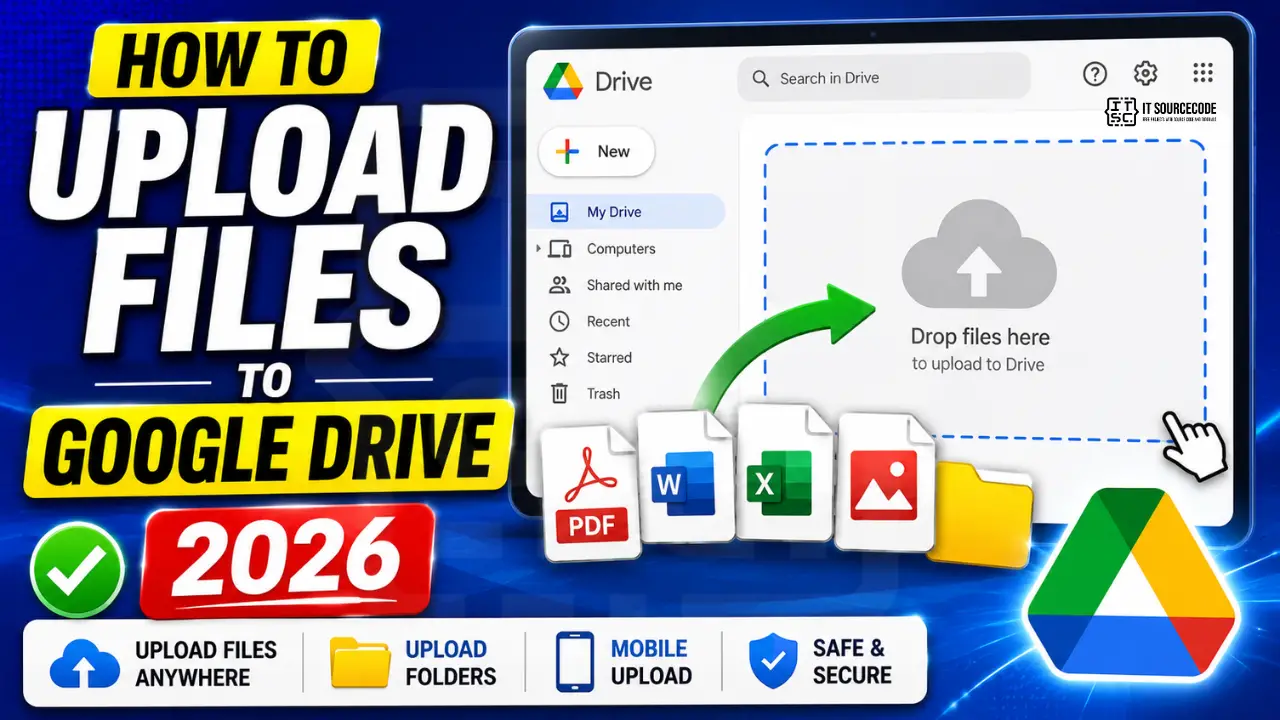
Method 1: Upload via drag-and-drop (fastest)
- Open Google Drive in your browser (drive.google.com).
- Open the folder where you want to upload.
- Open your computer’s File Explorer (Windows) or Finder (Mac).
- Select the files.
- Drag them into the Drive browser window.
- Upload starts immediately. Progress shows at bottom-right.
Method 2: Upload via the New button
- Click + New button (top-left in Drive).
- Click File upload for single/multiple files.
- Or Folder upload for an entire folder + subfolders.
- File picker opens. Select files. Click Open.
- Upload begins.
Upload folder (with all contents)
- Click + New > Folder upload.
- Pick the folder from your computer.
- Drive uploads the folder + all files + subfolders + their files, preserving structure.
- Alternate: drag folder from Explorer/Finder directly into Drive.
Great for backing up an entire project directory.
Upload from Google Drive mobile
- Open the Google Drive app.
- Tap the + button (bottom-right).
- Tap Upload.
- Select from Photos, Files, or Camera.
- Pick items. Tap upload.
- Upload runs in the background even if you close the app.
Upload from your camera
- In the Drive mobile app, tap + > Scan.
- Point at document, receipt, whiteboard, etc.
- Drive uses OCR to detect edges and captures as PDF automatically.
- Great for quick document scanning without a scanner app.
Upload via Google Drive for Desktop app
Install Drive for Desktop once, and any file dropped into your Drive folder syncs automatically:
- Install Drive for Desktop from google.com/drive/download.
- Sign in with your Google account.
- Drive folder appears as a network drive on your computer.
- Copy or move files into it. They sync to Drive automatically.
- Delete a file locally: it goes to Drive Trash (recoverable for 30 days).
File size and storage limits
- Free tier: 15 GB total across Drive + Gmail + Photos.
- Google One 100 GB: about $2/month.
- Google One 2 TB: about $10/month.
- Google One 5 TB: about $25/month.
- Individual file max: 5 TB (assuming you have that storage).
- Google Docs/Sheets/Slides files: don’t count against storage.
- Uploaded PDFs, images, videos: DO count against storage.
Supported file types
Drive supports virtually every file type:
- Documents: .pdf, .docx, .doc, .txt, .rtf, .odt.
- Spreadsheets: .xlsx, .xls, .csv, .ods.
- Presentations: .pptx, .ppt, .odp.
- Images: .jpg, .png, .gif, .heic, .webp, .svg.
- Videos: .mp4, .mov, .avi, .wmv, .webm.
- Archives: .zip, .rar, .tar, .7z.
- Code: .py, .js, .html, .css, .java, .cpp.
Common upload errors and fixes
- “Upload complete but nothing shows”: check the correct Drive folder. Files may have uploaded to My Drive root.
- “Not enough storage”: hit 15 GB limit. Delete files or upgrade to Google One.
- Upload stuck / slow: check internet speed. Upload speed depends on your ISP upload bandwidth (usually slower than download).
- “File type not supported”: very rare; usually system files (.exe, .dmg) upload fine, Drive stores anything.
- Cannot upload folder from mobile: mobile app supports files only. Use browser or desktop app for folders.
- Large video times out: over 5 GB may need Drive for Desktop app for reliable upload.
Best practices for uploading
- Organize files into folders BEFORE uploading a big batch.
- For large files (over 1 GB), use Drive for Desktop rather than browser.
- For photos, use Google Photos (drive.google.com/photos), different storage bucket, more organized.
- Give descriptive file names before uploading; searching is easier than renaming later.
- Use the Backup and Sync app (deprecated but still works) if you have thousands of photos to preserve original quality.
Official documentation
Recommended backup and storage resources
The links below are affiliate links. We may earn a commission at no extra cost to you when you buy or sign up. See our affiliate disclosure.
Common Google Drive upload problems
Uploading files to Google Drive should be straightforward, but real-world uploads hit these five common problems. Here are the fixes.
- Upload gets stuck at 99%. Usually a browser or network issue. Try a different browser (Chrome usually works best), disable browser extensions, or switch from WiFi to ethernet.
- File too large error. Google Drive allows files up to 5 TB but individual documents have smaller limits. If you hit a limit, use the Drive for Desktop sync app which handles large files better.
- File format not supported. Drive supports most formats but some raw file types get blocked. Compress uncommon file types into a zip archive before uploading.
- Upload count limit reached. Google Drive limits daily upload counts on free accounts. Wait 24 hours or upgrade to Google One for higher limits.
- Storage quota exceeded. Free tier gets 15 GB across Gmail, Drive, and Photos. Free up storage or upgrade. Photos and Gmail attachments eat quota faster than most users expect.
Best practices for Google Drive file management
Regular file uploads to Drive should follow a consistent structure so files remain findable months later. Create a folder hierarchy that matches your projects, and stick to it. A flat drive with 500 files becomes unusable within weeks.
Use descriptive filenames that include dates and context. instead of “report.pdf” use “2026-07-quarterly-sales-report.pdf”. The date-first format sorts naturally and eliminates guessing which “report.pdf” is the current version.
For BSIT capstone teams, create a shared folder per project (name it “Capstone 2026 Team Name”), then subfolders for Chapter 1, Chapter 2, Chapter 3, Documentation, Source Code, and Presentations. Every team member follows the same structure so files are findable regardless of who uploaded them.
Enable Drive for Desktop sync on your working laptop. This lets you drag files to a local folder and Drive syncs them automatically. Much faster than uploading through the browser for daily use, and it lets you access Drive files even when offline (they sync when you reconnect).
Quick step-by-step summary (click to expand)
- Open Google Drive in your browser. Go to drive.google.com and sign in with your Google account.
- Click New in the top left. Click the New button to open the upload menu.
- Choose File upload or Folder upload. Pick File upload for individual files, Folder upload to upload a whole folder structure.
- Select files from your computer. Browse your local drive and select the files to upload.
- Wait for the upload to complete. Watch the progress bar at the bottom right. Do not close the browser tab until it says Upload complete.
Frequently Asked Questions
What is the maximum file size for Google Drive?
5 TB per file, assuming you have that much storage available. Free 15 GB tier caps effective single file uploads at 15 GB minus current usage.
Can I upload while offline?
Not directly. But with Drive for Desktop, files placed in Drive folder while offline queue and sync automatically when internet returns.
Are Google Docs stored in Drive?
Yes. Every Doc, Sheet, and Slide file lives in Drive. Unlike uploaded files, Google-format files (Docs/Sheets/Slides) don’t count against your 15 GB storage limit.
Why is upload slow?
Upload speed depends on your internet ISP’s upload bandwidth (usually 10-25% of download speed). Also large files and many small files both slow uploads. Try Drive for Desktop for reliability.
Can I upload files without a Google account?
No. Uploading to your Drive requires a Google account. However, if someone shares a folder with you at “Anyone with the link + Editor” access, you can upload without your own account.

Adrian Mercurio
Full-Stack Developer at PIES IT Solution
Adrian Mercurio is a full-stack developer at PIES IT Solution. Specializes in building complete capstone projects with full documentation. Strong background in PHP/MySQL development and database design.
Expertise: PHP, Laravel, Database Design, Capstone Projects, C#, Python, AI Projects