
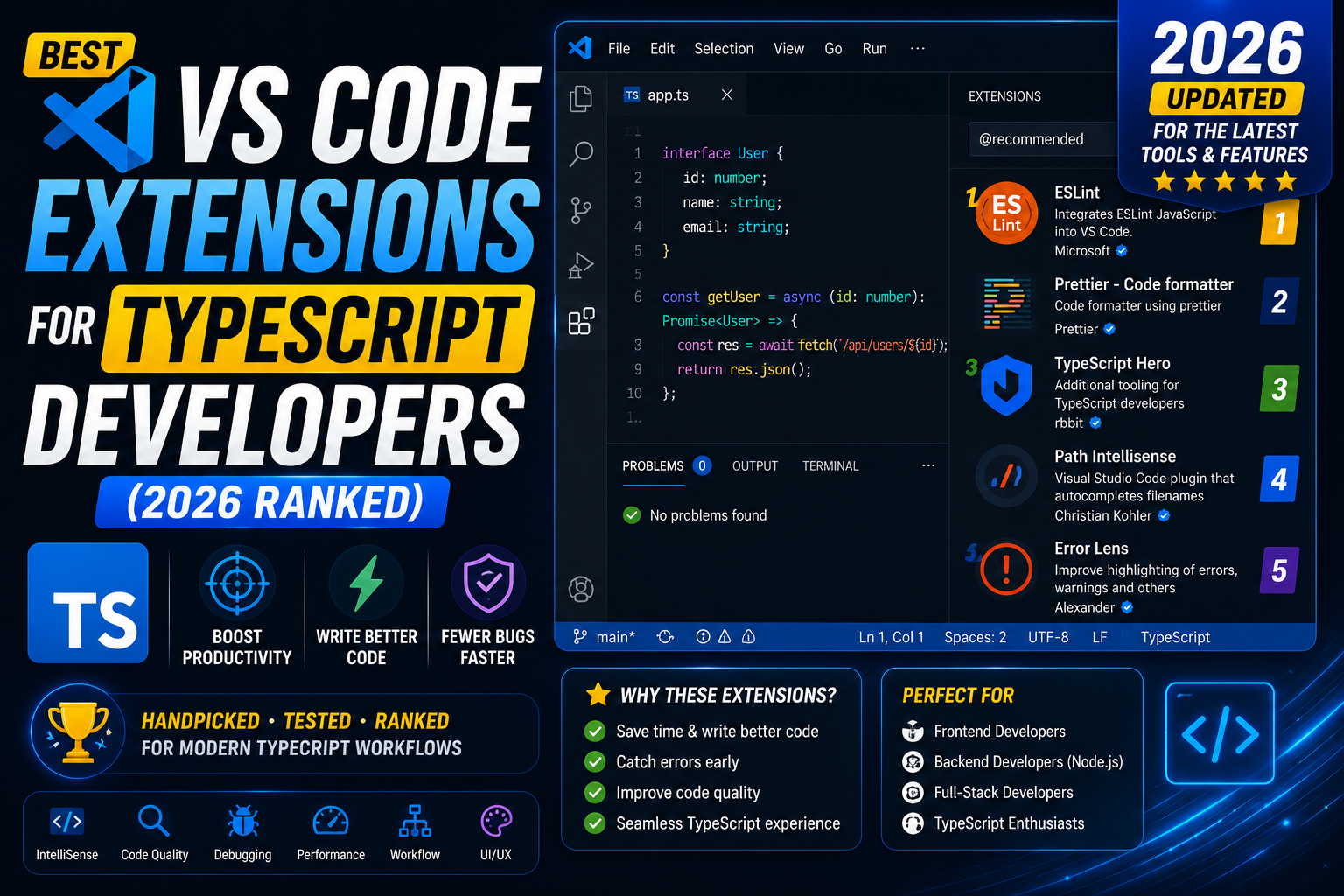
VS Code has better TypeScript support than any other editor out of the box because both are made by Microsoft. But the right extensions turn it from good to great: faster feedback loops, fewer bugs, and cleaner code. This 2026 guide ranks the 12 extensions that actually make a difference for TypeScript developers.
1. ESLint – must install
Enforces code quality rules as you type. Catches unused variables, unreachable code, and hundreds of other issues before you run the code. Integrates with the TypeScript compiler for type-aware linting.
Install: search “ESLint” by Microsoft. Also install ESLint in your project: npm install --save-dev eslint @typescript-eslint/parser @typescript-eslint/eslint-plugin.
2. Prettier – must install
Auto-formats your code on save. Zero decisions about style: indentation, quotes, trailing commas all handled consistently across your team.
Enable format-on-save in settings: "editor.formatOnSave": true and set Prettier as the default formatter for TypeScript files. Combine with ESLint for both formatting AND rule enforcement.
3. Error Lens
Displays error and warning messages inline at the end of the line, not just when you hover. Faster feedback loop for TypeScript’s strict type errors. One of the highest-impact extensions for productivity.
Configure severity to show only errors and warnings (skip hints) to keep the UI from getting cluttered.
4. TypeScript Importer / Auto Import
Automatically adds import statements as you use symbols from other files. VS Code has this built-in via Quick Fix, but these extensions make it more aggressive and more accurate.
Alternative: use built-in Ctrl+. on missing import to trigger quick fix. Extensions are for people who want fully automatic import management.
5. Pretty TypeScript Errors
TypeScript error messages are notoriously dense. This extension reformats them into readable HTML with syntax highlighting. Makes complex generic errors and union type mismatches actually understandable.
Especially useful when you’re learning TypeScript or working with heavily generic library code (React, RxJS, tRPC).
6. GitLens
Git blame inline, file history, and comparison views without leaving the editor. Every TypeScript developer working on a team should install this.
Free version is sufficient. Paid version adds file blame visualization and PR integration.
7. GitHub Copilot or Claude Code
AI code assistance for TypeScript. Both work well; TypeScript’s structural type system gives AI tools strong context to suggest accurate completions.
- GitHub Copilot: Best inline autocomplete integration. USD 10-19 per month.
- Claude Code: Best for refactoring and reading complex code. Free tier available.
- Codeium: Free alternative with slightly less accurate suggestions.
Pick one. Running multiple AI extensions causes UI conflicts.
8. Path Intellisense
Autocompletes file paths as you type them. Essential for import statements with relative paths.
Configure to also autocomplete tsconfig path aliases if your project uses them (like @/components/Button).
9. Import Cost
Shows the byte size of each imported module inline. Instantly visible when you accidentally import a huge library for a tiny feature.
Especially useful for front-end TypeScript work where bundle size affects page load speed. See when you import lodash (70 KB) vs lodash-es tree-shakeable (0.5 KB per function).
10. Console Ninja
Shows the values of console.log calls inline next to your code, without needing to open the DevTools console. Faster debugging loop.
Free for local use. Paid tier adds features for production debugging.
11. Jest / Vitest (test runner integration)
Run tests directly from VS Code with a play button next to each test. See failures inline. If you use Jest or Vitest, one of these extensions is essential.
Alternative for other test runners: search “Test Explorer UI” and install the matching adapter for Mocha, Ava, etc.
12. TypeScript Hero (deprecated, use built-in)
Was popular for auto-organizing imports but is now unmaintained. VS Code’s built-in “Organize Imports” (Shift+Alt+O on Windows/Linux, Shift+Option+O on Mac) does the same thing. Uninstall if you still have it.
Framework-specific extensions
For React developers:
- ES7+ React/Redux/React-Native snippets: Fast snippets like
rafcefor arrow function components. - Simple React Snippets: Alternative with fewer snippets but cleaner defaults.
For Next.js developers:
- Next.js: Official extension for Next.js. Adds snippets and helpers.
For Node.js developers:
- NPM IntelliSense: Autocompletes NPM package names in require/import statements.
- REST Client: Test API endpoints from .http files. Great for API development.
For CSS/Tailwind users:
- Tailwind CSS IntelliSense: Autocompletes Tailwind class names inline in JSX/TSX.
Minimal starter set (for new TypeScript devs)
The five extensions you should install first:
- ESLint
- Prettier
- Error Lens
- GitLens
- GitHub Copilot or Claude Code
These cover 90% of what TypeScript developers need. Add more based on specific frameworks and workflows.
Extensions to avoid or uninstall
- TypeScript Hero: Deprecated. Use built-in Organize Imports.
- JavaScript (ES6) code snippets: Redundant if you have ES7+ React snippets or similar.
- Beautify: Replaced by Prettier. Uninstall to avoid formatter conflicts.
- JSHint: Replaced by ESLint with typescript-eslint. Legacy.
- Multiple linters at once: ESLint alone is enough. Do not also install standalone TSLint (deprecated in favor of ESLint anyway) or Codelyzer.
VS Code settings that make these extensions work well together
Add these to your settings.json for TypeScript:
{
  "editor.formatOnSave": true,
  "editor.defaultFormatter": "esbenp.prettier-vscode",
  "editor.codeActionsOnSave": {
    "source.fixAll.eslint": "explicit",
    "source.organizeImports": "explicit"
  },
  "typescript.updateImportsOnFileMove.enabled": "always",
  "typescript.suggest.autoImports": true,
  "typescript.preferences.importModuleSpecifier": "non-relative",
  "errorLens.enabledDiagnosticLevels": ["error", "warning"],
  "[typescript]": {
    "editor.defaultFormatter": "esbenp.prettier-vscode"
  },
  "[typescriptreact]": {
    "editor.defaultFormatter": "esbenp.prettier-vscode"
  }
}
These settings enable format-on-save with Prettier, auto-fix on save with ESLint, auto-update imports when you rename or move files, and inline error display. Copy into your VS Code settings.json.
Debugging TypeScript in VS Code
VS Code’s built-in debugger works with TypeScript out of the box. No extension needed for basic debugging. Create a launch.json file for your specific project:
// .vscode/launch.json for Node.js TypeScript
{
  "version": "0.2.0",
  "configurations": [
    {
      "type": "node",
      "request": "launch",
      "name": "Debug TypeScript",
      "runtimeExecutable": "npx",
      "runtimeArgs": ["tsx", "\\${workspaceFolder}/src/index.ts"],
      "console": "integratedTerminal",
      "skipFiles": ["<node_internals>/**"]
    }
  ]
}
Add breakpoints by clicking to the left of line numbers. Press F5 to start debugging.
Official documentation
Frequently asked questions
Do I need a TypeScript extension separate from the built-in support?
No. VS Code ships with excellent TypeScript support out of the box (IntelliSense, error checking, refactoring). Third-party extensions add specific features like linting (ESLint), formatting (Prettier), and enhanced error display (Error Lens) but the TypeScript language service itself is built-in.
Should I use ESLint or Prettier or both?
Both. ESLint enforces code quality rules (no unused vars, prefer const, etc). Prettier handles formatting (indentation, quotes). They serve different purposes and complement each other. Use eslint-config-prettier to prevent them from fighting on style rules.
Why is my TypeScript IntelliSense slow?
Common causes: (1) very large tsconfig include patterns; (2) node_modules with heavy generic types (like AWS SDK); (3) too many extensions active. Try Command Palette > “TypeScript: Restart TS Server”. Exclude node_modules in tsconfig if not already done.
Is Copilot better for TypeScript than Claude Code?
Copilot has better inline autocomplete for TypeScript. Claude Code is stronger for larger refactors and understanding complex generic types. Pick based on how you work: inline suggestions (Copilot) or deeper conversational coding (Claude Code). Both handle TypeScript well.
How do I configure Prettier to work with ESLint?
Install eslint-config-prettier: npm install --save-dev eslint-config-prettier. Add “prettier” as the LAST item in your ESLint extends array. This disables all ESLint rules that conflict with Prettier’s formatting decisions.
Is Cursor a better editor than VS Code for TypeScript?
Cursor is a VS Code fork with AI features deeply integrated. If AI-first coding is your priority, Cursor is smoother. For pure TypeScript development, standard VS Code with Copilot works just as well and integrates better with corporate IT setups. Both are valid choices.