
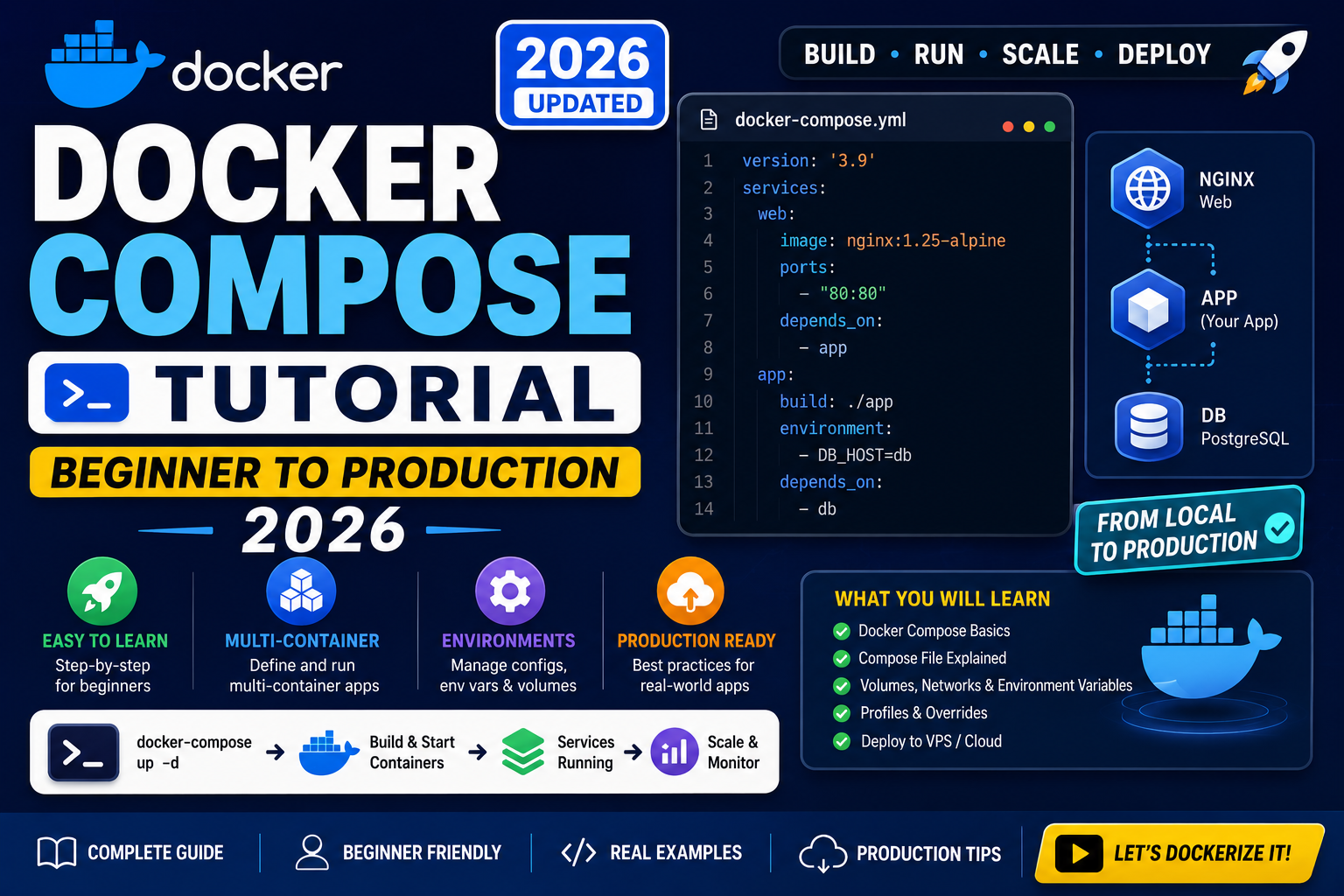
Docker Compose lets you run multiple containers as one app defined in a single YAML file. Instead of typing 5 different docker run commands, you write a docker-compose.yml and start everything with docker compose up. This tutorial walks you through Compose from your first file to production-ready patterns for volumes, networks, environment variables, and health checks.
What Docker Compose actually does
Docker Compose is a tool that reads a YAML file describing services (containers), networks, and volumes, then creates all of them in the right order. If you have a web app that needs a Postgres database, Redis cache, and Nginx reverse proxy, Compose starts all four containers with correct networking between them.
The alternative (raw docker commands):
docker network create myapp
docker run -d --name db --network myapp postgres:16
docker run -d --name cache --network myapp redis:7
docker run -d --name app --network myapp -p 8000:8000 myapp:latest
docker run -d --name nginx --network myapp -p 80:80 -v ./nginx.conf:/etc/nginx/nginx.conf nginx
With Compose, that becomes one command: docker compose up.
Your first docker-compose.yml
Create a file called docker-compose.yml in your project folder:
services:
  web:
    image: nginx:alpine
    ports:
      - "8080:80"
Then in your terminal, in the same folder as the file:
docker compose up

# Compose pulls the nginx image, creates a network,
# and starts the container. Visit http://localhost:8080 in a browser
# to see the Nginx welcome page.

# Stop with Ctrl+C, or in another terminal:
docker compose down
Add a database service
Real apps need more than one container. Add a Postgres database:
services:
  web:
    image: nginx:alpine
    ports:
      - "8080:80"
    depends_on:
      - db

  db:
    image: postgres:16
    environment:
      POSTGRES_USER: myapp
      POSTGRES_PASSWORD: secret
      POSTGRES_DB: myapp_dev
    volumes:
      - postgres_data:/var/lib/postgresql/data

volumes:
  postgres_data:
Now docker compose up starts both containers. The web service can reach the database at hostname db (Compose auto-creates DNS so services find each other by service name).
Understand volumes and data persistence
Containers are ephemeral: when you stop them, everything inside disappears. To keep data (like your database contents), use volumes. Two common types:
- Named volumes: Managed by Docker, ideal for databases. Example:
postgres_data:/var/lib/postgresql/data. Data persists acrossdocker compose downandup. - Bind mounts: Map a folder from your host to the container. Ideal for source code hot-reload during development. Example:
./src:/app/src.
For production, always use named volumes for databases. Bind mounts are for development convenience only.
Use environment variables from .env file
Never hardcode passwords in docker-compose.yml. Put them in a .env file:
# .env file
POSTGRES_USER=myapp
POSTGRES_PASSWORD=your-actual-secret
POSTGRES_DB=myapp_dev
Then reference in your compose file:
services:
  db:
    image: postgres:16
    environment:
      POSTGRES_USER: ${POSTGRES_USER}
      POSTGRES_PASSWORD: ${POSTGRES_PASSWORD}
      POSTGRES_DB: ${POSTGRES_DB}
Add .env to your .gitignore so secrets never enter version control.
Build your own service (from a Dockerfile)
Use build: instead of image: when your service is your own code with a local Dockerfile:
services:
  app:
    build:
      context: .
      dockerfile: Dockerfile
    ports:
      - "8000:8000"
    volumes:
      - ./src:/app/src
    environment:
      DATABASE_URL: postgresql://myapp:secret@db:5432/myapp_dev
    depends_on:
      - db

  db:
    image: postgres:16
    # ... (as before)
Now docker compose up --build rebuilds your image from the Dockerfile before starting.
Common Docker Compose commands
docker compose up               # start all services (foreground)
docker compose up -d            # start in background
docker compose down             # stop and remove all containers
docker compose down -v          # also remove volumes (destroys data!)
docker compose ps               # list running services
docker compose logs             # view all logs
docker compose logs -f web      # follow logs for one service
docker compose restart web      # restart one service
docker compose exec db psql -U myapp   # run command inside a service
docker compose build            # rebuild images
docker compose pull             # pull latest images from registry
Add health checks for production-ready services
Health checks tell Docker whether a container is actually ready to serve requests (not just running). Compose can use health checks to sequence startup:
services:
  db:
    image: postgres:16
    healthcheck:
      test: ["CMD-SHELL", "pg_isready -U myapp"]
      interval: 5s
      timeout: 3s
      retries: 5

  app:
    build: .
    depends_on:
      db:
        condition: service_healthy
Now Compose waits until Postgres actually responds to pg_isready before starting the app. This eliminates the race condition where the app tries to connect before the database is ready.
Networks: default and custom
Compose creates a default network for your services automatically. Services find each other by service name (like db, cache, app). For advanced setups you can define multiple networks:
services:
  app:
    networks:
      - frontend
      - backend
  db:
    networks:
      - backend

networks:
  frontend:
  backend:
Here the app talks to both networks. The database only exposes itself on the backend network, so nothing on frontend can reach it. Useful for security separation.
Production tips for Docker Compose
- Pin image versions. Use
postgres:16.2notpostgres:latest. Latest breaks in surprising ways when maintainers push updates. - Set restart policies. Add
restart: unless-stoppedso containers survive host reboots. - Use secrets for sensitive values. Docker Compose supports
secrets:for passwords and API keys, keeping them out of environment variables. - Set resource limits. Add
mem_limitandcpusto prevent one runaway container from starving others. - Use multi-file overrides. Base
docker-compose.yml+docker-compose.prod.ymlfor production overrides. Run withdocker compose -f docker-compose.yml -f docker-compose.prod.yml up. - Log rotation. Configure Docker daemon’s logging driver to rotate container logs, otherwise
/var/lib/dockerfills your disk.
When Compose is not the right tool
Docker Compose is great for local development and small-scale production. Look at other tools if:
- You need to run across multiple machines (use Docker Swarm or Kubernetes).
- You need auto-scaling and self-healing (use Kubernetes).
- You need cloud-native integrations (use Kubernetes or a managed platform like AWS ECS).
- You are running dozens of unrelated services (use a service mesh like Istio).
For a single-server app with 2-10 services, Compose is often the simplest and most maintainable choice.
Official documentation
Frequently asked questions
Is Docker Compose different from docker-compose?
Docker Compose v2 is the current version, invoked as docker compose (space, not hyphen). The old v1 was docker-compose (hyphen). V2 comes bundled with Docker Desktop. If you have both, always use v2. V1 is deprecated as of 2023.
Do I need to install Docker Compose separately?
No if you use Docker Desktop (Windows, Mac) or a modern Docker Engine on Linux. Compose v2 comes bundled. Check with docker compose version. If it errors, install via apt install docker-compose-plugin on Debian/Ubuntu.
Can I use Docker Compose in production?
Yes for single-server deployments and small apps. Add restart policies, health checks, pinned versions, and secrets management. For multi-server or auto-scaling workloads, migrate to Kubernetes. Many small SaaS apps run happily on Compose on a single 4-8 CPU VM for years.
Why won’t my services find each other?
Compose only sets up service-name DNS within its own network. If you use network_mode: host or define custom networks and forget to attach a service, DNS breaks. Verify with docker compose exec app ping db. Should resolve if both are on the same Compose network.
How do I update one service without restarting the whole app?
Use docker compose up -d --no-deps --build web. This rebuilds and restarts only the web service without touching its dependencies. Useful for zero-downtime updates during development.
Do I lose data when I run docker compose down?
Only if you use the -v flag. docker compose down removes containers but keeps named volumes. docker compose down -v removes volumes too, destroying your database data. Always double-check before running with -v in production.