
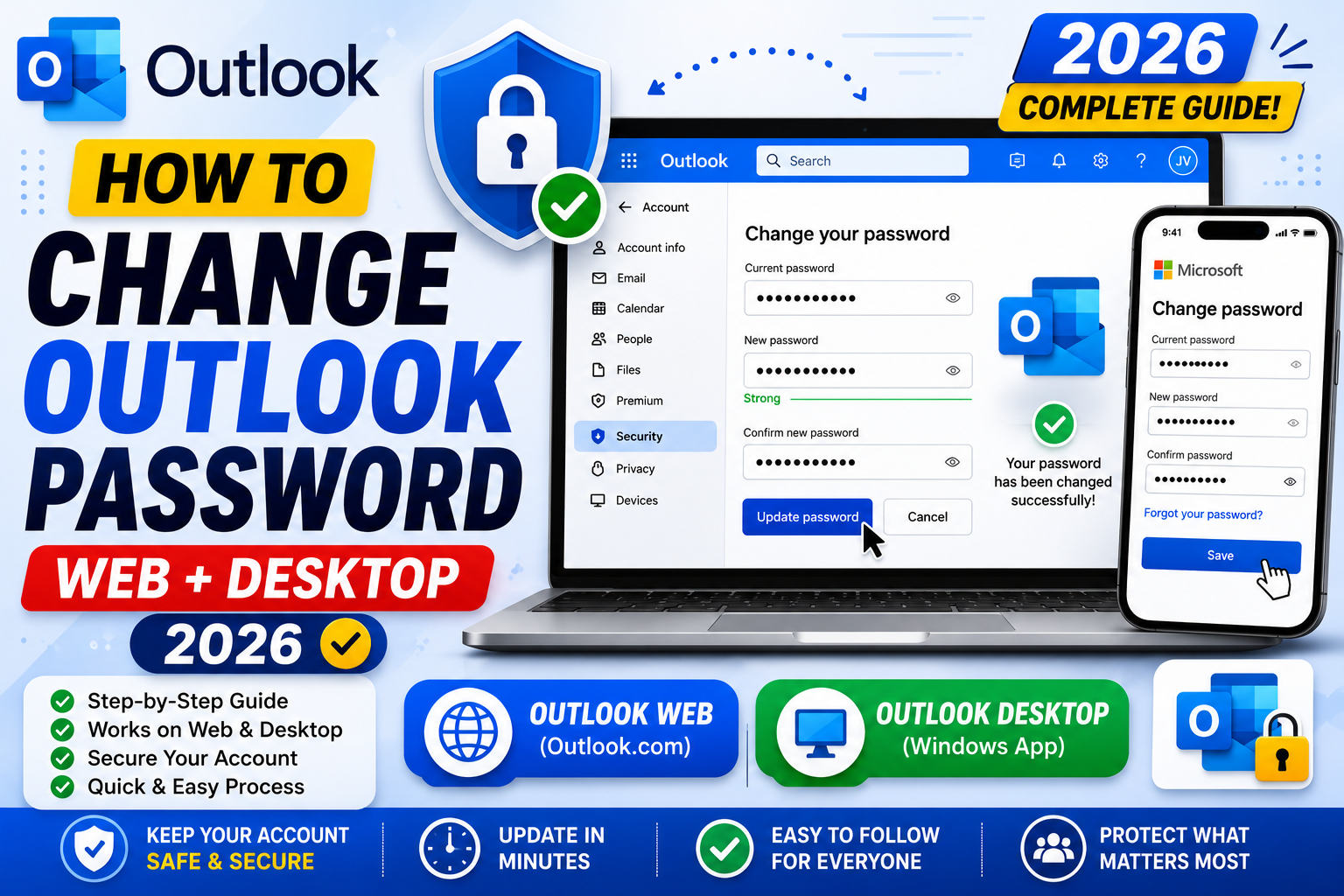
Quick step-by-step summary (click to expand)
- Go to your Microsoft account security page. Open account.microsoft.com/security in a browser.
- Sign in with your current Outlook credentials. Microsoft may prompt for a security code sent by email or SMS.
- Click Password security. Or scroll to the Password section on the security page.
- Enter your current password. Then enter a new password twice.
- Set requirements. Microsoft requires at least 8 characters and a mix of letter, number, or symbol.
- Click Save. Your password updates across all Microsoft services.
- Re-sign in on all your devices. Outlook Desktop, mobile apps, and other Microsoft services will prompt for the new password.
Change Outlook.com password (personal account)
For personal Outlook.com or Hotmail accounts:
- Go to account.microsoft.com/security.
- Sign in with your current Outlook.com or Hotmail address and password.
- Microsoft may ask for a security code sent to your recovery email or phone. Enter it.
- On the Security page, find the “Password security” tile and click it.
- Enter your current password once, then your new password twice.
- Optionally check “Make me change my password every 72 days” if you want regular rotation.
- Click “Save”.
Your password is now updated for every Microsoft service (Outlook, OneDrive, Office, Xbox, Skype, MSN). Every logged-in device will eventually prompt for the new password.
Change Microsoft 365 password (work or school account)
If Outlook is part of your employer or school’s Microsoft 365 setup, the process depends on how your admin configured account management:
- Open passwordreset.microsoftonline.com or myaccount.microsoft.com.
- Sign in with your work email address.
- Click “Change password” in the menu.
- Enter your current password, then a new one twice.
- Click Submit.
If your organization uses SSO with Active Directory or Okta, “Change password” may redirect you to your company’s password portal instead. Follow those on-screen instructions.
Password policies at work: your admin may require longer passwords, more character classes, or 90-day rotation. Read the requirements shown on the change form.
Change password within Outlook Desktop app
Outlook Desktop does not have a “change password” button in its own settings. Passwords are managed through your Microsoft account (see above). What Outlook Desktop can do is update the STORED credentials when your password changes:
- Change your password using account.microsoft.com/security or your work portal.
- Open Outlook Desktop.
- Outlook will detect the password mismatch and pop up a sign-in prompt within seconds.
- Enter your new password. Check “Remember my credentials” to save it.
- Outlook connects and syncs email as normal.
If Outlook does not prompt automatically:
- Go to File > Account Settings > Account Settings.
- Select your email account, click “Repair”, then follow the prompts.
Reset Outlook password when you forgot the old one
If you cannot sign in because you forgot the current password:
- Go to account.live.com/password/reset (for personal accounts) or passwordreset.microsoftonline.com (for work accounts).
- Enter your email address and the CAPTCHA.
- Microsoft sends a verification code to your recovery email address or phone number.
- Enter the code.
- Create a new password.
- Sign in to Outlook with the new password.
If you no longer have access to your recovery email or phone: click “I don’t have any of these” on the recovery page. Microsoft will guide you through an account recovery form. This takes 3-7 days and requires you to answer questions about your account history (recent contacts, subject lines of recent emails, when the account was created).
Set up two-factor authentication (recommended after password change)
After changing your password, enable two-factor authentication so your account stays secure even if the new password leaks:
- Go to account.microsoft.com/security.
- Click “Two-step verification” (labeled “Advanced security options”).
- Follow the wizard. You have three options:
- Microsoft Authenticator app (recommended, works offline)
- SMS code (works but vulnerable to SIM-swap attacks)
- Email code (works but tied to your recovery email)
- Complete the setup by entering a verification code from your chosen method.
Once enabled, every sign-in from a new device requires both your password AND the code. Even if someone learns your password, they cannot sign in without your phone.
Update password on Outlook mobile app
Outlook mobile detects the password change automatically:
- Open the Outlook app on iPhone or Android.
- Within seconds of trying to fetch new email, the app pops up a sign-in prompt.
- Enter your new password.
- If you have two-factor auth on, enter the code from your authenticator app.
- The app resumes syncing.
If the app does not prompt: go to Settings > tap your account > tap “Reset account”. Sign back in with the new password.
Password best practices for Outlook
- Use a password manager. 1Password, Bitwarden, and LastPass generate and store 20-character random passwords. Never reuse your Outlook password anywhere else.
- Length matters more than complexity. “correcthorsebatterystaple” (25 chars) is stronger than “Xp7!@” (5 chars). Aim for 16+ characters.
- Avoid personal info. No birthdays, kid names, or pet names. These are the first guesses in a targeted attack.
- Change if compromised. If you receive a notification of a suspicious login or if a service you use had a breach, change your Outlook password immediately.
- Do not share. Never share your Outlook password over email, chat, or phone. Legitimate Microsoft support will never ask for it.
Troubleshooting
- “Password does not meet requirements.” Microsoft requires 8+ characters and a mix of letters/numbers/symbols. Try adding a special character like ! or #.
- “You have exceeded the number of password change attempts.” Wait 24 hours before trying again. This is a security lockout.
- Outlook Desktop keeps prompting for password after change. Clear cached credentials: Control Panel > Credential Manager > Windows Credentials > find any entry with “Outlook” or “MicrosoftOffice” and remove it. Restart Outlook and sign in fresh.
- Mobile app fails to authenticate. Remove the account from the app and re-add it. Settings > gear icon > tap account > “Delete account”. Then re-add with the new password.
- Password change succeeded but old password still works elsewhere. Sign out of all Microsoft services (account.microsoft.com > Sign out everywhere) to force all devices to re-authenticate.
Official documentation
Frequently asked questions
Where is the change password option in Outlook Desktop?
Outlook Desktop does not have a password-change setting. The password lives with your Microsoft account. Change it at account.microsoft.com/security in a browser, then Outlook Desktop will prompt you to enter the new password on next sync.
Does changing my Outlook password log me out on other devices?
Not immediately. Each device continues using the cached password until it needs to re-authenticate (typically within minutes to a few hours). To force logout everywhere, go to account.microsoft.com and click “Sign out everywhere”.
How often should I change my Outlook password?
Modern security guidance says: only when you have reason to (breach notice, suspicion of compromise, shared with someone temporarily). Forced rotation every 30-90 days is outdated advice and often leads to weaker passwords. Focus on strength and 2FA instead.
Can I recover my Outlook password without the recovery email or phone?
Yes, but it takes days. Use the account recovery form at account.live.com/acsr. You must answer detailed questions about your account (recent subject lines, contacts you email, billing details if applicable). Microsoft manually reviews and responds within 24-72 hours.
Does 2FA slow down email sync?
No. 2FA only triggers on new sign-ins from unrecognized devices. Once you sign in on your regular devices, syncing continues normally in the background. You only see 2FA prompts when adding a new device or after signing out and back in.
Can my employer see my Outlook password?
No. Microsoft never stores or shows passwords in plain text. Your admin can reset your password (which generates a new one you set) but cannot see the current one. That said, admins can read your email content if company policy allows.