
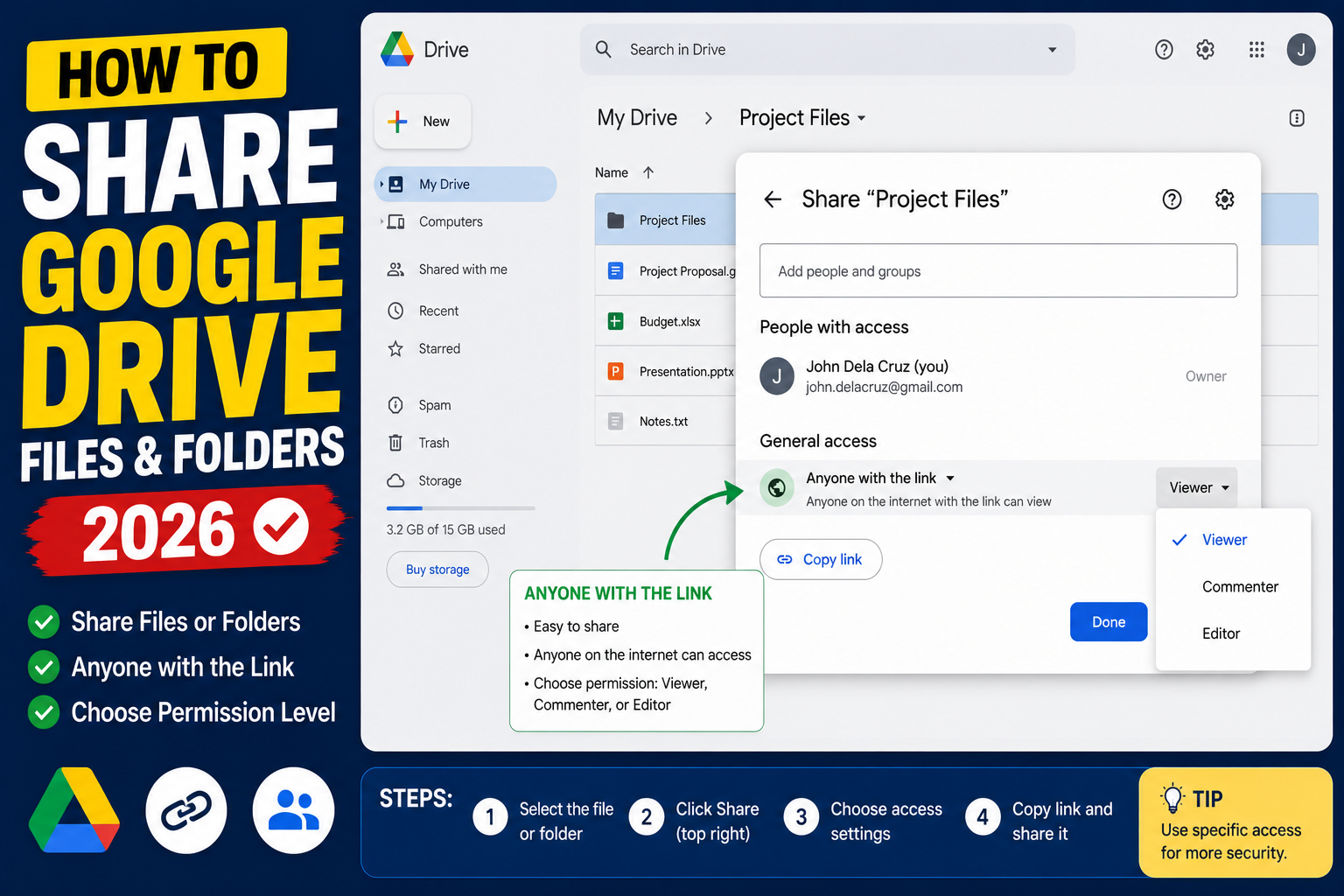
Sharing files in Google Drive lets you collaborate on Docs, Sheets, and folders without emailing attachments. Drive supports link sharing, email invites, view/comment/edit permission levels, and expiry dates. This 2026 tutorial covers every sharing method with security best practices.
Method 1: Share via email invite
- Open Google Drive.
- Right-click the file or folder you want to share.
- Click Share.
- In the “Add people, groups” field, type email addresses.
- Set permission level: Viewer, Commenter, or Editor.
- Optional: check Notify people to email them a notification.
- Click Send.
Method 2: Share via link (Anyone with the link)
- Right-click file > Share.
- Under “General access”, change from Restricted to Anyone with the link.
- Set access level for link users (Viewer / Commenter / Editor).
- Click Copy link.
- Paste the link in email, chat, or a webpage.
Anyone with the link can now access without needing a Google account (for View/Comment) or with any Google account (for Edit).
Permission levels explained
- Viewer: can only view. Cannot comment or edit. Can download if that option is on.
- Commenter: can view + leave comments/suggestions but cannot change content directly.
- Editor: full edit access. Can change content, share with others (unless disabled), and delete.
- Owner: highest level. Can transfer ownership, delete file permanently. Only one owner per file.
Share a folder (shares all contents)
- Right-click folder > Share.
- Same options as file sharing.
- Warning: sharing a folder gives access to EVERYTHING inside, including subfolders. Move sensitive files out first.
- New files added to a shared folder inherit the folder’s permissions automatically.
Restrict access after sharing
- Right-click file > Share.
- Click the person’s name in the list.
- Change permission or click Remove access.
- For links: change from “Anyone with the link” back to “Restricted”.
Changes take effect immediately. Anyone who had the file open can still see it until they refresh.
Set an expiry date on access (Workspace only)
- Share the file with a specific email.
- Hover over their permission level.
- Click Add expiration.
- Pick a date (up to 1 year in the future).
- Access auto-revokes on that date.
Available for Google Workspace Business, Enterprise, and Education accounts. Not on free personal accounts.
Prevent downloading, printing, copying
- Share > click the gear/settings icon.
- Uncheck Viewers and commenters can see the option to download, print, and copy.
- Now readers cannot easily export the file.
Note: determined users can still take screenshots. This setting deters casual copying, not motivated leaks.
Share on Google Drive mobile
- Open the Drive app.
- Tap the three-dot menu next to a file.
- Tap Share or Manage access.
- Add emails or turn on link sharing.
- Tap the share icon to open native sharing to WhatsApp, Messenger, etc.
Share with domain (Workspace only)
For work/school accounts, you can share with everyone in your organization:
- Share > General access > pick Anyone at [your-org.com].
- Set permission (View/Comment/Edit).
- Only people signed in with your org’s Google account can access.
Best practices for secure sharing
- Use email-specific sharing for sensitive files (not “Anyone with link”).
- Set Viewer level unless collaborators need to edit.
- Review shared files quarterly (Drive > Shared with me > check what you own).
- Use expiry dates on contract shares.
- Move sensitive files out of shared folders.
- For confidential contracts, use Workspace + eSignature instead of raw sharing.
Common sharing issues
- Recipient says “You need permission”: they’re signed into a different Google account. Have them sign into the one you shared with, or share with their alternate email.
- Link works for you but not others: general access is set to Restricted. Change to Anyone with the link.
- Can’t add expiry date: only Workspace paid plans support this.
- Shared but recipient can’t edit: check permission level; may be set to Viewer instead of Editor.
- Folder shared but new items don’t inherit: they should inherit automatically. Refresh and check permission on new items.
Official documentation
Recommended cloud storage resources
The links below are affiliate links. We may earn a commission at no extra cost to you when you buy or sign up. See our affiliate disclosure.
Common Google Drive sharing problems and fixes
Sharing on Google Drive should be simple, but real-world sharing hits snags because of permissions, admin restrictions, and version mismatches. Here are the five most common problems I see and their fixes.
- “You need permission” error even after sharing. Google Drive caches permissions. Ask the recipient to close the file, wait 2 minutes, and reopen. If they use a personal Gmail and you shared with their work email, ask them to sign in with the correct account.
- Cannot share outside your organization. Google Workspace admins can block external sharing. If you cannot add an external email, check with your admin or use “Anyone with link” (which may also be blocked).
- Recipient sees “Access denied” for a shared link. The link permission may be “Restricted” instead of “Anyone with link.” Open Share settings and change to “Anyone with the link” plus set the role (Viewer, Commenter, Editor).
- Cannot change role after sharing. Only the file owner can change roles. If someone else shared the file with you, ask them to update the recipient’s role.
- Sharing a folder does not share newly added files. Files added to a shared folder inherit the folder’s permissions. If they do not, refresh the folder or check if the file was moved (not copied) into the folder.
Advanced Google Drive sharing tips for capstone teams
For BSIT capstone groups managing dozens of documents across 4 or 5 team members, these advanced sharing patterns save hours of confusion. Use them from day one.
- Create one shared folder for the whole capstone. Do not share files one by one. Create a “Capstone 2026 – Group Name” folder, share it with all team members as Editors, then everything inside inherits access.
- Use expiration dates for external reviewers. When you share with your adviser or panel, set an expiration date so access ends after your defense. Prevents future accidental edits from ex-team members.
- Use viewer-only for final drafts. Once a chapter is approved, change permissions to “Viewer” so nobody accidentally edits the finalized version. Keep an “in-progress” copy separately.
- Copy shared folders before major changes. Before restructuring, make a copy so you have a safe backup. Google Drive version history helps but a copy is safer for structural changes.
- Turn on notifications for critical files. Right-click your Chapter 5 document and enable notifications so you get an email whenever anyone edits. Catches accidental deletes and unauthorized changes quickly.
Google Drive sharing is fine for solo work but capstone teams need explicit conventions to avoid version chaos. Agree on your folder structure and sharing rules in your first team meeting, write them down in your shared “Team Rules” document, and refer back to them whenever confusion arises.
Quick step-by-step summary (click to expand)
- Right-click the file or folder in Google Drive. Locate the file in your Drive and right-click to open the context menu.
- Click Share. Select Share from the menu to open the sharing dialog.
- Add recipient email addresses. Type email addresses of people you want to share with in the “Add people and groups” field.
- Set their role. Choose Viewer (read-only), Commenter (can comment), or Editor (can change) from the role dropdown.
- Adjust link sharing (optional). Click “Get link” to enable link sharing. Choose Restricted (only people you added) or Anyone with the link (anyone can access).
- Send or copy the link. Click Send to email the recipients or Copy link to share it manually via your preferred channel.
Frequently Asked Questions
Can I share Google Drive files with non-Gmail users?
Yes. Use “Anyone with the link” sharing. For View/Comment access, no Google account is required. For Edit access, recipient needs a Google account (any provider that has Google login).
How do I know who has access?
Right-click file > Share. The dialog shows every person and group with access, plus link-sharing status. Regular audit prevents leaks.
Can I un-share without notifying the person?
Yes. Remove access does not send a notification. The person’s next attempt to open the file shows “You need access” without indicating you took action.
What’s the difference between “Anyone with link” and “Public”?
“Anyone with the link” requires the link to access. “Public on the web” (in older Drive versions) lets Google Search index and find your file. Public is much broader; use with caution.
Can editors delete my file?
Editors can move files to Trash but only owner can permanently delete. If an editor trashes a file, owner can restore from Drive > Trash within 30 days.

Adrian Mercurio
Full-Stack Developer at PIES IT Solution
Adrian Mercurio is a full-stack developer at PIES IT Solution. Specializes in building complete capstone projects with full documentation. Strong background in PHP/MySQL development and database design. Has personally built and tested over 30 capstone-ready projects with ER diagrams, DFDs, and chapter-by-chapter thesis documentation.
Expertise: PHP, Laravel, Database Design, Capstone Projects, C#, C, C++, Python, AI Projects · View all posts by Adrian Mercurio →