
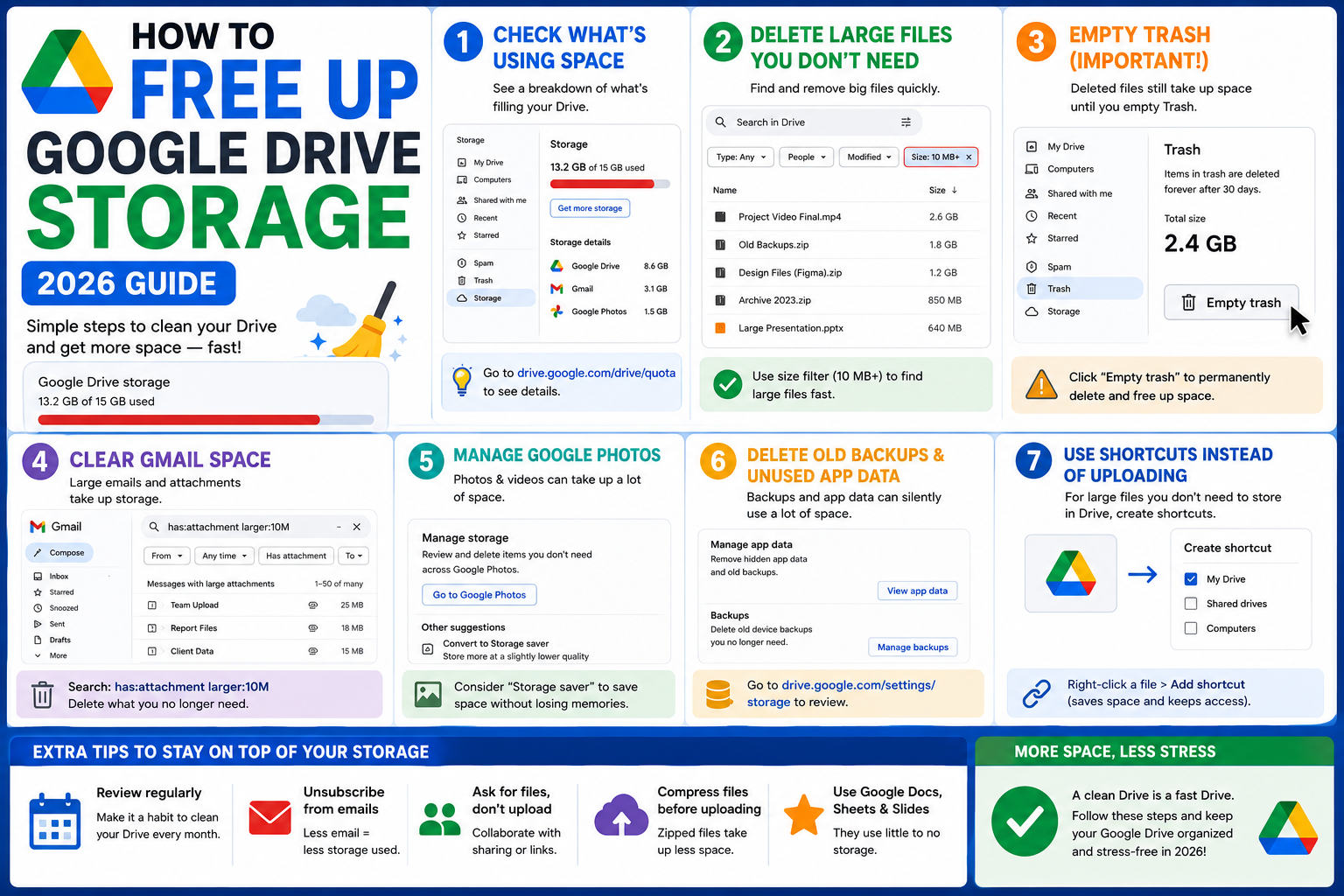
Google’s free 15 GB storage is shared across Drive, Gmail, and Photos. When you hit the limit, uploads fail and Gmail stops delivering. This 2026 tutorial covers every method to reclaim storage: find large files, empty trash, clean Gmail attachments, and decide when to upgrade to Google One.
Step 1: Check your current usage
- Go to one.google.com/storage.
- See a breakdown: Drive, Gmail, Photos.
- Or in Drive: click the storage bar at the bottom-left.
- Identify which service uses the most.
Step 2: Find large files in Drive
- Open Google Drive.
- Click Storage in the left sidebar.
- Drive shows all files sorted by size (largest first).
- Review the top items. Delete or download-then-delete anything unnecessary.
Common storage hogs:
- Videos (5 GB each is normal)
- Zip archives from old projects
- Downloaded software installers
- High-resolution photos
- PowerPoint files with embedded videos
Step 3: Empty Drive Trash
Deleted files stay in Trash for 30 days, still using storage:
- Click Trash in the Drive sidebar.
- Click Empty trash (top-right).
- Confirm.
- Space is reclaimed immediately.
Warning: emptying trash is PERMANENT. Files cannot be recovered after this.
Step 4: Clean Gmail attachments
Gmail attachments are the sneakiest storage user:
- In Gmail search box, type:
has:attachment larger:10M - This finds emails with attachments over 10 MB.
- Delete unnecessary emails (delete moves to Trash, must also empty Gmail Trash).
- Or try:
has:attachment larger:25Mfor over 25 MB.
Then empty Gmail Trash: Gmail > Trash > Empty trash now.
Step 5: Clean Google Photos
- Go to photos.google.com.
- Click Storage in Settings.
- Photos shows large videos, blurry photos, screenshots.
- Bulk-delete categories you don’t need.
- Convert existing photos to “Storage saver” quality (reduces size but slightly lowers resolution).
Step 6: Delete Gmail Spam and Promotions
- Gmail > Spam folder > Delete all spam messages now.
- Gmail > Promotions tab > select all > delete.
- Gmail > Social tab > review and delete.
- Empty Trash after.
Step 7: Convert files to Google format
Uploaded .docx, .xlsx, .pptx files count against storage. Convert to Google Docs/Sheets/Slides format and they don’t:
- Right-click .docx file in Drive.
- Open with > Google Docs (or Sheets/Slides).
- New Google-format file created, doesn’t count against storage.
- Delete the original .docx.
Format may look slightly different after conversion, but storage savings are worth it for archives.
Step 8: Compress large files before uploading
- Videos: compress with HandBrake (free), often reduces size by 50-80%.
- Images: convert to WebP or JPEG at 80% quality.
- PDFs: use online tools like iLovePDF or SmallPDF to compress.
- Zips: use 7-Zip with LZMA2 compression for better ratio than default.
Step 9: Remove shared file “Owner” burden
Files you OWN count against your storage, even if shared with others. Transfer ownership to reclaim:
- Right-click the file > Share.
- Click the recipient’s permission.
- Click Transfer ownership.
- Only works within the same Workspace domain, not to personal accounts.
When to upgrade to Google One
If cleaning gets you below 90% of 15 GB and you’re still adding files:
| Plan | Storage | Monthly cost |
|---|---|---|
| Basic | 100 GB | ~$1.99 |
| Standard | 200 GB | ~$2.99 |
| Premium | 2 TB | ~$9.99 |
| AI Premium | 2 TB + Gemini | ~$19.99 |
Common storage cleanup issues
- Deleted files but storage unchanged: files are in Trash. Empty Drive Trash AND Gmail Trash.
- Cannot find where 5 GB is: Google Photos original quality photos often take gigabytes. Check photos.google.com/storage.
- Cleaned Gmail but still over limit: check Spam folder and Promotions tab separately.
- Free tier keeps filling up: consider Google One 100 GB at ~$2/month, cheaper than the time spent cleaning.
Common Google Drive mistakes to avoid
Even experienced users hit the same pitfalls with file storage, sharing, and collaboration. Being aware of these traps saves hours of debugging and rework.
- Not checking sharing permissions before sending. A file shared with “Anyone with the link” behaves differently from “Restricted.” Always verify who can access before you share externally.
- Working on a shared file without version history awareness. Google Workspace keeps version history, but collaborators can overwrite your work. Use File > Version history > See version history to review changes.
- Ignoring the auto-save indicator. The “All changes saved in Drive” indicator confirms your work is persisted. If it says “Saving…” for too long, your connection may be unstable.
- Forgetting to check on mobile. Some formatting and features render differently on the Google Workspace mobile apps. Test on your phone before sending important content.
- Not using keyboard shortcuts. Google Workspace has extensive shortcuts (press Ctrl+/ or Cmd+/ to see them all). Learning the top 5-10 shortcuts saves significant time.
Power-user tips for Google Drive
Once the basics are solid, these techniques let you work faster and with more control.
- Use templates as starting points. Google Workspace includes free templates for common documents. Access via File > New > From template gallery. Customize once, reuse forever.
- Master search operators inside Drive. Search operators like
type:document,owner:me, andbefore:2025-01-01narrow results dramatically. Combine multiple operators for precise filters. - Use offline mode when your connection is unreliable. Enable offline access in Drive settings so you can keep working during network outages. Changes sync automatically when you reconnect.
- Set up Google Workspace apps on desktop. Drive for Desktop syncs files to your local machine and integrates with File Explorer or Finder. Works better than the web interface for large files.
- Bookmark important documents. Star files in Drive to see them at the top of your Home view. Great for daily reference documents.
Real-world workflow examples
Concrete scenarios where these features solve everyday problems:
For students and BSIT capstone teams: Use shared Google Docs for capstone documentation, with real-time collaboration replacing back-and-forth email attachments. Version history preserves an audit trail of who wrote what.
For freelancers and consultants: Combine Google Drive folders (per client) with shared permissions for smooth handoffs. Clients can view or comment without needing separate accounts.
For small teams: A shared Drive folder plus a linked Google Sheet as project tracker gives structured collaboration without paying for enterprise tools.
Best practices summary
The pattern that works across nearly every Google Workspace use case:
- Start simple, add complexity when needed. A basic Doc or Sheet solves 90 percent of cases. Only add scripts, add-ons, or complex formulas when the simple version breaks.
- Version history is your safety net. Every serious edit should be reversible via File > Version history.
- Share thoughtfully. Restricted sharing beats Anyone-with-link for anything sensitive. Add specific emails for tighter control.
- Mobile-check before sending. A quick preview on your phone catches layout issues that never show up on desktop.
- Learn keyboard shortcuts. The top 10 shortcuts save 30 minutes a week if you use Workspace daily.
Official documentation
Recommended storage cleanup and backup resources
The links below are affiliate links. We may earn a commission at no extra cost to you when you buy or sign up. See our affiliate disclosure.
Frequently Asked Questions
How much free storage does Google give?
15 GB total, shared across Drive, Gmail, and Photos. This has been the free tier since 2013 and hasn’t changed.
What happens when I run out of storage?
Drive uploads fail. Gmail stops delivering new emails. Photos stop syncing new photos. Existing files are safe. Only NEW uploads/emails/photos are blocked.
Do Google Docs count against storage?
No. Google Docs/Sheets/Slides files DON’T count. Only uploaded files (Word, Excel, PDF, images, videos) do.
Can I get 100 GB free?
Occasionally through promotional offers (Chromebook purchase, Pixel phone bonus, or student promotions). No permanent free 100 GB option.
Is Google One worth it?
For ~$2/month for 100 GB, most heavy users save more in time than the subscription costs. Also includes benefits like VPN, Google support, and family sharing.

Adrian Mercurio
Full-Stack Developer at PIES IT Solution
Specializes in building complete capstone projects with full documentation. Strong background in PHP/MySQL development and database design. Has personally built and tested over 30 capstone-ready projects with ER diagrams, DFDs, and chapter-by-chapter thesis documentation.
Expertise: PHP · Laravel · Database Design · Capstone Projects · C# · C · View all posts by Adrian Mercurio →