
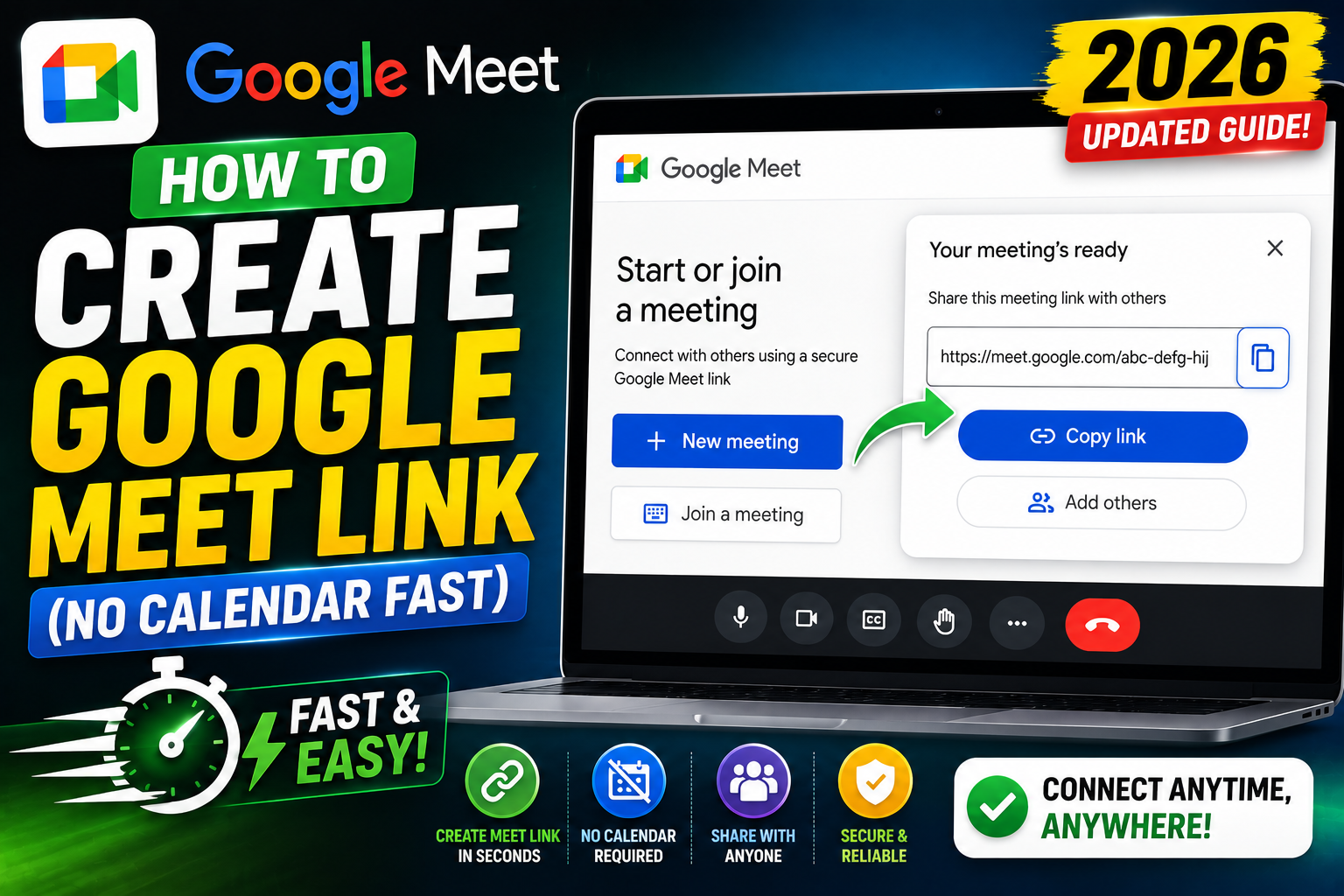
Creating a Google Meet link on the fly (without going through Calendar) is fast, perfect for ad-hoc meetings or when you need a link before deciding on a time. Google offers multiple shortcuts including meet.new, Meet homepage, and Gmail sidebar. This 2026 tutorial covers every method.
Method 1: meet.new shortcut (fastest)
- Open a new browser tab.
- Type
meet.newin the address bar. - Press Enter.
- Meet opens with a unique link.
- Copy link from address bar:
meet.google.com/xxx-xxxx-xxx. - Share the link anywhere (email, chat, SMS).
Fastest option. Perfect when you need a Meet link right now.
Method 2: Meet homepage
- Go to meet.google.com.
- Click New meeting.
- Pick:
- Create a meeting for later: get a link to share, meeting happens later.
- Start an instant meeting: opens meeting right now.
- Schedule in Google Calendar: opens Calendar event creation.
Method 3: Gmail sidebar
- Open Gmail.
- In left sidebar, find Meet section.
- Click New meeting.
- Pick Get a meeting link to share.
- Copy the link.
Method 4: Meet mobile app
- Open Google Meet app.
- Tap New meeting.
- Pick Get a meeting link to share.
- Tap Share button to send via SMS, WhatsApp, or any app.
Method 5: Calendar quick event
Even without full Calendar workflow, you can quickly create Meet events:
- Google Calendar > + Create > Event.
- Click Add Google Meet video conferencing.
- Save the event.
- Copy Meet link from event details.
Meet link format
- Standard:
meet.google.com/xxx-xxxx-xxx(10-character alphanumeric code). - Unique per meeting.
- Anyone with the link can attempt to join.
- Case-sensitive (but usually all lowercase).
- Includes hyphens for readability.
Share the link
- Email: paste in Gmail message.
- Slack/Teams: paste in chat.
- WhatsApp/SMS: paste in message.
- Calendar: add link to event description if creating post-Calendar.
- Website: embed as clickable link (mailto: or a plain HTML link).
Named Meet links (Workspace only)
Workspace users can create custom-named links:
- Go to meet.google.com.
- Click New meeting > Get a meeting link to share.
- Optionally rename:
meet.google.com/lookup/[custom-name]. - Use for team standups:
meet.google.com/lookup/marketing-standup.
Link expiration and reuse
- Meet links do not expire (they remain valid indefinitely).
- Same link can be used for multiple meetings.
- Anyone who saved the link can rejoin, nothing prevents this.
- For sensitive meetings, use Calendar event with restricted guest list.
Security: control who can join
- By default, “Anyone with the link” can attempt to join.
- Host can enable Waiting Room: participants must be admitted.
- For restricted access: use Calendar event with specific email invites (only invited emails auto-admit).
- Anonymous joiners always need host permission.
Common create-link issues
- meet.new redirects to sign-in: not signed in. Log into Google.
- Link creates instant meeting: right! meet.new can also start a meeting immediately. Copy the link before starting to share for later use.
- Cannot create link on Workspace: admin may have restricted Meet creation. Contact admin.
- Same meeting code issued twice: extremely rare; codes are 10-character alphanumeric = ~10 quintillion combinations.
- Link doesn’t work for someone else: verify they’re copying the whole URL. Or Workspace admin may block cross-domain joins.
Common Google Meet mistakes to avoid
- Not testing camera and mic before the meeting. Meet has a preview page at meet.google.com/hangouts/preview where you can test devices before joining any meeting.
- Joining from mobile when you need to share screen. Screen sharing works on mobile but is limited. Use desktop when you need to share content in detail.
- Forgetting to mute when not speaking. Background noise disrupts everyone. Press Ctrl+D (Cmd+D on Mac) to toggle mute.
- Assuming recordings are automatic. Meet only records when the host clicks Record. Enable at the start; you cannot recover an unrecorded meeting.
- Ignoring the noise cancellation feature. Workspace tiers include background noise cancellation. Enable in Settings > Audio.
Power-user tips for Google Meet
- Use keyboard shortcuts. Ctrl+D to mute, Ctrl+E for camera, Ctrl+Alt+H to raise hand, Ctrl+Alt+M for the chat panel. All work on Windows and Mac (swap Ctrl for Cmd on Mac).
- Add captions. Turn on live captions at the bottom-right menu. Useful for accessibility and noisy environments.
- Enable Q&A for large meetings. Attendees can submit written questions without interrupting. Available on Workspace tiers.
- Use polls to gather feedback. Quick pulse checks during long meetings keep attention.
- Share a specific tab, not the whole desktop. Prevents accidentally sharing notifications or personal information.
When to use Meet vs alternatives
Meet works best when your organization is already on Google Workspace, calls are 3-10 participants, and simplicity matters more than advanced features. It integrates seamlessly with Calendar and Gmail, which is unbeatable for Google-first teams.
For large webinars (100+ attendees), Zoom or Webex offer better host controls. For persistent team chat with video, Slack Huddles or Microsoft Teams work better. For high-quality recorded content, tools like Riverside or Descript produce cleaner output.
For BSIT capstone defenses and student meetings, Meet is the right choice on any campus with Google Workspace for Education. Free tier supports up to 100 participants for 60 minutes.
Best practices summary
- Test devices 5 minutes before start. Camera, mic, network. Nothing worse than the “can you hear me?” opening.
- Share agenda in Calendar description. Attendees arrive knowing what to discuss.
- Assign a note-taker at start. Distributes cognitive load and produces action items.
- End on time or early. Respect people’s calendars. Reschedule if content overflows.
- Follow up with meeting notes within 24 hours. Consolidates decisions and prevents forgotten action items.
Recording and transcription options
Meet recordings save to Google Drive automatically. A few tips for reliable recording:
- Host controls recording. Non-host participants cannot record in Meet. Ensure the host is comfortable clicking Record.
- Recording notification. Meet notifies all participants when recording starts. Legal in most jurisdictions but consent is a courtesy.
- Storage in Drive. Recordings save to the host’s Google Drive in the “Meet Recordings” folder. Share the link with participants after.
- Transcription is separate. Meet transcription (available on higher Workspace tiers) generates a text transcript. Enable when recording for searchable notes.
- Storage quota matters. Recordings can be several hundred MB per hour. Monitor Drive storage.
Google Meet security and privacy
- Use the Waiting Room. Meet’s “quick access” toggle lets you review guests before admitting them.
- Password-protect sensitive meetings. Add a code that only invited attendees receive.
- Restrict screen sharing. Settings before or during meeting: only the host can share.
- Kick disruptive attendees. Host can remove anyone with a right-click.
- End-to-end encryption. Meet uses TLS in transit and AES-128 at rest. Sufficient for most business use.
Making virtual meetings feel real
Video meetings tire people out. A few practices reduce Zoom fatigue and keep energy high:
- Cameras on for smaller meetings. Non-verbal cues matter in 3-8 person conversations. Cameras off is fine for large all-hands.
- Stand-up option. Some meetings work better standing. Increases energy and shortens duration.
- Written pre-reads. Distribute a one-pager 24 hours before. Meeting time becomes discussion, not information transfer.
- Async by default. Ask: does this need to be synchronous? Loom videos or Docs collaboration replace many meetings.
- Time boxes. Set a hard end time. Discipline extends to next meeting on time and respects everyone’s calendar.
Official documentation
Recommended video meeting setup
The links below are affiliate links. We may earn a commission at no extra cost to you when you buy or sign up. See our affiliate disclosure.
Quick step-by-step summary (click to expand)
- Go to meet.google.com. Sign in with your Google account.
- Click New Meeting. Located top of the page.
- Choose Start an instant meeting. Meet creates a link immediately and opens the call.
- Copy the meeting link. Click the copy icon or the link at bottom-left. Share with participants.
- For scheduled meetings. Choose Create meeting for later instead — get link without joining.
Frequently Asked Questions
Does the Meet link expire?
No. Meet links don’t expire. Same link works forever unless deleted from Calendar. For expiring links, use Calendar events with end dates.
Can I reuse the same Meet link?
Yes. Same link works for multiple meetings. Great for recurring standups. Just save the link and use it every week.
Can I delete a Meet link?
Not directly. Meet links stay valid indefinitely. Only way to “delete” is: use a different link for future meetings. Anyone with the old link can still join if you leave it active.
Is meet.new secure?
meet.new generates a standard Meet link. Security is same as any Meet: use Calendar events with restricted invites for sensitive meetings. meet.new alone doesn’t restrict access.
Can non-Workspace users create Meet links?
Yes. Free personal Gmail accounts can create Meet links via meet.new or meet.google.com. All Meet features (join, share, background, mute) available.

Caren Bautista
Technical Writer at PIES IT Solution
Responsible for crafting clear, well-structured, and beginner-friendly content across the platform.
Expertise: Technical Writing · Content Creation · Documentation · Editorial Writing · JavaScript · TypeScript · View all posts by Caren Bautista →