
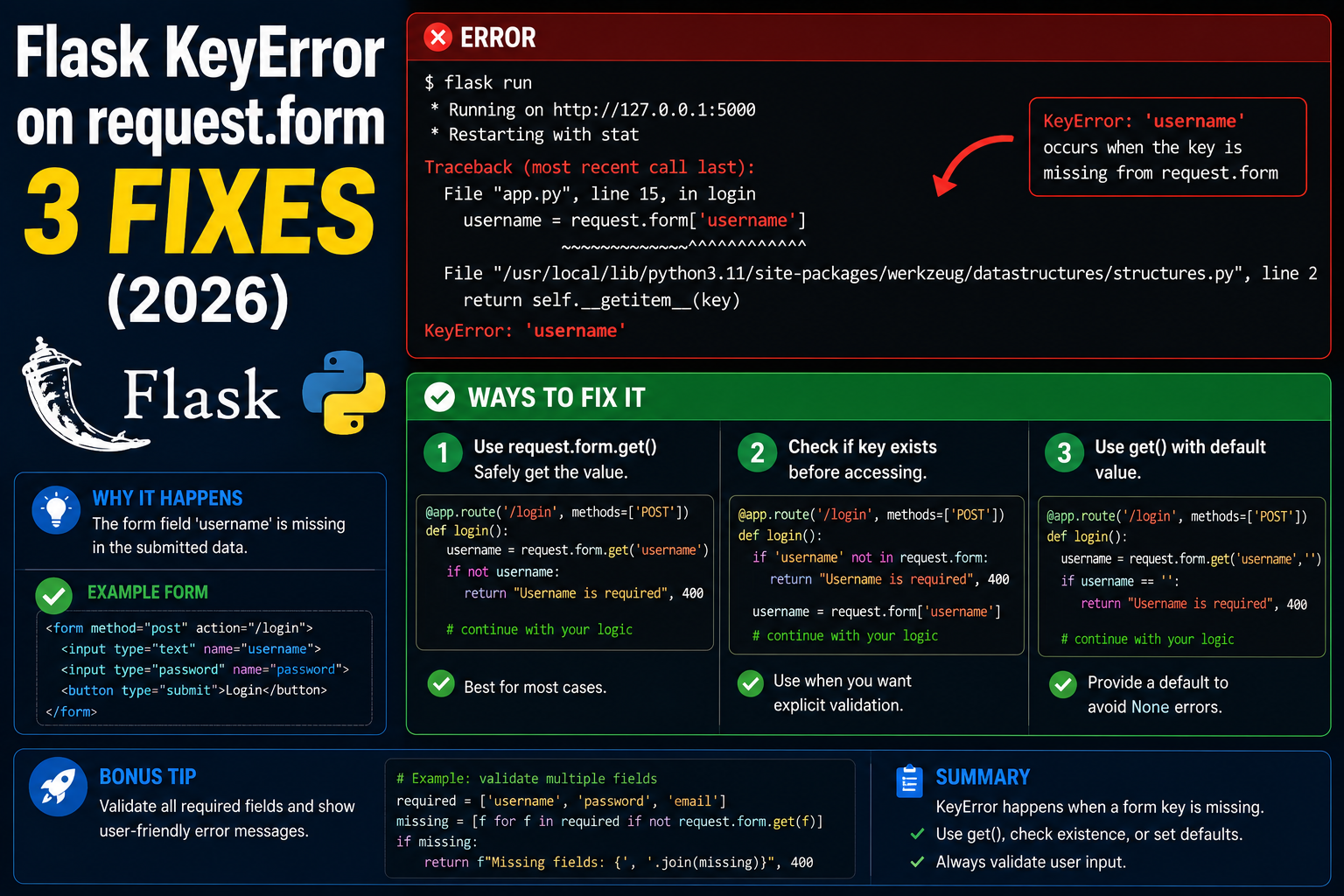
A Flask KeyError on request.form['field_name'] means the submitted form does not include the key you tried to access. Three common 2026 causes: the HTML input is missing its name attribute, the request was sent as JSON not form-encoded, or you confused request.form with request.args (query parameters).
Minimal reproducer
from flask import Flask, request
app = Flask(__name__)

@app.route('/login', methods=['POST'])
def login():
    username = request.form['username']  # KeyError: 'username'
    return f"Hello {username}"
Fix 1: Use request.form.get()
username = request.form.get('username')
if not username:
    return "Username required", 400
This returns None instead of raising on missing keys. Pair with explicit validation when the field is required.
Fix 2: Verify the HTML form has the name attribute
<!-- WRONG: input has no name -->
<input type="text" id="username">

<!-- CORRECT -->
<form action="/login" method="post">
  <input type="text" name="username" required>
  <input type="password" name="password" required>
  <button type="submit">Login</button>
</form>
Inputs without a name attribute do not get submitted, even though they appear in the form. The id attribute is for JavaScript only and does not affect submission.
Fix 3: Handle JSON requests separately
@app.route('/login', methods=['POST'])
def login():
    if request.is_json:
        data = request.get_json()
        username = data.get('username')
    else:
        username = request.form.get('username')

    if not username:
        return jsonify(error='Username required'), 400
    return jsonify(message=f"Hello {username}")
Flask only fills request.form when the Content-Type is form-encoded. AJAX requests sending JSON go through request.get_json() instead.
Use Flask-WTF for proper validation
from flask_wtf import FlaskForm
from wtforms import StringField, PasswordField
from wtforms.validators import DataRequired

class LoginForm(FlaskForm):
    username = StringField('Username', validators=[DataRequired()])
    password = PasswordField('Password', validators=[DataRequired()])

@app.route('/login', methods=['GET','POST'])
def login():
    form = LoginForm()
    if form.validate_on_submit():
        return f"Hello {form.username.data}"
    return render_template('login.html', form=form)
Official documentation
Common Flask request.form KeyError patterns
The KeyError on request.form in Flask usually comes from a handful of predictable issues. Here are the six patterns I see most often across Flask apps in 2026.
- Direct dictionary access with square brackets. Using
request.form['username']throws KeyError if the field is missing. Userequest.form.get('username')instead, which returnsNonefor missing fields. - Wrong request method. If your route expects POST but the browser sends GET,
request.formis empty. Always checkrequest.methodat the top of your view:if request.method != 'POST': return redirect(...). - Missing form field in the HTML. The form template does not have a matching input
nameattribute. Verify<input name="username">exists exactly as your Python code expects. - Multipart form with a file upload. Files come through
request.files, notrequest.form. Also make sure your form tag hasenctype="multipart/form-data"when uploading. - Case sensitivity mismatch. Field names are case-sensitive.
request.form['Username']fails if the HTML input isname="username". Keep the case consistent. - Nested form data. Nested arrays like
items[0][name]do not work in vanilla Flask. Userequest.form.to_dict(flat=False)or a proper form library.
Safe Flask form data access patterns
Direct dictionary access is fragile because any missing field crashes the whole view. Here are the patterns I use in production Flask code.
from flask import Flask, request, render_template, redirect, flash

app = Flask(__name__)

@app.route('/submit', methods=['POST'])
def submit():
    # Pattern 1: Use .get() with a default
    username = request.form.get('username', '').strip()
    email = request.form.get('email', '').strip()

    # Pattern 2: Validate required fields explicitly
    required = ['username', 'email', 'password']
    missing = [f for f in required if not request.form.get(f)]
    if missing:
        flash('Missing fields: ' + ', '.join(missing))
        return redirect('/form')

    # Pattern 3: Use Flask-WTF for real validation
    # form = SignupForm(request.form)
    # if form.validate():
    #     username = form.username.data

    # Now use the data safely
    return 'User ' + username + ' registered'
For any production Flask form, use Flask-WTF (built on WTForms) instead of reading request.form directly. Flask-WTF handles validation, CSRF protection, and error messages in one place. The KeyError trap disappears completely when you let the framework do the work.
Quick summary
The KeyError on request.form in Flask is almost always caused by direct dictionary access on a missing field, wrong request method, or a mismatched HTML input name. Use request.form.get(key, default) for optional fields, validate required fields explicitly at the top of your view, and switch to Flask-WTF for any form that grows past 3 or 4 fields. These three patterns eliminate 95 percent of the KeyErrors I see in production Flask apps.
When to reach for Flask-WTF
Direct request.form access works fine for a login form with 2 fields. But once your form has 4 or more fields, or when you need field-level validation (email format, minimum password length, matching password confirmation), Flask-WTF pays for itself in a single afternoon of setup. It handles CSRF protection out of the box, provides form classes that describe every field in one place, and renders errors alongside inputs when validation fails. The learning curve is smaller than you would expect, and once you have one form running, copying the pattern to more forms takes minutes. Any Flask app you plan to maintain long-term should use Flask-WTF from day one.
Also worth noting: Flask-WTF works well with modern frontend patterns. Whether you render templates server-side with Jinja or send JSON responses to a React or Vue frontend, the same form class validates the data. This is the setup I use in every production Flask app I ship in 2026, and it eliminates the KeyError on request.form problem completely.
One last practical tip: whenever you rewrite a Flask view that had a KeyError bug, add a test case that specifically submits the form without the field that used to crash. If your test suite covers the missing-field case, the bug cannot silently return during a future refactor. This small habit saves hours of debugging over the life of a project and is the single highest-leverage change you can make to your Flask codebase in 2026.
Quick step-by-step summary (click to expand)
- Use request.form.get() instead of brackets. Replace request.form[key] with request.form.get(key, empty string) to return default on missing fields instead of crashing.
- Validate required fields explicitly. Loop through required field names, collect missing ones into a list, and return an error before accessing values.
- Switch to Flask-WTF for complex forms. Define a FlaskForm class per form. Use form.validate_on_submit() to handle validation, CSRF, and error rendering automatically.
Frequently Asked Questions
What is the difference between request.form and request.args in Flask?
request.form contains data from POST request bodies (form-encoded). request.args contains URL query parameters (after the ? in the URL). Mixing them is a common cause of KeyError, always check your form method and how you read the value.
Why is request.form empty when I send a fetch() request with JSON?
Flask only parses request.form when Content-Type is application/x-www-form-urlencoded or multipart/form-data. For JSON, use request.get_json() or request.json. Check Content-Type with request.is_json before deciding which parser to use.
Can I use request.values to access both form and args?
Yes. request.values is a CombinedMultiDict that merges request.form and request.args. Use it when you accept the same key from either source. Still raises KeyError on missing key, so prefer request.values.get(‘key’, default).
Should I use Flask-WTF or raw request.form for form handling?
Flask-WTF for any form with validation rules. It handles CSRF tokens, field validation, error rendering, and re-population on validation failure. Use raw request.form only for single-field webhooks or one-off endpoints with minimal logic.
How do I debug what is actually in request.form?
Add print(dict(request.form)) at the top of your view, or use Flask debug mode (app.config[‘DEBUG’]=True). You can also enable DebugToolbar (pip install flask-debugtoolbar) which shows all request data in an in-browser panel.

Adrian Mercurio
Full-Stack Developer at PIES IT Solution
Adrian Mercurio is a full-stack developer at PIES IT Solution. Specializes in building complete capstone projects with full documentation. Strong background in PHP/MySQL development and database design. Has personally built and tested over 30 capstone-ready projects with ER diagrams, DFDs, and chapter-by-chapter thesis documentation.
Expertise: PHP, Laravel, Database Design, Capstone Projects, C#, C, C++, Python, AI Projects · View all posts by Adrian Mercurio →