
Ollama exposes its HTTP API on port 11434 by default. When a client script or another tool tries to connect and gets “connection refused” or “ECONNREFUSED”, it means nothing is listening on that port at the address you targeted. That is either because Ollama is not running, is running on a different address, is blocked by network isolation (Docker, WSL2), or was pointed at a different port via env var. This guide walks the six most common causes and the exact commands to verify and fix each one.
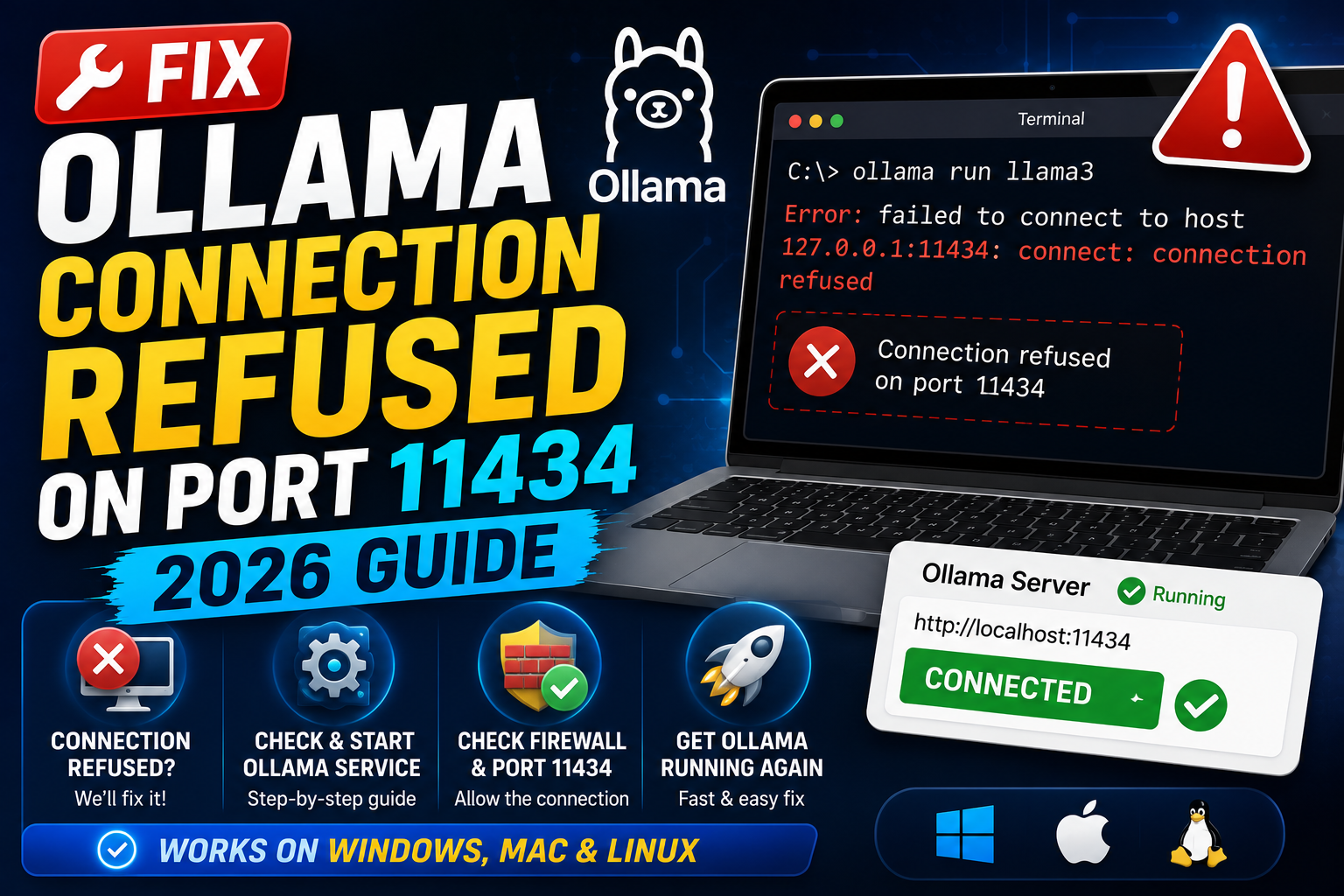
Most cases resolve at Fix 1 or Fix 2. Work through them in order and confirm each with the diagnostic command before moving on.
Quick step-by-step summary (click to expand)
- Confirm Ollama is running. Check with ollama list or curl http://localhost:11434/api/tags to see if the service responds.
- Start Ollama if not running. ollama serve on Linux/Mac, or launch the Ollama desktop app on Windows.
- Check the actual listening port. ss -tulpn | grep 11434 (Linux) or lsof -i :11434 (Mac) confirms Ollama is bound to the expected address.
- Fix Docker networking. Container clients cannot reach host localhost. Use host.docker.internal or expose Ollama on 0.0.0.0.
- Fix WSL2 networking. WSL2 needs the Windows host IP, not 127.0.0.1. Get it from ip route show | grep default.
- Check firewall rules. Windows Firewall or ufw may block port 11434 externally. Open the port or connect from the same host.
Diagnose first: is Ollama actually running?
Before touching any config, verify the service state:
# Quick test: does the API respond?
curl http://localhost:11434/api/tags

# If Ollama is running you get a JSON list of installed models
# If Ollama is NOT running you get: curl: (7) Failed to connect... Connection refused

# Cross-check via CLI
ollama list

# If the ollama command hangs or errors, the service is not up
If curl returns JSON, Ollama is up and the problem is somewhere in your client config (skip to Fix 4). If curl fails with connection refused too, Ollama is not running or bound to a different address (Fix 2 and Fix 3).
Fix 1: Start the Ollama service
Most common cause: Ollama simply is not running. Start it based on your platform:
# Linux (systemd installations)
sudo systemctl start ollama
sudo systemctl status ollama   # confirm active (running)

# Linux (manual / non-systemd)
ollama serve &
# runs in background, port 11434 is now listening

# Mac
# Open the Ollama.app once and it starts a background service
# Verify: pgrep -x ollama should return a PID

# Windows
# Open the Ollama desktop app from the Start menu
# It runs in the system tray and starts serving on port 11434
After starting, re-run curl http://localhost:11434/api/tags. If you get JSON, you are done. If still refused, move to Fix 2.
Fix 2: Check the actual listening port and address
Ollama can be configured to listen on a different port or bind to a different address via the OLLAMA_HOST environment variable. If someone set it and forgot, connections to the default 11434 fail even though the service is running.
# Linux: what is Ollama actually listening on?
ss -tulpn | grep -i ollama

# Mac
lsof -i -P | grep -i ollama

# Windows PowerShell (as admin)
Get-NetTCPConnection | Where-Object { $_.State -eq 'Listen' -and $_.LocalPort -eq 11434 }

# Check any custom env var
echo $OLLAMA_HOST      # empty = default 127.0.0.1:11434
If the output shows Ollama on a different port (say 8080), update your client’s base URL:
# Restore default port (kill existing then restart clean)
sudo systemctl stop ollama
unset OLLAMA_HOST
ollama serve

# Or point clients at the actual port
from langchain_community.llms import Ollama
llm = Ollama(model="llama3", base_url="http://localhost:8080")
Fix 3: Docker container cannot reach host Ollama
If your client runs inside a Docker container and Ollama runs on the host machine, localhost inside the container refers to the container itself, not the host. That is why the connection is refused.
Three fixes, in order of preference:
# Option A: use host.docker.internal (Mac and Windows Docker Desktop)
llm = Ollama(model="llama3", base_url="http://host.docker.internal:11434")

# Option B: Linux Docker needs --add-host or a bridge network trick
# Add this to your docker run:
docker run --add-host=host.docker.internal:host-gateway your-image

# Option C: bind Ollama to all interfaces (Linux host)
# Edit /etc/systemd/system/ollama.service.d/override.conf
[Service]
Environment="OLLAMA_HOST=0.0.0.0:11434"

sudo systemctl daemon-reload
sudo systemctl restart ollama

# Then containers can use the host IP:
llm = Ollama(model="llama3", base_url="http://192.168.1.50:11434")
Option A works out of the box on Mac and Windows. Linux Docker needs the --add-host flag or Option C. Option C also exposes Ollama on your local network, which is convenient but a security concern if you are on a shared network.
Fix 4: WSL2 client cannot reach Windows-host Ollama
If your Python script runs inside WSL2 and Ollama runs on Windows, 127.0.0.1 inside WSL refers to the WSL VM, not Windows. Ollama on Windows is not listening on the WSL VM.
# Inside WSL2: get the Windows host IP
ip route show | grep -i default | awk '{print $3}'
# example output: 172.28.240.1

# Point Ollama client at that IP
llm = Ollama(model="llama3", base_url="http://172.28.240.1:11434")

# Or set OLLAMA_HOST in your shell for all subsequent commands
export OLLAMA_HOST=http://172.28.240.1:11434
Cleaner fix: install Ollama INSIDE WSL2 instead of on Windows. Then localhost:11434 works from your WSL Python scripts because both live in the same VM.
# Install Ollama inside WSL Ubuntu
curl -fsSL https://ollama.com/install.sh | sh
ollama serve &
ollama pull llama3
# Now http://localhost:11434 works from any WSL script
Fix 5: Firewall blocking port 11434
By default Ollama listens on 127.0.0.1:11434 (localhost only), which the OS firewall usually allows. But if you set OLLAMA_HOST=0.0.0.0:11434 to accept external connections, Windows Firewall or ufw may block them.
# Linux (ufw)
sudo ufw allow 11434/tcp
sudo ufw reload

# Windows PowerShell (as admin)
New-NetFirewallRule -DisplayName "Ollama" -Direction Inbound -Protocol TCP -LocalPort 11434 -Action Allow

# Mac (usually not needed, macOS firewall allows same-host connections)
# If you enabled the firewall in strict mode, add Ollama.app to the allowlist:
# System Settings > Network > Firewall > Options > + > Ollama.app > Allow incoming connections
Test from another machine on the network:
curl http://SERVER_LAN_IP:11434/api/tags
Fix 6: Ollama service crashed or hit OOM
If Ollama was running earlier and suddenly refuses connections, it may have crashed. Common causes: out-of-memory when loading a large model (70B on a machine with 32GB RAM), GPU driver crash, disk full.
# Check systemd logs (Linux)
sudo journalctl -u ollama -n 50

# Mac
tail -50 ~/.ollama/logs/server.log

# Windows: C:\Users\{YourUser}\AppData\Local\Ollama\logs\server.log
# Look for "out of memory" or "cuda error" messages

# Fix: switch to a smaller model
ollama pull llama3:8b     # instead of llama3:70b
ollama pull phi3:mini     # very light, runs on 8GB systems
Restart the service after switching models. The crash usually will not repeat with a right-sized model.
Prevention: how to avoid this in production
- Always set OLLAMA_HOST explicitly in production, do not rely on defaults
- Add a health check to your service that polls /api/tags every 30 seconds and restarts Ollama if it fails 3 times in a row
- For Docker deployments, bind Ollama to a named Docker network so container clients can reach it by service name, not IP
- Match your model size to available RAM: 7-8B models for 16GB, 13B for 32GB, 70B needs 48GB+
- Log Ollama startup output somewhere durable (systemd journal, Docker logs, or file) so you can debug crashes after they happen
Official documentation
Try the tools
The links below are affiliate links. We may earn a commission at no extra cost to you. Read our affiliate disclosure.
- OnSpace AI for building AI-powered apps and prototypes without wrestling with raw Ollama SDK calls yourself.
- Thunderbit for extracting structured data from any webpage using AI, useful when feeding real-world data into your AI pipeline.
Frequently asked questions
What port does Ollama use by default?
Port 11434 on 127.0.0.1 (localhost only). Only processes on the same machine can connect. To accept external connections, set OLLAMA_HOST=0.0.0.0:11434 before starting Ollama, and open the firewall for TCP port 11434.
Why does my Docker container get connection refused when Ollama is running on the host?
Inside a Docker container, localhost refers to the container itself, not your host machine. Use host.docker.internal instead of localhost on Mac and Windows Docker Desktop. On Linux Docker, add –add-host=host.docker.internal:host-gateway to your docker run command, or bind Ollama to 0.0.0.0 so it accepts connections from any interface.
How do I know if Ollama crashed vs never started?
Check the logs. Linux: sudo journalctl -u ollama -n 100. Mac: ~/.ollama/logs/server.log. Windows: %LOCALAPPDATA%\Ollama\logs\server.log. Look for a startup line then error messages. If you see startup + errors, it crashed. If no startup entries, it never launched.
Can I run multiple Ollama instances on different ports?
Yes. Set OLLAMA_HOST=0.0.0.0:11435 (or any other port) before launching a second ollama serve process. Useful for A/B testing different model configs or serving different teams on different ports. Each instance uses its own port and can hold different loaded models.
Do LangChain and OpenAI SDK clients handle Ollama the same way?
Different endpoints. LangChain uses the Ollama-specific client from langchain_community.llms with base_url pointing to http://host:11434. OpenAI SDK can talk to Ollama by pointing base_url to http://host:11434/v1 (note the /v1) and passing any string as the api_key argument. Both require the connection to actually reach Ollama, so this troubleshooting guide applies to both.
Is it safe to bind Ollama to 0.0.0.0?
Only on trusted networks (home LAN, private Docker network, VPN). Binding to 0.0.0.0 exposes Ollama’s HTTP API to anyone on your network. There is no authentication built into Ollama, so anyone who can reach the port can query your models and consume your GPU/CPU. On shared or public networks, keep the default 127.0.0.1 binding and use SSH tunneling instead if you need remote access.
Ollama connection refused on port 11434 is almost always a service-state or networking issue, not a bug in Ollama itself. Start with curl to confirm the service state, then work down the fixes based on where your client runs (host, Docker, WSL2). The health-check pattern in the prevention section catches future crashes before they impact your workflow.

Angel Jude Suarez
Full-Stack Developer at PIES IT Solution
Focuses on Python development, machine learning, and AI integration. Has built production AI systems including OpenAI Whisper integration for medical transcription and GPT-4o-powered diagnosis assistance.
Expertise: Python · PHP · Java · VB.NET · ASP.NET · Machine Learning · AI Integration · OpenCV · Django · CodeIgniter · View all posts by Angel Jude Suarez →