
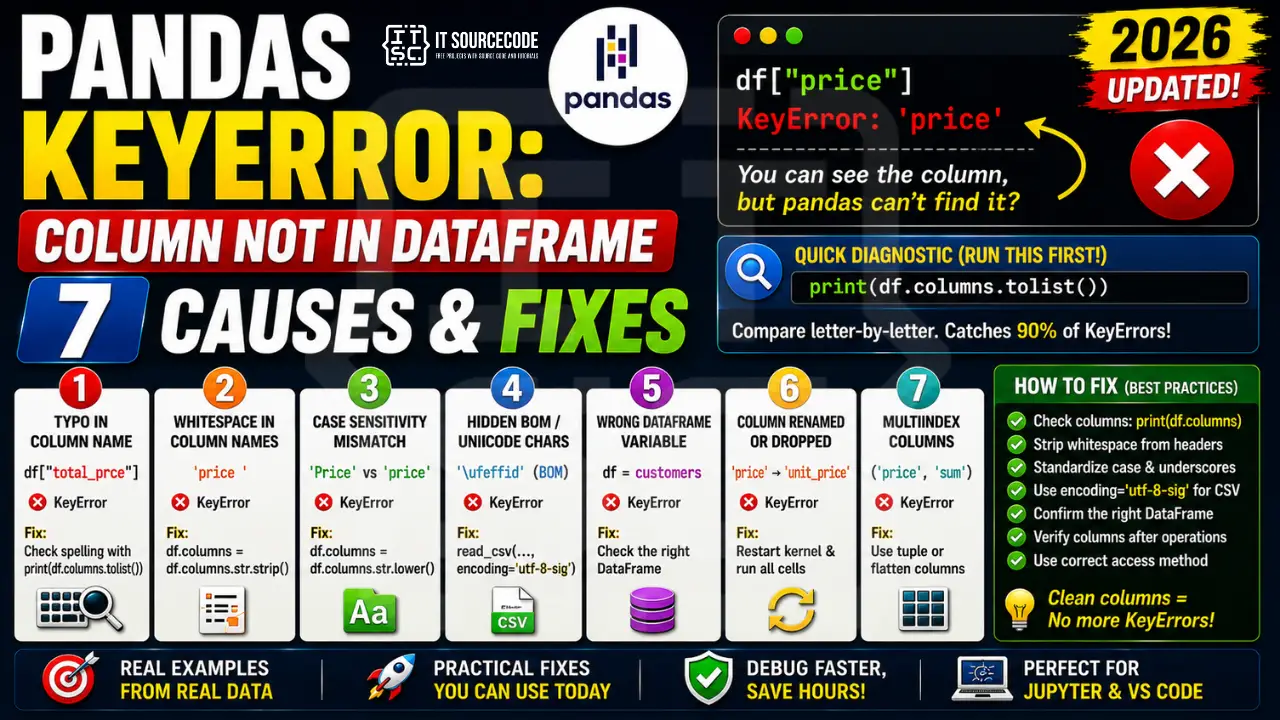
You loaded a CSV, ran df["price"], and pandas threw KeyError: 'price'. You can SEE the column in your data, so why does pandas say it doesn’t exist?
This is one of the most frustrating errors in data science work because the column LOOKS right. The cause is almost always invisible: trailing whitespace, hidden Unicode characters from a CSV export, a case-sensitive mismatch, or a column that got renamed earlier in your pipeline. This guide covers all 7 common causes with diagnostic code you can paste straight into Jupyter.
Last updated: June 2026, written by PIES Information Technology Solutions, with examples drawn from real BSIT capstone data pipelines.
📌 Quick diagnostic: Before debugging anything else, paste this into a cell: print(df.columns.tolist()). Then compare letter-by-letter against the column name you’re using. 90% of pandas KeyErrors are caught instantly by this. Usually it reveals trailing whitespace (‘price ‘ with a space), different case (‘Price‘ vs ‘price‘), or a typo you didn’t notice.
What pandas KeyError Actually Means
When you write df["price"], pandas looks up "price" in the DataFrame’s column index. If no column matches that exact string, pandas raises KeyError: 'price'. The comparison is:
- Case-sensitive.
"Price"≠"price" - Whitespace-sensitive.
"price "≠"price" - Unicode-sensitive. Invisible BOM characters from CSV exports cause mismatches
- Type-sensitive.
df[1]on string-named columns raises KeyError, not IndexError
The error message tells you exactly which key was missing. Your job is to figure out WHY pandas thinks that key isn’t there.
Cause #1: Typo in Column Name
The most basic cause, and the one most overlooked because we read what we expect to see:
import pandas as pd

df = pd.DataFrame({"customer_name": ["Ana"], "total_price": [1500]})

df["customer_names"]   # ❌ KeyError: 'customer_names' (extra 's' at the end)
df["total_prce"]       # ❌ KeyError: 'total_prce' (missing 'i')
The fix. Always run the diagnostic snippet first:
print(df.columns.tolist())
# ['customer_name', 'total_price']
Compare the printed list character-by-character against the string you typed. This catches typos faster than re-reading your code.
Cause #2: Whitespace in Column Names (The #1 CSV Trap)
This is the most common cause in real pipelines. CSV files often have spaces around column headers, especially if the file came from Excel, Google Sheets, or a manual export:
df = pd.read_csv("sales.csv")
df["price"]   # ❌ KeyError: 'price'

# But this works:
df["price "]   # note the trailing space
Whitespace is invisible. You’ll stare at the data for 20 minutes thinking the column is named “price”, when really it’s “price ” with a trailing space.
The diagnostic:
print([repr(c) for c in df.columns])
# ['customer_name', 'price ', 'total ']   ← repr() shows hidden spaces
Use repr(). It makes whitespace visible as quoted characters.
The fix. Strip whitespace from ALL columns on load:
# ✅ One-liner: strip all column names immediately after loading
df.columns = df.columns.str.strip()

# ✅ Make it part of your read_csv pattern
df = pd.read_csv("sales.csv").rename(columns=str.strip)
Add this to every CSV-load workflow. It eliminates the entire class of bug.
Cause #3: Case Sensitivity Mismatch
pandas treats "Price" and "price" as different keys:
df = pd.DataFrame({"Name": ["Ana"], "Total Price": [1500]})

df["name"]          # ❌ KeyError: 'name'
df["total price"]   # ❌ KeyError: 'total price'
df["Total Price"]   # ✅ works
The fix. Standardize case on load:
# ✅ Lowercase + strip + replace spaces with underscores
df.columns = df.columns.str.strip().str.lower().str.replace(" ", "_")
# Now: "Total Price" becomes "total_price"
This is the canonical pandas data-cleaning idiom. Run it once at the top of every notebook and 80% of KeyError cases disappear.
Cause #4: Hidden BOM / Unicode Characters from CSV Export
When a CSV is exported from Excel (especially with UTF-8 encoding), the first column header often gets prefixed with an invisible BOM (Byte Order Mark, ):
df = pd.read_csv("export.csv")
print(df.columns.tolist())
# ['id', 'name', 'price']   ← the BOM is invisible in print(), shown by repr()

df["id"]   # ❌ KeyError: 'id' (actual name is 'id')
The fix. Specify the right encoding:
# ✅ utf-8-sig strips the BOM automatically
df = pd.read_csv("export.csv", encoding="utf-8-sig")

# ✅ Or strip BOM from existing DataFrame columns
df.columns = df.columns.str.replace("", "")
Always use encoding="utf-8-sig" when reading Excel-exported CSVs. It handles the BOM transparently.
Cause #5: Wrong DataFrame Variable
In Jupyter notebooks where you have 5+ DataFrames in scope, it’s easy to access the wrong one:
customers = pd.read_csv("customers.csv")   # columns: id, name, email
orders = pd.read_csv("orders.csv")         # columns: order_id, customer_id, total

customers["total"]   # ❌ KeyError. 'total' is in orders, not customers
The fix. Always confirm the DataFrame before accessing:
print("customers columns:", customers.columns.tolist())
print("orders columns:", orders.columns.tolist())
Especially important after merge/join operations. Verify what columns the result actually has.
Cause #6: Column Was Renamed or Dropped Earlier
Long Jupyter notebooks accumulate operations. By the time you access df["price"], you may have renamed or dropped it 200 lines ago:
# Cell 3
df = df.rename(columns={"price": "unit_price"})

# Cell 12 (you forgot the rename)
df["price"]   # ❌ KeyError: 'price' (it's now 'unit_price')
Same issue with drop():
df = df.drop(columns=["price"])   # earlier cell
df["price"]   # ❌ KeyError much later
The fix. Restart the kernel and re-run from top. When a notebook hits an unexplainable KeyError, the kernel state has often diverged from the code. Kernel → Restart & Run All resolves most “but the column is right there!” mysteries.
Then add a column-printing diagnostic right before the failing access:
print(f"Available columns: {df.columns.tolist()}")
df["price"]   # now you can see exactly what's there
Cause #7: MultiIndex Column Access
After certain operations (groupby + agg, pivot_table, concat with keys), pandas creates a MultiIndex on columns. Accessing by a single string then fails:
df = pd.DataFrame({"a": [1, 2], "b": [3, 4]})
result = df.agg(["sum", "mean"])

result["a"]   # depending on shape, might raise KeyError
If columns is a MultiIndex, you need a tuple:
print(df.columns)
# MultiIndex([('a', 'sum'), ('a', 'mean'), ('b', 'sum'), ('b', 'mean')])

# ✅ Access with tuple
df[("a", "sum")]

# ✅ Or flatten the MultiIndex
df.columns = ["_".join(col).strip("_") for col in df.columns]
# Now: ['a_sum', 'a_mean', 'b_sum', 'b_mean']. Accessible as flat strings
The Universal Diagnostic Snippet
When you hit pandas KeyError, paste this into a fresh cell BEFORE the failing line. It catches all 7 causes above:
# Universal pandas KeyError diagnostic
print("DataFrame shape:", df.shape)
print("Column count:", len(df.columns))
print("Columns (repr shows whitespace + BOM):")
for c in df.columns:
    print(f"  {repr(c)}")
print("Looking for column:", repr("price"))   # replace with your column
print("Match found:", "price" in df.columns)
repr() on each column reveals invisible characters. If you see 'price ' with a quoted space, you’ve found it. If you see 'price', it’s the BOM.
Quick Prevention Checklist
To stop hitting pandas KeyError in your data pipelines:
- Standardize all columns on load:
df.columns = df.columns.str.strip().str.lower().str.replace(" ", "_") - Use
encoding="utf-8-sig"when reading Excel-exported CSVs to strip BOM - Verify with
df.columns.tolist()after every rename / drop / merge / pivot - Use
repr()when columns “look right but don’t work”:print([repr(c) for c in df.columns]) - Restart kernel + Run All when a notebook hits unexplainable KeyError. Kernel state drift is common
- Use
df.get(col, default)for optional columns:df.get("price", pd.Series(0)) - Validate column existence before use:
if "price" in df.columns: …
Quick step-by-step summary (click to expand)
- Print df.columns to confirm the column exists. This single check catches most KeyError issues from typos and casing mismatches.
- Strip whitespace from column names. df.columns = df.columns.str.strip() removes trailing spaces from CSV imports.
- Match case exactly. DataFrame column names are case-sensitive. “user_ID” and “user_id” are different columns.
- Handle MultiIndex columns explicitly. For pivot tables, columns become tuples. Access with df[(“Sales”, “2026”)] not df[“Sales”].
Official documentation
Frequently Asked Questions
What does pandas KeyError mean?
KeyError: 'price'. The lookup is case-sensitive, whitespace-sensitive, and Unicode-sensitive, so a column that looks correct can still mismatch. Always start debugging by running print(df.columns.tolist()) to see the actual column names.Why does pandas say my column doesn’t exist when I can clearly see it?
print([repr(c) for c in df.columns]). The repr() call makes whitespace and Unicode characters visible. To prevent these issues, standardize on load: df.columns = df.columns.str.strip().str.lower().How do I fix KeyError when reading CSV files from Excel?
encoding="utf-8-sig" in your pd.read_csv() call. This strips the BOM (Byte Order Mark) that Excel adds to UTF-8 exports. Also chain a column-cleaning step: df = pd.read_csv("file.csv", encoding="utf-8-sig").rename(columns=str.strip). This combination handles 95% of Excel-source CSV import issues.What’s the difference between pandas KeyError and IndexError?
.iloc[5] when there are only 3 rows). KeyError example: df["price"] when there is no “price” column. IndexError example: df.iloc[10] when df has 5 rows. See our IndexError fix guide for that family.Can I check if a column exists before accessing it?
in operator: if "price" in df.columns: …. For optional columns where you want a fallback, use df.get("price", pd.Series(0)). It returns the column if present, otherwise the default. For multiple required columns, check all at once: missing = [c for c in required if c not in df.columns] and raise a clear error listing what’s missing.Why does my groupby result raise KeyError on a normal column name?
df.groupby().agg(["sum", "mean"]) or df.pivot_table() create a MultiIndex on columns. After that, single-string access fails because columns are now tuples like ('price', 'sum'). Either access with tuple syntax (df[('price', 'sum')]), or flatten the MultiIndex: df.columns = ['_'.join(col).strip('_') for col in df.columns]. After flattening, columns are normal strings like 'price_sum' again.How do I avoid pandas KeyError completely in my pipelines?
df.columns = df.columns.str.strip().str.lower().str.replace(" ", "_"); (2) use encoding="utf-8-sig" for any CSV that might come from Excel; (3) validate required columns explicitly at the top of every function and raise a clear error if any are missing. Together these eliminate ~95% of pandas KeyError occurrences in production code.📌 Building real data science projects?
If you’re past pandas debugging, browse our best Python data science projects, top free Python courses with certificates, and the best Python IDE for data work.
Final Recommendation
If you take only one habit from this guide, make it this: standardize column names immediately after loading every DataFrame. Add this line at the top of every notebook:
df.columns = df.columns.str.strip().str.lower().str.replace(" ", "_")
This single line eliminates whitespace bugs, case-sensitivity bugs, and most “but the column is right there!” mysteries. Pair it with encoding="utf-8-sig" on CSV loads and you’ve prevented 80% of pandas KeyError occurrences before they happen.
For the remaining 20% (MultiIndex columns, accidental renames, wrong DataFrame variable), keep the diagnostic snippet handy: print([repr(c) for c in df.columns]). It exposes whatever pandas is actually seeing, instantly.
🎯 Your next steps:
- Add column standardization to your data-loading template
- Re-run any pipeline that’s been throwing intermittent KeyError
- If you’re also hitting IndexError, see our Python IndexError fix guide
- Explore more KeyError fixes or Python tutorials
We are hoping this guide helps you fix your pandas KeyError fast. If you keep hitting it on a specific dataset, drop the column list in the comments below and we will walk through it with you. Thank you for reading itsourcecoders.
Still stuck on a specific pandas KeyError? Paste your error message and the output of df.columns.tolist() in the comments and we will help you debug it.

Caren Bautista
Technical Writer at PIES IT Solution
Responsible for crafting clear, well-structured, and beginner-friendly content across the platform. Handles the writing, proofreading, and editorial review of tutorials, guides, and documentation to ensure every article is accurate, readable, and easy to follow.
Expertise: Technical Writing · Content Creation · Documentation · Editorial Writing · JavaScript · TypeScript · Python · Python Errors · HTTP Errors · MS Excel
· View all posts by Caren Bautista →