
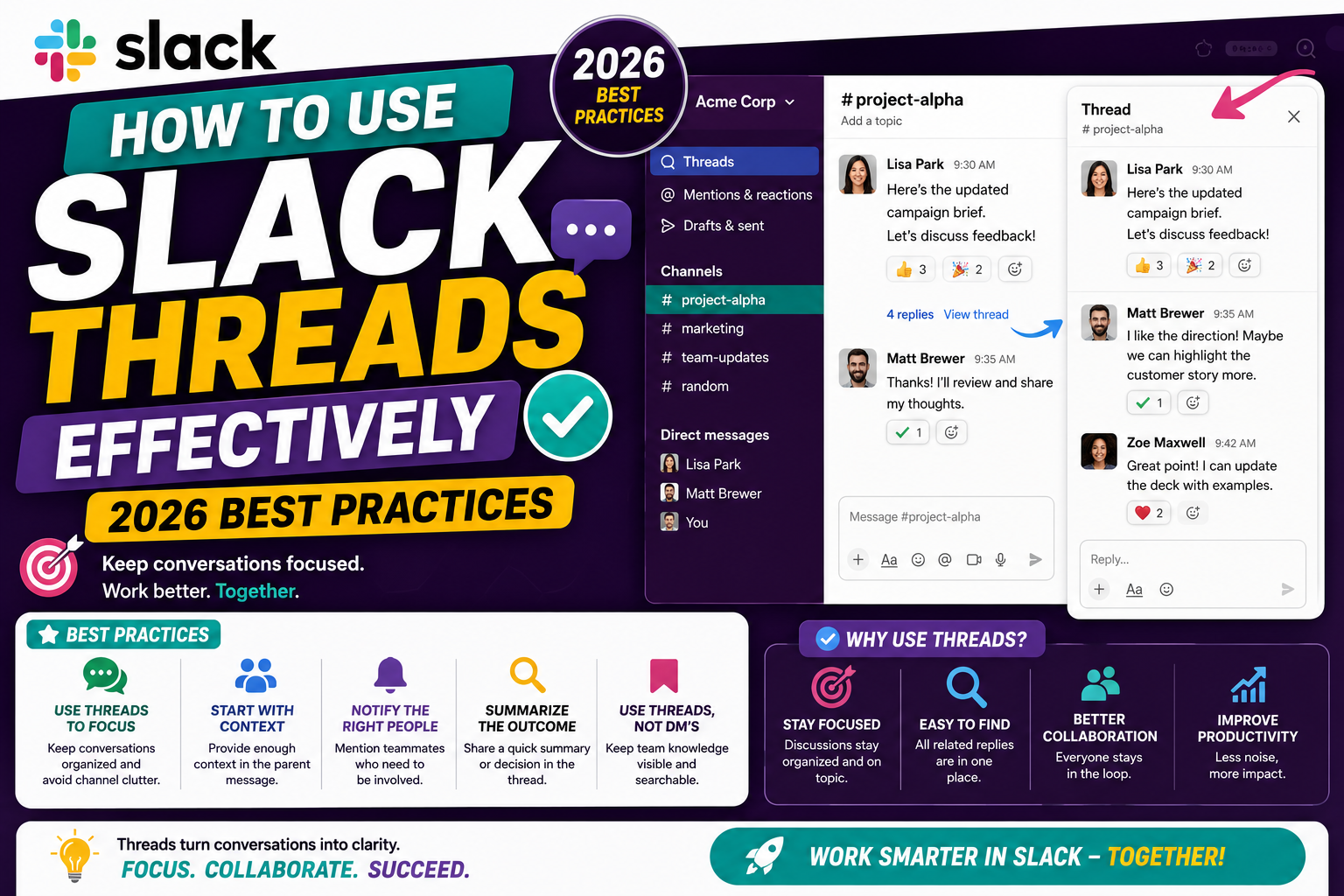
Quick step-by-step summary (click to expand)
- Hover over a message. The action bar appears above the message.
- Click the speech-bubble icon. Labeled “Reply in thread” when hovering.
- Write your reply. A side panel opens for the thread.
- Send. The reply appears in the thread, not the main channel.
- Optionally also send to channel. Check “Also send to #channel-name” if the update is important for everyone.
- Follow a thread. Click the three-dot menu on the thread and choose “Get notified about new replies”.
- Check all threads. Click “Threads” in the left sidebar to see every thread you are part of.
Start a thread
- Hover over the message you want to reply to.
- Click the speech-bubble icon in the action bar that appears (labeled “Reply in thread” on hover).
- A side panel opens on the right showing the original message.
- Type your reply in the message box at the bottom of the panel.
- Click send.
Your reply appears in the thread. Everyone who replies to that thread sees the full conversation, but the main channel only shows a “5 replies” link on the original message.
“Also send to channel”: when to use it
When composing a thread reply, Slack shows a checkbox: “Also send to #channel-name”. Checked, your reply appears in both the thread AND the main channel. This is powerful but easy to abuse.
Do check it when:
- The thread has concluded with an important decision that everyone in the channel needs to see (e.g., “We are going with option B”).
- The thread has been going for hours and only the summary is worth people’s attention.
- The thread contains a status change (project cancelled, deploy done) that the whole team monitors.
Do NOT check it when:
- You are just answering a specific question posed inside the thread.
- The reply only matters to the people already in the thread.
- You are unsure. Default to unchecked. If people want to see it, they can open the thread.
When to use a thread vs a new message
The team norm most teams settle on:
- Use a thread for: follow-up questions, clarifications, tangential discussion, back-and-forth debates about a specific decision, one-off requests related to a specific message.
- Use a new channel message for: new topics, announcements, standalone questions, decisions that affect the whole team, action items that need broad visibility.
The rule of thumb: if your reply only makes sense in the context of the original message, thread it. If it stands on its own, post it as a new channel message.
Follow a thread you want to stay updated on
By default, you only get notified about a thread if:
- You started it, OR
- You replied in it, OR
- You were @mentioned in it, OR
- You explicitly clicked “Follow thread”
To follow a thread without replying:
- Open the thread.
- Click the three-dot menu at the top-right of the thread panel.
- Click “Get notified about new replies”.
Now you get a notification for every future reply, even if you never post.
Unfollow a thread that has become noisy
The reverse also works: if you started a thread that turned into a flood of replies, mute it.
- Open the thread.
- Click the three-dot menu at the top-right.
- Click “Turn off notifications for replies” or “Unfollow thread”.
You will still see the thread if you go back to the channel, but Slack will not ping you for new replies. This is useful when a discussion you started has gone in a direction you no longer need to follow closely.
Access all your threads in one place
Slack has a dedicated Threads view in the sidebar:
- In the left sidebar, click “Threads” (usually near the top).
- You see every thread you are part of, ordered by most recent activity.
- Click any thread to open it in a side panel.
This is where you catch up on multi-day discussions without scrolling through channels. Most heavy Slack users check the Threads view first thing in the morning.
Common thread etiquette mistakes
- Replying to an old thread with a new topic. The people in the original thread get pinged for something unrelated. Start a fresh channel message instead.
- Splitting one conversation across the channel and thread. Some people reply in thread while others reply in the main channel. Pick one and stick to it. If it started in a thread, keep it there.
- Never checking “Also send to channel” on important conclusions. The team missed the outcome of your 30-message debate because they did not open the thread. Announce the decision in the channel with a link back.
- Always checking “Also send to channel”. Every thread reply spams the main channel and defeats the point of threading.
- Thanking someone in a thread. Use a reaction (thumbs up, party parrot) instead of a “thanks!” message. Reactions do not create notifications.
- Long back-and-forth in DMs when it should be a thread. If more than two people would care about the outcome, take it to a channel thread so it is searchable later.
Use reactions to reduce thread noise
Slack reactions (emoji on messages) are underused. They let you acknowledge, agree, or vote without adding a reply. Common patterns:
- Thumbs up: “I read this and agree.”
- White check mark: “This is done” (for action items).
- Eyes: “I am looking at this now, will follow up.”
- Party emoji: “Nice work, celebrating this.”
- Custom team emoji: teams often add their own reactions for common signals like “shipped”, “reviewed”, or “PTO”.
Reactions do not send notifications to everyone in the channel, so they are strictly less noisy than replies.
Pin important messages from a thread
If a thread contains a decision or reference you keep coming back to, pin the key message so it is easy to find later:
- Open the thread.
- Hover over the specific message you want to pin (could be the original message or a specific reply).
- Click the three-dot menu.
- Click “Pin to channel”.
Pinned messages show up in the channel’s pinned items list. Any channel member can access them without hunting through history.
Official documentation
Frequently asked questions
Do people in the channel get notified when I reply in a thread?
Only people already in the thread (the original poster and anyone who has replied or been mentioned). The rest of the channel sees a small reply-count indicator on the original message but does not get notified. This is the whole point of threads.
Can I move a message to a thread after it was posted as a main channel message?
No. Slack does not let you move messages between the channel and threads. What you can do is delete the misplaced main-channel reply and re-post it in the correct thread. Or leave it and add a link to the original thread for context.
How do I see all my unread thread replies?
Click “Threads” in the left sidebar. Unread replies are highlighted at the top. This view aggregates across every channel and DM, so it is faster than scrolling channel by channel.
Does the “Also send to channel” checkbox spam everyone?
Only if used carelessly. Used right (for important conclusions, decisions, or status changes), it keeps the whole channel informed without them having to open the thread. Used for every reply, yes, it defeats threading and annoys teammates.
Can I search inside a specific thread?
Slack’s global search returns messages from any thread, but there is no dedicated “search this thread only” filter. Workaround: open the thread and use Ctrl+F (Cmd+F on Mac) in the browser or app to find text within the currently open panel.
Is it rude to unfollow a thread I started?
No. Unfollowing is invisible to others and does not stop them from continuing. You are just muting notifications for yourself. Do it whenever a thread has veered away from what you cared about, or after a decision was made that no longer needs your input.