
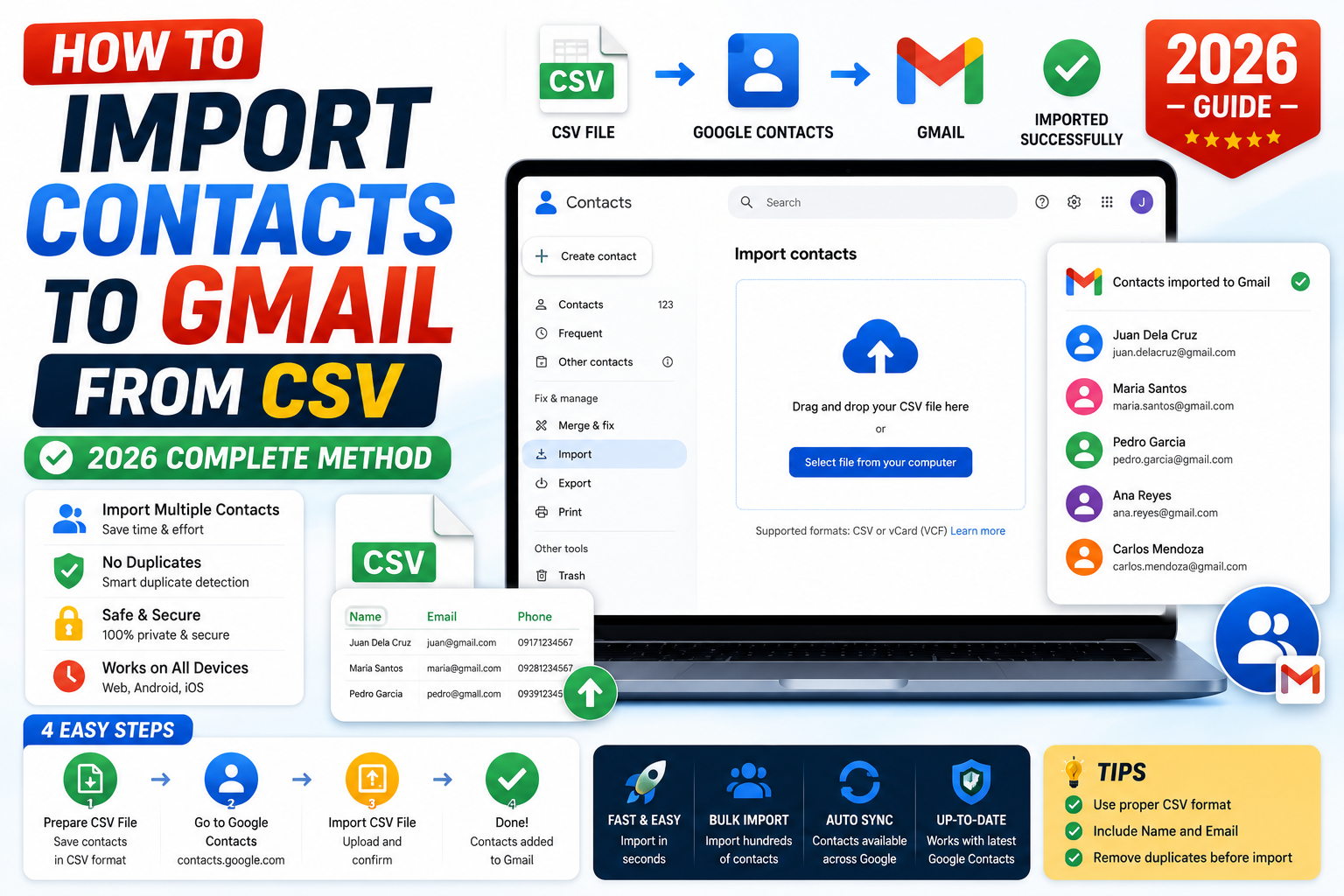
Quick step-by-step summary (click to expand)
- Prepare your CSV. Match Google’s column format: Name, Given Name, Family Name, E-mail 1 Value, Phone 1 Value, etc.
- Open Google Contacts. Go to contacts.google.com.
- Click Import in the sidebar. A dialog opens.
- Click Select file. Browse to your CSV.
- Click Import. Google Contacts reads the CSV and adds each row as a contact.
- Wait for the import. A few seconds for hundreds of rows, up to a minute for thousands.
- Merge duplicates. Click “Merge and fix” in the sidebar to consolidate any duplicates.
Prepare your CSV in Google’s format
Google Contacts recognizes multiple CSV column names but the most reliable is Google’s own template. The critical columns:
- Name: full name (e.g., “Maria Santos”)
- Given Name: first name (e.g., “Maria”)
- Family Name: last name (e.g., “Santos”)
- E-mail 1 – Value: primary email address
- Phone 1 – Value: primary phone number
- Organization 1 – Name: company name (optional)
- Organization 1 – Title: job title (optional)
- Notes: free-form notes (optional)
You do not need every column, but you must have at least Name and one other field (email or phone). Column names are case-sensitive.
Get Google’s official CSV template
Easiest way to get the right column headers:
- Open Google Contacts.
- Manually add ONE test contact with all the fields you plan to import (name, email, phone, address, notes, etc.).
- Select that contact in the sidebar.
- Click the three-dot menu > “Export”.
- Choose “Google CSV format” and click Export.
- Open the downloaded file in a spreadsheet tool (Google Sheets or Excel).
- You now have a template with all the correct column headers. Fill in your other contacts as new rows.
This approach guarantees that column names match exactly what Google Contacts expects.
Import the CSV to Google Contacts
- Open contacts.google.com.
- In the left sidebar, click “Import”.
- A dialog appears. Click “Select file”.
- Browse to your CSV file and select it.
- Optionally choose a label to assign to all imported contacts (recommended: create a label like “Import 2026-07-24” so you can find them easily later).
- Click “Import”.
- Google Contacts processes the file. For a few hundred contacts this takes seconds. For 5,000+ contacts, up to a minute.
- Google shows a success message with the count of contacts imported.
Convert Outlook CSV to Gmail-compatible format
Outlook exports contacts as CSV but with different column names. To make it work with Gmail:
- Export contacts from Outlook: File > Open & Export > Import/Export > Export to a file > Comma Separated Values.
- Open the exported CSV in Google Sheets.
- Rename these columns (Outlook name → Google name):
- “First Name” → “Given Name”
- “Last Name” → “Family Name”
- “E-mail Address” → “E-mail 1 – Value”
- “Business Phone” → “Phone 1 – Value” (or Home Phone)
- “Company” → “Organization 1 – Name”
- “Job Title” → “Organization 1 – Title”
- Save the updated CSV.
- Import into Google Contacts as normal.
Alternative: use the “Outlook CSV format” option in Google Contacts’ import dialog if it appears. Some versions of Google Contacts include this option to auto-convert Outlook exports.
Import from other systems (CRM, iCloud, spreadsheet)
- iCloud Contacts: Sign in to iCloud.com, click Contacts, select all, click the gear icon, and choose Export vCard. Google Contacts imports vCard directly (choose vCard instead of CSV in the import dialog).
- Salesforce, HubSpot, or other CRMs: Export contacts as CSV using the platform’s built-in export. Open the CSV in Sheets, rename columns to match Google’s template, then import.
- Excel spreadsheet: Save the sheet as CSV (File > Save As > CSV UTF-8), rename columns as needed, then import.
- Yahoo Mail, AOL, other email providers: Export contacts as CSV or vCard from the source provider’s settings, then use the standard Google Contacts import flow.
Handle duplicates after import
If your imported contacts overlap with existing Google Contacts, you will end up with duplicates. Google Contacts has a built-in merger:
- In the left sidebar, click “Merge and fix”.
- Google suggests contacts that appear to be duplicates (based on matching name, email, or phone).
- Click “Merge” for each suggestion, or click “Dismiss” to keep them separate.
- Alternatively, use “Merge all” at the top to accept every suggestion at once (do this only if the suggestions look accurate).
Merging combines all fields from both contacts. If both have different email addresses, both are preserved on the merged contact.
Common CSV import errors
- “Some contacts could not be imported because they lack a name.” Your Name, Given Name, and Family Name columns are all empty for those rows. Fill in at least one and re-export.
- “Invalid characters in the file.” Save your CSV as UTF-8 encoding (not ANSI or Windows-1252). In Excel: File > Save As > CSV UTF-8 (Comma delimited).
- Special characters garbled (accents, ñ, etc.). Same fix: use UTF-8 encoding.
- Phone numbers reformatted or dropped. Excel may auto-convert phone numbers to scientific notation for long numbers. Format the phone column as Text before saving.
- Emails not linking to Gmail. Check that the E-mail 1 – Value column has valid addresses. Extra spaces around emails cause them to be treated as invalid.
- Import succeeds but new contacts do not appear. Refresh Google Contacts. Sometimes the sidebar count updates before the main list. Or the contacts imported to “Other contacts” instead of your main list; check both sections.
Best practice: import in small batches with a label
For imports over 500 contacts, split the CSV into batches of 500 rows each. Before each batch, assign a unique label (like “Import batch 1 of 5”). If something goes wrong, you can find and delete just that batch instead of your whole contacts list.
To assign a label during import: in the import dialog, click the label selector before clicking Import. Or add all contacts to a label after import: select all imported contacts (using the label filter), click Labels, and assign.
Official documentation
Frequently asked questions
What’s the maximum number of contacts I can import at once?
Google Contacts allows up to 25,000 total contacts per account. Per-import: no hard limit but practical batches of 500-1,000 rows work best. Very large single imports (10,000+) can time out. Split into batches for reliability.
Can I import a vCard file instead of CSV?
Yes. Google Contacts accepts vCard (.vcf) files too. In the import dialog, the file picker accepts both CSV and vCard. vCard is often better for contacts with rich data (multiple emails, phones, addresses) because it handles nested fields cleanly.
Why did special characters get garbled after import?
The CSV was saved with the wrong encoding. Re-save the file as UTF-8 (in Excel: File > Save As > CSV UTF-8 Comma delimited). This preserves accented characters, ñ, and non-Latin scripts.
Can I undo a bad import?
Yes. Google Contacts has an “Undo changes” feature under Settings that rolls your contacts list back to any state within the last 30 days. Use it if the import created many wrong entries. Or, if you added a label during import, filter by label and bulk-delete just those.
Does importing merge or duplicate existing contacts?
Import always creates new entries. It does NOT auto-merge with existing contacts. Duplicates will result if any imported contact matches an existing one. Use “Merge and fix” in Google Contacts after import to consolidate.
Can I import contacts on mobile?
The mobile Google Contacts app does not have an import feature. Do imports on desktop (contacts.google.com) and they sync to your mobile devices automatically within a few minutes. Never try to bulk import on mobile.
What is new for CSV import in 2026
The Aug 2026 Google Contacts update expanded auto-detection for source formats. When you upload a CSV, Google now automatically detects whether it came from Outlook, Apple Contacts, LinkedIn export, iPhone backup, or generic CSV, and maps the columns correctly without requiring the Google CSV format. This eliminates the reformatting step that used to be required for Outlook exports.
Google Contacts also added support for OpenDocument CSV format (from LibreOffice or Google Sheets exports). Previously only comma-separated with Latin-1 or UTF-8 worked. Now semicolon-separated + UTF-16 encoded files also import correctly.
Common CSV import pitfalls
- Garbled names or special characters. Encoding mismatch is the most common issue. Save the CSV as UTF-8 (not Windows-1252 or ANSI) before uploading. In Excel: Save As, select CSV UTF-8. In Google Sheets: File, Download, Comma Separated Values.
- Wrong column mapping. If your CSV has columns like Cell Number and Work Email, Google may not map them correctly. Rename to standard headers: Phone 1 – Value with Phone 1 – Type = Mobile, or E-mail 1 – Value with E-mail 1 – Type = Work.
- Duplicate contacts after import. If you already have some contacts in Google, importing again creates duplicates. Use Merge and fix in Contacts to identify + merge duplicates after import.
- Import limit hit. Google Contacts allows 3,000 contacts per import operation. For larger files, split into multiple CSVs of 3,000 or fewer.
Bulk-assign labels via CSV import
To import contacts AND assign them to a specific label (like Clients or BSIT Students), add a column to your CSV called Group Membership. Value should be the label name, prefixed with a `* ` (asterisk + space) for user-created labels. Example: * Clients. All contacts with that Group Membership value auto-join that label on import.
Official documentation
Quick step-by-step summary (click to expand)
- Prepare your CSV file Format columns with headers: Name, Given Name, Family Name, E-mail 1 – Value, Phone 1 – Value, Organization Name. Save as UTF-8 CSV.
- Open Google Contacts Go to contacts.google.com in a browser.
- Click Import In the left sidebar, click the Import button (or ellipsis if in a small window).
- Select your CSV file Click Select file, browse to your CSV, and click Import. Google validates the file.
- Review imported contacts After successful import, click Imported label to see the newly added contacts. Review for merge candidates via Merge and fix.
Frequently Asked Questions
How do I import a CSV into Google Contacts?
Go to contacts.google.com, click Import in the left sidebar, click Select file, upload your CSV, click Import.
Why do my imported contacts show garbled names?
CSV encoding mismatch. Save the file as UTF-8 CSV before uploading. In Excel use Save As, CSV UTF-8. In Google Sheets use File, Download, CSV.
Can I import an Outlook CSV into Gmail directly?
Yes as of the Aug 2026 update. Google Contacts auto-detects Outlook column layout and maps correctly. No reformatting to Google CSV format needed.
What is the CSV import limit for Google Contacts?
3,000 contacts per import operation. For larger files, split into batches of 3,000 or fewer.
How do I import contacts and assign them to a label?
Add a column called Group Membership to your CSV. Value = label name prefixed with * (asterisk space). Example: * Clients. All contacts with that value auto-join that label.
Can I undo a CSV import?
Google Contacts has an Undo import option for 30 days after import. Go to Contacts, More, Undo import to reverse the entire batch.