
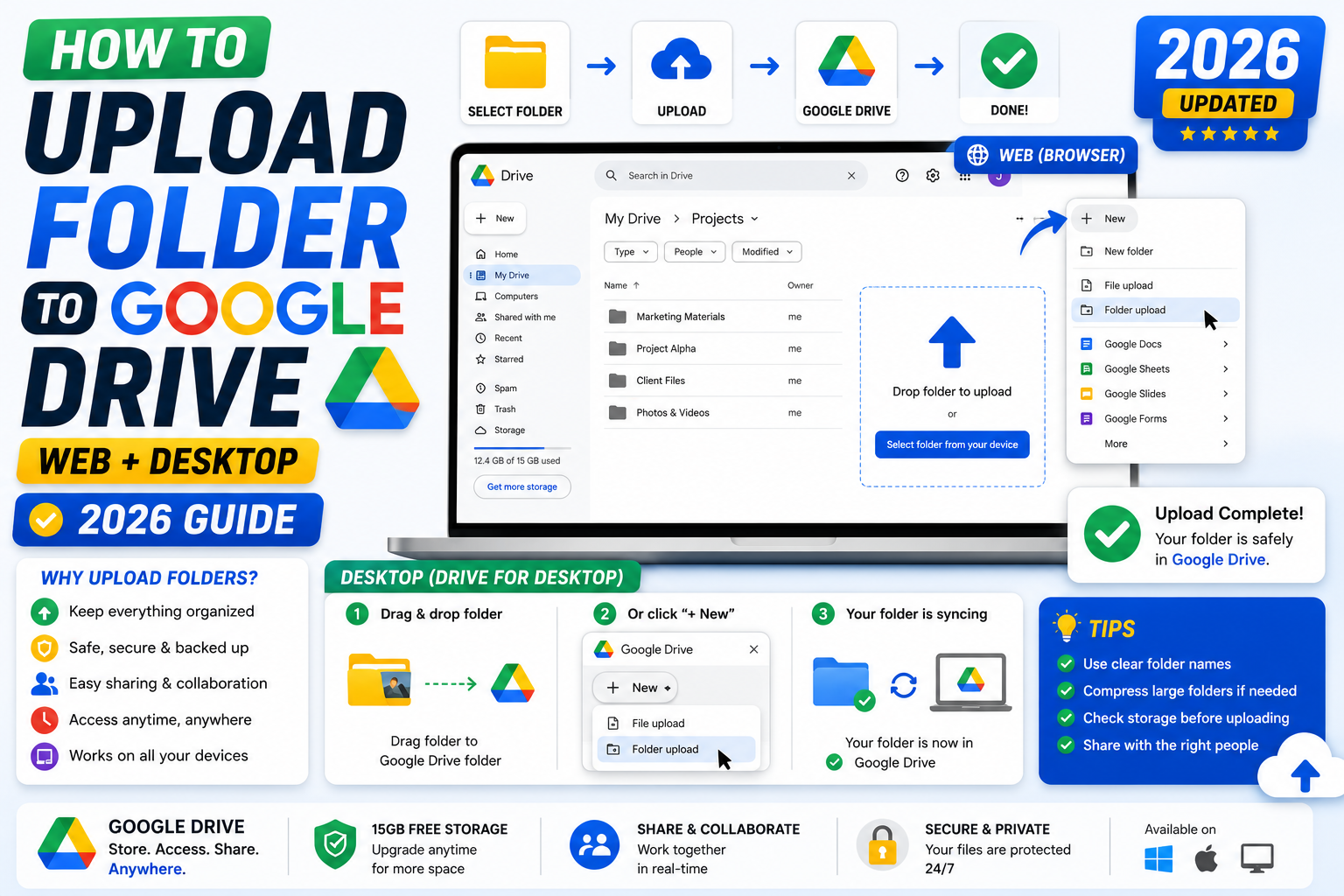
Quick step-by-step summary (click to expand)
- Open Google Drive. Go to drive.google.com.
- Click New at the top left. Then click Folder upload.
- Select the folder. Browse to and choose the folder on your computer.
- Confirm the upload. A dialog shows folder name and file count. Click Upload.
- Wait for upload. Progress indicator at the bottom right shows individual file status.
- Alternative: drag and drop. Drag the folder from your file explorer directly into the Drive tab.
- Verify. The folder appears in Drive with all subfolders and files intact.
Method 1: Upload folder via Google Drive Web (drag-and-drop)
The fastest for one-off folder uploads:
- Open drive.google.com in Chrome, Edge, or Firefox.
- Open the folder on your computer where the folder you want to upload lives.
- Position both windows side by side.
- Drag the folder from your file explorer directly onto the Drive page.
- Drop it. Google Drive begins uploading immediately.
- Progress shows at the bottom right with individual file status.
Drag-and-drop preserves the full folder structure including subfolders and files inside them.
Method 2: Upload folder via Google Drive Web (menu)
Same result, done through the menu (useful if drag-and-drop is awkward):
- Open drive.google.com.
- Click “New” (the plus button at the top left).
- Click “Folder upload”.
- Browse to and select the folder on your computer.
- Click “Upload” (or the folder-name confirmation button).
- A browser warning may appear: “Are you sure you want to upload files from your computer?” Click Upload.
Method 3: Google Drive for Desktop (best for large folders and ongoing sync)
For folders with thousands of files, ongoing sync, or if you plan to work from multiple computers, use Drive for Desktop:
- Download Drive for Desktop from google.com/drive/download.
- Install and sign in with your Google account.
- The installer creates a “Google Drive” folder on your computer (usually in your user directory).
- Copy or move any folder into this Google Drive folder.
- Drive for Desktop uploads the folder in the background. Progress appears in the system tray icon.
- Once synced, the folder is available at drive.google.com and on any other device with the same account.
Drive for Desktop is far more reliable than web upload for large folders (5,000+ files) because it uses resumable uploads and handles network drops gracefully.
Method 4: Compress folder as ZIP and upload single file
If you want to keep the folder as a single archive rather than as separate files:
- Right-click the folder on your computer.
- Choose “Compress” (Mac) or “Send to > Compressed (zipped) folder” (Windows).
- A .zip file is created.
- Upload the .zip file to Drive using File upload.
This is useful when you want to preserve the folder as a single downloadable archive rather than as browsable Drive folders. Note: files inside the ZIP are not indexed by Drive search.
Upload limitations to know about
- File size: Individual files up to 5 TB (yes, terabytes). Practically limited by your internet speed.
- File count per folder: Up to 500,000 items per folder. Beyond that, Drive UI slows down.
- Total daily upload: 750 GB per user per day. Uploads past this limit fail until the counter resets 24 hours later.
- Nested depth: No hard limit but Drive URL length can get unwieldy past 20 levels deep. Consider flattening very deep nesting.
- Storage quota: Your account’s Google One storage limit applies. Check at one.google.com/storage before large uploads.
Upload folder to a specific Drive location
By default, folders upload to My Drive root. To upload to a specific subfolder:
- Navigate to the target folder in Drive first (double-click into it).
- Then use New > Folder upload or drag-and-drop.
- The upload lands inside the currently-open folder.
Alternatively, upload to root and then move the folder into the desired location afterward via drag-and-drop within Drive.
Upload folder to a Shared Drive
To upload to a Shared Drive (Google Workspace teams only):
- Open drive.google.com.
- Click “Shared drives” in the sidebar.
- Open the specific Shared Drive.
- Navigate to the folder inside where you want the upload.
- Click New > Folder upload, or drag and drop.
You need at least “Content manager” permission on the Shared Drive to upload. Contributors and viewers cannot upload.
Common upload issues
- “Failed – forbidden” errors. Some files are blocked by Google Drive’s file type restrictions (executables, some binary formats). Rename to .txt or ZIP them first.
- Upload stalls at a specific percentage. A single file in the folder is either too large or corrupted. Cancel, exclude that file, and re-upload. Find culprit files by size in your local file explorer.
- Browser tab crashes on large upload. Use Drive for Desktop instead of the web browser for uploads over 10 GB. Browser memory usage becomes an issue.
- “Quota exceeded” mid-upload. You hit the 750 GB daily limit. Wait 24 hours and try the remaining files, or use Drive for Desktop which handles chunking better.
- Folder appears empty after upload. Refresh the browser tab. The folder may show as empty until the file listing catches up. If still empty after 5 minutes, the upload silently failed. Re-upload.
- Special characters in filenames get renamed. Google Drive replaces some characters (like /, \, *, ?) with underscores. Rename files with safe characters before uploading if the exact filename matters.
Verify upload completed correctly
After a large upload, verify integrity:
- Open the uploaded folder in Drive.
- Compare the file count against your local folder (right-click local folder > Properties on Windows, Get Info on Mac).
- Spot-check a few files by opening them in Drive to confirm they are not corrupted.
- For critical uploads, download the folder from Drive and diff it against your local copy using a tool like WinMerge (Windows) or FileMerge (Mac).
Official documentation
Frequently asked questions
What is the maximum folder size I can upload to Google Drive?
No hard folder-size limit. Constraints are your daily upload quota (750 GB per day) and your account storage quota. For folders over 100 GB, use Drive for Desktop instead of web upload for reliability.
Does uploading a folder preserve its structure?
Yes. All subfolders and files retain their layout exactly as they were on your local disk. This is true for both web upload and Drive for Desktop. What you see in Drive after upload is what you had locally.
Can I upload a folder via the mobile app?
Not full folders, only individual files. Mobile Google Drive apps let you upload files one at a time or select multiple files, but not entire folder structures. For folder uploads, use desktop web or Drive for Desktop.
Does Drive convert my files to Google Docs format?
By default, no. Files upload as-is (Word stays as .docx, Excel as .xlsx). If you want auto-conversion, enable it in Settings > “Convert uploads” toggle. This converts Office files to their Google counterparts (Docs, Sheets, Slides) at upload time.
Why does my folder upload keep failing?
Common causes: (1) file type blocked by Drive (executables, some binaries), (2) individual file corrupted or too large, (3) daily 750 GB upload quota hit, (4) unstable internet connection. Switch to Drive for Desktop for automatic retry and resumable uploads.
Can I upload a folder from my Google Drive to a Shared Drive?
You can move it (right-click > Move to > select Shared Drive). Note that once moved, the folder becomes owned by the Shared Drive, not you. If you leave the organization, the folder stays. For personal ownership retention, keep the folder in My Drive and share access with the team instead.