
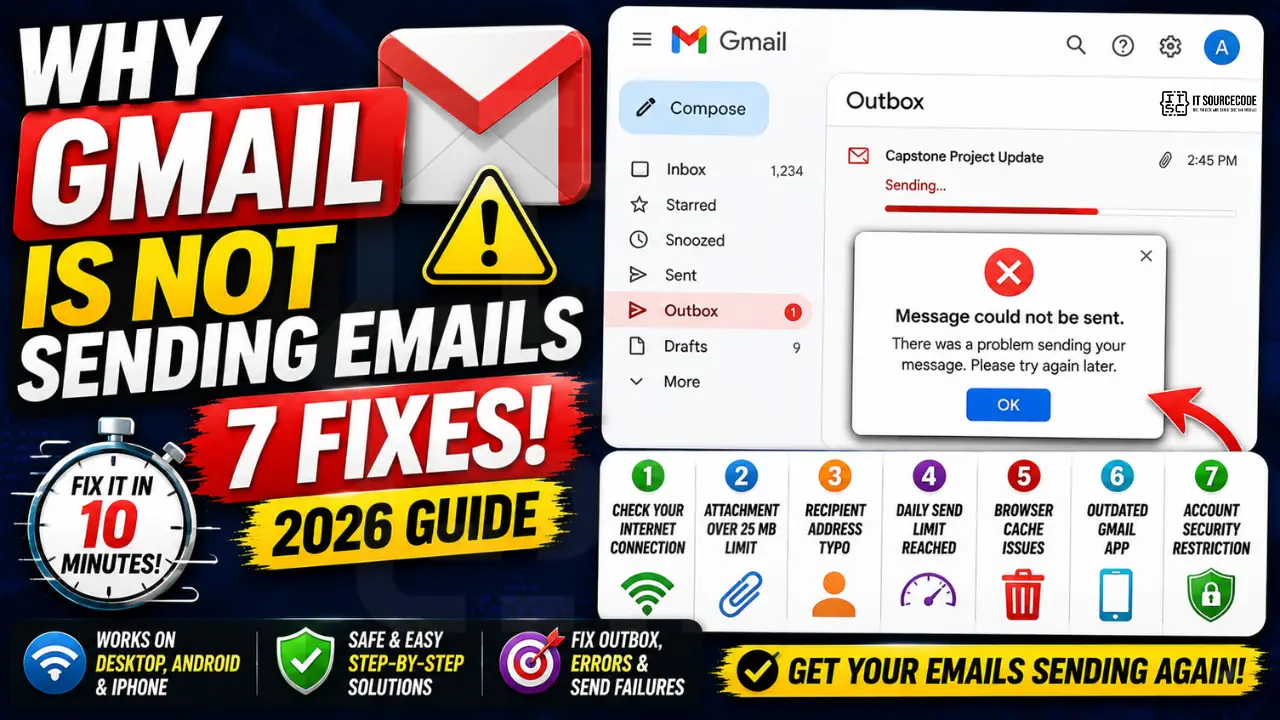
You hit Send. Nothing happens. The email sits in your Outbox or the screen flashes a vague error like “Message could not be sent.”
Gmail not sending emails is one of the most reported Google account issues in 2026, and the cause is almost always one of the same seven things.
This guide walks you through each one in order, so you can find the fix in under 10 minutes whether you are on desktop, Android, or iPhone.
1. You are offline or on a flaky connection
Gmail caches your composed message and only sends when it confirms an internet connection. If your Wi-Fi dropped or you are tethered to a slow mobile network, the message stays in the Outbox marked “Sending…”
How to fix:
- Desktop: Open a new tab and load any website. If it fails, your connection is the issue. Reconnect, then in Gmail click the small refresh icon at the top of the inbox.
- Mobile: Toggle Airplane Mode on for 5 seconds, then off. This forces your phone to re-handshake with the network.
- If Gmail still says “Sending…” after the connection is good, force-quit and reopen the app.
2. Your attachment is over the 25 MB Gmail limit
Gmail caps single-message attachments at 25 MB. Larger files trigger an automatic offer to send via Google Drive, but if you dismissed that dialog, the email will fail silently. Common culprits: high-resolution photo bursts, uncompressed video clips, scanned PDFs of long documents.
How to fix:
- Check the total attachment size at the bottom of the compose window.
- For files between 25 MB and 100 MB, click the Drive icon (triangle shape) in the compose toolbar instead of the paperclip. The file uploads to Drive and Gmail sends a sharing link.
- For images, use the Google Photos integration to share albums instead of attaching directly.
- For documents, compress to ZIP first or convert PDF to a text-only export.
3. The recipient address has a typo or wrong domain
If the recipient address bounces back, you get a “Mail Delivery Subsystem” notification within 30 seconds. Common typos: .con instead of .com, gmail.co instead of gmail.com, missing dot between first and last name in corporate addresses.
How to fix:
- Check the Outbox or Sent folder for any Mail Delivery Subsystem replies. They tell you the exact failed address.
- Re-copy the address from a recent email you received from that person to avoid re-typing.
- For corporate addresses, double-check the format. Many companies use firstname.lastname while others use firstinitiallastname.
4. You hit the Gmail daily send limit
Free Gmail accounts can send to a maximum of 500 recipients per 24 hours (Google Workspace accounts get 2,000). If you cross the limit, sends stop with a generic error and resume the next day automatically. This often hits small businesses doing email marketing manually or students sending capstone update blasts to classmates.
How to fix:
- Wait 24 hours. The counter resets on a rolling basis from your last send.
- For ongoing bulk sends, use a transactional email service (Mailgun, SendGrid, Resend) instead of Gmail. Free tiers cover 100-500 emails per day.
- For one-off bulk messages, split the recipient list and stagger sends across multiple days.
5. Browser cache is corrupting the compose session
Gmail’s web client stores draft state in your browser. If the cache gets corrupted (after a browser update, extension conflict, or unexpected tab crash), the Send button may fail silently or throw a JavaScript error.
How to fix:
- Chrome: Settings > Privacy and Security > Clear browsing data > Cached images and files > All time > Clear.
- Firefox: Settings > Privacy & Security > Cookies and Site Data > Clear Data.
- If clearing cache fixes it, the culprit was likely a corrupted Gmail script. Disable browser extensions one by one to find which one keeps re-corrupting (commonly: ad blockers, password managers, grammar checkers).
- Test in an Incognito or Private window. If sending works there, it confirms the cache or extension issue.
6. Outdated Gmail app on Android or iPhone
Mobile Gmail breaks silently when Google pushes a server-side change but your app version is older than 6 months. Symptoms: send button appears to work but the email never reaches the Outbox, or the Outbox shows “Send pending” indefinitely.
How to fix:
- Android: Open Play Store > My apps & games > Update Gmail. Restart the app after updating.
- iPhone: Open App Store > tap your profile > scroll to Available Updates > Update Gmail. Restart.
- If the Update button is missing, you are already on the latest version. Try Force Stop (Android) or fully closing the app (iPhone swipe up) before reopening.
- Last resort: uninstall and reinstall. You will not lose data because everything syncs from Google servers.
7. Your Gmail account is temporarily flagged for unusual activity
If Google detects suspicious patterns (sudden mass sends, login from a new country, unusual IP address), it locks sending for 24-72 hours as a security measure. You usually receive an email at your recovery address explaining the lock.
How to fix:
- Visit
myaccount.google.com/securityand review the Recent security events list. If you see logins you do not recognize, change your password immediately. - Click “Unlock account” if available, and complete the identity verification (usually a code to your recovery phone or email).
- If the lock persists past 72 hours, file a Google account recovery request at
accounts.google.com/signin/recovery. - To avoid future locks: turn on 2-Step Verification, use the same devices consistently, and avoid VPN switching between sends.
Still not sending? The escalation path
If you have tried all seven fixes above and Gmail still refuses to send, work through this escalation list in order:
| Step | Action | Time |
|---|---|---|
| 1 | Sign out of all Google sessions at myaccount.google.com and sign back in | 2 min |
| 2 | Try sending from a different device (phone if desktop fails, vice versa) | 5 min |
| 3 | Check workspaceupdates.googleblog.com for known service outages | 5 min |
| 4 | Submit a Gmail Help report at support.google.com/mail | 10 min |
Frequently Asked Questions
Why does my Gmail say sending forever?
The most common cause is a dropped internet connection mid-send. Gmail caches the message and retries automatically, but if the cache hangs you need to force-quit the app or refresh the browser. On mobile, toggle Airplane Mode for 5 seconds to reset the network handshake. If the message still hangs, open it from Outbox and tap Send again.
What is the Gmail attachment size limit in 2026?
25 MB total per message for direct attachments. For larger files (25 MB to 100 MB), Gmail offers to upload to Google Drive and send a sharing link instead. The recipient sees a Drive thumbnail and can download without leaving their inbox.
How many emails can I send per day from Gmail?
Free Gmail accounts can send to up to 500 recipients per 24-hour period. Google Workspace business accounts get 2,000 recipients per day. Going over the limit blocks sending for 24 hours; the counter resets on a rolling basis from your last send.
Why does Gmail say message could not be sent on iPhone?
Three common causes on iPhone: outdated Gmail app version, IMAP sync conflict if you also have the account in Apple Mail, or a cached authentication token that expired. Fix by updating the app, removing the account from Apple Mail temporarily, then signing out and back in to the Gmail app.
Can ad blockers stop Gmail from sending?
Yes. Aggressive ad blockers (uBlock Origin with strict lists, Privacy Badger with custom rules) sometimes block Gmail’s internal send-API requests because they share network patterns with tracking. Test by opening Gmail in an Incognito or Private window where extensions are disabled. If sending works there, add mail.google.com to your blocker’s allowlist.
How do I check if Gmail is down right now?
Visit Google’s official status dashboard at workspace.google.com/dashboard. Look for the Gmail row, a green checkmark means service is normal, orange or red means an active disruption. The dashboard updates within 5 minutes of an incident. Third-party sites like DownDetector also surface user reports faster but with less accuracy.