
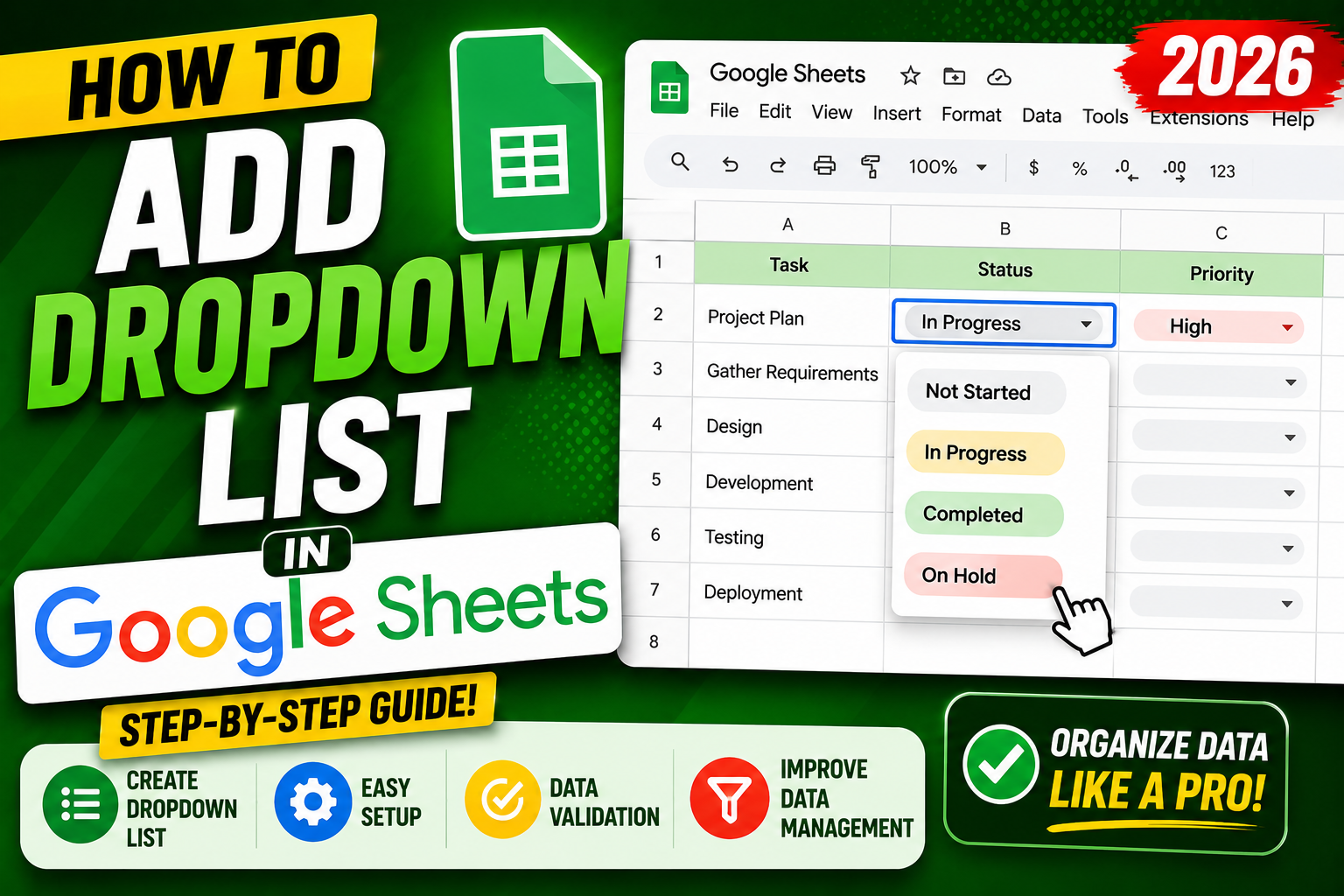
Dropdown lists in Google Sheets standardize data entry. Users click a cell and pick from a fixed list instead of typing free-form values. Great for status columns (Pending, Approved, Rejected), category selectors, and any data that must match a predefined set. This 2026 guide shows every dropdown method: from list, from range, dependent, color-coded, and error alerts.
Method 1: Add dropdown from a list of items
- Select the cell(s) where you want the dropdown.
- Go to Data > Data validation.
- Click Add rule.
- In “Criteria” pick Dropdown.
- Type your options: Pending, Approved, Rejected, In Review.
- Click Done.
The selected cells now show a dropdown arrow. Click to pick a value.
Method 2: Add dropdown from a range
Reference a list of values stored in another range (better for long or changing lists):
- In a spare column (e.g., Z1:Z50), list all values (Country names, Product codes).
- Select the target cell(s).
- Data > Data validation > Add rule.
- In Criteria pick Dropdown (from a range).
- Enter the range:
Sheet2!Z1:Z50. - Click Done.
When you add new items to the range, they automatically appear in all dropdowns pointing to it.
Color-coded dropdowns
Assign a color to each dropdown option:
- Set up the dropdown as above.
- In Data validation dialog, next to each option, click the color swatch.
- Pick colors: green for Approved, red for Rejected, yellow for Pending.
- Done.
Cells now show colored backgrounds based on the selected value. Great for status trackers and kanban-style boards.
Dependent dropdowns (cascading)
The second dropdown changes based on what the first dropdown selects. Example: pick Country in column A, then column B shows only cities for that country.
- Create a Country list on Sheet2 (Column A).
- For each country, create a named range with its cities (e.g., named range “USA_Cities” for A2:A20 on Sheet3).
- In main sheet A2, add dropdown from Country list.
- In main sheet B2, use INDIRECT:
=INDIRECT(A2 & "_Cities")as the data validation range.
Data validation criteria for B2:
Dropdown (from a range): =INDIRECT(A2 & "_Cities")

When user picks "USA" in A2, B2 shows USA_Cities range.
When user picks "Canada" in A2, B2 shows Canada_Cities range.
Error alerts (reject invalid input)
Prevent users from typing values not in the dropdown:
- Open Data validation for the cell.
- In “For invalid data” pick Reject the input (strict) or Show a warning (soft).
- Optional: add a custom message like “Please pick from the dropdown.”
Checkbox as a “yes/no” dropdown
For simple binary choices, use a checkbox instead of a dropdown:
- Select cell(s).
- Insert > Checkbox.
- Cell now shows a clickable checkbox (TRUE when checked, FALSE when unchecked).
Great for task lists, “included?” columns, quick toggles.
Applying dropdown to entire column
- Click the column letter (e.g., “B”) to select the entire column.
- Data > Data validation > Add rule.
- Configure dropdown as usual.
- The rule applies to all cells in the column.
Alternate: apply to A2:A when you want to skip the header row.
How to remove or edit a dropdown
- Click the cell with the dropdown.
- Data > Data validation.
- Click Remove rule to delete, or edit the criteria/values.
Removing does not delete the current value, just the constraint.
Common dropdown use cases
- Status columns (Pending / Approved / Rejected).
- Assignee dropdowns (list of team members).
- Country / City selectors.
- Product category tags.
- Priority levels (Low / Medium / High / Critical).
- Form-like data entry sheets.
Common Google Sheets mistakes to avoid
Even experienced users hit the same pitfalls with Sheets formulas and shared spreadsheets. Being aware of these traps saves hours of debugging and rework.
- Not checking sharing permissions before sending. A file shared with “Anyone with the link” behaves differently from “Restricted.” Always verify who can access before you share externally.
- Working on a shared file without version history awareness. Google Workspace keeps version history, but collaborators can overwrite your work. Use File > Version history > See version history to review changes.
- Ignoring the auto-save indicator. The “All changes saved in Drive” indicator confirms your work is persisted. If it says “Saving…” for too long, your connection may be unstable.
- Forgetting to check on mobile. Some formatting and features render differently on the Google Workspace mobile apps. Test on your phone before sending important content.
- Not using keyboard shortcuts. Google Workspace has extensive shortcuts (press Ctrl+/ or Cmd+/ to see them all). Learning the top 5-10 shortcuts saves significant time.
Power-user tips for Google Sheets
Once the basics are solid, these techniques let you work faster and with more control.
- Use templates as starting points. Google Workspace includes free templates for common documents. Access via File > New > From template gallery. Customize once, reuse forever.
- Master search operators inside Drive. Search operators like
type:document,owner:me, andbefore:2025-01-01narrow results dramatically. Combine multiple operators for precise filters. - Use offline mode when your connection is unreliable. Enable offline access in Drive settings so you can keep working during network outages. Changes sync automatically when you reconnect.
- Set up Google Workspace apps on desktop. Drive for Desktop syncs files to your local machine and integrates with File Explorer or Finder. Works better than the web interface for large files.
- Bookmark important documents. Star files in Drive to see them at the top of your Home view. Great for daily reference documents.
Real-world workflow examples
Concrete scenarios where these features solve everyday problems:
For students and BSIT capstone teams: Use shared Google Docs for capstone documentation, with real-time collaboration replacing back-and-forth email attachments. Version history preserves an audit trail of who wrote what.
For freelancers and consultants: Combine Google Drive folders (per client) with shared permissions for smooth handoffs. Clients can view or comment without needing separate accounts.
For small teams: A shared Drive folder plus a linked Google Sheet as project tracker gives structured collaboration without paying for enterprise tools.
Best practices summary
The pattern that works across nearly every Google Workspace use case:
- Start simple, add complexity when needed. A basic Doc or Sheet solves 90 percent of cases. Only add scripts, add-ons, or complex formulas when the simple version breaks.
- Version history is your safety net. Every serious edit should be reversible via File > Version history.
- Share thoughtfully. Restricted sharing beats Anyone-with-link for anything sensitive. Add specific emails for tighter control.
- Mobile-check before sending. A quick preview on your phone catches layout issues that never show up on desktop.
- Learn keyboard shortcuts. The top 10 shortcuts save 30 minutes a week if you use Workspace daily.
Official documentation
Recommended Google Sheets resources
The links below are affiliate links. We may earn a commission at no extra cost to you when you buy or sign up. See our affiliate disclosure.
Quick step-by-step summary (click to expand)
- Select the cells for the dropdown. Highlight one or more cells.
- Data > Data validation. Click Add rule.
- Choose Criteria: Dropdown or Dropdown (from a range). Type dropdown items OR select cells containing the options.
- Set colors (optional). Assign color per option for visual clarity.
- Save. Cells now show a dropdown arrow. Click any cell to pick from the list.
Frequently Asked Questions
Can I have multiple dropdowns in one sheet?
Yes. Each cell or range can have its own data validation rule. You can have hundreds of dropdown-enabled cells in a single sheet with different criteria.
Why isn’t my dropdown showing?
Check that data validation is set to Dropdown (not Text contains or Number). Also verify the sheet is not view-only. Refresh the browser if the dropdown arrow disappears visually.
How do dependent dropdowns work in mobile?
INDIRECT-based dependent dropdowns work fine in the mobile app. Users tap the cell to see the filtered options that match the parent selection.
Can I search within a dropdown?
Yes. Start typing after clicking the dropdown, and Sheets filters options in real time. Useful for long lists of countries, employees, or products.
Are dropdowns supported in exported Excel files?
Yes. When you download Sheets file as .xlsx, dropdowns convert to Excel data validation. Colors and error alerts may not transfer perfectly but the dropdown functionality is preserved.

Adrian Mercurio
Full-Stack Developer at PIES IT Solution
Specializes in building complete capstone projects with full documentation. Strong background in PHP/MySQL development and database design.
Expertise: PHP · Laravel · Database Design · Capstone Projects · C# · C · View all posts by Adrian Mercurio →