
WhatsApp can eat 8 to 30 gigabytes on a phone that has been in use for a year or two. Most of that space is forwarded videos, group chat memes, voice notes from your family group chat, and stickers you downloaded once and forgot about. The good news is you can clear most of it in about 10 minutes without losing a single conversation.
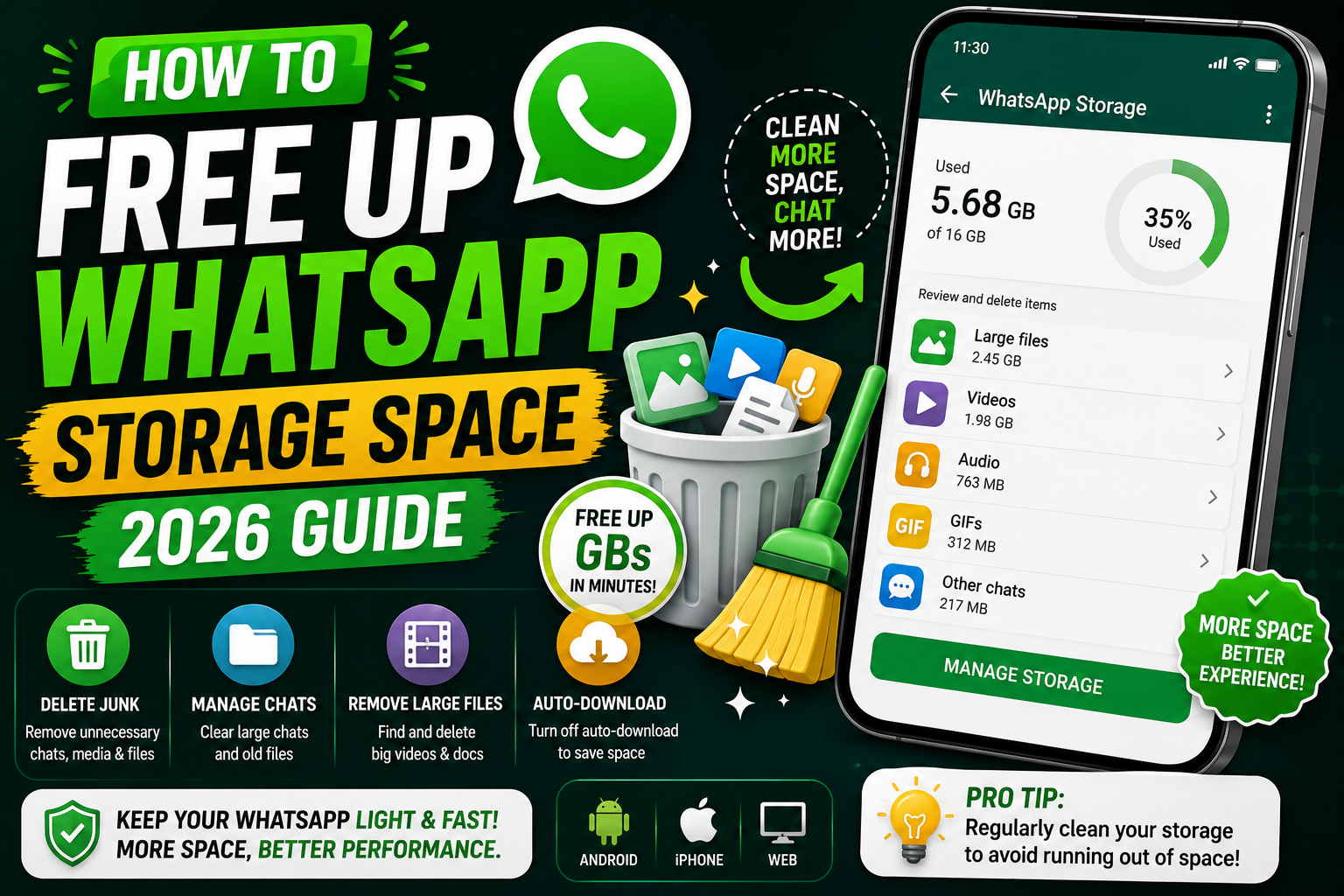
This guide walks through the exact settings on WhatsApp 2026 (both Android and iPhone), starting with the fastest wins and moving to deeper cleanup for phones that are almost full.
Why WhatsApp fills your storage so fast
Three things explain most of the bloat:
- Auto-download is on by default. Every photo, video, and voice note in every chat lands on your phone automatically.
- Group chats forward the same file many times. One 40MB video shared in five groups you belong to becomes 200MB on your device.
- Backups are separate from local storage. Deleting messages on your phone does not touch iCloud or Google Drive backups, so it is safe to delete freely.
Step 1: Check what is eating your storage
Both Android and iPhone have a built-in storage tool that shows you the biggest files across every chat, sorted by size.
On Android: Open WhatsApp, tap the three dots (top right), go to Settings, then Storage and data, then Manage storage.
On iPhone: Open WhatsApp, tap Settings (bottom right), then Storage and Data, then Manage Storage.
The screen shows two useful sections: files larger than 5MB, and files forwarded many times. Both are usually safe to delete because they are almost always memes, viral videos, or forwarded PDFs you have already read.
Step 2: Delete the biggest files first
From the Manage Storage screen, tap Larger than 5 MB. You will see thumbnails sorted by file size, biggest first.
- Tap and hold the first file to enter selection mode
- Tap Select All if you want to nuke everything (safe, since chat text stays)
- Or tap individual files you know you can lose (forwarded videos, screenshots, old memes)
- Tap the trash icon (Android) or Delete (iPhone)
Deleting from this view removes the media from your device, but the chat message still shows in the conversation with a “This media is no longer available” placeholder. You can re-download it later from the sender if needed.
Step 3: Clean per-chat media (family group chats first)
Your family or barkada group chat usually holds 40 to 70 percent of your WhatsApp storage. Handle it in one pass:
- From Manage Storage, scroll down to see each chat sorted by total size
- Tap the biggest chat (usually your family or work group)
- Filter by Videos or GIFs using the tabs at the top
- Select all, tap trash
Videos and GIFs together are usually 90 percent of any chat’s storage. Photos take up much less space and you may want to keep those, so filter carefully.
Step 4: Turn off auto-download so this does not happen again
This is the setting that prevents the storage problem from returning next month.
Android and iPhone (same path): Go to Settings, then Storage and Data, then look under Media auto-download.
You will see three data profiles: When using mobile data, When connected on Wi-Fi, and When roaming.
- Tap When using mobile data, uncheck everything (photos, audio, videos, documents)
- Tap When connected on Wi-Fi, only keep Photos checked
- Tap When roaming, uncheck everything
You can still manually download any file by tapping its download icon in the chat. This just stops WhatsApp from downloading every meme automatically.
Step 5: Clean voice notes, stickers, and documents
Three often-overlooked storage hogs:
- Voice notes: From Manage Storage, tap a chat, filter by Voice notes. Family chat voice notes older than a month are usually safe to delete.
- Stickers: WhatsApp downloads sticker packs automatically. Go to Settings, tap the sticker icon (Android) or your profile then Stickers (iPhone), and remove packs you no longer use.
- Documents (PDFs and Word files): These often reach 5-20MB each. Filter by Documents in Manage Storage and delete forwarded PDFs you have already read.
Step 6: Delete old chats you no longer need
Some chats you keep out of habit but no longer contribute to. Consider archiving or deleting:
- Chats with people you have not messaged in over 12 months
- One-off transaction chats (Grab drivers, delivery riders, one-time sellers)
- Broadcast lists you never use
- Old work group chats after you left the job
Before deleting, back up your chat to Google Drive or iCloud if you might want it later. WhatsApp deletion is permanent on the device but the cloud backup keeps it retrievable.
Common problems while freeing storage
- WhatsApp shows less used space than actual: Restart the phone. The system storage counter caches for a few minutes.
- Deleted media keeps coming back: Your auto-download is still on. Redo Step 4.
- Cannot delete a chat because it says “backup in progress”: Wait for the backup to finish (about 5 to 10 minutes) or turn off backup temporarily.
- Phone still shows full after cleanup: The photos are also saved to your gallery. Go to your gallery, tap the WhatsApp album, and delete from there too.
Quick step-by-step summary (click to expand)
- Open Manage Storage. WhatsApp Settings, then Storage and Data, then Manage Storage.
- Delete files larger than 5MB. Tap the section, Select All, then delete. These are almost always forwarded videos.
- Clean your biggest group chat. Filter by videos and GIFs, select all, delete.
- Turn off media auto-download. Under Storage and Data, uncheck everything on mobile data. Only keep Photos on Wi-Fi.
- Clean voice notes and sticker packs. Filter by voice notes in each chat, remove unused sticker packs from Settings.
- Delete unused chats. Archive or delete conversations you have not touched in 12 plus months. Back up first if needed.
Official WhatsApp documentation
Frequently asked questions
Will I lose my chat history if I clear WhatsApp storage?
No. Clearing storage deletes only media files (photos, videos, voice notes, documents). Text messages stay intact. The chat conversation will still be there, just with a “media is no longer available” placeholder where the deleted files used to be.
How do I stop WhatsApp from filling up my phone storage again?
Turn off automatic media download. Go to Settings, then Storage and Data, then Media auto-download. Uncheck everything for mobile data and roaming. Only keep Photos enabled for Wi-Fi. This prevents WhatsApp from saving every meme, video, and voice note that arrives in your chats automatically.
Why is WhatsApp storage still showing as full after I deleted files?
Two reasons. First, the phone storage counter caches for a few minutes so a restart usually fixes the display. Second, WhatsApp saves photos and videos to your device’s gallery as well. Open your gallery app, find the WhatsApp album, and delete those files too.
Does deleting WhatsApp media delete it from Google Drive or iCloud backup?
No. Local storage and cloud backup are separate. Deleting media on your phone frees up phone space but leaves the backup intact. If you back up to Google Drive or iCloud and then restore later, the deleted media may come back. To fully remove it, delete then run a fresh backup afterward.
Can I clear WhatsApp cache like other apps?
Yes on Android but be careful. Go to Android Settings, Apps, WhatsApp, Storage, and tap Clear Cache. This clears about 200 to 500MB of temporary files without touching your chats. Do NOT tap Clear Data since that wipes your entire WhatsApp including all chats. iPhone does not expose a cache clear button, but WhatsApp cache is much smaller on iOS anyway.
How much storage does WhatsApp typically use on Filipino phones?
For active users, WhatsApp usage in the Philippines runs 6 to 25GB depending on how many active group chats you belong to. Family group chats and barkada groups are usually the biggest drivers because they share videos and voice notes daily. After a proper cleanup, most users bring WhatsApp back to 1 to 3GB.

Glay Eliver
Programmer & Technical Writer at PIES IT Solution
Glay Eliver is a programmer and writer at PIES IT Solution, author of over 600 tutorials at itsourcecode.com.
Expertise: JavaScript · MS Excel · MS Word · MS PowerPoint · Python · ImportError · TypeError · AttributeError · ModuleNotFoundError · JavaScript ReferenceError · Pygame · View all posts by Glay Eliver →