
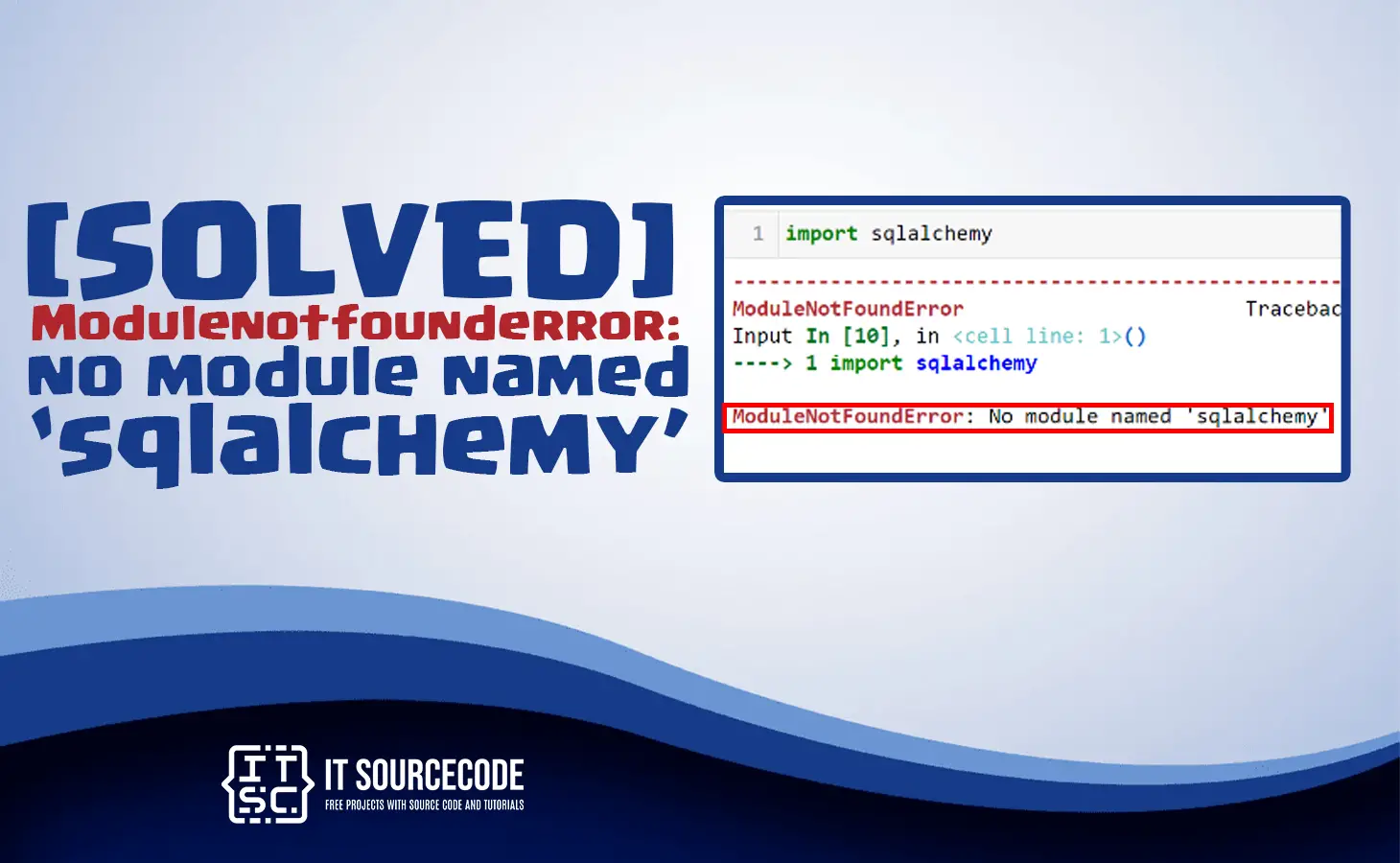
In this article, we’ll show you how to fix the Modulenotfounderror: no module named ‘sqlalchemy’ that you might encounter while running your Python script.
This error usually occurs when a required module is not installed in your system.
Aside from that, there are several reasons why this error occurs, and you will learn about them all in this article.
Continue reading to learn about the error’s causes and how to troubleshoot modulenotfounderror: no module named ‘sqlalchemy’.
What is ‘sqlalchemy’ module?
The SQLAlchemy is a well-known Python library for working with databases. It includes a set of tools for interacting with relational databases using Python code.
Additionally, SQLAlchemy can be used to create and modify database schemas, as well as execute SQL queries.
Furthermore, SQLAlchemy includes an object-relational mapper (ORM) that allows you to interact with the database using Python objects instead of writing raw SQL queries.
This enables developers to interact with databases in a more object-oriented manner, making it easier to create, read, update, and delete records.
Modulenotfounderror: no module named ‘sqlalchemy’
The error “ModuleNotFoundError: No module named’sqlalchemy’” indicates that the Python interpreter was unable to locate the “sqlalchemy” module, which is required by the code you are attempting to run.
This error can occur if the “sqlalchemy” module is not installed on your system, or if it is installed but not available in the current Python environment.
How to fix Modulenotfounderror: no module named ‘sqlalchemy’
To resolve this error, here are the following solutions you can try.
- Check python version
Since we need to install sqlalchemy module, we must check their version first to have the correct version of module to install.
Use the following command to check:
python --version

- Install sqlalchemy module
To install the sqlalchemy module, open your terminal and do the following command:
pip install sqlalchemy

When using virtual environment or using Python 2
pip install SQLAlchemy Flask-SQLAlchemy
For python 3
pip3 install SQLAlchemy Flask-SQLAlchemy
If you get a permissions error
sudo pip3 install SQLAlchemy Flask-SQLAlchemy
pip install SQLAlchemy Flask-SQLAlchemy --user
If you don’t have pip in your PATH environment variable
python -m pip install SQLAlchemy Flask-SQLAlchemy
For python 3
python3 -m pip install SQLAlchemy Flask-SQLAlchemy
When sing py alias
py -m pip install SQLAlchemy Flask-SQLAlchemy
For Jupyter Notebook
!pip install SQLAlchemy Flask-SQLAlchemy - Import the module
Another reason for the error is that you forget to import the sqlalchemy. To import the module use the following line:
import dataclasses
This is also to check if the installation is successful at the same time to see if the error is resolved.



Causes of no module named ‘sqlalchemy’ Error
This error is frequently caused by one of the following factors:
- Missing or outdated installation: This error may occur if SQLAlchemy is not installed or if it is an outdated version. Using pip, you can install or upgrade SQLAlchemy.
- Incorrect module name: This error may occur if you misspelled the module name in your code or imported the incorrect module name. Make sure you’re importing the correct module name.
- Incorrect Python environment: This error may occur if you are using a virtual environment or a specific Python version that does not have SQLAlchemy installed. Make sure SQLAlchemy is installed in the correct environment.
- Missing dependencies: SQLAlchemy may rely on other Python modules that are not installed.
Conclusion
In this article, we discussed what the ‘sqlalchemy‘ module is, why you might encounter the ModuleNotFoundError, and how to fix it.
If you’re facing this error message, try the solutions we’ve discussed in this article, and hopefully, you’ll be able to resolve the issue.
We hope that this article has provided you with the information you need to fix this error and continue working with Python packages.
If you are finding solutions to some errors you’re encountering we also have Modulenotfounderror no module named tqdm.
Related Python Tutorials
- Modulenotfounderror No Module Named Pymysql Solved
- Modulenotfounderror No Module Named Torch Solved
- Modulenotfounderror No Module Named Gensim Solved
- Modulenotfounderror No Module Named Mlxtend Solved
- Modulenotfounderror No Module Named Attrdict Solved
- Modulenotfounderror No Module Named Pyodbc Solved
Root causes of Modulenotfounderror: no module named ‘sqlalchemy’ [SOLVED]
- Package not installed. The module you’re importing was never installed in the current environment. Fix: pip install <package-name>.
- Wrong virtual environment active. You installed in one venv but running from a different environment. Verify with which python and which pip.
- Multiple Python versions. pip installs for one Python, but you’re running a different version. Use python -m pip install <package> to force it.
- Typo in module name. Case-sensitive imports. Beautiful_Soup vs beautifulsoup4 vs bs4. Check the actual import name in the package docs.
- Package uninstalled or corrupted. Try pip install –force-reinstall <package> to freshen the install.
Step-by-step debugging
- Verify Python path. import sys; print(sys.executable) shows which Python is running.
- Check installed packages. pip list | grep <package> confirms it’s actually installed.
- Match environment. Confirm the terminal that ran pip install is the same environment your code runs in.
- Reinstall cleanly. pip uninstall <package> then pip install <package>.
- Try python -m install. python -m pip install <package> avoids PATH mismatches.
Working install pattern
# Create fresh environment (recommended for any new project)
python -m venv myenv
source myenv/bin/activate  # Windows: myenv\Scripts\activate

# Install requirements
pip install --upgrade pip
pip install <package-you-need>

# Verify install
pip list | grep <package>
python -c "import <package>; print(<package>.__version__)"
When the error persists
- Check for typos. Module names can differ from PyPI names (opencv-python vs cv2, beautifulsoup4 vs bs4).
- Update Python or downgrade the package. Some packages have version-specific compatibility.
- Restart the interpreter or kernel. Jupyter and IDEs cache import state.
- Check for conda/pip conflicts. If using Anaconda, prefer conda install <package> over pip.
Official documentation
Frequently Asked Questions
What Python version does this tutorial target?
How do I install Python for this tutorial?
Do I need pip and virtual environments?
Can I use this in a Jupyter notebook or Google Colab?
Where can I find more Python practice projects?

Glay Eliver
Programmer & Technical Writer at PIES IT Solution
Glay Eliver is a programmer and writer at PIES IT Solution, author of over 600 tutorials at itsourcecode.com. Specializes in JavaScript tutorials, Microsoft Office how-tos (Excel, Word, PowerPoint), and Python error debugging covering ImportError, TypeError, AttributeError, ModuleNotFoundError, and JavaScript ReferenceError. Authored several of the site’s highest-traffic Excel and MS Office reference articles.
Expertise: JavaScript · MS Excel · MS Word · MS PowerPoint · Python · Python ImportError · Python TypeError · Python AttributeError · ModuleNotFoundError · JavaScript ReferenceError · Pygame
· View all posts by Glay Eliver →