

This Account Management System in Python with Source Code is free to download. The Account Management System in Python is designed using a tkinter and a graphical user interface(GUI).
Account Management System is a simple desktop application.
The Account Management System is created using Python programming language. The account Management System file contains a Python script(account-system.py and database-account.py).
Talking approximately the system includes all of the required features which consist of adding, viewing, deleting, updating, searching, and looking at a person’s account lists.
While including the account information of a person, he/she has to offer first name, last name, username, password, position, and date. The Database used in this project is SQLite3.
In this tutorial, I will teach you how to create an Account Management System in Python.
Before you start creating this Account Management System in Python, make sure that you have PyCharm IDE and SQLite3 installed on your computer.
By the way, if you are new to Python programming and don’t know what Python IDE to use, I have here a list of the Best Python IDE for Windows, Linux, and Mac OS that will suit you.
I also have here How to Download and Install the Latest Version of Python on Windows.
Steps on how to create Account Management System in Python
Account Management System in Python with Source Code
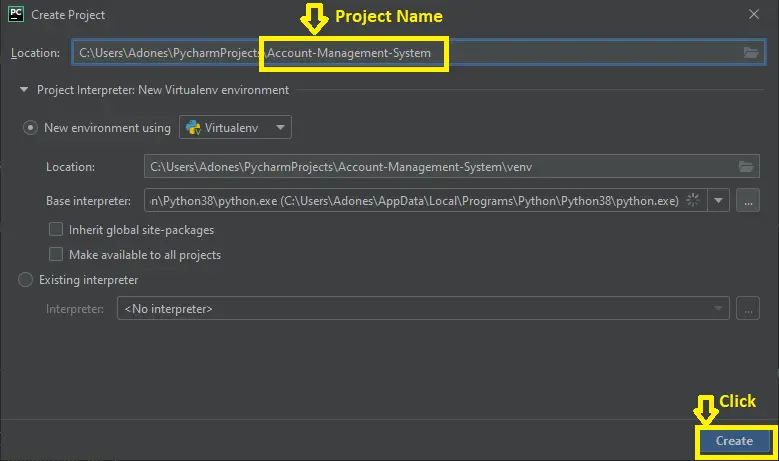
- Step 1: Create a project name.
First, when you finished installing the Pycharm IDE on your computer, open it and then create a “project name” After creating a project name click the “create” button.

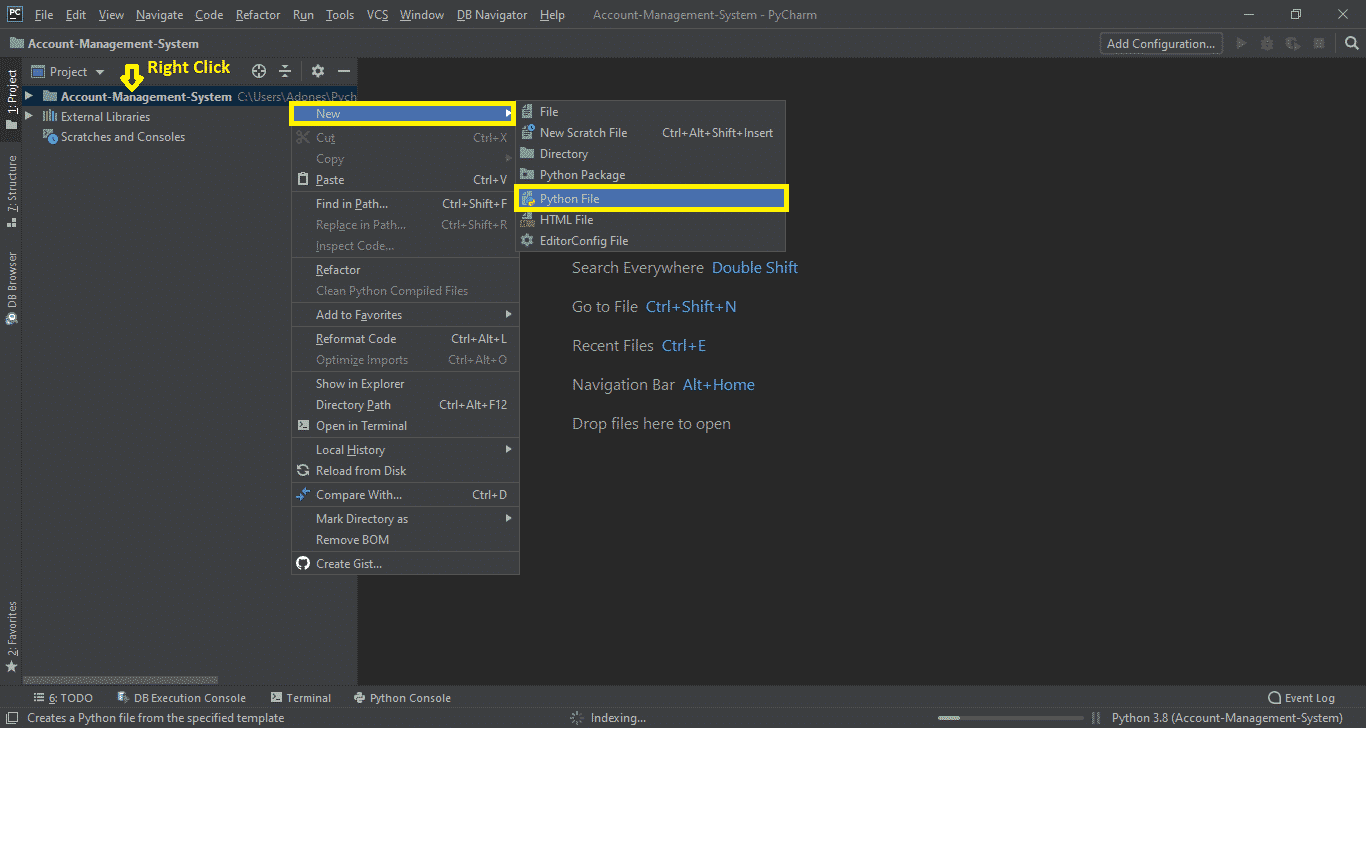
- Step 2: Create a python file.
Second, after creating a project name, “right click” your project name and then click “new.” After that click the “python file“.

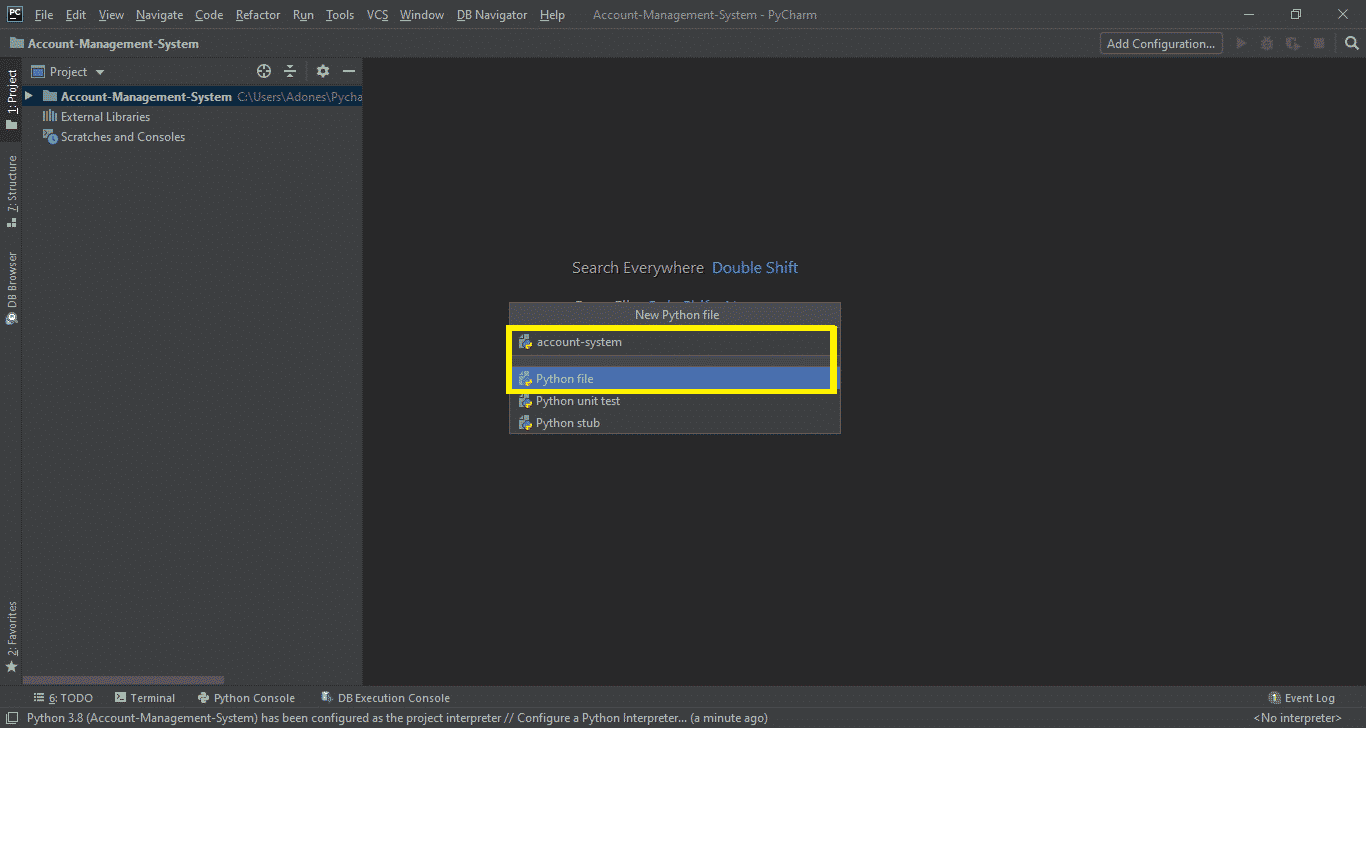
- Step 3: Name your python file.
Third, after creating a Python file, Name your Python file after that click “enter“.
- Step 4: The actual code.
This is the actual coding on how to create an Account Management System in Python, and you are free to copy this code and download the full source code given below.
Importing Tkinter Module
Tkinter is the standard GUI library for Python. Python when combined with Tkinter provides a fast and easy way to create GUI applications.(Account Management System in Python)
from tkinter import *
from tkinter import messagebox
In the code above, which is for importing tkinter just write 2 line of code.
Importing the Sqlite3 Module
SQLite is a C library that provides a lightweight disk-based database that doesn’t require a separate server process and allows accessing the database using a nonstandard variant of the SQL query language. (Account Management System in Python)
import sqlite3
In the code above, which is for importing sqlite just write one line of code.
This Module for the Database
def create():
con = sqlite3.connect("accountdb.db")
cur = con.cursor()
cur.execute("CREATE TABLE IF NOT EXISTS tableAccount(id INTEGER PRIMARY KEY,firstname TEXT, lastname TEXT, username TEXT, password TEXT,position TEXT, date TEXT)")
con.commit()
con.close()
In the code above, which is for the creating a database name “accountdb.db” and have 1 table created. This is the “tableAccount“.(Account Management System in Python)
This Module for the View Account List
def viewall():
con = sqlite3.connect("accountdb.db")
cur = con.cursor()
cur.execute("SELECT * FROM tableAccount")
rows = cur.fetchall()
con.close()
return rows
In the code above, which is for viewing all the account lists in the database. (Account Management System in Python)
This Module for the Search
def search(firstname="", lastname="", username="", password="", position=""):
con = sqlite3.connect("accountdb.db")
cur = con.cursor()
cur.execute("SELECT * FROM tableAccount WHERE firstname=? or lastname=? OR username=? OR password=? OR position=?", (firstname, lastname, username, password, position))
rows = cur.fetchall()
con.close()
return rows
The code above is for searching or finding the name of a new account added to the database. (Account Management System in Python)
This Module for the Add Account
def add(firstname,lastname, username, password, position, date):
con = sqlite3.connect("accountdb.db")
cur = con.cursor()
cur.execute("INSERT INTO tableAccount VALUES(NULL,?,?,?,?,?,?)", (firstname, lastname, username, password, position, date))
con.commit()
con.close()
In the code above, which is for adding a new account in the database. (Account Management System in Python)
This Module for the Update Account
def update(id, firstname, lastname, username, password, position, date):
con = sqlite3.connect("accountdb.db")
cur = con.cursor()
cur.execute("UPDATE tableAccount SET firstname=?,lastname=?, username=?,password=?,position=?,date=? WHERE id=?", (firstname, lastname, username, password, position, date, id))
con.commit()
con.close()
The code above is for updating an account in the database. (Account Management System in Python)
This Module for the Delete Account
def delete(id):
con = sqlite3.connect("accountdb.db")
cur = con.cursor()
cur.execute("DELETE FROM tableAccount WHERE id=?",(id,))
con.commit()
con.close()
In the code above, which is for deleting an account in the database. (Account Management System in Python)
This Module for the Design Main Screen Window
window = Tk()
window.title("Account Management System")
window.config(bg="navajo white")
window.geometry('1350x750')

lblfirstname = Label(window, text="First Name", font=("Calibri", 14, "bold"), fg="black", bg="navajo white")
lblfirstname.grid(row=0, column=0, columnspan=2)

lbllastname = Label(window,text="Last Name", font=("Calibri", 14, "bold"), fg="black", bg="navajo white")
lbllastname.grid(row=1,column=0,columnspan=2)

lblusername = Label(window,text="Username", font=("Calibri", 14, "bold"), fg="black", bg="navajo white")
lblusername.grid(row=2,column=0,columnspan=2)

lblpassword = Label(window, text="Password", font=("Calibri", 14, "bold"), fg="black", bg="navajo white")
lblpassword.grid(row=3, column=0, columnspan=2)

lblposition = Label(window,text="Position", font=("Calibri", 14, "bold"), fg="black", bg="navajo white")
lblposition.grid(row=4,column=0,columnspan=2)

lbldate = Label(window,text="Date", font=("Calibri", 14, "bold"), fg="black", bg="navajo white")
lbldate.grid(row=5,column=0,columnspan=2)

firstname=StringVar()
EntryFirstName = Entry(window,textvariable=firstname, font=("Calibri", 14, "italic"), width=30)
EntryFirstName.grid(row=0,column=0,columnspan=10)

lastname=StringVar()
EntryLastName = Entry(window,textvariable=lastname, font=("Calibri", 14, "italic"), width=30)
EntryLastName.grid(row=1,column=0,columnspan=10)

username=StringVar()
EntryUsername = Entry(window,textvariable=username, font=("Calibri", 14, "italic"), width=30)
EntryUsername.grid(row=2,column=0,columnspan=10)

password=StringVar()
EntryPassword = Entry(window,textvariable=password, font=("Calibri", 14, "italic"), width=30)
EntryPassword.grid(row=3,column=0,columnspan=10)

position=StringVar()
EntryPosition = Entry(window,textvariable=position, font=("Calibri", 14, "italic"), width=30)
EntryPosition.grid(row=4,column=0,columnspan=10)

date = StringVar()
EntryDate = Entry(window,textvariable=date, font=("Calibri", 14, "italic"), width=30)
EntryDate.grid(row=5,column=0,columnspan=10)

AddButton = Button(window,text="Add",width=12,command=add, font=("Calibri", 10, "italic"), fg="black", bg="navajo white", relief=RIDGE, bd=10)
AddButton.grid(row=6,column=0)

UpdateButton = Button(window,text="Update",width=12,command=update, font=("Calibri", 10, "italic"), fg="black", bg="navajo white", relief=RIDGE, bd=10)
UpdateButton.grid(row=6,column=1)

SearchButton = Button(window,text="Search",width=12,command=search, font=("Calibri", 10, "italic"), fg="black", bg="navajo white", relief=RIDGE, bd=10)
SearchButton.grid(row=6,column=2)

ViewAllButton = Button(window,text="View All",width=12,command=view, font=("Calibri", 10, "italic"), fg="black", bg="navajo white", relief=RIDGE, bd=10)
ViewAllButton.grid(row=6,column=3)

DeleteButton = Button(window,text="Delete",width=12,command=delete, font=("Calibri", 10, "italic"), fg="black", bg="navajo white", relief=RIDGE, bd=10)
DeleteButton.grid(row=6,column=4)

ClearAllButton = Button(window,text="Clear All",width=12,command=clear, font=("Calibri", 10, "italic"), fg="black", bg="navajo white", relief=RIDGE, bd=10)
ClearAllButton.grid(row=6,column=5)

lb=Listbox(window,height=20,width=94)
lb.grid(row=7,column=0,columnspan=6)

sb=Scrollbar(window)
sb.grid(row=7,column=6,rowspan=6)

lb.configure(yscrollcommand=sb.set)
sb.configure(command=lb.yview)

lb.bind('<<ListboxSelect>>',get_selected_row)
In the code above , which is first of all you have to design the main screen window. This display screen have a buttons of add, update, delete, view all, search and clear all. Then the label has first name, last name, username, password, position, date and the title.(Account Management System in Python)
Complete Source Code of Account Management System in Python
account-system.py
from tkinter import *
from tkinter import messagebox
import database_account


def view():
lb.delete(0,END)
for row in database_account.viewall():
lb.insert(END, row)

def search():
lb.delete(0, END)
for row in database_account.search(firstname=firstname.get(), lastname=lastname.get(), username=username.get(), password=password.get(), position=position.get()):
lb.insert(END, row)

def add():
database_account.add(firstname.get(), lastname.get(), username.get(), password.get(), position.get(), date.get())
messagebox.showinfo("Add", "New Account Added Successfully")
lb.delete(0, END)
lb.insert(END, firstname.get(), lastname.get(), username.get(), password.get(), position.get(), date.get())

def get_selected_row(event):
try:
global selected_tuple
index = lb.curselection()[0]
selected_tuple = lb.get(index)
EntryFirstName.delete(0,END)
EntryFirstName.insert(END,selected_tuple[1])

EntryLastName.delete(0,END)
EntryLastName.insert(END,selected_tuple[2])

EntryUsername.delete(0,END)
EntryUsername.insert(END,selected_tuple[3])

EntryPassword.delete(0,END)
EntryPassword.insert(END,selected_tuple[4])

EntryPosition.delete(0,END)
EntryPosition.insert(END,selected_tuple[5])

EntryDate.delete(0, END)
EntryDate.insert(END, selected_tuple[6])
except IndexError:
pass

def update():
database_account.update(selected_tuple[0], firstname.get(), lastname.get(), username.get(), password.get(), position.get(), date.get())
messagebox.showinfo("Update", "Account Has Been Updated Successfully")
view()

def delete():
database_account.delete(selected_tuple[0])
messagebox.showinfo("Delete Account", 'Account Has Been Deleted Successfully')
view()
#lb.delete(END,get_selected_row.selected_tuple)
def clear():
lb.delete(0,END)
EntryFirstName.delete(0,END)
EntryLastName.delete(0,END)
EntryUsername.delete(0,END)
EntryPassword.delete(0,END)
EntryPosition.delete(0,END)
EntryDate.delete(0, END)

window = Tk()
window.title("Account Management System")
window.config(bg="navajo white")
window.geometry('1350x750')

lblfirstname = Label(window, text="First Name", font=("Calibri", 14, "bold"), fg="black", bg="navajo white")
lblfirstname.grid(row=0, column=0, columnspan=2)

lbllastname = Label(window,text="Last Name", font=("Calibri", 14, "bold"), fg="black", bg="navajo white")
lbllastname.grid(row=1,column=0,columnspan=2)

lblusername = Label(window,text="Username", font=("Calibri", 14, "bold"), fg="black", bg="navajo white")
lblusername.grid(row=2,column=0,columnspan=2)

lblpassword = Label(window, text="Password", font=("Calibri", 14, "bold"), fg="black", bg="navajo white")
lblpassword.grid(row=3, column=0, columnspan=2)

lblposition = Label(window,text="Position", font=("Calibri", 14, "bold"), fg="black", bg="navajo white")
lblposition.grid(row=4,column=0,columnspan=2)

lbldate = Label(window,text="Date", font=("Calibri", 14, "bold"), fg="black", bg="navajo white")
lbldate.grid(row=5,column=0,columnspan=2)

firstname=StringVar()
EntryFirstName = Entry(window,textvariable=firstname, font=("Calibri", 14, "italic"), width=30)
EntryFirstName.grid(row=0,column=0,columnspan=10)

lastname=StringVar()
EntryLastName = Entry(window,textvariable=lastname, font=("Calibri", 14, "italic"), width=30)
EntryLastName.grid(row=1,column=0,columnspan=10)

username=StringVar()
EntryUsername = Entry(window,textvariable=username, font=("Calibri", 14, "italic"), width=30)
EntryUsername.grid(row=2,column=0,columnspan=10)

password=StringVar()
EntryPassword = Entry(window,textvariable=password, font=("Calibri", 14, "italic"), width=30)
EntryPassword.grid(row=3,column=0,columnspan=10)

position=StringVar()
EntryPosition = Entry(window,textvariable=position, font=("Calibri", 14, "italic"), width=30)
EntryPosition.grid(row=4,column=0,columnspan=10)

date = StringVar()
EntryDate = Entry(window,textvariable=date, font=("Calibri", 14, "italic"), width=30)
EntryDate.grid(row=5,column=0,columnspan=10)

AddButton = Button(window,text="Add",width=12,command=add, font=("Calibri", 10, "italic"), fg="black", bg="navajo white", relief=RIDGE, bd=10)
AddButton.grid(row=6,column=0)

UpdateButton = Button(window,text="Update",width=12,command=update, font=("Calibri", 10, "italic"), fg="black", bg="navajo white", relief=RIDGE, bd=10)
UpdateButton.grid(row=6,column=1)

SearchButton = Button(window,text="Search",width=12,command=search, font=("Calibri", 10, "italic"), fg="black", bg="navajo white", relief=RIDGE, bd=10)
SearchButton.grid(row=6,column=2)

ViewAllButton = Button(window,text="View All",width=12,command=view, font=("Calibri", 10, "italic"), fg="black", bg="navajo white", relief=RIDGE, bd=10)
ViewAllButton.grid(row=6,column=3)

DeleteButton = Button(window,text="Delete",width=12,command=delete, font=("Calibri", 10, "italic"), fg="black", bg="navajo white", relief=RIDGE, bd=10)
DeleteButton.grid(row=6,column=4)

ClearAllButton = Button(window,text="Clear All",width=12,command=clear, font=("Calibri", 10, "italic"), fg="black", bg="navajo white", relief=RIDGE, bd=10)
ClearAllButton.grid(row=6,column=5)

lb=Listbox(window,height=20,width=94)
lb.grid(row=7,column=0,columnspan=6)

sb=Scrollbar(window)
sb.grid(row=7,column=6,rowspan=6)

lb.configure(yscrollcommand=sb.set)
sb.configure(command=lb.yview)

lb.bind('<<ListboxSelect>>',get_selected_row)
window.mainloop()
database_account.py
import sqlite3
def create():
    con = sqlite3.connect("accountdb.db")
    cur = con.cursor()
    cur.execute("CREATE TABLE IF NOT EXISTS tableAccount(id INTEGER PRIMARY KEY,firstname TEXT, lastname TEXT, username TEXT, password TEXT,position TEXT, date TEXT)")
    con.commit()
    con.close()
def viewall():
    con = sqlite3.connect("accountdb.db")
    cur = con.cursor()
    cur.execute("SELECT * FROM tableAccount")
    rows = cur.fetchall()
    con.close()
    return rows

def search(firstname="", lastname="", username="", password="", position=""):
    con = sqlite3.connect("accountdb.db")
    cur = con.cursor()
    cur.execute("SELECT * FROM tableAccount WHERE firstname=? or lastname=? OR username=? OR password=? OR position=?", (firstname, lastname, username, password, position))
    rows = cur.fetchall()
    con.close()
    return rows
def add(firstname,lastname, username, password, position, date):
    con = sqlite3.connect("accountdb.db")
    cur = con.cursor()
    cur.execute("INSERT INTO tableAccount VALUES(NULL,?,?,?,?,?,?)", (firstname, lastname, username, password, position, date))
    con.commit()
    con.close()
def update(id, firstname, lastname, username, password, position, date):
    con = sqlite3.connect("accountdb.db")
    cur = con.cursor()
    cur.execute("UPDATE tableAccount SET firstname=?,lastname=?, username=?,password=?,position=?,date=? WHERE id=?", (firstname, lastname, username, password, position, date, id))
    con.commit()
    con.close()
def delete(id):
    con = sqlite3.connect("accountdb.db")
    cur = con.cursor()
    cur.execute("DELETE FROM tableAccount WHERE id=?",(id,))
    con.commit()
    con.close()
create()
How To Run The Account Management System in Python with Source Code?
To run this project, you must have installed a Pycharm on your PC (for Windows). This Account Management System in Python is for educational purposes only!
After downloading the project you must follow the steps below:
Step 1: Unzip the file or Extract the file
Step 2: Double-click the account system
Step 3: The project is ready to run
Downloadable Source Code
I have here the list of Best Python Project with Source code free to download for free, I hope this can help you a lot.
Conclusion
In this Account Management System in Python with Source Code is free to download. Account Management System contains the admin side, The person also can replace the account listing if he/she needs to.
This project is good for the student who wants to learn Python programming because this project contains a Graphical User Interface (GUI) and a users friendly. It is easy to understand and manipulate this project and use it for education purposes only.
Related Articles
- Python MySQL UPDATE Query: Step-by-Step Guide in Python
- Bank Management System Project in Python With Source Code
- Python MySQL INSERT Query: Step by Step Guide in Python
- How To Make Game In Python With Source Code
- Complaint Management System Source Code In PHP
Inquiries
If you have any questions or suggestions about Account Management System in Python with Source Code , please feel free to leave a comment below.
Official documentation
Frequently Asked Questions
How does this Python management system work?
Standard Tkinter architecture: Frame with Treeview for listings, Entry/Combobox/DateEntry for input, sqlite3/MySQL via parametrized queries, reportlab for PDF reports.
What Python version and libraries does this project require?
Most projects in this batch use Python 3.10, 3.11, or 3.12. Standard libs: tkinter (built-in), sqlite3 (built-in). External: pip install pillow opencv-python pygame mysql-connector-python reportlab requests beautifulsoup4.
How do I set up the database for this Python project?
For SQLite (most common, no setup): the .db file auto-creates on first run. For MySQL: install MySQL Server, create an empty database, import the included .sql file, edit connection in db.py with your credentials.
Can I use this Python project for a BSIT capstone or thesis?
Yes. Python is rising fast in Philippine BSIT panels. Extend it: add user roles, dashboards (matplotlib), PDF reports (reportlab), email notifications (smtplib), real domain extension. Pair with Chapter 1-5 documentation.
Why am I getting ‘ModuleNotFoundError’?
Three common Python issues: (1) Module not installed, pip install
Where can I find more Python projects with source code?
Browse the Python Projects hub for the full library. For computer vision see OpenCV Projects. For ML capstones see Machine Learning Projects. For BSIT capstone ideas see 150 Best Capstone Project Ideas.

Adones Evangelista
Programmer & Technical Writer at PIES IT Solution
Adones Evangelista is a programmer and writer at PIES IT Solution, author of over 900 tutorials and error-fix guides at itsourcecode.com. Specializes in JavaScript, Django, Laravel, and Python error debugging covering ValueError, TypeError, AttributeError, ModuleNotFoundError, and RuntimeError, plus C/C++ and PHP capstone projects for BSIT students.
Expertise: JavaScript · Python · Django · Laravel · Error Debugging · C/C++ · View all posts by Adones Evangelista →