
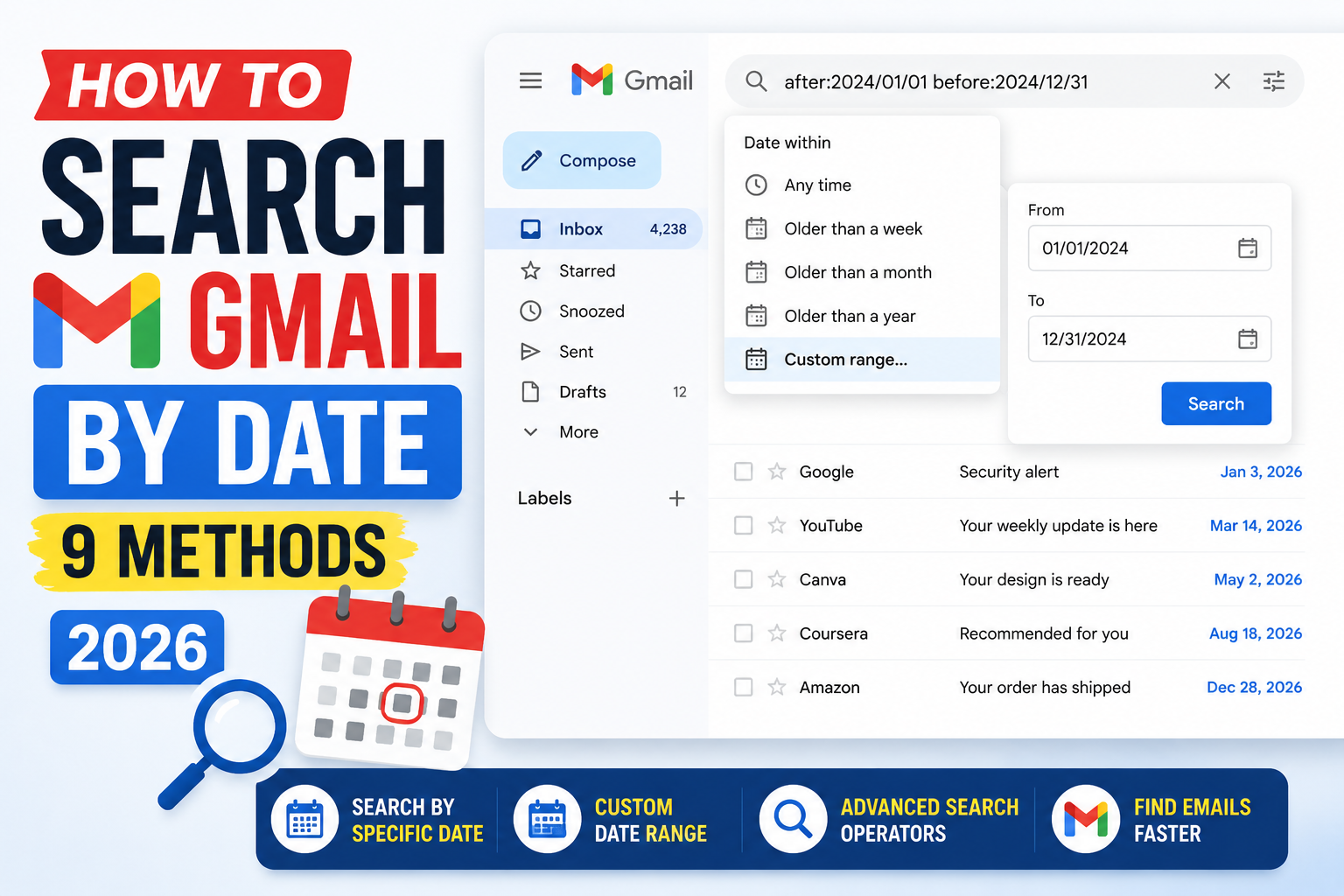
Gmail search operators let you filter emails by exact date, before or after a specific date, or relative to today. The operators work identically on desktop and mobile, in personal Gmail and Google Workspace accounts. This 2026 guide covers all 9 date-search patterns Gmail supports, with the exact syntax and combined operator examples for advanced searches.
Once you learn the base operators, you can combine them with sender, subject, and label filters to find any email in seconds instead of scrolling.
Understand Gmail’s date format
Gmail uses the YYYY/MM/DD format for all date operators. Other formats like MM-DD-YYYY or DD/MM/YYYY are not recognized.
- Always use forward slashes:
2025/06/15, not dashes or dots. - Use four-digit years:
2025, not25. - Leading zeros for month and day are optional:
2025/6/15works the same as2025/06/15. - Dates are interpreted in your Google Account timezone, which you set in Google Calendar preferences.
Method 1: Search emails after a specific date
The after: operator returns emails sent on or after a date.
- Click the Gmail search bar at the top.
- Type
after:2025/01/15. - Press Enter or click the search icon.
- Gmail returns all emails sent on or after January 15, 2025.
- Results are sorted newest first by default.
Method 2: Search emails before a specific date
The before: operator returns emails sent before a date (not including the date itself).
- Type
before:2025/06/30in the search bar. - Press Enter.
- Gmail returns emails sent up to (but not including) June 30, 2025.
- Combine with other operators to narrow the range.
Method 3: Search within a date range
Combine after: and before: to filter to a specific window.
- Type
after:2025/01/15 before:2025/06/30. - Press Enter.
- Gmail returns only emails sent within January 15 to June 30, 2025.
- Add more operators like
from:aliceto narrow further.
Method 4: Use relative dates with older_than and newer_than
Instead of exact dates, use relative time units. Handy for “last 7 days” or “last month” queries.
- Type
newer_than:7dto see emails from the last 7 days. - Type
older_than:1yto see emails older than 1 year. - Use d for days, m for months, y for years.
- Combine:
newer_than:1m older_than:7dgives you emails from 7-30 days ago. - These operators are especially useful for filters and cleanup scripts.
Combine date search with other operators
Date operators combine freely with sender, subject, has:attachment, and label filters. This is where power-user searching starts.
from:alice after:2025/06/01– all emails from Alice sent after June 1, 2025.subject:invoice before:2025/07/01– all invoice emails sent before July 1, 2025.has:attachment older_than:1y– all emails with attachments older than 1 year (great for storage cleanup).label:work newer_than:30d– work-labeled emails from the last 30 days.is:unread after:2025/06/01– unread emails from June 2025 onwards.
Common date search mistakes
- Using MM-DD-YYYY format. Gmail only accepts YYYY/MM/DD. Dashes and other separators return zero results.
- Assuming date operators are inclusive on both sides.
after:includes the date, butbefore:is exclusive. To catch a single day exactly, useafter:2025/06/15 before:2025/06/16. - Forgetting the timezone. If your Google Calendar timezone is different from your PC timezone, results may seem off by one day. Check calendar settings.
- Searching only in the current folder. Add
in:anywhereto search across Inbox, Sent, Trash, Spam, and All Mail at once. - Case sensitivity confusion. Operators are lowercase (
after:,from:). Values in operators are case-insensitive.
When date search saves time
For daily use, remembering the top 3 operators (after:, before:, newer_than:) covers 90 percent of date search needs. Combine with from: or subject: for precise filtering.
For inbox cleanup, use older_than:1y has:attachment to find old large emails eating your quota. Reviewing 20-50 candidates in batch beats scrolling backward through thousands of emails.
For audit and record-keeping, date range searches make it easy to gather all emails from a specific quarter or month. Combine with label: to filter to a specific project or client.
Save your most-used date searches by clicking the Show search options icon at the right of the search bar, then Create filter at the bottom. Filters run automatically on all future emails and save the search as a starred item.
Power-user tips for advanced Gmail search
Date operators are just the beginning. Master the full search language and you can find any email in seconds no matter how large your archive.
- Save frequent searches as filters. Click Show search options in the search bar, build your search, then Create filter. Gmail runs the search as a filter on all future emails automatically.
- Star your most-used searches. Complex searches can be bookmarked in your browser. Save the Gmail URL (which includes the search string) as a favorite.
- Use the NOT operator to exclude noise.
from:alice NOT subject:newslettercatches everything from Alice except her newsletter. Very useful for filtering signal from noise. - Combine size operators for cleanup.
older_than:2y has:attachment larger:10Mfinds huge old emails eating your storage. Delete them for immediate quota reclaim. - Use the -sender: pattern to exclude. A leading minus in front of any operator negates it.
-from:notifications@github.comhides GitHub noise.
For weekly workflow optimization, spend 15 minutes reviewing your Gmail search history. If the same complex search comes up repeatedly, convert it to a filter or bookmark. Small optimizations compound to hours of time saved per year.
Quick reference of Gmail date operators
Keep this reference handy for the searches you use most often. Each operator can be combined with any other for precise filtering across your inbox.
after:YYYY/MM/DD– emails sent on or after this date (inclusive).before:YYYY/MM/DD– emails sent before this date (exclusive).newer_than:Ndornewer_than:Nmornewer_than:Ny– relative to today, going backward.older_than:Nd– opposite of newer_than, catches everything older than the window.in:anywhere– includes Trash and Spam in the search scope. Useful for finding recently-deleted emails.-after:YYYY/MM/DD– the leading minus negates any operator. Excludes emails from the date range.
For the deepest power-user experience, memorize the top 5 operators and use them daily. The muscle memory compounds. Within a month you will find any email in seconds no matter how large the archive.
Official documentation
Recommended email productivity resources
The links below are affiliate links. We may earn a commission at no extra cost to you when you buy or sign up. See our affiliate disclosure.
Quick step-by-step summary (click to expand)
- Open Gmail search bar. Click the magnifying glass in the top nav to activate search.
- Use after and before operators. Type after:2026/01/01 before:2026/03/01 to filter by date range.
- Try the Advanced Search dialog. Click the sliders icon in the search bar for a date-picker UI.
- Filter by “older than” or “newer than”. Use older_than:1y or newer_than:7d for relative dates.
- Save the search as a filter. Click Create filter to reuse the date query in one click.
Frequently Asked Questions
What date format does Gmail search use?
Gmail uses YYYY/MM/DD (four-digit year, forward slashes, no dashes). Other formats like 06-15-2025 or 15/06/2025 return zero results.
Can I search for emails from today only?
Yes. Type newer_than:1d in the search bar. This returns emails received in the last 24 hours.
Does date search work on Gmail mobile?
Yes. The same operators work in the mobile search bar on iPhone and Android Gmail apps.
Can I combine date search with other filters?
Yes. Date operators combine freely with from:, to:, subject:, has:attachment, and label:. This is the power-user pattern for precise search.
Why does my date search return zero results?
Check the format (YYYY/MM/DD), confirm you have emails in that range, and try adding in:anywhere to search across all folders including Trash and Spam.
Can I save a date-based search as a filter?
Yes. Click Show search options in the search bar, then Create filter at the bottom of the advanced search box. Gmail then runs the search as a filter on all future emails.

Adones Evangelista
Programmer & Technical Writer at PIES IT Solution
Adones Evangelista is a programmer and writer at PIES IT Solution, author of over 900 tutorials and error-fix guides at itsourcecode.com. Specializes in JavaScript, Django, Laravel, and Python error debugging covering ValueError, TypeError, AttributeError, ModuleNotFoundError, and RuntimeError, plus C/C++ and PHP capstone projects for BSIT students.
Expertise: JavaScript · Python · Django · Laravel · Error Debugging · C/C++ · View all posts by Adones Evangelista →