
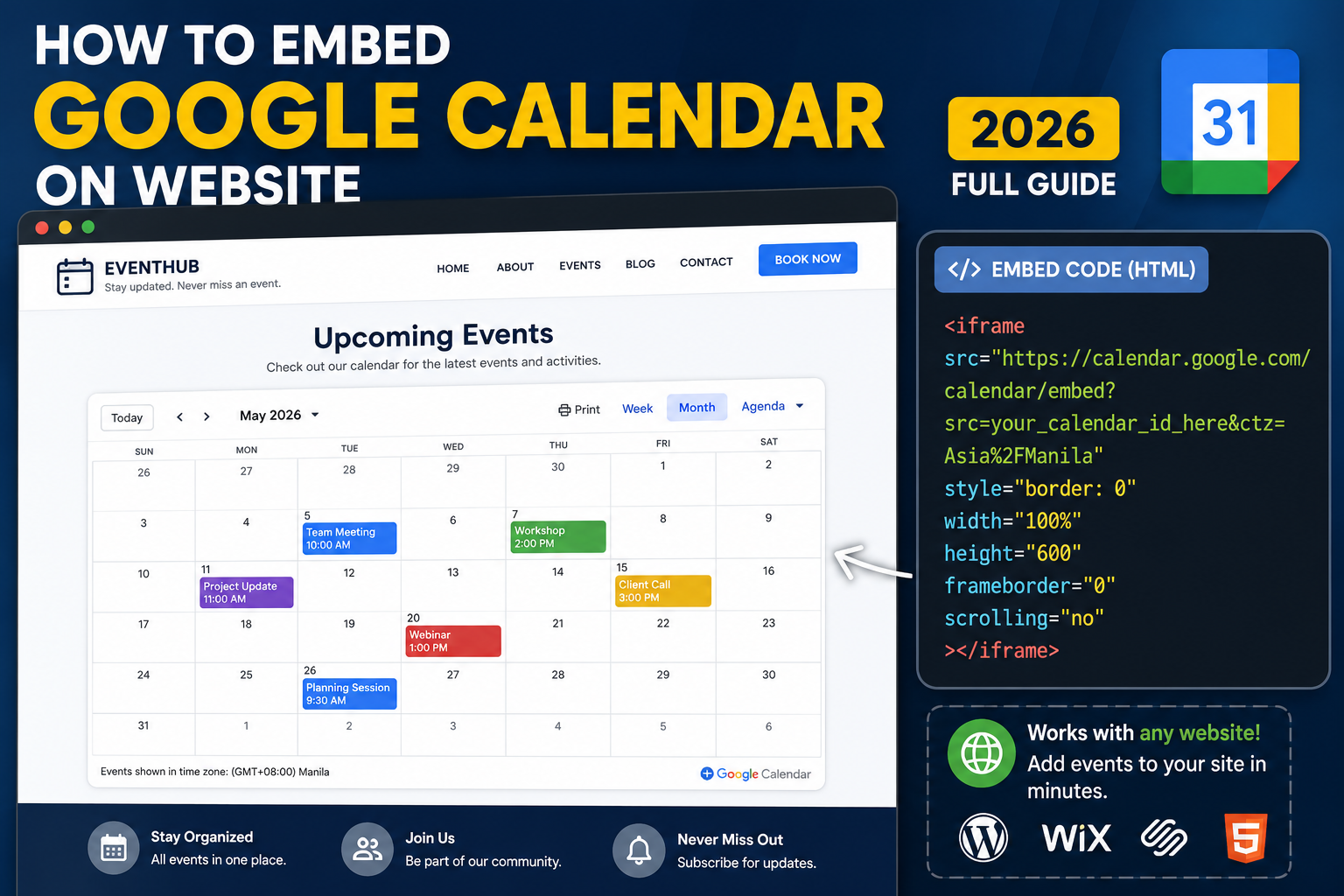
Embedding Google Calendar on your website shows visitors your upcoming events, business hours, or public schedule directly on your page. Google provides an iframe embed code you can customize for colors, view mode, and displayed calendars. This 2026 tutorial covers getting the embed code, customizing it, and adding it to WordPress or any HTML site.
Prerequisites: make your calendar public
Only public calendars can be embedded. First make it public:
- Open Google Calendar > hover over your calendar in sidebar.
- Click three-dot menu > Settings and sharing.
- Scroll to Access permissions for events.
- Check Make available to public.
- Choose “See all event details” (for full embed) or “See only free/busy”.
- Save.
Warning: only make public calendars intended for public consumption (business hours, event calendars, class schedules), never personal calendars.
Step 1: Get the embed code
- Same Settings and sharing page.
- Scroll to Integrate calendar.
- Copy the Embed code (iframe HTML).
The code looks like: <iframe src="https://calendar.google.com/calendar/embed?src=..."></iframe>
Step 2: Customize the embed
Google provides a customization tool:
- Click Customize next to the embed code.
- Adjust:
- Title: text shown above the calendar.
- Show: Title, Navigation buttons, Date, Print icon, Tabs (Week/Month/Agenda), Calendars list.
- Default view: Month, Week, or Agenda.
- Size: width and height in pixels.
- Week starts on: Sunday or Monday.
- Language: interface language.
- Time zone: display time zone.
- Background color: page color.
- Border: color of border around calendar.
- Copy the updated embed code.
Step 3: Paste into WordPress
- Open WordPress editor for the page or post.
- Add a Custom HTML block.
- Paste the iframe embed code.
- Preview / Publish.
Calendar appears embedded in your page. Visitors can navigate months and click events for details.
Paste into any HTML site
- Open the HTML file in your editor.
- Paste the iframe where you want the calendar.
- Save and upload to server.
Same iframe works in any HTML: static sites, Squarespace, Wix (Custom HTML widget), Shopify, etc.
Make embed responsive (mobile-friendly)
The default iframe has fixed width/height. To make it responsive:
Wrap the iframe with a responsive container:

<div style="position: relative; padding-bottom: 75%; height: 0; overflow: hidden;">
  <iframe src="YOUR_EMBED_URL"
    style="position: absolute; top: 0; left: 0; width: 100%; height: 100%; border: 0;">
  </iframe>
</div>

75% padding-bottom = 4:3 aspect ratio. Adjust as needed.
Embed multiple calendars
- Same Integrate calendar section on each calendar’s settings page.
- Multi-calendar embed: use the Customize tool > Calendars to include > select multiple.
- Alternatively, embed each calendar separately in different sections.
WordPress plugins for advanced embedding
- Simple Google Calendar Widget: sidebar widget for embedding.
- WP Google Calendar: shortcode-based embed with more styling.
- Modern Events Calendar: full event management + Google Calendar sync.
- The Events Calendar: syncs with Google Calendar for two-way updates.
Hide certain events from public embed
Public embed shows all events on that calendar. To hide specific events:
- Edit the event.
- Set Visibility to Private.
- Private events won’t appear in the public embed.
Custom CSS for embedded calendar
The iframe is served from calendar.google.com, you can’t fully style it. But you can:
- Style the surrounding container (padding, border, background).
- Use browser dev tools to see iframe styles (mostly locked by Google).
- Consider using Google Calendar API + custom rendering for full control.
Common embed issues
- “Calendar is not public”: check calendar’s sharing setting > must be public.
- Not showing events: sharing set to “free/busy only”. Change to “See all event details”.
- Broken layout on mobile: use responsive iframe wrapper (code above).
- Cannot customize colors of events: event colors come from calendar. Style calendar event colors first, then re-embed.
- Search engine indexing calendar: iframes are usually not indexed. But calendar HTML page may be. Use robots.txt or noindex meta on your page if concerned.
Common Google Calendar mistakes to avoid
Even long-time Calendar users hit the same traps. Being aware of these saves time and prevents scheduling errors.
- Forgetting time zones when scheduling with international teams. Calendar defaults to your primary time zone. Set the event time zone explicitly when scheduling with people in different regions.
- Not checking guest RSVPs. Guests can accept, decline, or mark tentative. Check responses before assuming everyone will attend.
- Overusing “all-day” for actual scheduled events. All-day events do not block your working hours. Use specific time-slot events for anything requiring your attention.
- Ignoring calendar sharing permissions. Public calendars can be indexed by search engines. Restrict sharing to specific emails or your organization for anything containing personal or business schedules.
- Missing the automatic Google Meet link. Calendar adds a Meet link automatically when you invite others. Delete it manually if you plan to use a different video platform.
Power-user tips for Google Calendar
- Use keyboard shortcuts. Press
/to jump to search,cto create an event,dfor day view,wfor week. Full list atcalendar.google.com/calendar/keyboardshortcuts. - Set default event duration. Settings > Event settings > Default duration. Changing from 60 to 30 minutes gently pressures shorter meetings.
- Add “speedy meetings”. Settings > End 30-minute meetings 5 minutes early. Gives everyone breathing room between back-to-back calls.
- Book focus time with Focus Time events. Prevents automatic Meet links and blocks your calendar visibly.
- Use appointment slots for external bookings. Create a bookable page anyone can use to grab time on your calendar without back-and-forth email.
Real-world scenarios
For BSIT students: use Google Calendar to schedule capstone advisor consultations. Share the calendar with your team so everyone sees deadlines and defense dates.
For freelancers: block “client focus” hours and “admin” hours on your calendar. Colored labels make it easy to see time allocation at a glance.
For small teams: create a shared team calendar for meetings, deadlines, and out-of-office. Everyone subscribes; nobody has to individually track.
For remote workers across time zones: enable secondary time zone display so you always see your teammate’s local time next to yours.
Best practices summary
- Default to 30-minute meetings. Most conversations do not need a full hour.
- Include clear titles. “Q3 planning” beats “Meeting”. Titles show up in preview panels everywhere.
- Add descriptions with agenda items. Recipients arrive prepared. Meeting quality improves.
- Set reminders 10 minutes and 24 hours before important events. Prevents missed meetings.
- Archive old calendars. Old project calendars clutter your view. Hide them from sidebar when the project ends.
Official documentation
Recommended website and Calendar resources
The links below are affiliate links. We may earn a commission at no extra cost to you when you buy or sign up. See our affiliate disclosure.
Frequently Asked Questions
Can I embed a private calendar?
No. Only public calendars can be embedded. If you need to show private data, use Calendar API with authentication + custom rendering.
Does embed update in real time?
Yes. The iframe shows live Calendar data. New events added in Google Calendar appear on your site within minutes (browser cache dependent).
Can visitors add events?
Not through the embed (view-only). If you need visitors to submit events, use a Google Form + Zapier to add to Calendar, or use a scheduling tool like Calendly.
Does embed slow down my site?
Slightly. Iframe loads asynchronously (doesn’t block page). About 100-200 KB extra download. Impact on Core Web Vitals is minimal for most sites.
Can I embed multiple calendars in one iframe?
Yes. In the Customize tool, add multiple calendars in “Calendars to include” section. Each calendar’s events appear in its color.