
WordPress powers 43 percent of all websites globally, including most Filipino SMB sites and content-heavy blogs. Setting up SEO correctly on WordPress in 2026 is more repeatable than most people think if you follow a checklist: install the right plugins, configure them once, and run a simple monthly maintenance loop that uses Yoast SEO for on-page work and Moz Pro for the competitive and off-page layer.
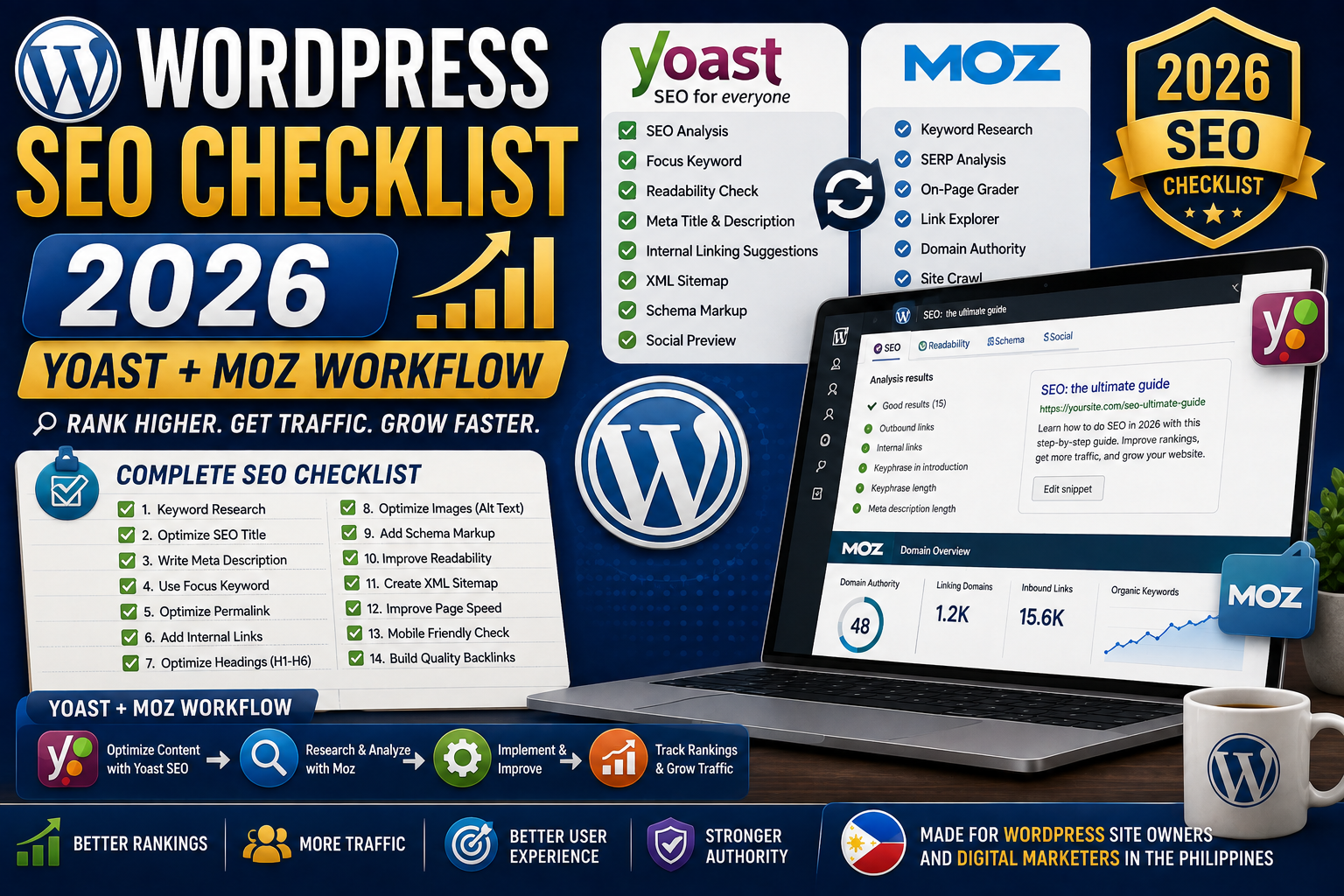
This is the complete WordPress SEO checklist I use on every new WordPress site, plus the monthly workflow that keeps rankings compounding.
The 3-plugin WordPress SEO stack for 2026
Do not install 12 SEO plugins. You only need three:
- Yoast SEO (free or Premium): Handles all on-page SEO, meta tags, schema markup, sitemap generation, and Yoast Premium adds redirect manager and internal linking suggestions.
- WP Rocket or LiteSpeed Cache: Caching and Core Web Vitals optimization. Non-negotiable for page speed.
- Redirection or Yoast Premium redirects: Manage 301 redirects when you change URL slugs or remove pages.
That is it. Everything else (Rank Math, All in One SEO, SEOPress) is either redundant with Yoast or adds complexity without meaningful benefit for most sites.
Step 1: Install and configure Yoast SEO
- WordPress admin, Plugins, Add New, search “Yoast SEO”
- Install and Activate
- Run the Yoast Configuration Wizard (Yoast SEO, First-time SEO configuration)
- Answer the wizard questions honestly (site type, organization or person, social profiles)
- Complete the wizard; Yoast auto-configures 80 percent of settings correctly
The wizard covers essential defaults. Do not skip it. Skipping means manually configuring 20+ settings later.
Step 2: Configure permalink structure
This is the single most important SEO setting on WordPress. Get it right BEFORE publishing your first post.
- WordPress admin, Settings, Permalinks
- Choose Post name for clean URLs like /how-to-fix-python-error/
- Or Custom Structure with /%category%/%postname%/ for category-based URLs
- Click Save Changes
Never use the default /?p=123 or /2026/07/post-name/ structures. Clean keyword-based slugs rank better and are shareable.
Step 3: Submit sitemap to Google Search Console
- Yoast auto-generates a sitemap at yoursite.com/sitemap_index.xml
- Log in to Google Search Console, verify your site if not done yet
- Click Sitemaps in the left sidebar
- Enter sitemap_index.xml and click Submit
- Google will crawl and index your sitemap within 1 to 7 days
Step 4: Set up caching and page speed
Google Core Web Vitals directly affects ranking. Install a caching plugin:
- WP Rocket (paid, USD 59/year, easiest setup, works out of the box)
- LiteSpeed Cache (free, best if your host runs LiteSpeed server)
- W3 Total Cache (free but complex, only if you understand caching)
After installing:
- Enable Page Caching (default on)
- Enable Browser Caching
- Enable Minify CSS and JavaScript
- Enable Lazy Load Images
- Test at PageSpeed Insights (pagespeed.web.dev) after every change
Target: Core Web Vitals green for Mobile AND Desktop. Yellow is acceptable, red hurts rankings.
Step 5: On-page SEO for every new post (Yoast workflow)
Before publishing every post:
- Set focus keyphrase in the Yoast box (the primary keyword you researched)
- Write SEO title (under 60 characters, include focus keyphrase in first 40)
- Write meta description (under 155 characters, natural focus keyphrase)
- Set URL slug to 3-5 words focused on the keyword (edit if needed)
- Verify Yoast shows all green lights (focus keyphrase in title, meta desc, URL, first paragraph, H2)
- Set featured image
- Add internal links to 3-5 related posts
- Publish only after all Yoast checks pass
Yoast’s green light system is not perfect, but hitting most greens means you have covered the on-page fundamentals correctly.
Step 6: Add schema markup with Yoast
Schema markup helps Google display Rich Results (star ratings, FAQ dropdowns, HowTo cards).
Yoast SEO auto-generates:
- Article schema on every blog post
- Organization schema on your homepage
- WebSite schema with sitelinks search box
- BreadcrumbList schema on posts and pages
To add FAQPage or HowTo schema, use the Yoast blocks in the WordPress editor:
- Add block (plus button)
- Search “Yoast FAQ” or “Yoast HowTo”
- Fill in questions and answers or steps
- Yoast auto-injects the correct JSON-LD schema
Test any post at Google Rich Results Test (search.google.com/test/rich-results) to verify schema is valid.
Step 7: Connect Google Search Console + set up Moz Pro campaign
Both tools track your site continuously:
- Google Search Console: Free, shows actual Google click and impression data. Setup takes 5 minutes.
- Moz Pro campaign: Paid (USD 99/mo), tracks Domain Authority, rankings, backlinks, and competitor benchmarks. Setup takes 10 minutes.
Connect both to your WordPress site (Yoast has a GSC integration under Yoast SEO, Integrations, Google Search Console).
Step 8: Monthly SEO maintenance workflow
Run this checklist on the first Monday of every month:
- Google Search Console: check Coverage report for new errors (fix any 4xx or 5xx pages)
- Google Search Console: check Core Web Vitals for regressions
- Moz Pro: check Domain Authority trend and any 5+ point drops
- Moz Pro: review new backlinks acquired last month; disavow any toxic ones
- Yoast Premium: review internal linking suggestions and add 5-10 links per hour of maintenance time
- Review top 20 posts by traffic; refresh titles/metas if CTR is below 3 percent (opportunity to lift)
- Publish 1-2 new pillar posts based on Moz Keyword Explorer opportunities
Total time investment: 2 to 3 hours per month for a mid-size WordPress site. This maintenance loop is what separates sites that grow steadily from sites that plateau.
Common WordPress SEO mistakes
- Installing multiple SEO plugins simultaneously. Yoast + Rank Math + All in One SEO active together creates schema conflicts and slows your site. Pick ONE and stick with it.
- Ignoring image optimization. Unoptimized images are the top cause of failing Core Web Vitals. Compress everything before upload.
- Skipping the redirects when changing URL slugs. Every URL change without a 301 redirect creates a 404 that kills any accumulated SEO equity on that URL.
- Not backing up before major SEO changes. Always run UpdraftPlus or BlogVault before permalink changes, plugin swaps, or theme changes.
- Using the default Yoast title template forever. The default “%%title%% %%sep%% %%sitename%%” is fine but if you never customize the site tagline in Settings, your title tags look generic.
Quick step-by-step summary (click to expand)
- Install 3-plugin SEO stack. Yoast SEO + WP Rocket (or LiteSpeed) + Redirection. Nothing else needed.
- Configure Yoast wizard. Yoast auto-sets 80 percent of settings correctly through the first-time wizard.
- Set clean permalinks. Settings, Permalinks, Post name (or %category%/%postname%). Do this BEFORE first post.
- Submit sitemap to GSC. Yoast auto-generates sitemap_index.xml. Submit in Google Search Console.
- Set up caching. WP Rocket or LiteSpeed. Enable page cache, browser cache, minify, lazy load. Test at PageSpeed Insights.
- On-page Yoast workflow per post. Focus keyphrase, SEO title, meta desc, slug, featured image, internal links. All Yoast green lights.
- Add schema with Yoast blocks. Yoast FAQ and HowTo blocks auto-inject JSON-LD. Test with Google Rich Results Test.
- Connect GSC + Moz Pro. Free GSC for real data, paid Moz Pro for competitive layer.
- Monthly maintenance. First Monday. GSC errors, Core Web Vitals, DA trend, new backlinks, internal linking, CTR refresh, 1-2 new pillar posts.
Official plugin and Google documentation
WordPress SEO stack (affiliate)
The links below are affiliate links. We may earn a commission at no extra cost to you when you sign up. See our affiliate disclosure.
- Moz Pro (30-day free trial), the competitive layer on top of your Yoast setup
- Google Digital Marketing Certificate (Coursera), foundational WordPress SEO training
- WordPress SEO Complete Course (Udemy), low one-time fee for lifetime access
- DataCamp Marketing Analytics track, for measuring WordPress SEO ROI
Frequently asked questions
Is Yoast SEO free version enough or should I get Premium?
Yoast free is enough for most personal blogs and small business sites. Yoast Premium (USD 99/year) adds redirect manager, internal linking suggestions, multiple focus keyphrases per post, and content insights. Worth upgrading if you publish 4+ posts per month or manage 3+ sites.
Yoast SEO vs Rank Math: which is better for WordPress in 2026?
Both are strong. Yoast is the industry standard with 5 million+ active installs. Rank Math is technically more feature-rich in the free tier (multiple focus keywords included free). Pick Yoast if you want the safer, more widely-supported choice. Pick Rank Math if you want more features without paying for Premium. Do not run both at once.
Do I need a paid caching plugin for WordPress SEO?
Not strictly required. LiteSpeed Cache (free) works excellently if your hosting runs LiteSpeed server (most Filipino hosts do). W3 Total Cache (free) works but is complex to configure. WP Rocket (USD 59/year) is easiest and works out of the box. For serious sites, WP Rocket saves setup hours and often delivers better Core Web Vitals scores than free alternatives.
Do I need Moz Pro if I already have Yoast SEO?
Yoast handles on-page SEO on your own site. Moz Pro handles competitor analysis, keyword research, backlink tracking, and Domain Authority monitoring which Yoast cannot do. They complement each other. For hobby blogs, Yoast alone plus Google Search Console is enough. For sites competing in a specific niche, adding Moz Pro pays for itself through opportunity discovery.
How do I add FAQ schema to a WordPress post?
Easiest way is the Yoast FAQ block. In the WordPress editor, click the plus button to add a block, search “Yoast FAQ”, and fill in your questions and answers. Yoast auto-injects the correct FAQPage JSON-LD schema. Validate at Google Rich Results Test after publishing to confirm the schema is detected correctly.
How often should I audit my WordPress SEO?
Monthly quick audit (30 minutes reviewing GSC errors, Core Web Vitals, DA trend) plus quarterly deep audit (2-3 hours including plugin updates, redirect cleanup, sitemap validation, internal linking review). Setting a recurring first-Monday-of-month reminder keeps this consistent and prevents SEO decay.

Caren Bautista
Technical Writer at PIES IT Solution
Responsible for crafting clear, beginner-friendly content across the platform.
Expertise: Technical Writing · Content Creation · Documentation · Editorial Writing · JavaScript · TypeScript · Python · Python Errors · HTTP Errors · MS Excel · View all posts by Caren Bautista →