

Master on how to use the console.table() method in js or JavaScript to display your data in a neat and organized format.
This useful tool can help you work more efficiently and improve your debugging skills.
So bear with us as this article delves into the console table in JavaScript.
What is console table in js or JavaScript?
The console.table() in JavaScript presents tabular data in the console as a table.
It requires one compulsory argument, “data,” which can be an array or an object, and an optional parameter called “columns.”
This method outputs the data as a table, with each element in the array (or enumerable property if the data is an object) appearing as a row in the table.
In a nutshell, the table() method allows you to display a table in the console.
What is the syntax of JavaScript console table?
Here’s the syntax for console.table js:
console.table(data,columns); ✅
or
console.table(data); ✅You can fill the table with data, which should be an array or an object.
The “columns” parameter is an array that holds the names of the columns you want to display in the table.
How to use console table in JavaScript?
Here are some examples of using console.table() in JavaScript:
1. Displaying an array of strings
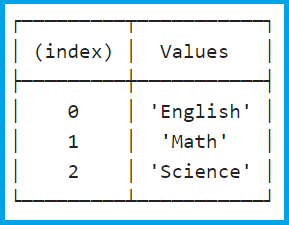
When the data argument is an array, the index column in the table will begin with 0 and increment by one for each row.
console.table(["English", "Math", "Science"]); ✅Using this code will produce a table with two columns: an index column and a values column.
The values column will show the elements of the array.
Output:
2. Displaying an object
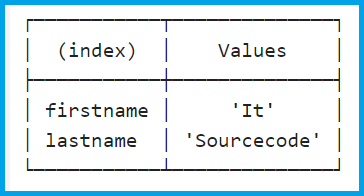
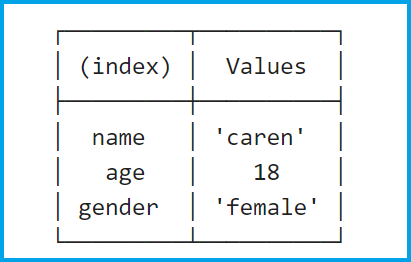
When the data argument is an object, the index column in the table represents the keys, while the value column represents the corresponding values for each key.
function Name(firstname, lastname) { ✅
this.firstname = firstname;
this.lastname = lastname;
}
const name = new Name("It", "Sourcecode");
console.table(name);
Executing this code will result in a table comprising two columns: an index column and a values column.
The index column will display the property names of the object, while the values column will exhibit the corresponding property values.
Output:
You can also use the following:
var data={ ✅
     name:"caren",
     age:18,
     gender:"female",
}
console.table(data);
Output:
3. Displaying an array of objects
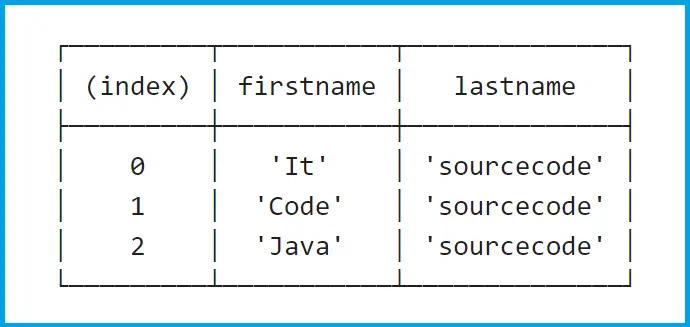
When the data argument is an array of objects, the properties of the objects are listed in each row, with each property appearing in its own column.
function Names(firstname, lastname) { ✅
this.firstname = firstname;
this.lastname = lastname;
}
const It = new Names("It", "sourcecode");
const Code = new Names("Code", "sourcecode");
const Java = new Names("Java", "sourcecode");
console.table([It, Code, Java]);
When executed, a table will be generated with three columns: an index column and two additional columns for each property of the objects.
The index column will display the indices of the array elements, while the other columns will contain the respective property values.
Output:
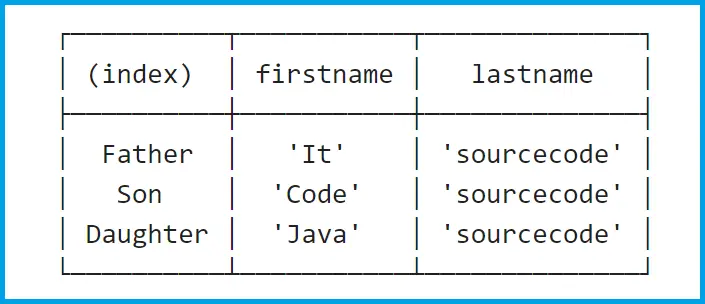
You can also use the following command:
function Names(firstname, lastname) {✅
this.firstname = firstname;
this.lastname = lastname;
}
const familymember = {};

familymember.Father = new Names("It", "sourcecode");
familymember.Son = new Names("Code", "sourcecode");
familymember.Daughter = new Names("Java", "sourcecode");

console.table(familymember);
Output:
4. Displaying nested objects
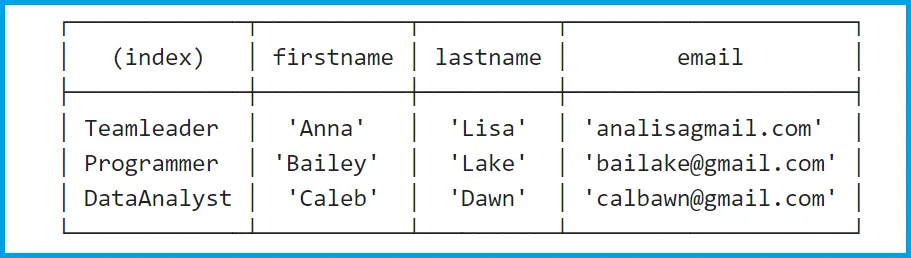
When the data argument contains nested objects, which means an object whose properties are also objects, the console.table() method correctly labels the index column with the properties of the nested objects.
var Thesismembers = {✅
    Teamleader: {
        firstname: "Anna",
        lastname: "Lisa",
        email: "analisagmail.com"
    },
    Programmer: {
        firstname: "Bailey",
        lastname: "Lake",
        email: "bailake@gmail.com"
    },
    DataAnalyst: {
        firstname: "Caleb",
        lastname: "Dawn",
        email: "calbawn@gmail.com"
    }
}
console.table(Thesismembers);
Output:
What are the browsers that console table Javascript supports?
The are the following browsers that supports console.table() in js:
- Chrome
- Edge
- Firefox
- Safari
- Opera
Conclusion
In conclusion, this article discusses how to use the console.table() in js or JavaScript. This method allows you to display data in a table format in the console.
You can use it with arrays or objects as the data input. The method also supports specifying column names for the table.
Examples are provided for displaying arrays of strings, objects, arrays of objects, and nested objects.
It is a useful tool for improving debugging skills and working more efficiently.
We are hoping that this article provides you with enough information that helps you understand console table in JavaScript.
You can also check out the following article:
- JavaScript getValue()
- Rock Paper Scissors Game in JavaScript
- Understanding the -1 Index in JavaScript Arrays
Thank you for reading itsourcecoders 😊.
Official documentation
Quick step-by-step summary (click to expand)
- What is console table in js or JavaScript. Read the ‘What is console table in js or JavaScript?’ section for the details and code.
- How to use console table in JavaScript. Read the ‘How to use console table in JavaScript?’ section for the details and code.
- What are the browsers that console table Javascript supports. Read the ‘What are the browsers that console table Javascript supports?’ section for the details and code.
- Conclusion. Read the ‘Conclusion’ section for the details and code.
Frequently Asked Questions
Is JavaScript still worth learning in 2026?
What is the difference between var, let, and const?
Which JavaScript version should I target in 2026?
What is the best free editor for JavaScript?
How do I run JavaScript locally vs in the browser?
What can I build with JavaScript for my BSIT capstone?

Caren Bautista
Technical Writer at PIES IT Solution
Responsible for crafting clear, well-structured, and beginner-friendly content across the platform. Handles the writing, proofreading, and editorial review of tutorials, guides, and documentation to ensure every article is accurate, readable, and easy to follow.
Expertise: Technical Writing · Content Creation · Documentation · Editorial Writing · JavaScript · TypeScript · Python · Python Errors · HTTP Errors · MS Excel
· View all posts by Caren Bautista →