
Today’s Tutorial is all about “View Report Using iReport and Jasperreport in Java”.
This tutorial is all about “View Report Using iReport and Jasperreport in Java”.
This tutorial will help you on how to display a report using iReport plugins in Java with Netbeans IDE within your program.
I already discuss on how to install iReport plugins and create a report in Netbeans. Ensure that you already understand my last topics before you proceed this tutorial.
Please visit related topics
- How To Install iReport Plugin In Netbeans IDE
- How To Create A Report In Netbeans Using iReport Designer
In Java programming, the common report plugins used is the iReport. The plugin can create a report file with jrxml extension and after compiling it, it generates another file with a jasper extension.
The jrxml file will use in designing your report and adding data sources while the jasper file is use in viewing your report within the program you build.
View Report Using iReport and Jasperreport in Java Steps
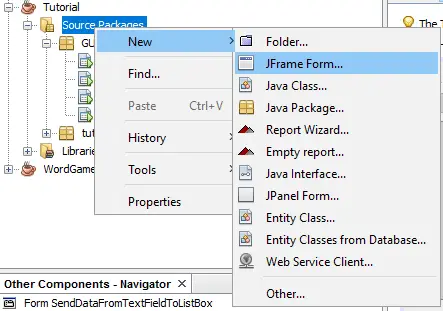
Add or create a new form inside your source package. In my case, I named my form using “ViewReport” file name.
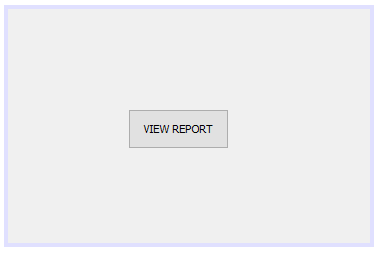
Design your new created form just look like the image below.
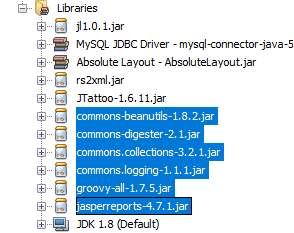
Download the following libraries from the internet using any browser and search engine and add it into your libraries list. The following libraries are commons.collections, commons.logging, commons-beanutils, commons-digester, groovy-all, and jasperreports.
Insert the following codes above your class to access the required libraries needed in viewing the report.
[java]import java.awt.Dimension;
import java.io.InputStream;
import java.sql.Connection;
import java.sql.PreparedStatement;
import java.sql.ResultSet;
import java.util.HashMap;
import javax.swing.JFrame;
import javax.swing.JTextField;
import net.sf.jasperreports.engine.JRException;
import net.sf.jasperreports.engine.JasperFillManager;
import net.sf.jasperreports.engine.JasperPrint;[/java]
Insert the following codes below inside your class for variable declaration needed in accessing the MySQL database.
[java]Connection conn=null;
ResultSet rs = null;
PreparedStatement pst=null;[/java]
Double click the buttons inside your form and to generate the private method. Insert the following codes below to view the report.
[java]//Path to your .jasper file in your package
String reportName = "Cruds/newReport.jasper";
//Get a stream to read the file
InputStream is = this.getClass().getClassLoader().getResourceAsStream(reportName);
try {
//Fill the report with parameter, connection and the stream reader
JasperPrint jp = JasperFillManager.fillReport(is, null, conn);
//Viewer for JasperReport
net.sf.jasperreports.swing.JRViewer jv = new net.sf.jasperreports.swing.JRViewer(jp);
//Insert viewer to a JFrame to make it showable
JFrame jf = new JFrame();
jf.getContentPane().add(jv);
jf.validate();
jf.setVisible(true);
jf.setSize(new Dimension(1024,768));
jf.setLocation(1,1);
jf.setExtendedState(JFrame.MAXIMIZED_BOTH);
jf.setDefaultCloseOperation(JFrame.DISPOSE_ON_CLOSE);
} catch (JRException ex) {
ex.printStackTrace();
}[/java]
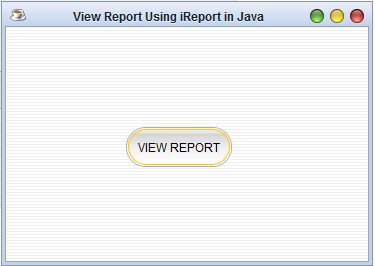
Run your program and the output should look like the image below.
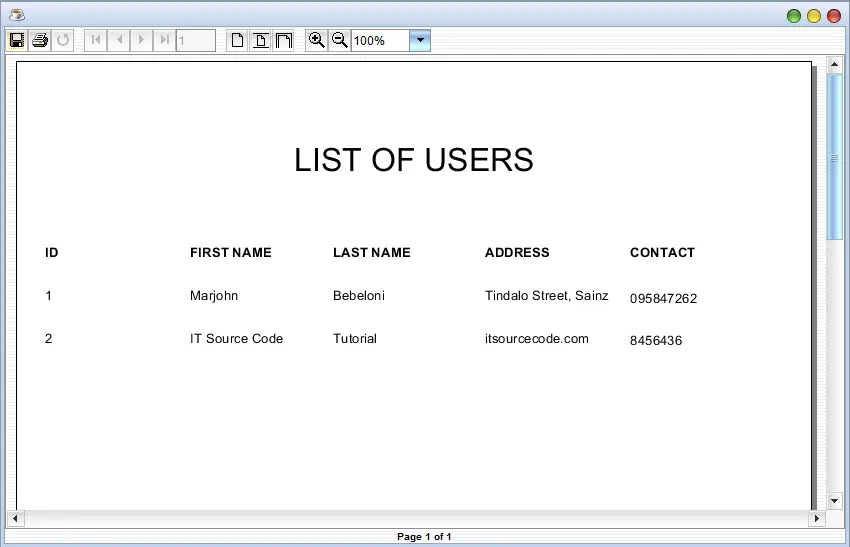
When downloading the libraries from the internet, it is required to check the version of the iReport Designer you installed in Netbeans to avoid errors. For example, if using the iReport 4.7.1 plugins, you need to install also the jasperreports 4.7.1 library.
About The View Report Using iReport and Jasperreport In Java
<figure class="wp-block-table is-style-stripes">
<table>
<tbody>
<tr>
<td><strong>Project Name:</strong></td>
<td>View Report Using iReport and Jasperreport</td>
</tr>
<tr>
<td><strong>Language/s Used:</strong></td>
<td>JAVA</td>
</tr>
<tr>
<td><strong>Database:</strong></td>
<td>None</td>
</tr>
<tr>
<td><strong>Type:</strong></td>
<td>Desktop Application</td>
</tr>
<tr>
<td><strong>Developer:</strong></td>
<td>IT SOURCECODE</td>
</tr>
<tr>
<td><strong>Updates:</strong></td>
<td>0</td>
</tr>
</tbody>
</table><figcaption><em><strong>View Report Using iReport and Jasperreport In Java</strong>- Project Information</em></figcaption></figure>
Remember that iReport and jasperReport work together to create and display your report. iReport is a designer and jasperRepor is for viewer.
If you have questions and comments regarding on this topic, feel free to contact us.
Related Articles You May Like:
- Load the Current Date and Time in Java
- Create a Login Form in Java
- Avoid Closing the Form in Java
- How To Add TextBox KeyListener In Java
- Join Two String Value using MySQL CONCAT Function in Java
Technology stack and requirements
To run this Java project on your development machine, you need:
- Java Development Kit (JDK) 17 or higher. Download from adoptium.net (Eclipse Temurin) or oracle.com. JDK 21 LTS is recommended for new projects.
- Apache NetBeans or IntelliJ IDEA. Free IDEs with Java support, debugging, and GUI form designer.
- MySQL Server or MariaDB. Standalone install, or bundled with XAMPP for easier setup.
- MySQL Connector/J. JDBC driver JAR file included in the project’s lib folder or downloadable from dev.mysql.com.
- Git (optional). For version control if you want to extend the project.
Installing the source code
- Extract the ZIP archive to a folder outside Program Files.
- Open the project in NetBeans or IntelliJ. Choose File then Open Project and select the extracted folder.
- Import the database. Open phpMyAdmin (with XAMPP) or MySQL Workbench, create a new database, and import the .sql file from the archive.
- Update the JDBC connection string. Open the DatabaseConnection.java (or config file) and set your database host, name, user, and password.
- Add the MySQL Connector JAR to the classpath. Right-click Libraries then Add JAR, select mysql-connector-java-x.x.x.jar.
- Run the project. Press F6 (NetBeans) or Shift+F10 (IntelliJ) to run the main class.
Using this project for your BSIT capstone
- Chapter 1 (Introduction). Discuss the real-world problem this Java system solves. Cite Philippine business or academic use cases.
- Chapter 2 (RRL). Compare this project against 5-10 similar published works. Cite ACM, IEEE, or IJERT journal papers.
- Chapter 3 (Methodology). Include Use Case Diagram, DFD, ER Diagram, Class Diagram, and Sequence Diagram.
- Chapter 4 (Results). Screenshot each Swing form or JavaFX view with a caption explaining its role.
- Chapter 5 (Conclusion). Identify features for Version 2 (Spring Boot web version, REST API, mobile app).
Modules typical of View Report Using iReport and Jasperreport
- Master data CRUD. JFrame + JTable for the primary entities the system manages.
- Transaction processing. Data entry forms with validation before saving.
- Reports. JasperReports or iText for formatted printable output.
- User management. Login with role-based permissions (Admin, Encoder, Viewer).
- Backup / restore. Export MySQL database to .sql file.
Common enhancements for capstone review
- Modernize UI. FlatLaf or Substance look-and-feel for modern appearance.
- Add REST API. Wrap business logic with Spring Boot for mobile or web front-ends.
- Docker container. Package with Dockerfile for portable deployment.
- Cloud deployment. Deploy to AWS Elastic Beanstalk or Azure App Service.
Official documentation
Frequently Asked Questions
How does this Java project work?
Built with Java Swing (NetBeans IDE) and MySQL backend via JDBC. Standard structure: JFrame designer to event handlers to DAO layer to MySQL. Login form for auth. Ready to extend for BSIT capstone scope.
What Java JDK and MySQL versions does this project require?
Most projects in this batch use Java JDK 8 or 11 with MySQL 5.7+ or MariaDB 10+. To run: install JDK (Adoptium / Oracle), install MySQL Server + MySQL Workbench, install NetBeans IDE (15+ supports modern JDK), open the project (.zip extracted folder), right-click + Open Project, add MySQL JDBC driver to Project Libraries, run.
How do I set up the database for this Java project?
Open MySQL Workbench (or phpMyAdmin if you have XAMPP), create a new empty database with the name specified in the project. Import the included .sql file via Server, Data Import in Workbench (or Import tab in phpMyAdmin). Update the connection class (usually DBConnection.java or DatabaseConnection.java) with your MySQL host, port, username, password, and database name.
Can I use this Java project for a BSIT capstone or thesis?
Yes, Java is one of the most accepted languages by Philippine BSIT panels. Extend it: add role-based access (admin/staff/customer login redirect), JasperReports printable reports, dashboards with JFreeChart, audit log, multi-branch support. Pair with Chapter 1-5 documentation matching your panel’s rubric.
Why am I getting ‘ClassNotFoundException: com.mysql.jdbc.Driver’ or ‘No suitable driver’?
Three common Java JDBC issues: (1) MySQL JDBC driver JAR not added to project Libraries. Right-click Project, Properties, Libraries, Add JAR/Folder, select mysql-connector-java-X.X.X.jar. (2) Wrong driver class name. Modern (8.0+) uses com.mysql.cj.jdbc.Driver, legacy (5.x) uses com.mysql.jdbc.Driver. (3) Connection URL missing serverTimezone parameter, add ?serverTimezone=UTC to the URL.
Where can I find more Java projects with source code?
Browse the Java Projects hub for the full library (120+ Java desktop systems). For modern Java web alternatives consider Spring Boot. For other desktop stacks see VB.NET Projects or C# Projects. For BSIT capstone idea lists see 150 Best Capstone Project Ideas.