
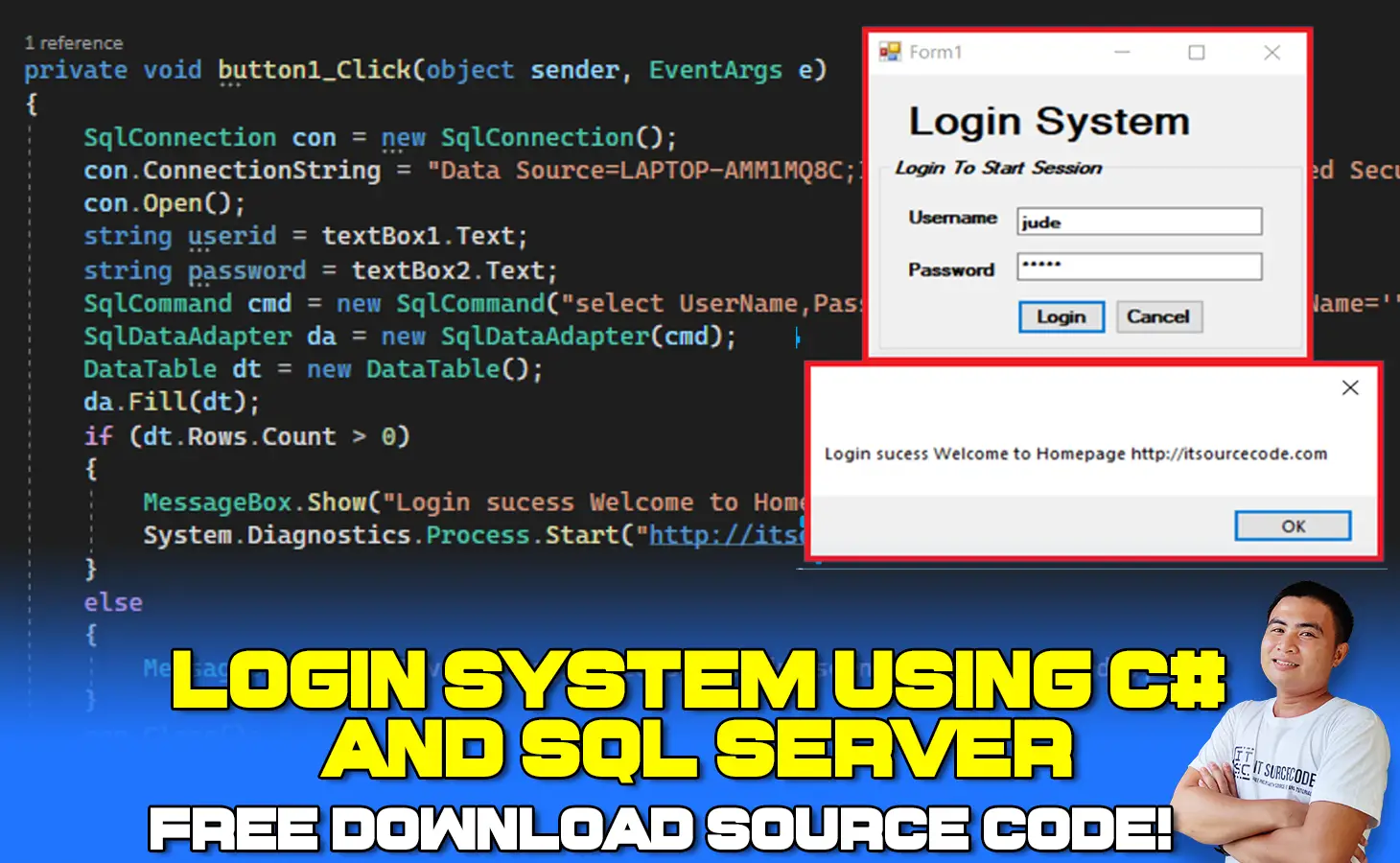
This article named Login Code In C# with SQL Server explains how to connect to SQL Server and create a login form in C# using Visual Studio and SQL Server Database as the project Back-End.
This simple tutorial you can learn on how to Create Login Window In C# Step by Step process with provided source code. In this tutorial also includes a downloadable source code for free.
Project Output
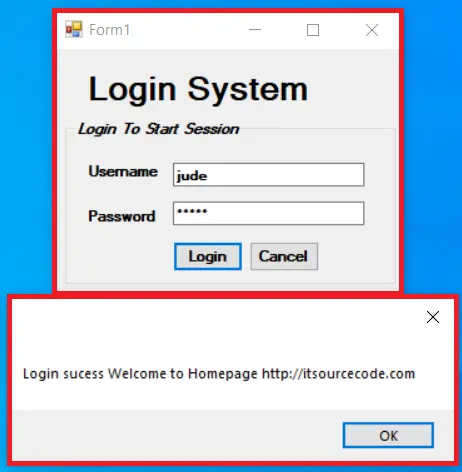
Here’s the Login Page in C# with SQL Server Database.
Login Page in C# : Project Details and Technology
| Project Title: | Login Page Project In C# |
|---|---|
| Abstract : | Login Page in C# A login page is a web page or website entry page that requires user identification and authentication. |
| Project Type: | Desktop Application |
| Technology : | C# Visual Studio 2022 with C# Language |
| Database : | SQL-Server 2021 |
To start creating this Login Page in C# make sure that you have a Microsoft Visual Studio and SQL Server installed in your computer.
Before we start if you want to learn login system in asp.net, just click the link given and you see the full tutorial on How To Create Login Page In ASP.NET MVC with Database.
Login Code in C# with SQL Server Free Source Code : Steps on how to create the project
Time needed: 5 minutes
These are the steps on How To Make Login Page in C#
- Step 1: Open SQL Server
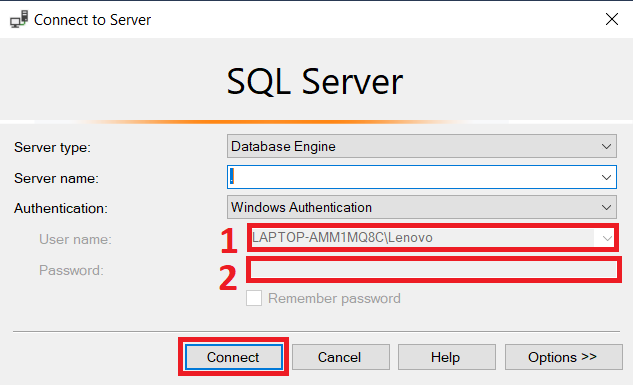
Open SQL Server (enter the Server Name, Id and Password then click on Connect).

- Step 2: Create new database
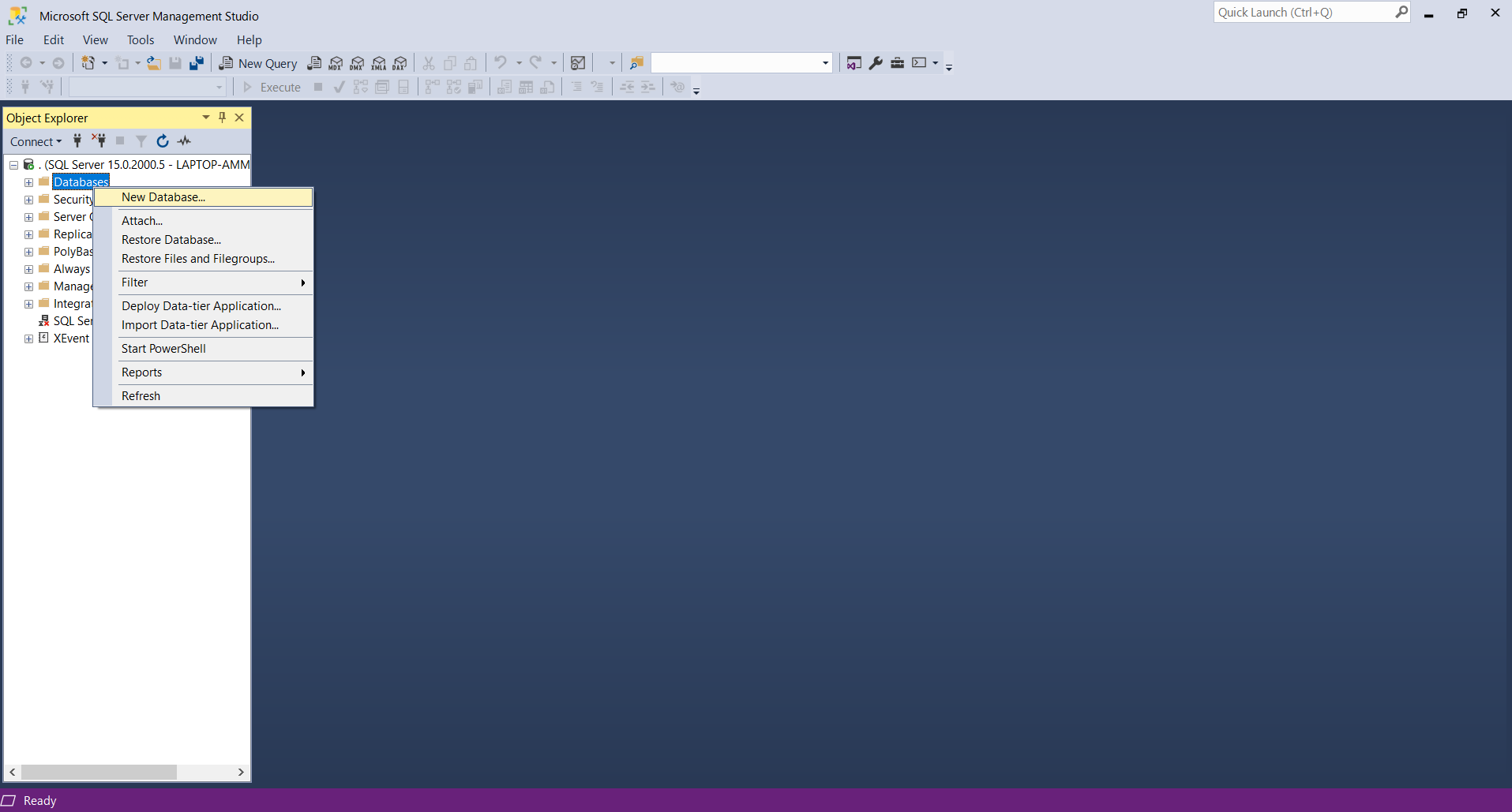
Create a new database (right-click on Database then select New Database).

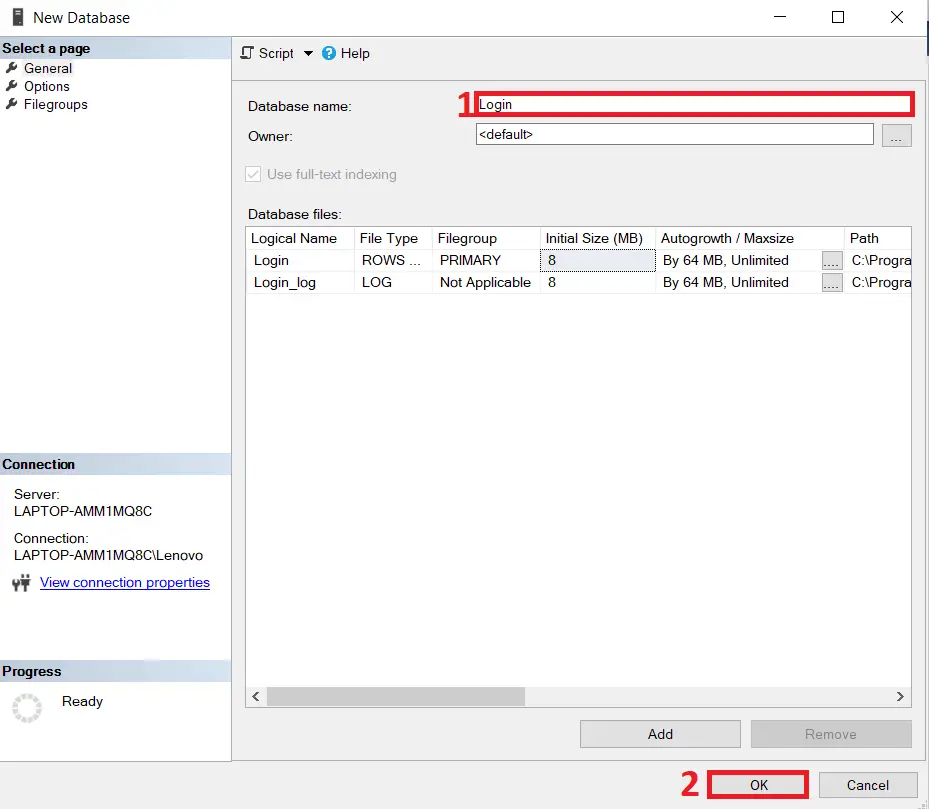
- Step 3: Name your database
Enter “Login” for the database name then click OK.

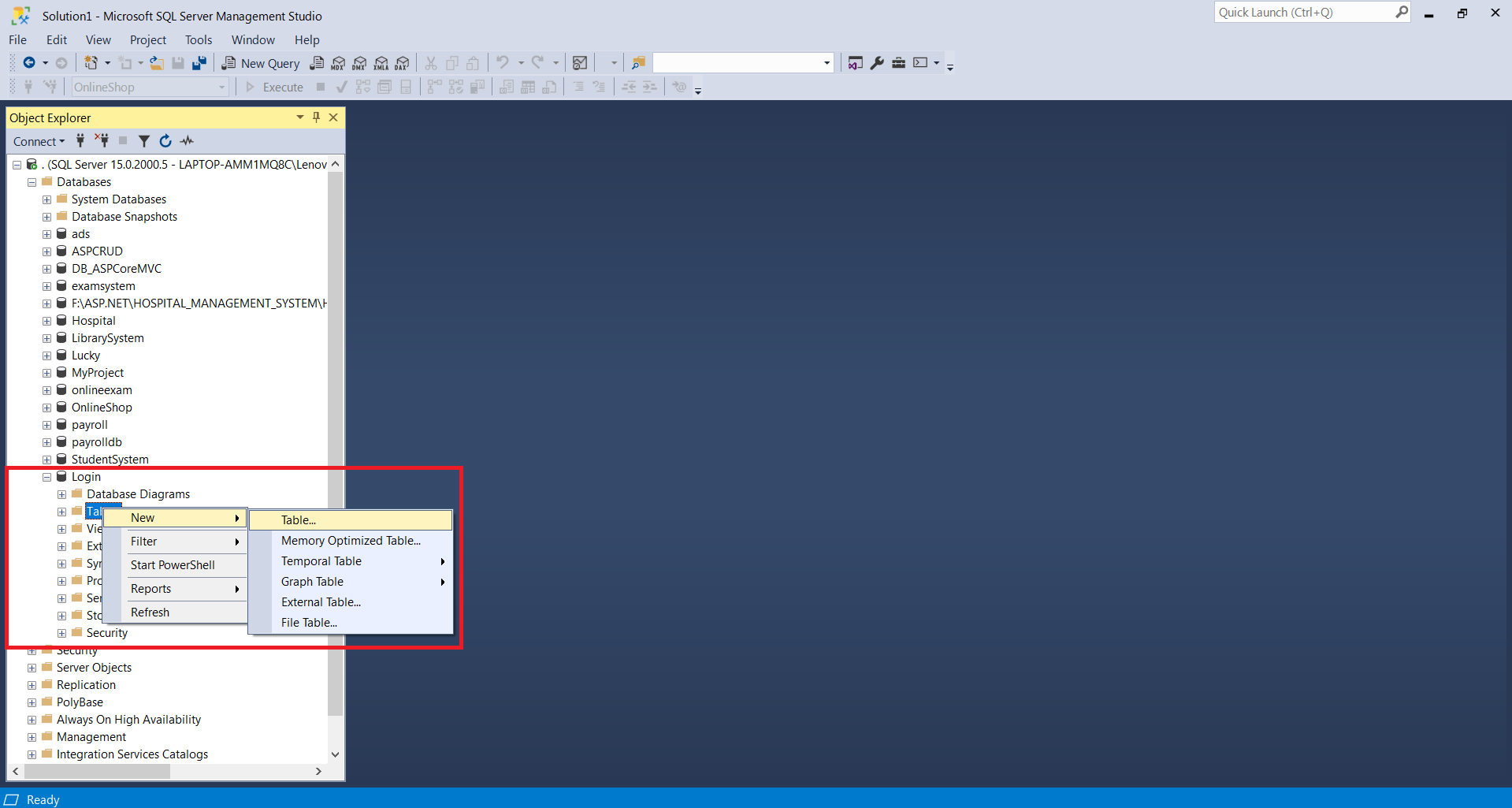
- Step 4: Create new table
Create a new table (explore the Login database then right-click on Tables then select New Table).

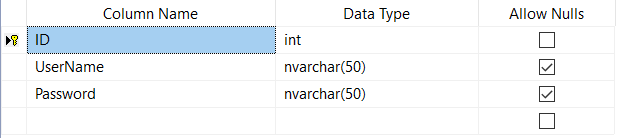
- Step 5: Design the table
Design the table (name the columns and set the data types as shown in the following figure).

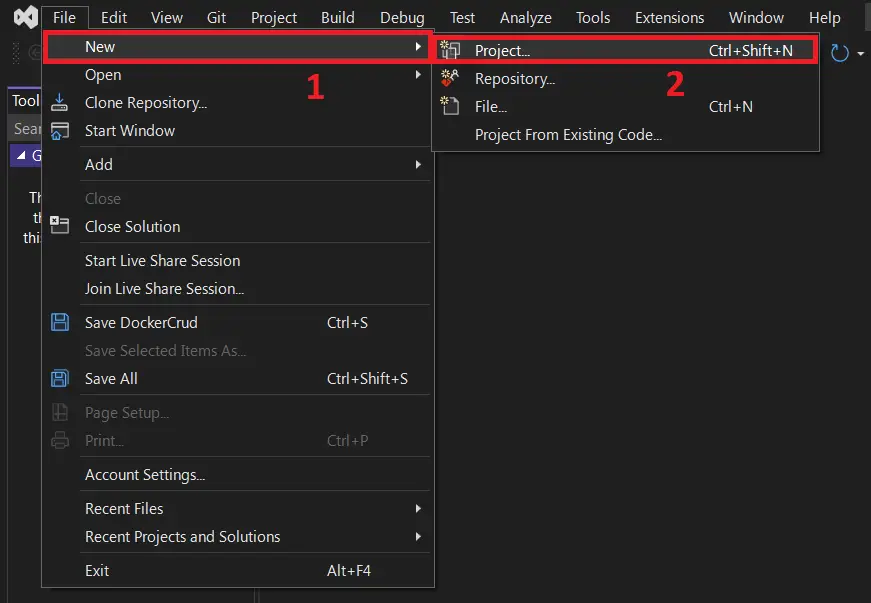
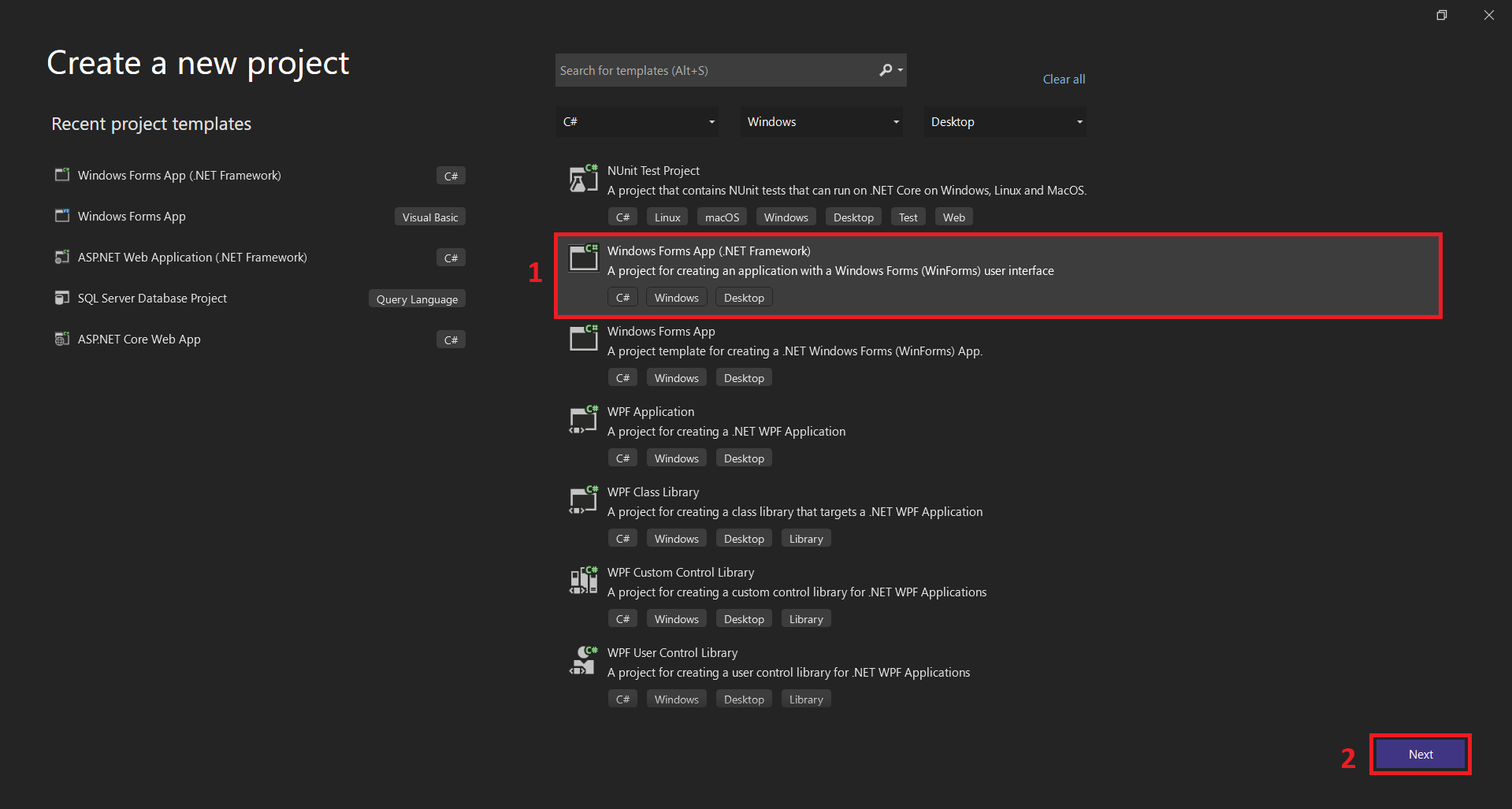
- Step 6: Open Visual Studio
Create a New Web Application (open Visual Studio then select File -> New ->New Project).

- Step 7: Select Windows Form App
Next, select Windows Form App(.NET Framework).

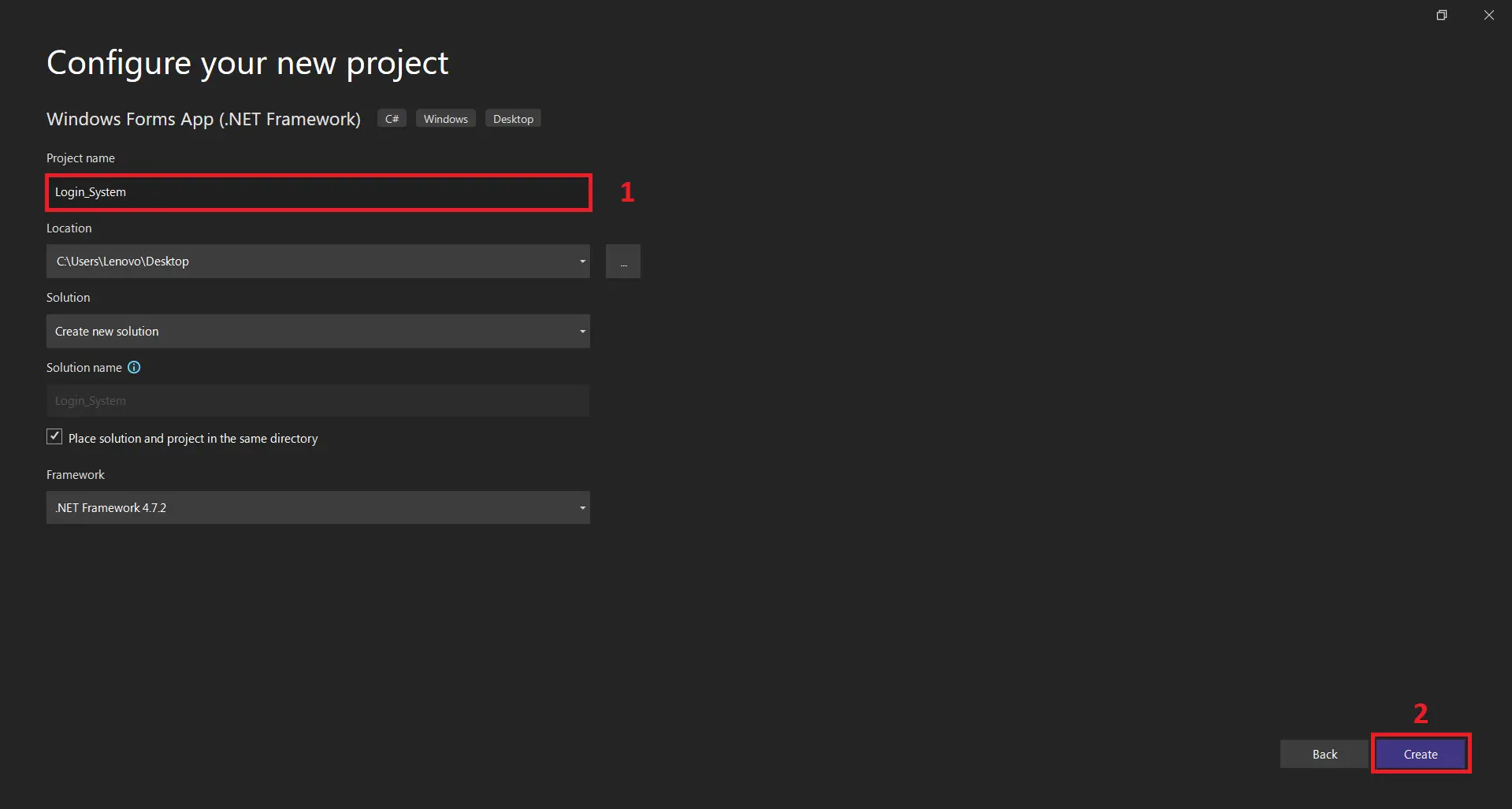
- Step 8: Name your project
Next, name your project and then, click create button.
- Step 9: Copy the code given
Final, copy all code given below and paste to your file.
Complete Source Code
using System;
using System.Collections.Generic;
using System.ComponentModel;
using System.Data;
using System.Drawing;
using System.Linq;
using System.Text;
using System.Threading.Tasks;
using System.Windows.Forms;
using System.Data.Sql;
using System.Data.SqlClient;


namespace Login_System
{
    public partial class Form1 : Form
    {
        public Form1()
        {
            InitializeComponent();
        }

        private void label2_Click(object sender, EventArgs e)
        {

        }

        private void button2_Click(object sender, EventArgs e)
        {
            Application.Exit();
        }

        private void button1_Click(object sender, EventArgs e)
        {
            SqlConnection con = new SqlConnection();
            con.ConnectionString = "Data Source=LAPTOP-AMM1MQ8C;Initial Catalog=Login;Integrated Security=True";
            con.Open();
            string userid = textBox1.Text;
            string password = textBox2.Text;
            SqlCommand cmd = new SqlCommand("select UserName,Password from LoginMst where UserName='" + textBox1.Text + "'and Password='" + textBox2.Text + "'", con);
            SqlDataAdapter da = new SqlDataAdapter(cmd);
            DataTable dt = new DataTable();
            da.Fill(dt);
            if (dt.Rows.Count > 0)
            {
                MessageBox.Show("Login sucess Welcome to Homepage https://itsourcecode.com");
                System.Diagnostics.Process.Start("https://itsourcecode.com");
            }
            else
            {
                MessageBox.Show("Invalid Login please check username and password");
            }
            con.Close();
        }

        private void Form1_Load(object sender, EventArgs e)
        {
            SqlConnection con = new SqlConnection("Data Source=LAPTOP-AMM1MQ8C;Initial Catalog=Login;Integrated Security=True");
            con.Open();
        }

        private void textBox2_TextChanged(object sender, EventArgs e)
        {

        }
    }
}
Summary
This article was developed using C# Programming and SQL Server as the system’s Back-End, This project also includes a downloadable source code for free.
Run Quick Virus Scan for secure Download
<a id="scan" class="classname" onclick="scan()">Run Quick Scan for secure Download</a>Download Source Code below
Related Articles
- Laravel Login Page With Source Code
- C++ Login System Source Code
- Login Page In CodeIgniter With Database
- Login Page In Javascript With Source Code
- Login and Registration DFD Levels 0 1 2 | Data Flow Diagrams
- Login Page Code In Java With Source Code
- Django Login And Registration With Source Code
- Login System in JavaScript with Source Code
- Login Page in Python with MySql Database
Inquiries
If you have any questions or suggestions about Login Page in C# MVC With Source Code, please feel free to leave a comment below.
Frequently Asked Questions
How does this C# login or registration system work?
Login form with username + password, password hashing via System.Security.Cryptography (SHA256 or BCrypt.Net), session via static class or singleton, role-based redirect after login, logout, password reset workflow. Foundation block for any C# user-facing capstone.
What .NET and SQL Server versions does this project require?
Most projects in this batch use C# WinForms on .NET Framework 4.5+ (the dominant stack for tutorial sites) with SQL Server 2012 Express or higher. A few newer projects use .NET 6/7/8. To run: install Visual Studio 2019 / 2022 (Community edition is free), install SQL Server Express + SSMS, open the .sln file, build, run.
How do I set up the database for this C# project?
Open SQL Server Management Studio (SSMS) and connect to your SQL Server instance (e.g. localhost\SQLEXPRESS). Right-click Databases > Restore Database OR > New Database then import the included .sql script. Update the connection string in App.config (or in code-behind) with your server name + credentials. Rebuild and run.
Can I use this C# project for a BSIT capstone or thesis?
Yes, but extend it. A bare CRUD form is too narrow for full capstone scope. Add: role-based access (admin/staff/customer login redirect), Crystal Reports or RDLC reports, dashboard with Chart controls, audit log, multi-branch support. Pair with Chapter 1-5 documentation matching your panel’s rubric.
Why am I getting ‘connection error’ or ‘object reference not set’?
Three common C# issues: (1) Connection error: SQL Server isn’t running OR connection string in App.config has wrong server name. Open SQL Server Configuration Manager + verify SQL Server (SQLEXPRESS) service is running. (2) NullReferenceException: a control reference or DB column returned NULL, add a check or use ?? operator. (3) Build error ‘The type or namespace could not be found’: missing assembly reference, add via Project > Add Reference.
Where can I find more C# projects with source code?
Browse the C# Projects hub for the full library. For other .NET stacks see VB.NET Projects (300+ Windows Forms systems). For ASP.NET WebForms see ASP.NET Projects. For BSIT capstone idea lists see 150 Best Capstone Project Ideas.
Twas pretty good heyyy helped me alot thanks