
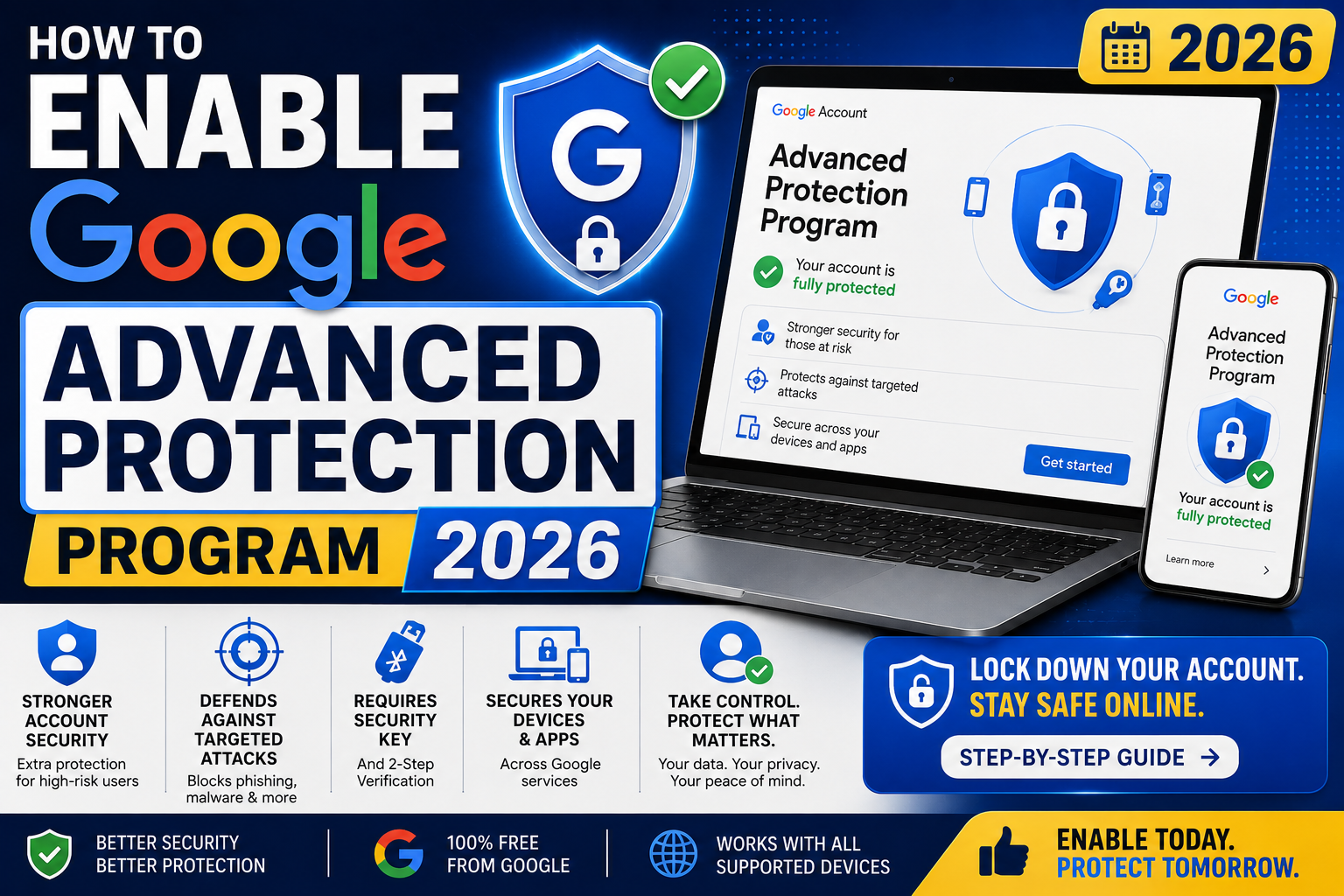
Google Advanced Protection Program (APP) is the strongest security tier Google offers for consumer and G Suite accounts. It is designed for people at elevated risk of targeted attacks: journalists, activists, executives, freelance devs who handle client credentials, and anyone whose Gmail contains high-value data. This guide walks through enrollment step-by-step, explains what changes after enrollment, and helps you decide whether APP is right for your situation.
What Google Advanced Protection Program actually does
APP is not a separate tier of Google (it does not cost extra). It is a set of stricter security policies applied to your existing Google account. Key protections:
- Hardware key required for login: Passwords and SMS codes and app codes are not enough. You must tap a physical FIDO2 hardware key (like YubiKey) for every new sign-in.
- Blocks non-Google apps that request full mailbox access: Some third-party mail clients (older Outlook, some IMAP tools) cannot log in. Google APIs and certified apps still work.
- Enhanced malware scanning: Gmail scans attachments and downloads more aggressively than standard accounts.
- Stricter identity recovery: Account recovery cannot happen via phone call or SMS. Only backup hardware key or account recovery via Google Support with identity verification.
- Chrome Safe Browsing enhanced mode enabled by default for signed-in browsing.
Who should enable APP
- Freelance developers who receive client production credentials via Gmail (AWS keys, database passwords, API tokens)
- Agency owners whose Gmail is the recovery email for client hosting, domain, and SaaS accounts
- Journalists, activists, and legal professionals with sensitive source communications
- C-level executives at any organization
- Anyone who has been targeted by credential phishing in the past 12 months
Who should NOT enable APP
- Users who need to log in from shared devices at internet cafes (hardware key must be physically present)
- Users heavily dependent on older non-Google mail clients that cannot use OAuth
- Users without at least 2 hardware security keys (backup required)
- Users who occasionally lose their keys and cannot afford the recovery friction
Before you start (prerequisites)
- At least 2 hardware security keys. Google requires 2 for enrollment (primary + backup). YubiKey 5 Series or Google Titan Key both work. Cost: PHP 3,000-6,000 for a pair.
- Working Google account. Personal Gmail or Google Workspace both eligible.
- Recent Chrome or Edge browser for FIDO2 compatibility.
- Backup access to important connected services. Some third-party services will lose access temporarily; be ready.
Step 1: Buy 2 hardware security keys
You cannot enroll with just 1 key. Google requires a backup to prevent lockout if you lose your primary.
Recommended combos:
- Primary: YubiKey 5C NFC (roughly PHP 3,200). Backup: YubiKey 5 NFC (roughly PHP 2,800). Total: ~PHP 6,000.
- Budget: 2× Google Titan Key USB-C (roughly PHP 1,700 each). Total: ~PHP 3,400.
- Developer: YubiKey 5C NFC (primary) + SoloKeys Solo 2 USB-C (backup, open source). Total: ~PHP 5,500.
Amazon PH, Lazada PH, and Shopee PH all carry YubiKey (verify seller is authorized). For Google Titan, buy from Google Store directly (ships to PH via forwarder or wait for local resellers).
Step 2: Set up both hardware keys as regular 2FA first
Before enrolling in APP, add both keys as normal 2FA methods on your Google account. This tests they work correctly.
- Open Chrome, go to myaccount.google.com
- Click “Security”
- Under “How you sign in to Google”, click “2-Step Verification”
- Sign in with your password
- Scroll to “Security key” and click “Add security key”
- Insert your first key (or tap NFC to phone)
- Follow the prompts to name it (e.g., “YubiKey primary”)
- Repeat for your backup key (name it “YubiKey backup”)
Test: log out of Gmail and log back in. Google should prompt for your hardware key. Tap it. You are in.
Step 3: Enroll in Advanced Protection Program
- Go to landing.google.com/advancedprotection/
- Click “Get started”
- Sign in with your Google account if prompted
- Google verifies you already have 2 hardware keys registered
- Review the changes APP will make to your account (see next section)
- Click “Enroll” to confirm
- You may be asked to re-authenticate with hardware key
Enrollment is instant. Your account is immediately protected under APP rules.
Step 4: Test that everything still works
Right after enrolling, verify these still function:
- Gmail web login (should require hardware key)
- Gmail on your phone (may need to sign out + back in, providing hardware key when prompted)
- Google Drive access
- Google Calendar
- YouTube (uses same Google account)
- Google Workspace apps if you use Workspace
Also test third-party apps that connect to your Google account (Zapier, IFTTT, calendar sync tools, Slack Google integration, etc.). Most modern OAuth-based apps continue working. Older apps that request full mailbox access via IMAP may need reconfiguration or replacement.
Step 5: Store your backup key somewhere secure
Your primary key stays with you (keychain, wallet, or attached to something you carry daily). Your backup key should be somewhere separate and secure:
- Home safe (fireproof if possible)
- Bank safety deposit box
- Trusted family member’s safe
- Office locked drawer (if separate from home)
Do NOT store your backup key in the same bag or drawer as your primary. If someone steals the bag, they have both keys.
Do NOT store keys in a car glove compartment (theft target, heat damage).
Step 6: Add a passkey as tertiary backup (2024+ feature)
Google added passkey support to APP in late 2023. Passkeys are cryptographic credentials stored on your phone or password manager (1Password, Apple Passwords, Google Password Manager). They provide phishing resistance similar to hardware keys.
To add a passkey as tertiary backup:
- myaccount.google.com, Security, Passkeys and security keys
- Click “Create a passkey”
- Verify with hardware key
- Choose where to save the passkey (recommend a password manager for redundancy)
Now you have primary key + backup key + passkey = 3 recovery paths.
Step 7: Print recovery codes (yes, still)
Even with APP, Google still issues one-time recovery codes.
- myaccount.google.com, Security, 2-Step Verification
- Scroll to “Backup codes”
- Click “Get new codes”
- Print the 10 codes
- Store printed copy in your safe (with backup key or separately)
Recovery codes are your final fallback if both hardware keys are lost or destroyed and you cannot access your passkey.
What changes after enrolling in APP
Login behavior changes:
- Every new sign-in requires hardware key or passkey (SMS + TOTP codes no longer accepted)
- Trusted device detection is stricter (fewer devices remembered)
- Sign-in from new locations always challenges you for hardware key
App compatibility changes:
- Modern OAuth apps (Slack, Notion, Zapier, Salesforce, HubSpot) continue working
- Older IMAP/POP3 mail clients requesting full mailbox access are blocked
- Some third-party calendar sync tools may need reconfiguration
- Google-owned apps (Gmail, Drive, Calendar) work as normal after providing hardware key
Gmail behavior changes:
- Attachment scanning is more aggressive; some legitimate-looking attachments get flagged
- Warning banners appear on more emails from unknown senders
- Downloads through Gmail trigger Safe Browsing checks
Recovery changes:
- Phone-based recovery disabled (Google will not send SMS to reset)
- Email-based recovery to secondary address disabled
- Only working paths: hardware key, passkey, printed backup codes, or account recovery through Google Support (identity verification required, takes days)
How to unenroll if you change your mind
APP is reversible. To unenroll:
- Go to landing.google.com/advancedprotection/
- Click “Unenroll”
- Verify with hardware key
- Confirm unenrollment
Your account returns to standard security settings. You can still use hardware keys as regular 2FA (just without APP’s stricter policies). No data loss.
Common reasons users unenroll: bought a new phone that does not support USB-C hardware key + needs frequent Google login, changed jobs and no longer handles sensitive data, or found the daily friction too high for their actual threat model.
Bottom line
Google Advanced Protection Program is worth enabling for Filipino freelance developers, agency owners, and anyone whose Gmail is the recovery email for high-value services (AWS, hosting, banking). The one-time investment in 2 hardware keys (PHP 3,000-6,000) and 30 minutes of setup provides the strongest consumer account protection Google offers.
APP is overkill for casual home Gmail users. If your Gmail primarily contains personal correspondence and shopping receipts, regular 2FA with an authenticator app is enough.
We hope this walkthrough helps you decide whether APP fits your threat model. Feel free to comment below with your specific situation and we can offer more targeted advice.
Official documentation
Quick step-by-step summary (click to expand)
- Buy 2 hardware security keys. YubiKey 5C NFC + YubiKey 5 NFC, or 2 Google Titan keys.
- Set up both keys as regular 2FA first. Add to Google 2-Step Verification, test login works.
- Enroll in Advanced Protection Program. Visit landing.google.com/advancedprotection/, click Enroll.
- Test that everything still works. Gmail web, mobile, third-party apps, calendar sync.
- Store backup key securely. Home safe, safety deposit box, trusted family member (not in same location as primary).
- Add a passkey as tertiary backup. Store in password manager for redundancy.
- Print recovery codes. 10 one-time codes, store in safe as final fallback.
Buy hardware security keys (affiliate)
Links below are affiliate links via Skimlinks. See our affiliate disclosure.
- YubiKey 5C NFC on Amazon, our top pick for APP primary key
- YubiKey 5 NFC on Amazon, matching backup key
- Google Titan Security Key, budget alternative at USD 30 each
Frequently asked questions
Is Google Advanced Protection free?
Yes, APP itself is free. You do pay for the hardware keys required (PHP 3,000-6,000 for a pair). Google does not charge any subscription for APP enrollment. Available for personal Gmail and Google Workspace accounts.
Can I use APP on my phone without carrying the hardware key?
Yes, once a device is trusted, day-to-day use does not require key insertion. You need the hardware key for: new sign-ins on any device, sign-ins from new locations, and periodic re-authentication (Google prompts roughly every 30 days for high-security operations). Passkeys added as tertiary backup can also provide phone-based re-auth in some cases.
What happens if I lose both hardware keys?
If both keys are lost and you have no passkey backup, use your printed recovery codes. If those are also gone, submit an account recovery request through Google Support. Recovery takes 3-7 business days and requires identity verification (submitting government ID, answering security questions, sometimes phone verification through a trusted contact). Not fast, but eventually recoverable. This is why 2 keys + passkey + recovery codes matters.
Will my old Outlook or Thunderbird stop working?
Modern Outlook 365 and current Thunderbird versions use OAuth and work fine with APP. Very old versions (Outlook 2013 or earlier, Thunderbird pre-2020) that rely on password-based IMAP will stop working. Update to current versions or switch to Gmail web + mobile app if needed.
Does APP block phishing entirely?
APP blocks credential phishing (attempts to steal your Google password via fake login pages) because hardware keys are cryptographically bound to the real Google domain. Fake sites cannot use your key even if you tap it. APP does not block phishing that tricks you into sending money, sharing files with attackers, or clicking malicious links (those are not credential-based attacks). Combined with human vigilance, APP eliminates the credential-phishing attack vector.
Does APP work with Google Workspace for business?
Yes, Google Workspace admins can either enroll individual users in APP or enable it organization-wide via Workspace admin console. Workspace-wide enrollment is a common enterprise choice for law firms, medical practices, and companies handling sensitive client data. Individual Workspace users can also self-enroll if the admin allows.

Caren Bautista
Technical Writer at PIES IT Solution
Responsible for crafting clear, well-structured, and beginner-friendly content across the platform. Handles the writing, proofreading, and editorial review of tutorials, guides, and documentation to ensure every article is accurate, readable, and easy to follow.
Expertise: Technical Writing · Content Creation · Documentation · Editorial Writing · JavaScript · TypeScript · Python · Python Errors · HTTP Errors · MS Excel · View all posts by Caren Bautista →