
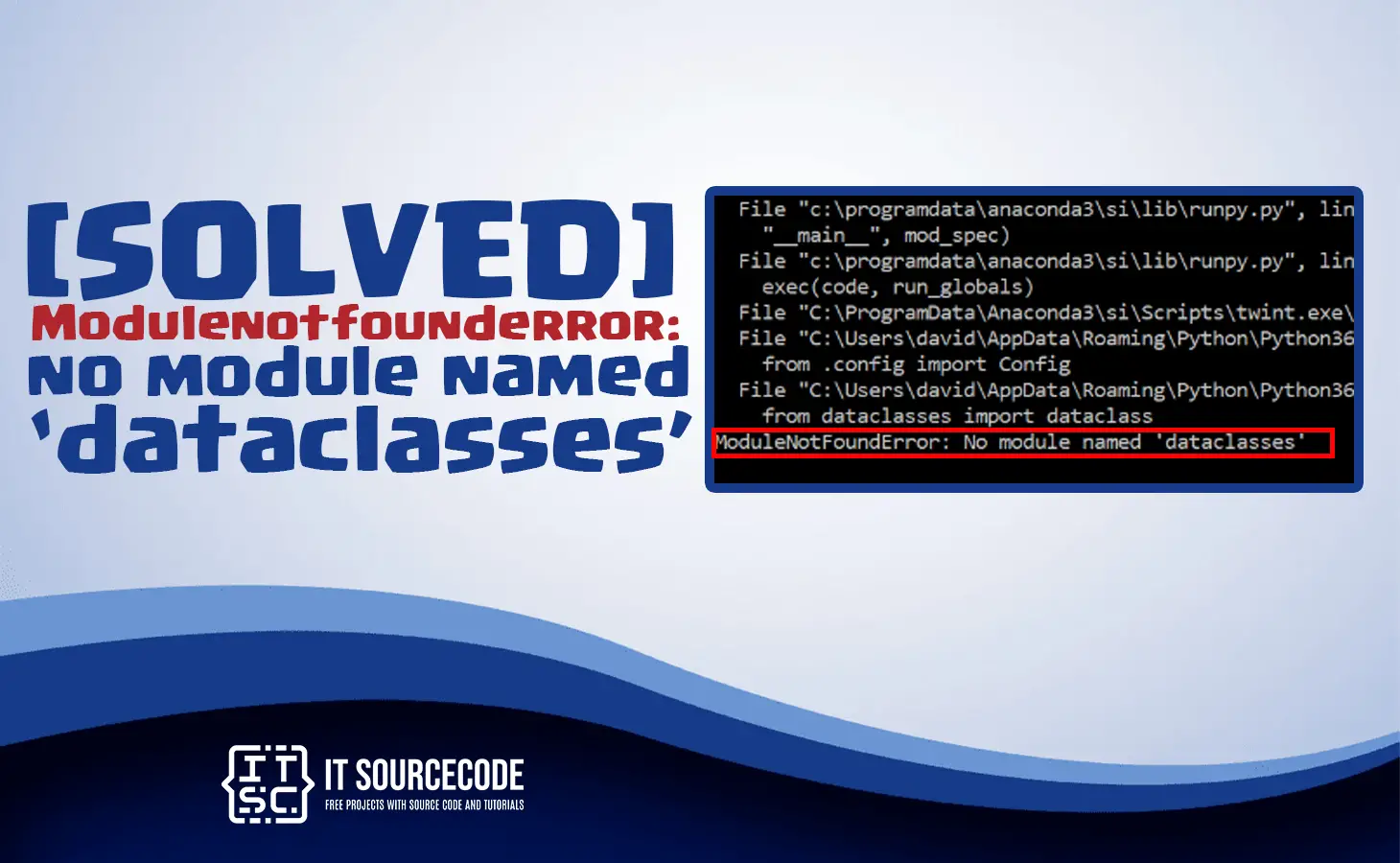
This article will show you how to resolve the Modulenotfounderror: no module named dataclasses.
Along with that, we will briefly discuss what this error is and the possible causes of it.
But before we will briefly give a preview about this module.
What is dataclasses module?
The Data classes are a way to define classes that are primarily used to store data.
In Python, you can define a class with attributes and methods, but a data class makes it easier to create classes with just attributes.
What is Modulenotfounderror: no module named ‘dataclasses’ error?
The error message “ModuleNotFoundError: No module named ‘dataclasses’” means that the Python interpreter cannot find the module ‘dataclasses’ that it needs to run the program.
This can happen if the module is not installed on your system, or if it is installed but the interpreter is not able to locate it.
There are several reasons why this error message may appear:
- The dataclasses module is not installed on your system.
- You are using a version of Python that does not support the dataclasses module.
- The library you are trying to use depends on the dataclasses module, but it is not listed in the package requirements file.
- The virtual environment you are using does not have the dataclasses module installed.
Solutions to Modulenotfounderror: no module named ‘dataclasses’
Here are the following solutions you can try to fix the Modulenotfounderror: no module named ‘dataclasses’ error.
- Check python version
Since dataclasses module was introduced in python 3.7, we will check out python version first.
Use the following command to check:
python –version

If your python version is under you must upgrade it. Do the following to update your python version.
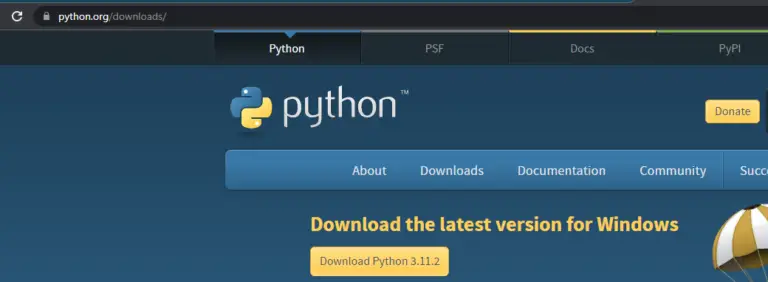
Step 1. In your browser, visit the Python Releases for Windows section on the official Python website.
Step 2. Click the Download Python button to download the installation file on your computer.

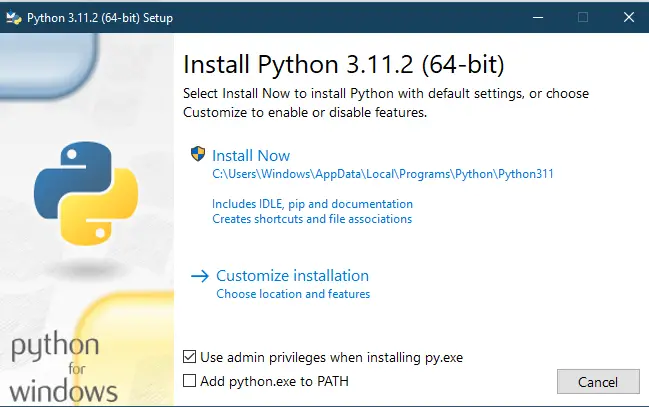
Step 3. Next run the Python installer after that. If you are upgrading from another Python 3 point release (for example, 3.11.2), the installer recommends installing Python 3.11.2 Install Python with the recommended options, or Customize Installation to choose the install location and features.

Step 4. If you already have a previous version of the same Python release installed (for example, 3.10.5), the installer offers to upgrade your Python installation. Select Upgrade Now to continue.
Step 5. When the installation finishes, check whether the new version of Python has been installed successfully.
Step 6. Open Windows PowerShell and type:
python –version
The output should show the latest version of Python. - Install dataclasses module
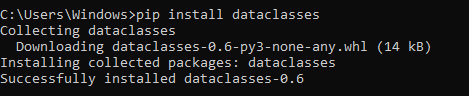
As you know the dataclasses module is included in Python 3.7 or above. If you have Python 3.6 you need to install the dataclasses library:
pip install dataclasses

- Import module
Another reason for the error is that you forget to import the dataclasses.
To import the module use the following line:
import dataclasses

Additionally, you will not able to see the redline in pycharm when you import.




Conclusion
In conclusion this Modulenotfounderror: no module named ‘dataclasses’ error can occur when the dataclasses module is not installed or is installed in a location that is not on the Python module search path.
If you follow the solution, it will solve the error that you are facing right now. It is a simple solution, yet literally effective in solving the `error.
We hope that this article has provided you with the information you need to fix this error and continue working with Python packages.
If you are finding solutions to some errors you’re encountering we also have Modulenotfounderror no module named importlib_metadata.
Diagnostic checklist for “No module named ‘dataclasses'”
- Verify pip install target. Run
pip show dataclasses— if not installed, runpip install dataclasses. - Check the active Python interpreter.
which python(mac/Linux) orwhere python(Windows). Both pip and python must point to the same environment. - Check virtual environment activation. If you use venv/conda, activate before installing:
source .venv/bin/activate. - Rule out uppercase/lowercase. Python imports are case-sensitive:
import PyPDF2notimport pypdf2. - Rule out the pip-vs-package-name mismatch. Some packages install under a different name than you import (e.g.
pip install beautifulsoup4→import bs4).
Installing dataclasses
# Standard pip install
pip install dataclasses

# In a virtual environment (recommended)
python -m venv .venv
source .venv/bin/activate  # or .venv\Scripts\activate on Windows
pip install dataclasses

# With uv (faster alternative)
uv pip install dataclasses
Common causes for “No module named ‘dataclasses'”
- Python interpreter mismatch. Multiple Python installations can confuse pip. Verify with
which pythonandwhich pip. - Virtual environment not activated. If the venv isn’t activated, pip installs to your system Python instead.
- Notebook kernel mismatch. Jupyter uses a kernel that may differ from your terminal Python. Use
%pip install dataclassesinside the notebook. - Import name differs from install name. pip install beautifulsoup4 → import bs4. Check the package’s PyPI page.
- Windows PATH issues. Ensure Python is on PATH; use
python -m pip installto invoke pip via the correct Python.
Working code example
# Verify install worked
import dataclasses
print(getattr(dataclasses, '__version__', 'no version attribute'))
Best practices
- Always use a virtual environment. Avoids most module-not-found errors.
- Use pip freeze to lock versions.
pip freeze > requirements.txtmakes your setup reproducible. - Consider uv or Poetry. Modern package managers with better dep resolution and reproducibility.
Official documentation
Frequently Asked Questions
What is Python ModuleNotFoundError and what causes it?
ModuleNotFoundError (a subclass of ImportError) is raised when Python cannot find the module you tried to import. Common causes: the package isn’t installed (pip install missing), wrong virtual environment activated, typo in module name, or Python can’t find your local module on the import path. The error message names exactly which module is missing.
How do I fix ‘ModuleNotFoundError: No module named X’?
Run pip install X first. If that succeeds but you still get the error, check which Python you’re using (which python OR python –version) vs which pip (which pip OR pip –version), they must match. Common gotcha: pip points to system Python 3.9 but you’re running python3.11 in a venv. Inside the venv, use python -m pip install X to be sure pip matches the active Python.
Why does my code work in one environment but not another?
Different Python versions or different installed packages. To diagnose: pip freeze > requirements.txt on the working environment, then pip install -r requirements.txt on the broken one. Use virtualenv (python -m venv venv) or conda for every project to avoid system-wide package collisions.
Is ModuleNotFoundError the same as ImportError?
ModuleNotFoundError is a subclass of ImportError added in Python 3.6. It specifically means ‘no such module exists.’ Plain ImportError covers a wider set: module exists but a name inside it can’t be imported (e.g. ‘cannot import name X from Y’). except ImportError catches both; except ModuleNotFoundError catches only the missing-module case.
Where can I find more ModuleNotFoundError fixes?
Browse the ModuleNotFoundError reference hub for 198+ specific module fixes (TensorFlow, Flask, Django, pandas, numpy, etc.). For related issues see ImportError. For broader Python setup see Python Tutorial hub.

Glay Eliver
Programmer & Technical Writer at PIES IT Solution
Glay Eliver is a programmer and writer at PIES IT Solution, author of over 600 tutorials at itsourcecode.com. Specializes in JavaScript tutorials, Microsoft Office how-tos (Excel, Word, PowerPoint), and Python error debugging covering ImportError, TypeError, AttributeError, ModuleNotFoundError, and JavaScript ReferenceError. Authored several of the site’s highest-traffic Excel and MS Office reference articles.
Expertise: JavaScript · MS Excel · MS Word · MS PowerPoint · Python · Python ImportError · Python TypeError · Python AttributeError · ModuleNotFoundError · JavaScript ReferenceError · Pygame
· View all posts by Glay Eliver →