
Malware on a Windows PC in 2026 rarely announces itself with dramatic popups anymore. Modern threats hide silently, stealing browser credentials, mining cryptocurrency in the background, or waiting for a specific banking website to appear before activating. If your PC suddenly feels slow, browser redirects you to unfamiliar sites, or Windows Defender shows warnings you did not expect, you probably have something.
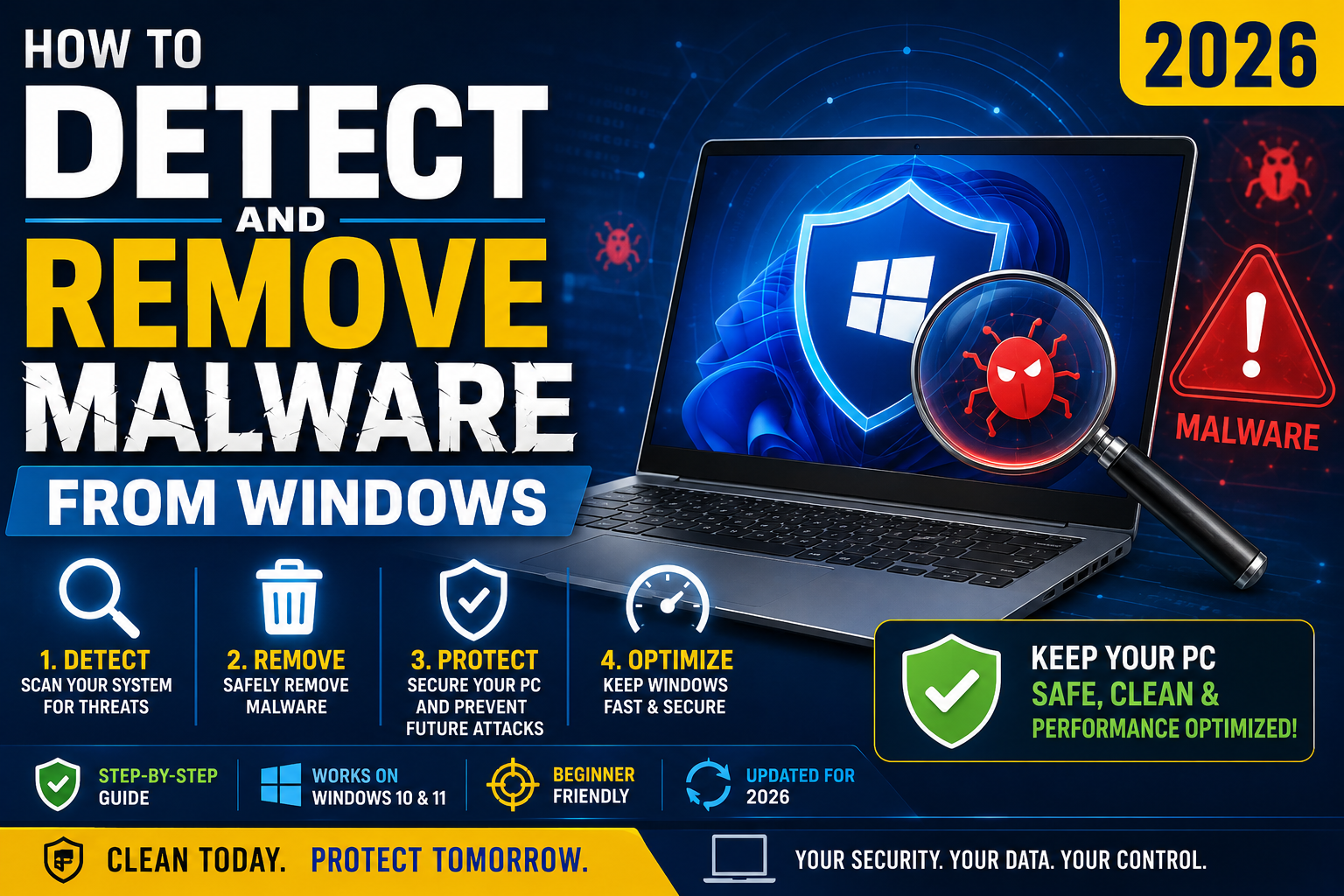
This guide walks through the 7-step process we use to detect, remove, and prevent Windows malware infection in 2026. All tools mentioned are free or have free tiers strong enough for personal use. The whole cleanup takes 1 to 3 hours depending on infection severity.
Before you start (prerequisites)
- Administrator access to the infected PC. Malware removal requires admin permissions.
- Internet connection. To download removal tools and updated virus definitions.
- A USB drive (8 GB or larger). For creating a rescue disk if the infection is severe enough to block normal boot.
- 1 to 3 hours of uninterrupted time. Scans take 30-90 minutes each. Cleanup + validation adds another hour.
- Access to a second clean device (phone or another PC). To download tools if the infected PC’s browser is compromised.
One safety note before we start: if the malware is ransomware (files encrypted, ransom note displayed), disconnect the PC from the network IMMEDIATELY (unplug ethernet, disable Wi-Fi) to prevent lateral spread. Then proceed with the guide, but do not pay the ransom. Ransomware payment funds more attacks and rarely restores files.
Step 1: Boot into Windows Safe Mode with Networking
Safe Mode disables most third-party services, which prevents malware from actively running while you scan and remove.
- Click Start, hold Shift, and click Restart.
- When Windows Recovery Environment appears, select Troubleshoot.
- Advanced options, Startup Settings, Restart.
- When the Startup Settings menu appears, press 5 or F5 to boot into Safe Mode with Networking.
- Log in with your normal account.
You will see “Safe Mode” in the corners of the screen. Networking is enabled so you can download tools, but most malware remains dormant.
Step 2: Download Malwarebytes (free) from a clean source
Malwarebytes is the industry-standard second-opinion scanner. Its free version detects and removes most modern malware including trojans, worms, adware, and PUPs (Potentially Unwanted Programs).
- Open your browser (Edge or Chrome).
- Go to malwarebytes.com/mwb-download.
- Download the free Windows installer (roughly 220 MB in 2026).
- Install with default settings.
- Skip the Premium trial offer (free version is enough for cleanup).
If your browser is compromised and keeps redirecting, use the second clean device (your phone) to download Malwarebytes and transfer via USB drive to the infected PC.
Step 3: Run a full Malwarebytes scan
- Open Malwarebytes.
- Click Scanner.
- Click Advanced scanners.
- Configure Custom Scan. Select all local drives. Uncheck “Scan for rootkits” only if the scan is taking over 3 hours.
- Click Scan.
Full scan typically takes 45-120 minutes depending on drive size. Do not use the PC during the scan. When complete, Malwarebytes shows a list of detected threats.
Review the list:
- Trojans, Worms, Viruses: Quarantine all.
- PUPs (Potentially Unwanted Programs): Review each. Some are legitimate but overreaching (crypto miners are PUPs). When in doubt, quarantine.
- Adware: Quarantine all.
Click “Quarantine”. Malwarebytes moves threats to a safe location where they cannot execute.
Step 4: Run Microsoft Defender Offline scan
Microsoft Defender Offline scans your Windows PC BEFORE Windows fully loads. This catches rootkits and boot-sector malware that hide from normal scans.
- Open Windows Security (Start, type “Windows Security”, open).
- Click Virus and threat protection.
- Click Scan options.
- Select Microsoft Defender Offline scan.
- Click Scan now. PC will reboot into offline scan environment.
Offline scan takes 15-30 minutes. PC automatically boots back into Windows when complete. Any threats detected are quarantined by Defender.
Between Malwarebytes and Defender Offline, you have covered 95-99% of common Windows malware infections.
Step 5: Reset your browsers to default settings
Even after malware removal, your browser settings may still be compromised (redirect extensions, fake search engines, malicious homepage). Reset each browser you use.
Google Chrome:
- Settings, Advanced, Reset settings, Restore settings to their original defaults.
- Also: Settings, Extensions. Review installed extensions. Remove anything you did not install intentionally.
Microsoft Edge:
- Settings, Reset settings, Restore settings to their default values.
- Also: Extensions, remove suspicious ones.
Firefox:
- Help, More troubleshooting information, Refresh Firefox.
- Also: Add-ons and themes, remove suspicious extensions.
Browser reset removes most residual malicious changes (homepage, search engine, new tab page hijacks). You will need to re-log in to your accounts after the reset.
Step 6: Change all your important passwords
If malware ran on your PC, it may have captured passwords from your browser or keylogging. After cleanup, change passwords for:
- Your primary email (Gmail, Outlook, Yahoo)
- Online banking (BPI, BDO, UnionBank, GCash, Maya)
- Facebook, Instagram, TikTok, LinkedIn
- Any WordPress or hosting admin accounts (if you manage websites)
- Payoneer, Wise, PayPal (if you receive USD payments)
- Password manager master password (if you use one)
Use strong unique passwords generated by a password manager. Enable 2FA on every account that supports it. Consider hardware 2FA keys (YubiKey) for critical accounts.
Do this from a CLEAN device (your phone or a different PC) if you are not confident the infected PC is fully clean. Malware could still be watching.
Step 7: Enable ongoing protection to prevent reinfection
Prevention is far easier than cleanup. Enable these:
- Windows Defender Real-time protection: Windows Security, Virus and threat protection settings, Manage settings, turn ON Real-time protection.
- Windows Defender Cloud-delivered protection: Same page, turn ON. Sends suspicious file hashes to Microsoft for cloud analysis.
- Windows automatic updates: Settings, Windows Update, ensure Automatic updates is enabled.
- SmartScreen filter in Edge and Chrome: Blocks known malicious downloads and phishing sites.
- User Account Control (UAC) on default level: Prevents silent malware installation.
- Consider Malwarebytes Premium (USD 45/year): Adds real-time protection alongside Defender. Not required but a solid second layer.
- Use a VPN on public Wi-Fi: NordVPN or similar for coffee shops and hotels.
Combined, these measures block 95%+ of realistic reinfection paths.
If Malwarebytes and Defender did not clean it (advanced scenarios)
Some infections resist standard removal. For advanced cases:
- ESET Online Scanner (free): Third opinion, different detection engine. Downloads fresh definitions each run.
- Kaspersky Rescue Disk (free): Boot from USB drive into Kaspersky’s Linux-based scan environment. Catches malware Windows itself cannot see.
- HitmanPro (free 30-day trial): Cloud-based detection with second-opinion signatures.
- Rkill (free): Kills malware processes running in memory before you scan.
If none of these work, the nuclear option is: back up your important documents, wipe the drive, reinstall Windows fresh. Takes 2-4 hours but guarantees 100% clean.
Common malware infection sources to avoid
Source 1: Pirated software downloads. Cracked Adobe, cracked Windows, cracked games are the single biggest source of Filipino PC malware. “Free” cracked software is not free. It carries payloads.
Source 2: USB drives from unknown sources. Shared USB drives at print shops, universities, or offices frequently carry autorun malware.
Source 3: Browser extensions from Chrome Web Store or Edge Add-ons. Not all extensions are safe. Even legitimate extensions can be sold to bad actors and updated to include malware.
Source 4: Phishing email attachments. Especially .docx, .xlsx, or .pdf files that ask you to “enable macros” or “enable editing”.
Source 5: Fake software update popups. “Your Flash Player is out of date” style prompts on random websites. Adobe Flash died in 2020. Any modern browser popup claiming you need to update anything is fake.
Bottom line
Windows malware in 2026 is preventable and treatable with free tools. The 7-step process in this guide (Safe Mode plus Malwarebytes plus Defender Offline plus browser reset plus password change plus prevention) handles the vast majority of infections in 1-3 hours.
The single best thing you can do to prevent reinfection is stop downloading pirated software. That single change eliminates most Filipino PC malware infections we see.
We hope this guide helps you get your Windows PC back to a clean state. Feel free to comment below if you get stuck on any step, or reach out via our contact page if you need help with a specific stubborn infection.
Official documentation
Quick step-by-step summary (click to expand)
- Boot into Safe Mode with Networking. Shift-restart, Troubleshoot, Advanced options, Startup Settings, press 5.
- Download Malwarebytes free from a clean source. If browser is compromised, download via phone and transfer via USB.
- Run a full Malwarebytes scan. Custom scan, all local drives. Takes 45-120 minutes. Quarantine all threats.
- Run Microsoft Defender Offline scan. Windows Security, Scan options, Defender Offline. 15-30 minutes.
- Reset your browsers to default settings. Chrome, Edge, Firefox all have reset options in Settings.
- Change all your important passwords. Email, banking, social, hosting. Do from clean device, use password manager.
- Enable ongoing protection to prevent reinfection. Defender real-time protection, cloud protection, automatic updates, SmartScreen.
Recommended protection tools (affiliate)
Some links below are affiliate links. We may earn a commission at no extra cost to you. See our affiliate disclosure.
- Malwarebytes Premium, second-layer protection alongside Defender at USD 45/year
- NordVPN, our top pick for public Wi-Fi safety at USD 3-5/month
- 1Password, best password manager for post-cleanup password rotation
Frequently asked questions
Do I need to pay for antivirus in 2026?
No, for most Windows users. Microsoft Defender (built into Windows 11 and 10) combined with Malwarebytes free is enough for personal use. Paid antivirus (Norton, McAfee, Kaspersky) adds convenience features but not meaningfully better detection. Pay for Malwarebytes Premium only if you want real-time second-layer scanning alongside Defender.
Can malware survive a Windows reset?
Standard malware, no. Windows Reset (Settings, System, Recovery, Reset this PC) reinstalls Windows and removes user-installed programs including malware. Firmware-level malware (extremely rare, mostly nation-state) can survive but is not something a typical user encounters. For 99%+ of infections, Windows Reset is the nuclear-clean option.
What if I paid the ransomware ransom before reading this?
Roughly 50 percent of ransomware victims who pay get functional decryption tools back. The other 50 percent get nothing or partial decryption. Never pay again. Report to PNP Anti-Cybercrime Group and to nomoreransom.org for potential free decryption tools from security researchers. Also change every credential the ransomware operator might have collected.
How do I know if my PC is really clean after cleanup?
Run 2-3 different scanners in sequence. If all report 0 threats after removal, you are 95%+ likely clean. Then monitor for a week: does browser behavior return to normal, does the PC feel snappy again, do any strange processes appear in Task Manager. If everything looks normal after 7 days, consider it clean.
Can malware infect my phone too?
Android yes, iPhone rarely. Android malware typically comes from sideloaded APKs (apps installed outside Google Play). iPhones are more locked down but not immune to targeted attacks. For Android, install Malwarebytes for Android (free) and scan quarterly. For iPhone, keep iOS updated and avoid jailbreaking.
Should I use pirated Windows to save money?
No. Pirated Windows carries embedded malware in the vast majority of cases (over 80 percent in Filipino distribution channels per PH cybersecurity firm data). It also disables Windows Update, which means you lose security patches. Genuine Windows 11 Home is USD 139 one-time (roughly PHP 7,900). A single malware cleanup easily costs more in time and stress than the license.

Caren Bautista
Technical Writer at PIES IT Solution
Responsible for crafting clear, well-structured, and beginner-friendly content across the platform. Handles the writing, proofreading, and editorial review of tutorials, guides, and documentation to ensure every article is accurate, readable, and easy to follow.
Expertise: Technical Writing · Content Creation · Documentation · Editorial Writing · JavaScript · TypeScript · Python · Python Errors · HTTP Errors · MS Excel · View all posts by Caren Bautista →