

What is Radio Button in Control in VB.net?
The Radio Button Control in VB.net is used to choose one choice from the available options.
In Windows forms, we may utilize the radio button to pick just one thing from a related set of items.
The Radio Buttons in VB.net are mutually exclusive, signifying that only one item is selected and active in the form.
Let’s create Radio Buttons in VB.net by dragging Radio Button controls from the Toolbox and dropping them on the form.
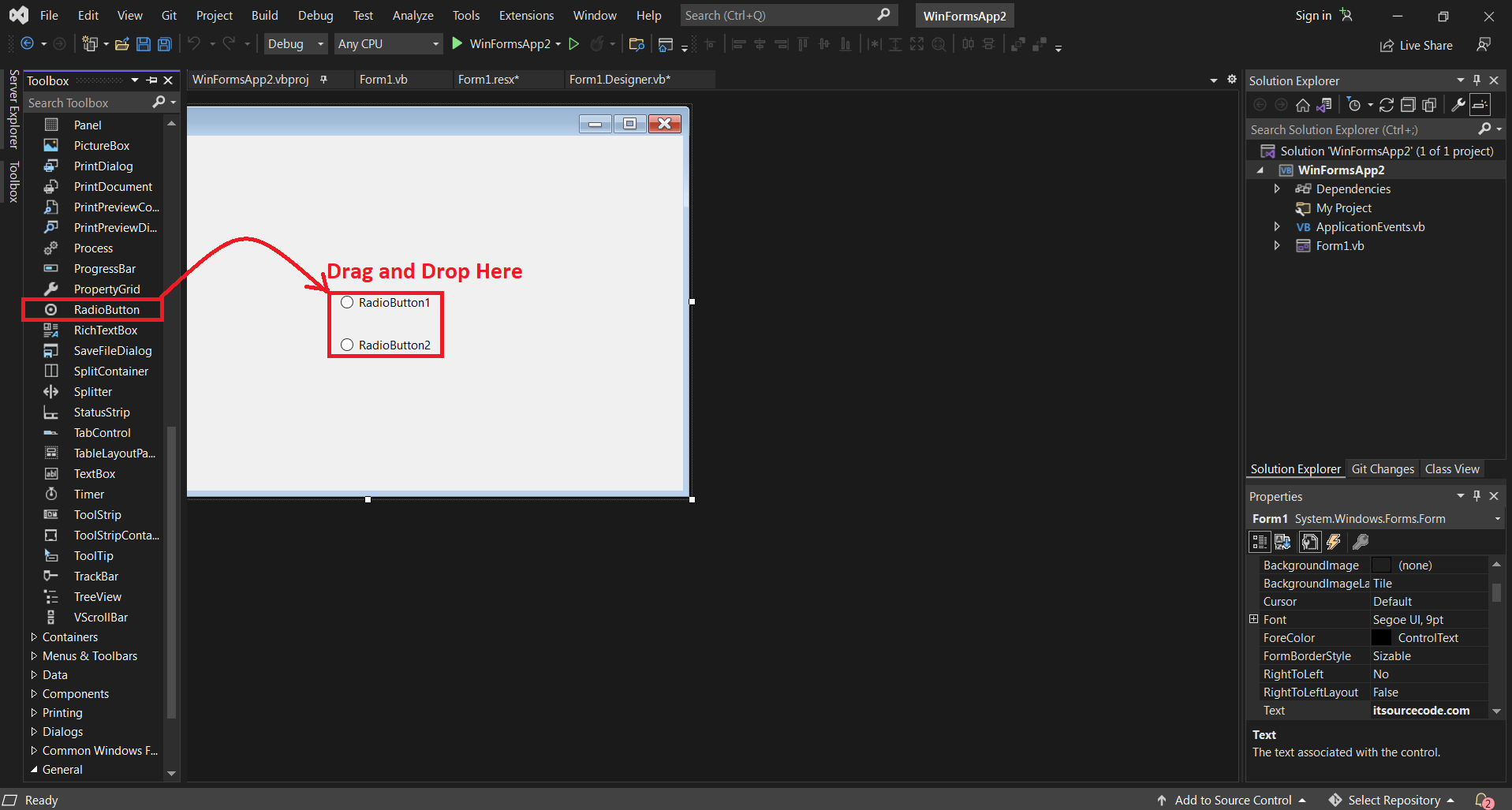
The state of a radio button is set using the Checked Property of the radio button. On a radio button control, text, an image, or both can be shown.
Using the Appearance Property, you can also alter how the radio button control looks.
Properties of Radio Button Control in VB.net
The following given below are some commonly used Properties of the Radio Button Control in VB.net.
| # | Properties of Radio Button Control in VB.net | Description |
|---|---|---|
| 1. | AllowDrop | It is used to set or get a value representing whether the RadioButton allows the user to drag on the form. |
| 2. | Appearance | It is used to get or set a value that represents the appearance of the RadioButton. |
| 3. | AutoScrollOffset | It is used to get or set the radio control in ScrollControlIntoView(Control). |
| 4. | AutoCheck | The AutoCheck property is used to check whether the checked value or appearance of control can be automatically changed when the user clicked on the RadioButton control. |
| 5. | AutoSize | The AutoSize property is used to check whether the radio control can be automatically resized by setting a value in the RadioButton control. |
| 6. | CanSelect | A CanSelect property is used to validate whether a radio control can be selected by setting a value in the RadioButton control. |
| 7. | CheckAlign | It is used to obtain or set a value that indicates the location of the check portion in the radioButton control. |
| 8. | Text | The Text property is used to set the name of the RadioButton control. |
Methods of Radio Button Control in VB.net
The following given below are some commonly used Methods of Radio Button Control in VB.net.
| # | Methods of Radio Button Control in VB.net | Description |
|---|---|---|
| 1. | Contains(Control) | The Contains() method is used to check if the defined control is available in the RadioButton control. |
| 2. | DefWndProc(Message) | It is used to send the specified message to the Window procedure. |
| 3. | DestroHandle() | It is used to destroy the handle associated with the RadioButton Control. |
| 4. | Focus() | The Focus() method is used to set the input focus to the window form’s RadioButton control. |
| 5. | GetAutoSizeMode() | It is used to return a value that represents how the control will operate when the AutoSize property is enabled in the RadioButton control of the Window form. |
| 6. | ResetText() | As the name suggests, a ResetText() method is used to reset the property of text to its default value or empty. |
| 7. | Update() | It is used to reroute an invalid field, which causes control in the client region. |
Events of Radio Button Control in VB.net
The following given below are some commonly used Events of the Radio Button Control in VB.net.
| # | Events of Radio Button Control in VB.net | Description |
|---|---|---|
| 1 | AppearanceChanged | Occurs when the value of the Appearance property of the RadioButton control is changed. |
| 2 | CheckedChanged | Occurs when the value of the Checked property of the RadioButton control is changed. |
Let’s create a program to demonstrate How Radio Button Controls in VB.net Forms are used.
Public Class Form1
    Private Sub Button1_Click_4(sender As Object, e As EventArgs) Handles Button1.Click
        Dim prog As String
        If RadioButton1.Checked = True Then
            prog = "VB.NET"
            MsgBox(" Your Programming Language is : " & prog)

        ElseIf RadioButton2.Checked = True Then
            prog = "Python"
            MsgBox(" Your Programming Language is : " & prog)
        ElseIf RadioButton3.Checked = True Then
            prog = "Java"
            MsgBox(" Your Programming Language is : " & prog)
        Else
            prog = "PHP"
            MsgBox(" Your Programming Language is : " & prog)
        End If
    End Sub
End Class
Program Output:
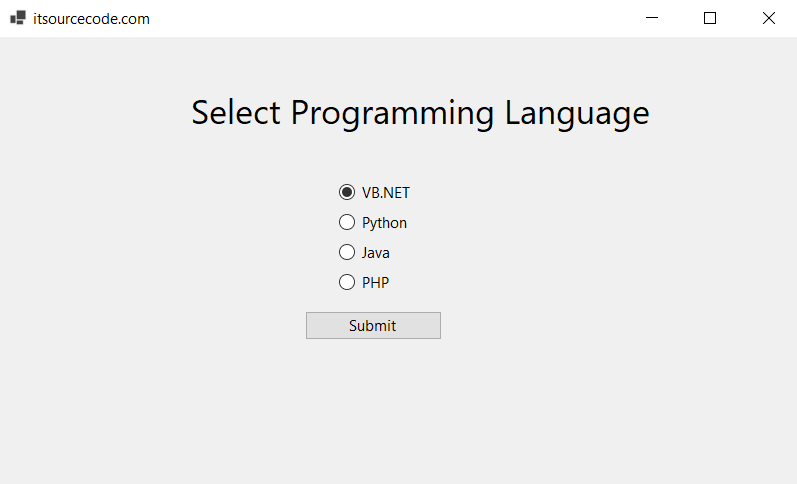
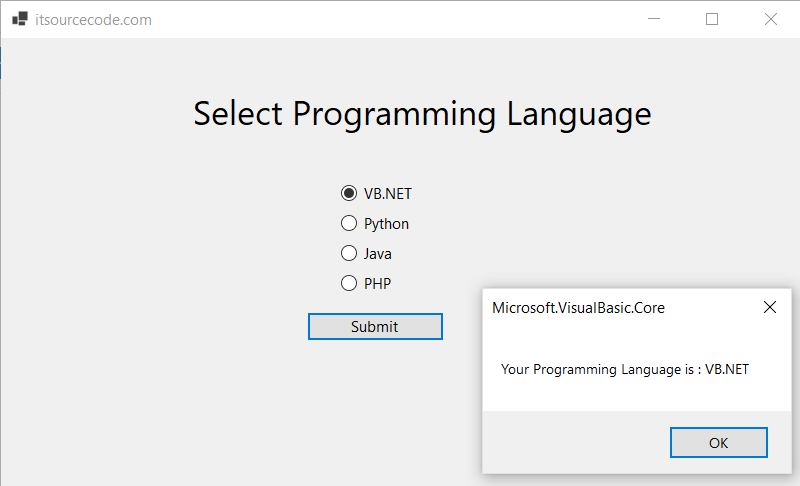
Click the Submit Button will show you a message like the screenshot below.
Difference Between RadioButton Control and CheckBox Control in VB.net
Elements for making selections include checkboxes and radio buttons.
While radio buttons allow the user to select exactly one thing from a list of numerous predetermined alternatives, checkboxes allow the user to select items from a fixed number of alternatives.
VB.net RadioButton Control
- Radio buttons are used to choose one option at a time from a limited number of options.
- Arrange radio buttons in groups (you define graphical groups in the Screen Painter). Put at least two radio buttons in one group.
- One radio button in a group must always be selected.
- If the user should have the chance to choose no item from the offered options, create a separate radio button with a “No selection” label or similar text that turns off the other content-related options.
VB.net CheckBox Control
- Checkboxes are used to choose as many options as desired at a time from a limited number of options.
- You can select none, one, or as many options as desired in a group of checkboxes.
- There may also be only one checkbox.
- Choose a name that explicitly distinguishes two different states or contrasts.
Summary
In this article we have discussed how to create a program for Radio Button Control in VB.net using Microsoft Visual Studio, we have learned how to use and manage the different Properties, Methods, and Events of the Radio Button in VB.net.
PREVIOUS

NEXT

Common use cases for Radio Button Control
Radio Button Control is a standard Windows Forms element that appears in most VB.NET desktop apps. Typical uses:
- User input capture. Bind to viewmodel properties for two-way data flow.
- Display of collections. Populate with in-memory lists, database result sets, or file system contents.
- Event-driven behaviors. Wire up Click, SelectedIndexChanged, or KeyDown handlers for interactivity.
- Data validation. Use Validating and Validated events to enforce input rules before persistence.
- Custom styling. Override OnPaint or use owner-draw modes for branded looks.
Wiring Radio Button Control into your form
The standard pattern for adding Radio Button Control at runtime looks like this:
Public Class Form1

    Private Sub Form1_Load(sender As Object, e As EventArgs) Handles MyBase.Load
        ' Configure the control's initial state
        Me.Text = "Radio Button Control Example"
        ' Attach event handlers programmatically
        AddHandler MyControl.Click, AddressOf MyControl_Click
    End Sub

    Private Sub MyControl_Click(sender As Object, e As EventArgs)
        ' React to user interaction here
        MessageBox.Show("Control was clicked")
    End Sub

End Class
Best practices for Radio Button Control
- Name controls consistently. Use a Hungarian-style prefix (btn, txt, lbl, lst) so the codebehind reads cleanly.
- Group related controls in a Panel or GroupBox. Improves layout maintainability and keyboard tab order.
- Set TabIndex explicitly. Do not rely on design-time order; keyboard navigation matters for accessibility.
- Use data binding when possible. Avoid manual .Text = someValue assignments scattered across the codebehind.
- Handle Dispose(). Custom controls that hold GDI resources must implement IDisposable properly.
Troubleshooting Radio Button Control
- Event handler does not fire. Confirm the Handles clause matches the exact control name, or that AddHandler was called.
- Design-time appearance differs from runtime. This usually means custom OnPaint code is not respecting DesignMode. Check with Me.DesignMode.
- Control flashes or flickers on redraw. Enable double-buffering by setting DoubleBuffered = True on the parent form.
- Cross-thread exceptions. UI updates from background threads must use Control.Invoke() or the BackgroundWorker.ReportProgress pattern.
Official documentation
Frequently Asked Questions
What is the Radio Button Control in VB.NET used for?
How do I add the Radio Button Control to my form?
What are the most-used Radio Button Control properties?
How do I handle Radio Button Control events?
Can I use the Radio Button Control in WPF or MAUI?

Angel Jude Suarez
Full-Stack Developer at PIES IT Solution
Focuses on Python development, machine learning, and AI integration. Has built production AI systems including OpenAI Whisper integration for medical transcription and GPT-4o-powered diagnosis assistance. Strong background in pandas, scikit-learn, and TensorFlow.
Expertise: Python · PHP · Java · VB.NET · ASP.NET · Machine Learning · AI Integration · OpenCV · Django · CodeIgniter
· View all posts by Angel Jude Suarez →