
Download retired
The original archive for this project is no longer available for direct download. These archives were published as educational reference material and are not actively maintained. We removed the download rather than keep distributing material we no longer support.
The full tutorial, screenshots, database structure, and feature documentation on this page remain accurate as a reference for building your own version. Full editorial position at the source code disclaimer. Questions: support@itsourcecode.com.
How to Retrieve and Update the Data Using C# and MySQL Database

In this tutorial, I will teach you how to retrieve and update the data in the database using C#.net and MySQL Database. This an advance method for updating data in the database because I’m going to add the “Edit” button in the Datagridview.
Let’s begin:
- Create a database in the MySQL and name it “dbuser“.
- Create a query for adding table in the database that you have created.
 CREATE TABLE IF NOT EXISTS `tblusers` (
 `ID` int(11) NOT NULL AUTO_INCREMENT,
 `UNAME` varchar(40) NOT NULL,
 `UUSERNAME` varchar(40) NOT NULL,
 `UPASSWORD` varchar(90) NOT NULL,
 `UTYPE` varchar(30) NOT NULL,
 PRIMARY KEY (`ID`)
) ENGINE=InnoDB DEFAULT CHARSET=latin1 AUTO_INCREMENT=2 ;
- Open Microsoft Visual Studio 2008 and create new Windows Form Application. Do the Form as follows.

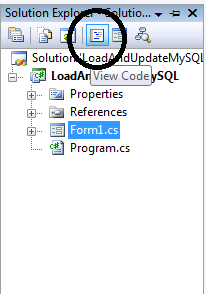
- Go to the Solution Explorer, click the “View Code” to fire the code editor.
- Declare all the classes and variables that are needed.
Note: Add MySQL.Data.dll as your references to access mysql server library.
 //initialize sql connection
 MySqlConnection con = new MySqlConnection();
 //initialize all classes
 MySqlCommand cmd = new MySqlCommand();
 MySqlDataAdapter da = new MySqlDataAdapter();
 DataTable dt = new DataTable();

 //declaring variables
 string query;
 int res;
 int userid;
- Double click the Form and do the following codes for establishing a connection between MySLQ Database and C#.net.
 private void Form1_Load(object sender, EventArgs e)
 {
 //set a connection string
 con.ConnectionString = "server=localhost;user id=root;password=;Database=dbuser;";
}- Go back to the design view, double-click the “Load” button and do the following codes for Retrieving data in the database.
private void btnLoad_Click(object sender, EventArgs e)
 {
 try
 {
 con.Open();
 //create a query for retrieving data in the database.
 query = "SELECT ID,`UNAME` as Name, `UUSERNAME` as Username, `UPASSWORD` as Password, `UTYPE` as Type FROM `tblusers` ";
 //initialize new Sql commands
 cmd = new MySqlCommand();
 //hold the data to be executed.
 cmd.Connection = con;
 cmd.CommandText = query;
 //initialize new Sql data adapter
 da = new MySqlDataAdapter();
 //fetching query in the database.
 da.SelectCommand = cmd;
 //initialize new datatable
 dt = new DataTable();
 //refreshes the rows in specified range in the datasource.
 da.Fill(dt);
//clearing the columns first
 dataGridView1.Columns.Clear();
 DataGridViewButtonColumn btn = new DataGridViewButtonColumn();
 btn.Text = "Edit";
 btn.Name = "Action";
 btn.UseColumnTextForButtonValue = true;
 dataGridView1.DataSource = dt;
//add the button in the datagridview
 dataGridView1.Columns.Add (btn);
 userid = 0;
 }
 catch (Exception ex)
 {
 //catching error
 MessageBox.Show(ex.Message);
 }
 finally
 {
 da.Dispose();
 con.Close();
 }
}- Go back to the design view again, double-click the dataGridview and do the following codes for passing the data in the DataGridView to the TextBoxes.
private void dataGridView1_CellContentClick(object sender, DataGridViewCellEventArgs e)
 {

 if (dataGridView1.CurrentCell.Value == "Edit")
 {
 userid =(Int32) (dataGridView1.CurrentRow.Cells[0].Value);
 txtName.Text = dataGridView1.CurrentRow.Cells[1].Value.ToString();
 txtUsername .Text = dataGridView1.CurrentRow.Cells[2].Value.ToString();
 txtPassword .Text = dataGridView1.CurrentRow.Cells[3].Value.ToString();
 cboType .Text = dataGridView1.CurrentRow.Cells[4].Value.ToString();
 }

}- Go back to the design view again, double-click the “Save” button and do the following codes for updating data in the database.
private void btnSave_Click(object sender, EventArgs e)
 {
 try
 {
 con.Open();
 //create a query for updating data in the database.
 query = "Update tblusers SET `UNAME`='" + txtName.Text + "', `UUSERNAME`= '" + txtUsername.Text +
 "', `UPASSWORD`='" + txtPassword.Text + "', `UTYPE`='" + cboType.Text + "' WHERE ID=" + userid;

 //initialize new Sql commands
 cmd = new MySqlCommand();
 //hold the data to be executed.
 cmd.Connection = con;
 cmd.CommandText = query;
//execute the data
 res = cmd.ExecuteNonQuery();
//checking the result of an executed command
 if (res > 0)
 {
 MessageBox.Show("User has been updated in the database.");
 userid = 0;
 }
 }
 catch (Exception ex)
 {
 //catching error
 MessageBox.Show(ex.Message);
 }
 finally
 {
 da.Dispose();
 con.Close();
 }
 }
For all students who need a programmer for your thesis system or anyone who needs a source code in any programming languages. You can contact me @ :
Email – jannopalacios@gmail.com
Mobile No. – 09305235027 – TNT
Download Source code : Download retired
| ABOUT PROJECT | PROJECT DETAILS |
|---|---|
| Project Name : | How to Retrieve and Update the Data Using C# and MySQL Database |
| Project Platform : | C# |
| Programming Language Used: | C# Programming Language |
| Developer Name : | itsourcecode.com |
| IDE Tool (Recommended): | Visual Studio 2019 |
| Project Type : | Desktop Application |
| Database: | MYSQL DATABASE |
| Upload Date and Time: | July 26, 2016 – 9:41 am |
Frequently Asked Questions
What does this C# tutorial cover?
Focused C# language or library tutorial showing a single concept with working code. Use as a building block when assembling a larger system. For full BSIT capstone, combine tutorials covering: login, CRUD, DataGridView, reports, file I/O, into one cohesive management system.
What .NET and SQL Server versions does this project require?
Most projects in this batch use C# WinForms on .NET Framework 4.5+ (the dominant stack for tutorial sites) with SQL Server 2012 Express or higher. A few newer projects use .NET 6/7/8. To run: install Visual Studio 2019 / 2022 (Community edition is free), install SQL Server Express + SSMS, open the .sln file, build, run.
How do I set up the database for this C# project?
Open SQL Server Management Studio (SSMS) and connect to your SQL Server instance (e.g. localhost\SQLEXPRESS). Right-click Databases > Restore Database OR > New Database then import the included .sql script. Update the connection string in App.config (or in code-behind) with your server name + credentials. Rebuild and run.
Can I use this C# project for a BSIT capstone or thesis?
Yes, but extend it. A bare CRUD form is too narrow for full capstone scope. Add: role-based access (admin/staff/customer login redirect), Crystal Reports or RDLC reports, dashboard with Chart controls, audit log, multi-branch support. Pair with Chapter 1-5 documentation matching your panel’s rubric.
Why am I getting ‘connection error’ or ‘object reference not set’?
Three common C# issues: (1) Connection error: SQL Server isn’t running OR connection string in App.config has wrong server name. Open SQL Server Configuration Manager + verify SQL Server (SQLEXPRESS) service is running. (2) NullReferenceException: a control reference or DB column returned NULL, add a check or use ?? operator. (3) Build error ‘The type or namespace could not be found’: missing assembly reference, add via Project > Add Reference.
Where can I find more C# projects with source code?
Browse the C# Projects hub for the full library. For other .NET stacks see VB.NET Projects (300+ Windows Forms systems). For ASP.NET WebForms see ASP.NET Projects. For BSIT capstone idea lists see 150 Best Capstone Project Ideas.